
概要
UE5のiniファイル設定関連のクラスGameUserSettings, DeveloperSettings についてのメモ
更新履歴
| 日付 | 内容 |
|---|---|
| 2026/03/24 | 初版 |
参考
以下を参考にさせて頂きました、ありがとうございます。
UE公式:UGameUserSettings
UE公式:UDeveloperSettings
UE公式:コンフィギュレーション ファイル
【UE4・UE5】〈Tips〉C++からGameUserSettingsを継承して独自のオプション項目を簡単に作る方法
【UE5】UDeveloperSettingsでデバッグ機能を実装する方法
関連過去記事
UE4 UDeveloperSettingsでプロジェクト設定追加を試してみる
UE4 Configファイルから設定を取得する
環境
Windows11
Visual Studio 2022
UnrealEngine 5.7
関連ソース
"Engine\Source\Runtime\Engine\Classes\GameFramework\GameUserSettings.h"
"Engine\Source\Runtime\DeveloperSettings\Public\Engine\DeveloperSettings.h"
UGameUserSettings
独自のゲームオプションを作るためのクラスです。ゲーム中でのオプション画面などでユーザーが変えられるような設定を追加するのが良いようです。
実装するクラスと設定
UGameUserSettingsを継承したクラスを用意します、プロパティを2つ追加したテストコードが以下のようになります。
#pragma once

#include "GameFramework/GameUserSettings.h"
#include "MyGameUserSettings.generated.h"

UCLASS(Config=MyGameUserSettings)
class UMyGameUserSettings : public UGameUserSettings
{
	GENERATED_BODY()

public:
	// 追加したプロパティ
	UPROPERTY(config)
	float MyVolume = 0.8f;

	// 追加したプロパティ
	UPROPERTY(config)
	int32 MyCustomDifficulty = 1;

	// 保存する
	UFUNCTION(BlueprintCallable)
	void SaveCustomSettings(){
		SaveSettings();
	}

	// 読み込む
	UFUNCTION(BlueprintCallable)
	void LoadCustomSettings(){
		LoadSettings(true);
	}
};
プロジェクト設定->Engine->一般設定->DefaultClass->ゲームのユーザー設定クラス
に上記のクラスを設定します。

実行テスト
読み書きのテストをします。
// 読み込みテスト
if (UMyGameUserSettings* _Settings = Cast<UMyGameUserSettings>(UGameUserSettings::GetGameUserSettings())) {
	UE_LOG(LogTemp, Log, TEXT("%f, %d"), _Settings->MyVolume, _Settings->MyCustomDifficulty);
}

// 書き込みテスト
if (UMyGameUserSettings* _Settings = Cast<UMyGameUserSettings>(UGameUserSettings::GetGameUserSettings())) {
	_Settings->MyVolume = 0.5f;
	_Settings->MyCustomDifficulty = 3;

	_Settings->SaveCustomSettings(); // 保存
}
.iniファイルに設定が保存されます。
;METADATA=(Diff=true, UseCommands=true)
[/Script/Sample00.MyGameUserSettings]
MyVolume=0.500000
MyCustomDifficulty=3
bUseVSync=False
bUseDynamicResolution=False
ResolutionSizeX=2560
ResolutionSizeY=1440
LastUserConfirmedResolutionSizeX=2560
LastUserConfirmedResolutionSizeY=1440
FullscreenMode=1
LastConfirmedFullscreenMode=1
PreferredFullscreenMode=1
Version=5
AudioQualityLevel=0
LastConfirmedAudioQualityLevel=0
FrameRateLimit=0.000000
DesiredScreenWidth=1280
DesiredScreenHeight=720
LastUserConfirmedDesiredScreenWidth=1280
LastUserConfirmedDesiredScreenHeight=720
LastRecommendedScreenWidth=-1.000000
LastRecommendedScreenHeight=-1.000000
LastCPUBenchmarkResult=-1.000000
LastGPUBenchmarkResult=-1.000000
LastGPUBenchmarkMultiplier=1.000000
bUseHDRDisplayOutput=False
HDRDisplayOutputNits=1000

[/Script/Engine.GameUserSettings]
bUseDesiredScreenHeight=False
追加したプロパティ以外にも解像度やウィンドウフルスクリーンモード設定などエンジン側で用意された設定が並びます。
UDeveloperSettings
プロジェクト設定やエディタの環境設定に独自設定項目を追加するクラスです。開発に使うデバッグ設定で使うと良いようです。パッケージ時は読み取り専用で使用することができます。
プロジェクト設定に追加する
UDeveloperSettingsを継承し、config=に保存するiniファイル名を入れることで追加できます。以下コード例。
#pragma once

#include "CoreMinimal.h"
#include "Engine/DeveloperSettings.h"
#include "MyDeveloperSettings.generated.h"

UCLASS(config = GameTest, defaultconfig, DisplayName="デバッグ設定")
class SAMPLE00_API UMyDeveloperSettings : public UDeveloperSettings
{
	GENERATED_BODY()

public:
	UMyDeveloperSettings();

	// カテゴリ名の取得
	virtual FName GetCategoryName() const override { return("MyCategory"); }

#if WITH_EDITOR
	// セクションテキストの取得
	virtual FText GetSectionText() const override { return( FText::FromString(TEXT("MySectionText")) ); }
	// セクション説明テキストの取得
	virtual FText GetSectionDescription() const override { return( FText::FromString(TEXT("MySectionDescription")) ); }
#endif

	UPROPERTY(EditAnywhere, Config)
	bool MyVarBool = false;

	UPROPERTY(EditAnywhere, Config)
	int32 MyVarInt = 1;
};
▼結果
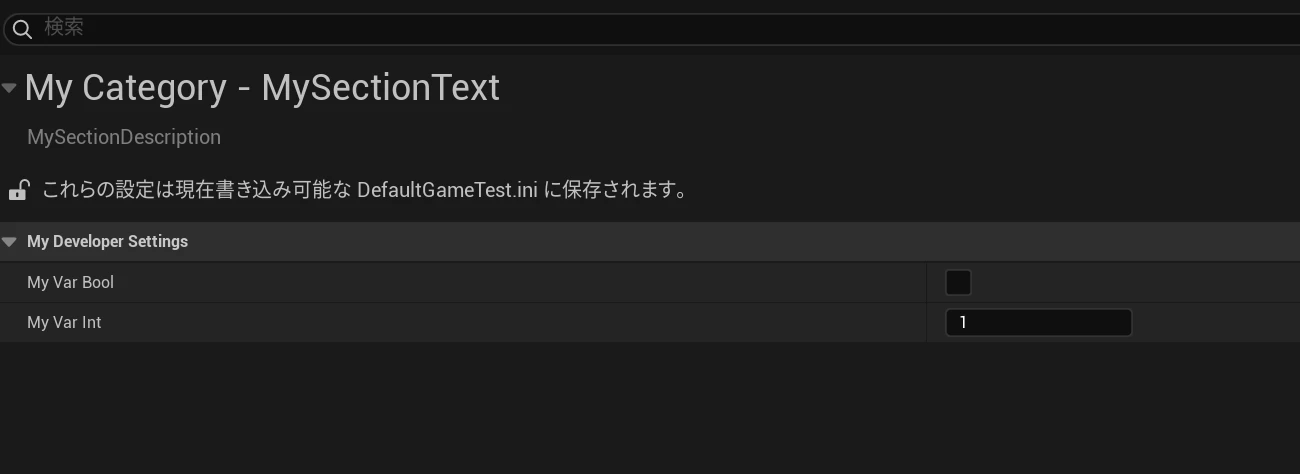
[/Script/Sample00.MyDeveloperSettings]
MyVarBool=False
MyVarInt=1
実行テスト
読み取りのテストをします。
	bool _MyVarBool = GetDefault<UMyDeveloperSettings>()->MyVarBool;
	int _MyVarInt = GetDefault<UMyDeveloperSettings>()->MyVarInt;

    // 結果
	UE_LOG(LogTemp, Log, TEXT("%d %d"), _MyVarBool, _MyVarInt);
エディタの環境設定に追加する
config=EditorPerProjectUserSettings とすることで[エディタの環境設定]に設定を追加できます。以下コード例
UCLASS(config=EditorPerProjectUserSettings, defaultconfig, meta=(DisplayName="エディタ設定"))
class SAMPLE00_API UMyEditorSettings : public UDeveloperSettings
{
	GENERATED_BODY()

public:
	UPROPERTY(EditAnywhere, Config)
	bool MyEditorVarBool = true;

	UPROPERTY(EditAnywhere, Config)
	int32 MyEditorVarInt = 10;


	// カテゴリ名
	virtual FName GetCategoryName() const override { return(FName("MyEditorCategory")); }
};
▼結果
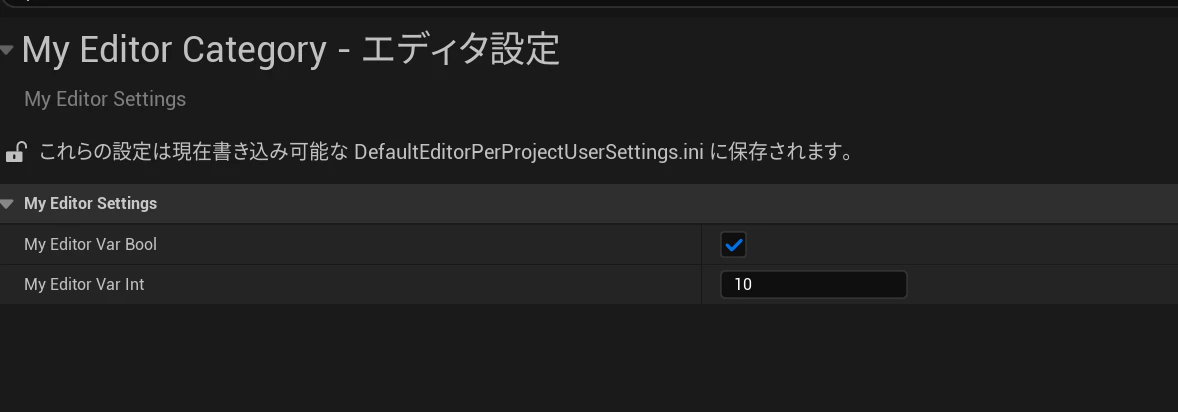
[/Script/Sample00.MyEditorSettings]
MyEditorVarInt=10
MyEditorVarBool=True
まとめ
公式のコンフィギュレーションドキュメントによるとiniファイルでもう少し複雑な扱いをすることができそうです。