
※このアプリは自動起動にしたとしても、パソコンの起動直後にすぐ反映されるわけではなく、使えるようになるまで時間がかかりますのでご理解ください。
※申し訳ありませんが、実装に必要な手順自体は多いです。
背景
私はマウスカーソルをよく見失います。
Windows には標準で「Ctrl キーを押すとカーソル位置を示す」機能がありますが、Ctrl キーは普段よく使うため、操作のたびに円が出てしまい目障りでした。
何故奴は左 Ctrl キーでも発火するのでしょうか?
それならば右クリックでメニューを出す方が好みなのですが、その場合は再度見失いやすいです。
そこで、使用頻度が低く誤発火しにくい Esc キーを押したときだけ、マウスの周りに円を表示するアプリを自作しました。今回はその手順を紹介します。
使い方
1. ソースコードの準備
以下の内容で EscMouseRing.cs を作成します。
// Esc を押している間、マウス位置にクリック透過のリングを表示
using System;
using System.Drawing;
using System.Runtime.InteropServices;
using System.Windows.Forms;

class EscMouseRing : Form
{
    [DllImport("user32.dll")] static extern short GetAsyncKeyState(int vKey);
    [DllImport("user32.dll")] static extern int GetWindowLong(IntPtr hWnd, int nIndex);
    [DllImport("user32.dll")] static extern int SetWindowLong(IntPtr hWnd, int nIndex, int dwNewLong);

    const int GWL_EXSTYLE = -20;
    const int WS_EX_TRANSPARENT = 0x20;
    const int WS_EX_TOOLWINDOW  = 0x80;

    readonly Timer timer = new Timer();
    int SizePx = 220;
    int Thickness = 12;
    Color RingColor = Color.FromArgb(204, 255, 0, 0); // A,R,G,B (半透明赤)

    [STAThread]
    static void Main() { Application.EnableVisualStyles(); Application.Run(new EscMouseRing()); }

    EscMouseRing()
    {
        FormBorderStyle = FormBorderStyle.None;
        ShowInTaskbar   = false;
        TopMost         = true;
        StartPosition   = FormStartPosition.Manual;
        BackColor       = Color.Lime;            // 透過キー用
        TransparencyKey = BackColor;
        Width = Height  = SizePx;

        var ex = GetWindowLong(Handle, GWL_EXSTYLE);
        SetWindowLong(Handle, GWL_EXSTYLE, ex | WS_EX_TRANSPARENT | WS_EX_TOOLWINDOW);

        DoubleBuffered  = true;
        timer.Interval  = 10;
        timer.Tick     += (s, e) =>
        {
            var pos = Cursor.Position;
            Left = pos.X - Width / 2;
            Top  = pos.Y - Height / 2;

            bool escDown = (GetAsyncKeyState(0x1B) & 0x8000) != 0;
            if (escDown) { if (!Visible) Show(); Invalidate(); }
            else         { if ( Visible) Hide(); }
        };
        timer.Start();
    }

    protected override void OnPaint(PaintEventArgs e)
    {
        using (var pen = new Pen(RingColor, Thickness))
        {
            e.Graphics.SmoothingMode = System.Drawing.Drawing2D.SmoothingMode.AntiAlias;
            int m = (int)Math.Ceiling(Thickness / 2.0) + 1;
            e.Graphics.DrawEllipse(pen, m, m, ClientSize.Width - 2*m, ClientSize.Height - 2*m);
        }
    }
}
人によっては、より誤発火の少ない右 Ctrl バージョンも用意しています。好きな方をご利用下さい。(右 Ctrl キーを押す作業自体に慣れるまでは、それなりに時間がかかると思います)(ゲーミングマウスで右 Ctrl を発火できるならば便利なハズです)
// 右 Ctrl を押している間、マウス位置にクリック透過のリングを表示
using System;
using System.Drawing;
using System.Runtime.InteropServices;
using System.Windows.Forms;

class EscMouseRing : Form
{
    [DllImport("user32.dll")] static extern short GetAsyncKeyState(int vKey);
    [DllImport("user32.dll")] static extern int GetWindowLong(IntPtr hWnd, int nIndex);
    [DllImport("user32.dll")] static extern int SetWindowLong(IntPtr hWnd, int nIndex, int dwNewLong);

    const int GWL_EXSTYLE = -20;
    const int WS_EX_TRANSPARENT = 0x20;
    const int WS_EX_TOOLWINDOW  = 0x80;

    readonly Timer timer = new Timer();
    int SizePx = 220;
    int Thickness = 12;
    Color RingColor = Color.FromArgb(204, 255, 0, 0); // A,R,G,B (半透明赤)

    [STAThread]
    static void Main() { Application.EnableVisualStyles(); Application.Run(new EscMouseRing()); }

    EscMouseRing()
    {
        FormBorderStyle = FormBorderStyle.None;
        ShowInTaskbar   = false;
        TopMost         = true;
        StartPosition   = FormStartPosition.Manual;
        BackColor       = Color.Lime;            // 透過キー用
        TransparencyKey = BackColor;
        Width = Height  = SizePx;

        var ex = GetWindowLong(Handle, GWL_EXSTYLE);
        SetWindowLong(Handle, GWL_EXSTYLE, ex | WS_EX_TRANSPARENT | WS_EX_TOOLWINDOW);

        DoubleBuffered  = true;
        timer.Interval  = 10;
        timer.Tick     += (s, e) =>
        {
            var pos = Cursor.Position;
            Left = pos.X - Width / 2;
            Top  = pos.Y - Height / 2;

            // VK_RCONTROL (0xA3) = 右 Ctrl キー
            bool rctrlDown = (GetAsyncKeyState(0xA3) & 0x8000) != 0;
            if (rctrlDown) { if (!Visible) Show(); Invalidate(); }
            else           { if ( Visible) Hide(); }
        };
        timer.Start();
    }

    protected override void OnPaint(PaintEventArgs e)
    {
        using (var pen = new Pen(RingColor, Thickness))
        {
            e.Graphics.SmoothingMode = System.Drawing.Drawing2D.SmoothingMode.AntiAlias;
            int m = (int)Math.Ceiling(Thickness / 2.0) + 1;
            e.Graphics.DrawEllipse(pen, m, m, ClientSize.Width - 2*m, ClientSize.Height - 2*m);
        }
    }
}
左クリックと右クリックの同時押しで 300ms 出現させるのは、挙動が好みでなかったため紹介しません。
2. フォルダの作成
デスクトップなど任意の場所にフォルダを作成し、その中に 1 で作成した EscMouseRing.cs を移動します。
3. コマンドプロンプトを開く
Windows の検索バーから「cmd」と入力してコマンドプロンプトを起動します。
4. 保存先へ移動
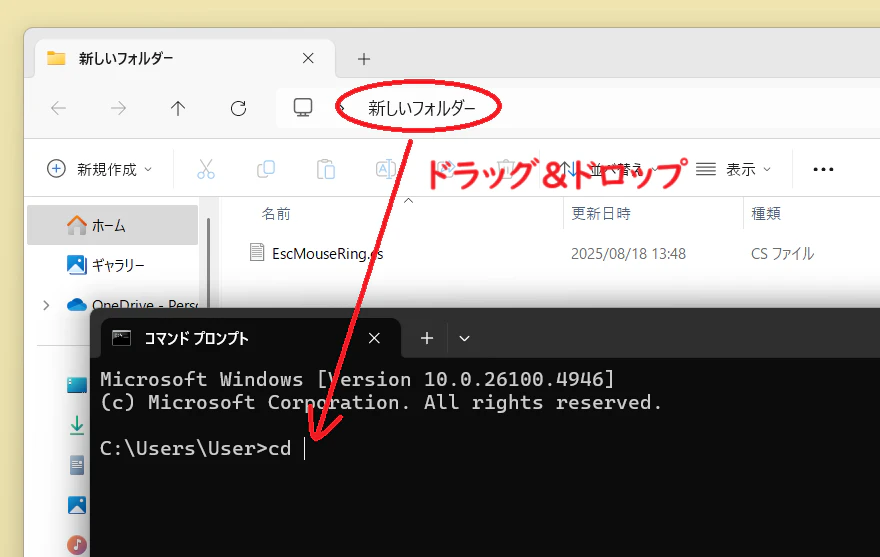
cd フォルダのパス を入力して、先ほど作成したフォルダに移動します。
5. コンパイル
以下のコマンドを入力し、実行します。
(環境によっては Framework フォルダ側の csc.exe を使う必要があります)
"C:\Windows\Microsoft.NET\Framework64\v4.0.30319\csc.exe" /target:winexe /platform:anycpu EscMouseRing.cs
これで同じフォルダ内に EscMouseRing.exe が生成されます。
6. 実行
生成された exe ファイルを実行すると、Esc キーを押している間だけマウス周囲に赤い円が表示されます。
7. スタートアップ登録(任意)
よく使う場合は exe をスタートアップに登録すると便利です。
ただし前述のとおり、起動直後は反映まで少し時間がかかる点に注意してください。
まとめ
- Windows 標準の「Ctrl でカーソル位置を示す」機能を置き換え
- Esc キーを押している間だけリングを表示するので誤発火が少ない
- シンプルな C# アプリで軽量に動作
カーソルを見失いやすい方はぜひ試してみてください。
最後まで読んでいただきありがとうございました!
追記
この記事は ChatGPT で添削しています。
生成 AI による添削が苦手な方は申し訳ありません。