

はじめに
本記事は OCI Compute のカスタムメトリクス取得方法 - スクリプト 編 です。
カスタムメトリクス取得方法の概要については以下記事を参照してみてください。
使用方法(デモ)
検証構成
検証構成図は以下の通りです。
なお、以下リソースは作成済みで進めていきます。
- NWリソース
- OCI Bastion
- OCI Compute インスタンス
- IAM ポリシー

検証では、以下実施していきます。
- スクリプト実行環境及びスクリプトの作成
- 環境コードは以下 GitHub にあげてますので、よかったら覗いてみてください
前提条件確認
以下設定項目は、後述するエージェント構成に加えて設定する必要があります。
- IAM ポリシー
- OCI Monitoring への疎通性
IAM ポリシー
動的グループ (Compute) に、use metrics 権限を付与する必要があります。
本検証では以下のポリシーを作成しています。
allow dynamic-group Compute_Dynamic_Group to use metrics in compartment oci-compute-custom-metrics-broadcast-scripts
上記権限を付与することで、インスタンス内で稼働するスクリプト (インスタンス自身) が OCI Monitoring にメトリクスをプッシュすることが可能となります。
OCI Monitoring への疎通性
インスタンス内で稼働するスクリプトからの カスタムメトリクス出力 には、インスタンスから Oracle Services Network に所属する OCI Monitoring への疎通性が必要となります。
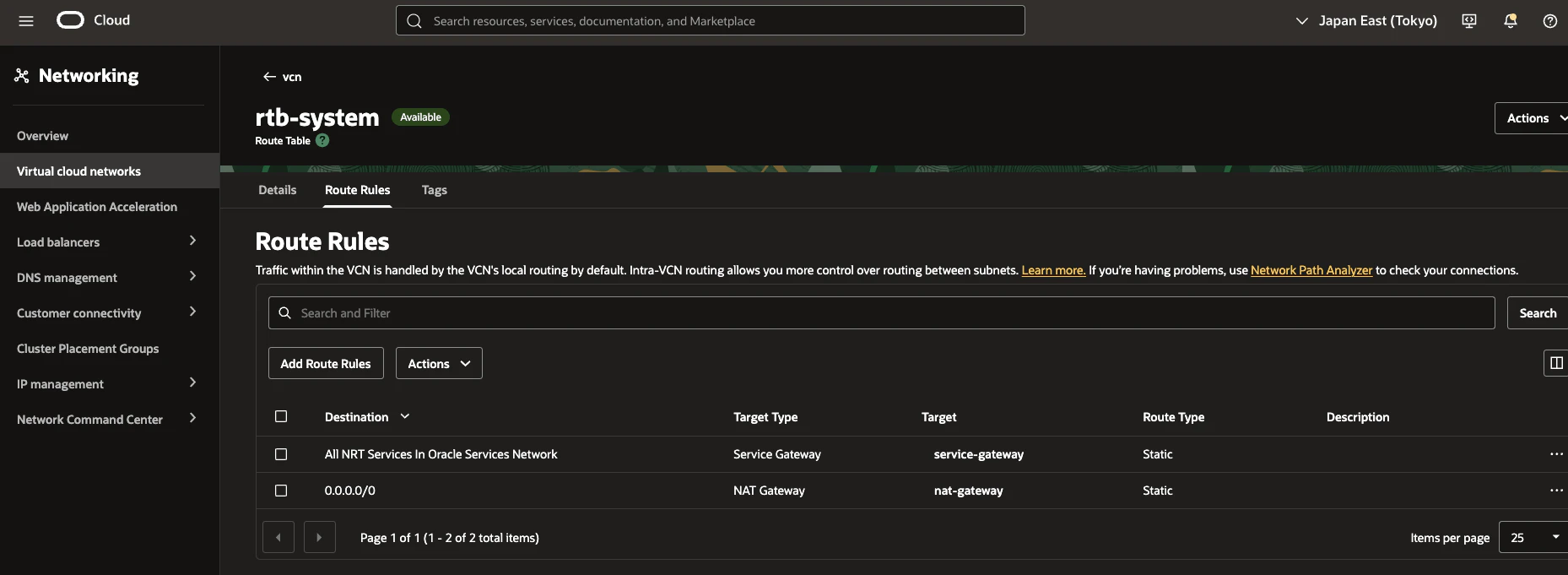
本構成は以下の通り、インスタンスが所属するプライベートネットワークのルートテーブルに Service Gateway をネクストホップとするルートを設定しています。
-
NAT Gateway宛もありますが、こちらはミドルウェアインストールにインターネットと通信が必要なため追加しています - 正直、
NAT Gatewayで外に抜けられるのであれば、Oracle Services Network宛のTCP/443を個別に登録する必要はありません
実行環境及びスクリプト作成
各環境において、ディスク使用率(%) / ディスク空き容量(%) / プロセス を取得するスクリプトを作成し、1 分間隔で定期実行するよう環境を整備していきます。
- スクリプト及び構築方法はあくまで個人的なものですので、これが正というわけではないことご了承ください
Linux 編
-
rootユーザーにて作業していきます
Python インストール
以下コマンドを実行し、Python 及び pip をインストールします。
dnf install -y python3
dnf install -y python3-pip
必要パッケージインストール
oci パッケージをインストールします。
pip3 install --upgrade pip --root-user-action=ignore
pip3 install oci --root-user-action=ignore
専用システムユーザー作成
スクリプトを実行するための専用ユーザーを作成します。
useradd -s /sbin/nologin -M custom_agent
設定ファイル作成
実行スクリプトに読み込ませる設定ファイルを作成します。
/etc/sysconfig/oci-custom-agent-linux
{
  "agent": {
    "namespace": "custom_oracle_linux",
    "resource_group": "os",
    "error_log_path": "/var/log/oci-custom-agent/error.log",
    "error_log_backup_days": 7,
    "error_log_use_utc": false
  },
  "disk": {
    "exclude_fstypes": [
      "proc",
      "sysfs",
      "tmpfs",
      "devtmpfs",
      "efivarfs",
      "cgroup",
      "cgroup2",
      "overlay",
      "squashfs",
      "nsfs",
      "rpc_pipefs",
      "autofs"
    ]
  },
  "procstat": [
    {
      "name": "nginx",
      "pattern": "/usr/sbin/nginx"
    }
  ]
}
作成後権限を変更します。
chown root:custom_agent /etc/sysconfig/oci-custom-agent-linux
chmod 640 /etc/sysconfig/oci-custom-agent-linux
スクリプトファイル作成
実行スクリプトを作成します。
まず専用フォルダを作成します。
mkdir -p /opt/oci-custom-metrics
続いてスクリプトファイルを作成します。
/opt/oci-custom-metrics/oci_custom_agent_linux.py
#!/usr/bin/env python3
# -*- coding: utf-8 -*-

"""
OCI Compute 上で動くカスタムメトリクス送信スクリプト(Linux / 精度重視)。
- disk: df -PT の結果から % を小数2桁で計算して送信
- procstat: ps -eo args(cmdline)に正規表現一致するプロセス数を送信
- logging:
    - 通常ログ:stdout(systemd/journald)
    - ERROR以上:agent.error_log_path にも日次ローテで出力
"""

# --- 標準ライブラリ(Pythonに最初から入っている)---
import argparse          # コマンドライン引数を扱う(--dry-run など)
import datetime          # 時刻(UTC)を作る
import json              # 設定ファイル(JSON)を読む/表示する
import logging           # ログ出力
import os                # 環境変数を読む(COMPARTMENT_OCID / OCI_REGION)
import re                # 正規表現(procstat の pattern 用)
import subprocess        # df / ps コマンドを実行する
import sys               # exit code(終了コード)を返す
import urllib.request    # OCI Instance Metadata(169.254.169.254)へHTTPアクセス
from logging.handlers import TimedRotatingFileHandler  # 日次ローテ
from typing import Any, Dict, List, Optional  # 型ヒント(読みやすさUP)

# --- OCI SDK(別途pipインストールが必要)---
try:
    import oci
    from oci.auth import signers
except Exception:
    # dry-run だけしたい場合でも落ちないように、無ければ None にする
    oci = None
    signers = None

# logger(ログの出力名)
LOG = logging.getLogger("oci_custom_agent_linux")


# -----------------------------
# Utility: Time(UTCのタイムスタンプ)
# -----------------------------
def utc_now_rfc3339() -> str:
    """
    OCI Monitoring の datapoint timestamp は RFC3339 形式が良い。
    例: 2026-03-27T09:46:29.483327+00:00
    """
    return datetime.datetime.now(datetime.timezone.utc).isoformat()


# -----------------------------
# Utility: Load Config(設定ファイルを読む)
# -----------------------------
def load_config(path: str) -> Dict[str, Any]:
    """JSON設定ファイルを読み込んで dict として返す"""
    with open(path, "r", encoding="utf-8") as f:
        return json.load(f)

# -----------------------------
# Utility: Logging(ERRORだけファイルに日次ローテ)
# -----------------------------
def add_daily_error_file_handler(
    path: str,
    backup_days: int = 14,
    use_utc: bool = False
) -> None:
    """
    ERROR以上だけをファイルへ出し、日次でローテーションする。

    - path: /var/log/oci-custom-agent/error.log
    - backup_days: 保持日数(例: 7 / 14 / 30)
    - use_utc: TrueならUTC基準で日付を切る。JST運用なら False 推奨。

    delay=True により、エラーが発生するまでファイルを作成しない。
    """
    root = logging.getLogger()

    # 二重登録防止(念のため)
    for h in root.handlers:
        if isinstance(h, TimedRotatingFileHandler) and getattr(h, "baseFilename", "") == path:
            return

    fmt = logging.Formatter("%(asctime)s %(levelname)s %(name)s: %(message)s")

    fh = TimedRotatingFileHandler(
        filename=path,
        when="midnight",        # 日付が変わるタイミングでローテ
        interval=1,             # 1日ごと
        backupCount=backup_days,
        encoding="utf-8",
        utc=use_utc,
        delay=True              # ★重要:エラーが出るまで error.log を作らない
    )
    fh.setLevel(logging.ERROR)  # ★ERROR以上だけファイルへ
    fh.setFormatter(fmt)
    root.addHandler(fh)


# -----------------------------
# OCI Metadata(Computeのメタデータからcompartment OCIDを取る)
# -----------------------------
def fetch_instance_metadata(timeout_seconds: int = 2) -> Optional[Dict[str, Any]]:
    """
    OCI Compute の Instance Metadata v2 を取得する。
    OCI上でないと失敗するので、失敗時は None を返す(例外で落とさない)
    """
    url = "http://169.254.169.254/opc/v2/instance/"
    headers = {"Authorization": "Bearer Oracle"}  # OCI IMDSv2 で必要
    req = urllib.request.Request(url, headers=headers, method="GET")
    try:
        with urllib.request.urlopen(req, timeout=timeout_seconds) as resp:
            return json.loads(resp.read().decode("utf-8"))
    except Exception as e:
        LOG.debug("metadata fetch failed: %s", e)
        return None


def get_compartment_ocid(meta: Optional[Dict[str, Any]] = None) -> str:
    """
    compartment OCID を取得する(送信時に必須)。
    取得優先度:
      1) 環境変数 COMPARTMENT_OCID(確実)
      2) OCI Instance Metadata(OCI Compute上なら取れることが多い)
    """
    env = os.environ.get("COMPARTMENT_OCID", "").strip()
    if env:
        return env

    # meta が渡されていなければ、その場で取りにいく(後方互換)
    if meta is None:
        meta = fetch_instance_metadata()

    if meta and meta.get("compartmentId"):
        return meta["compartmentId"]

    raise RuntimeError(
        "compartment OCID が取得できません。"
        "環境変数 COMPARTMENT_OCID を設定するか、OCI Compute 上で実行してください。"
    )


def get_region(meta: Optional[Dict[str, Any]] = None) -> str:
    """
    OCIのリージョンを取得する
    優先順位:
      1) 環境変数 OCI_REGION
      2) Instance Metadata
    """
    env = os.environ.get("OCI_REGION", "").strip()
    if env:
        return env

    # meta が渡されていなければ、その場で取りにいく(後方互換)
    if meta is None:
        meta = fetch_instance_metadata()

    if meta:
        # region または canonicalRegionName が入っている場合がある
        region = meta.get("region") or meta.get("canonicalRegionName")
        if region:
            return region

    raise RuntimeError(
        "OCI region が取得できません。"
        "環境変数 OCI_REGION を設定するか、OCI Compute 上で実行してください。"
    )

# -----------------------------
# Collect: Disk(ディスク%を精度重視で算出)
# -----------------------------
def collect_disks(exclude_fstypes: List[str]) -> List[Dict[str, Any]]:
    """
    df -PT で全ファイルシステムを取得し、除外fstypeを除いた結果を返す。

    精度重視:
      usage%  = used / total * 100
      avail%  = avail / total * 100
    ※ dfの「容量(%)」列は整数丸め表示なので一致しないことがある(これは仕様)
    """
    # df -P: POSIX形式でパースしやすい / -T: filesystem type を出す
    proc = subprocess.run(["df", "-PT"], capture_output=True, text=True, check=False)
    if proc.returncode != 0:
        raise RuntimeError(f"df failed: rc={proc.returncode}, stderr={proc.stderr}")

    lines = proc.stdout.strip().splitlines()
    if len(lines) <= 1:
        return []

    disks: List[Dict[str, Any]] = []
    for line in lines[1:]:
        parts = line.split()
        # 期待列:Filesystem Type 1024-blocks Used Available Capacity Mounted on
        if len(parts) < 7:
            continue

        filesystem = parts[0]
        fstype = parts[1]
        total_1k = parts[2]
        used_1k = parts[3]
        avail_1k = parts[4]
        # parts[5] は Capacity(%) だが、精度重視なので使わない
        mountpoint = " ".join(parts[6:])

        # 除外対象のfstypeはスキップ
        if fstype in exclude_fstypes:
            continue

        # 数値変換(失敗したらスキップ)
        try:
            total_kb = int(total_1k)
            used_kb = int(used_1k)
            avail_kb = int(avail_1k)
        except ValueError:
            continue
        if total_kb <= 0:
            continue

        # 小数2桁(精度重視)
        usage = round((used_kb / total_kb) * 100.0, 2)
        avail = round((avail_kb / total_kb) * 100.0, 2)

        # 念のため 0〜100 に収める(異常値対策)
        usage = max(0.0, min(100.0, usage))
        avail = max(0.0, min(100.0, avail))

        disks.append({
            "filesystem": filesystem,
            "fstype": fstype,
            "mountpoint": mountpoint,
            "usage_percent": usage,
            "available_percent": avail,
        })

    return disks


# -----------------------------
# Collect: Procstat(cmdline一致数をカウント)
# -----------------------------
def list_cmdlines() -> List[str]:
    """
    ps -eo args は、ps aux の COMMAND 相当(cmdline)を得やすい。
    例: /usr/sbin/nginx -g daemon off;
    """
    proc = subprocess.run(["ps", "-eo", "args"], capture_output=True, text=True, check=False)
    if proc.returncode != 0:
        raise RuntimeError(f"ps failed: rc={proc.returncode}, stderr={proc.stderr}")

    lines = proc.stdout.splitlines()
    # 先頭がヘッダになっている場合は除外
    if lines and lines[0].strip().lower() in ("command", "args"):
        lines = lines[1:]
    return lines


def collect_procstat(proc_rules: List[Dict[str, Any]]) -> List[Dict[str, Any]]:
    """
    config の procstat ルールを元に、pattern(正規表現)に一致する行数を数える。
    """
    cmdlines = list_cmdlines()
    results: List[Dict[str, Any]] = []

    for rule in proc_rules:
        pattern = (rule.get("pattern") or "").strip()
        if not pattern:
            continue

        # "dimention" typo を吸収
        dim = (rule.get("name") or "unknown").strip() or "unknown"

        # 正規表現としてコンパイル(不正なら例外で気づけるようにする)
        try:
            regex = re.compile(pattern)
        except re.error as e:
            raise RuntimeError(f"invalid regex for procstat: {pattern} ({e})")

        # 1行ずつ search で一致したらカウント
        count = 0
        for cmdline in cmdlines:
            if regex.search(cmdline):
                count += 1

        results.append({
            "dimension": dim,
            "pattern": pattern,
            "process_count": count
        })

    return results


# -----------------------------
# OCI Monitoring: Metric payload(送信形式を作る)
# -----------------------------
def build_metric_payload(
    metric_name: str,
    namespace: str,
    resource_group: str,
    compartment_id: str,
    dimensions: Dict[str, str],
    timestamp: str,
    value: float,
) -> Dict[str, Any]:
    """
    put_metric_data へ渡す metric_data 1件分の dict を作る。
    - name: メトリクス名(例: disk_usage_percent)
    - namespace: リソース識別子
    - resource_group: OCI側で分類に使える文字列
    - compartment_id: メトリクスをプッシュするコンパートメントのOCID
    - dimensions: グルーピング用ラベル(例: mountpoint=/)
    - datapoints: timestamp と value の組
    """
    metric_detail = oci.monitoring.models.MetricDataDetails(
        name = metric_name,
        namespace = namespace,
        resource_group = resource_group,
        compartment_id = compartment_id,
        dimensions = dimensions,
        datapoints = [
            oci.monitoring.models.Datapoint(
                timestamp = timestamp,
                value = value
            )
        ]
    )
    return metric_detail


def post_metrics_to_oci(
    metric_data: List[Dict[str, Any]],
    meta: Optional[Dict[str, Any]] = None
) -> None:
    """
    OCI Monitoring にメトリクスを送る。
    Instance Principals を使うので、Compute上で動かすのが前提。
    """
    if oci is None or signers is None:
        raise RuntimeError("OCI SDK がありません。pip で oci をインストールしてください。")

    # Instance Principals(Computeに割り当てた権限で認証)
    signer = signers.InstancePrincipalsSecurityTokenSigner()

    # 環境変数 OCI_REGION があれば明示(無くても動くケースは多い)
    region = get_region(meta)
    service_endpoint = f"https://telemetry-ingestion.{region}.oraclecloud.com"
    client = oci.monitoring.MonitoringClient(
        config={"region": region} if region else {},
        signer=signer,
        service_endpoint=service_endpoint
    )

    # put_metric_data に渡すデータポイントの詳細
    details = oci.monitoring.models.PostMetricDataDetails(
        metric_data = metric_data
    )

    # メトリクスをプッシュ
    resp = client.post_metric_data(details)
    LOG.info("put_metric_data status=%s", resp.status)

    # 失敗メトリクスがあれば警告ログ
    try:
        failed = getattr(resp.data, "failed_metrics", None)
        if failed:
            LOG.warning("failed_metrics=%s", failed)
    except Exception:
        pass


# -----------------------------
# Main(ここから処理の流れが始まる)
# -----------------------------
def main() -> int:
    # 引数(configパス・dry-run・verbose)を定義
    parser = argparse.ArgumentParser(description="Collect disk/proc metrics and push to OCI Monitoring.")
    parser.add_argument("-c", "--config", default="/etc/sysconfig/oci-custom-agent-linux", help="config json path")
    parser.add_argument("--dry-run", action="store_true", help="collect only (do not post to OCI).")
    parser.add_argument("-v", "--verbose", action="store_true", help="verbose log")
    args = parser.parse_args()

    # まず stdout 向けログを初期化(config 読み込みエラーも journald に出すため)
    logging.basicConfig(
        level=logging.DEBUG if args.verbose else logging.INFO,
        format="%(asctime)s %(levelname)s %(name)s: %(message)s"
    )

    # 収集時刻(UTC)
    ts = utc_now_rfc3339()

    # 設定読み込み
    cfg = load_config(args.config)

    # agent 設定(namespace / resource_group)
    agent = cfg.get("agent", {})
    namespace = str(agent.get("namespace", "custom_oracle_linux"))
    resource_group = str(agent.get("resource_group", "os"))

    # --- error.log(ERROR以上のみ・日次ローテ)を config から有効化
    error_log_path = str(agent.get("error_log_path", "/var/log/oci-custom-agent/error.log")).strip()
    error_log_backup_days = int(agent.get("error_log_backup_days", 7))
    error_log_use_utc = bool(agent.get("error_log_use_utc", False))

    if error_log_path:
        add_daily_error_file_handler(
            path=error_log_path,
            backup_days=error_log_backup_days,
            use_utc=error_log_use_utc
        )
        LOG.info(
            "error log enabled: path=%s (daily rotation, keep=%d days, utc=%s)",
            error_log_path, error_log_backup_days, error_log_use_utc
        )
    else:
        LOG.info("error log disabled (agent.error_log_path is empty)")

    # Instance Metadata はここで 1回だけ取得して使い回す
    meta = fetch_instance_metadata()

    # compartment / region をメタデータ使い回しで取得
    compartment_id = get_compartment_ocid(meta)

    # ---- disk 収集
    disk_cfg = cfg.get("disk", {})
    exclude_fstypes = disk_cfg.get("exclude_fstypes", []) or []
    disks = collect_disks(exclude_fstypes)

    # ---- procstat 収集
    proc_rules = cfg.get("procstat", []) or []
    procs = collect_procstat(proc_rules)

    # ---- 送信用のメトリクス配列を組み立て
    metric_data: List[Dict[str, Any]] = []

    # disk: filesystem / mountpoint を dimensions に入れて送る
    for d in disks:
        dims = {"devicename": d["filesystem"], "mountpoint": d["mountpoint"]}

        metric_data.append(build_metric_payload(
            "disk_usage_percent", namespace, resource_group, compartment_id, dims, ts, float(d["usage_percent"])
        ))
        metric_data.append(build_metric_payload(
            "disk_available_percent", namespace, resource_group, compartment_id, dims, ts, float(d["available_percent"])
        ))

    # proc
    for p in procs:
        dims = {"name": p["dimension"]}
        metric_data.append(build_metric_payload(
            "process_count", namespace, resource_group, compartment_id, dims, ts, float(p["process_count"])
        ))

    # dry-run: 送信せずJSON表示して終了(動作確認用)
    if args.dry_run:
        print(json.dumps({
            "timestamp": ts,
            "namespace": namespace,
            "resource_group": resource_group,
            "metric_count": len(metric_data),
            "metric_data": [oci.util.to_dict(m) for m in metric_data],
        }, ensure_ascii=False, indent=2))
        return 0

    # 実送信:compartment OCID を取得して OCI Monitoring に送る
    post_metrics_to_oci(metric_data, meta)
    return 0


if __name__ == "__main__":
    # 例外をログに出して終了コード1で落とす(運用時に原因が追いやすい)
    try:
        sys.exit(main())
    except Exception as e:
        LOG.exception("fatal: %s", e)
        sys.exit(1)
最後に権限を変更します。
chown root:custom_agent /opt/oci-custom-metrics/oci_custom_agent_linux.py
chmod 640 /opt/oci-custom-metrics/oci_custom_agent_linux.py
定期実行設定
まず systemd.timer ファイルを作成します。
/etc/systemd/system/oci-custom-agent-linux.timer
[Unit]
Description=Run OCI Custom Metrics Agent every minute

[Timer]
OnBootSec=3m
OnUnitActiveSec=1m
AccuracySec=100ms
Unit=oci-custom-agent-linux.service

[Install]
WantedBy=timers.target
続いて systemd.service ファイルを作成します。
/etc/systemd/system/oci-custom-agent-linux.service
[Unit]
Description=OCI Custom Metrics Agent

[Service]
Type=oneshot
User=custom_agent
Group=custom_agent
# journald に通常ログを出す
StandardOutput=journal
StandardError=journal
# /var/log/oci-custom-agent を systemd が作る(権限事故防止)
LogsDirectory=oci-custom-agent
# 作成時のパーミッション(必要なら調整)
LogsDirectoryMode=0750
# 実行
ExecStart=/usr/bin/python3 /opt/oci-custom-metrics/oci_custom_agent_linux.py -c /etc/sysconfig/oci-custom-agent-linux
# セキュリティ/事故防止(任意だがおすすめ)
NoNewPrivileges=true
PrivateTmp=true
# 作られるログファイル権限を絞る(例:0640)
UMask=0027
最後に timer の自動起動有効化及び起動をします。
systemctl enable --now oci-custom-agent-linux.timer
Windows Server 編
Python Install Manager インストール
Python をインストールするために Python Install Manager (PIM) をインストールします。
公式サイト から最新のインストーラー (MSI package) をダウンロードし、msi ファイルを実行してインストールします。
専用ユーザー作成
スクリプトを実行するための専用ユーザーを作成します。
管理者権限で Powershell を起動し、以下コマンドを実行してユーザーを作成します。
ユーザー作成コマンド
# ===== 専用ユーザー作成(ランダムPW生成して最後に表示)=====
$User = "custom_agent"

# ランダムパスワード生成(英大文字/小文字/数字/記号を混ぜる)
Add-Type -AssemblyName System.Web
$PlainPassword = [System.Web.Security.Membership]::GeneratePassword(24, 4)

# SecureString に変換してユーザー作成
$SecurePassword = ConvertTo-SecureString $PlainPassword -AsPlainText -Force

New-LocalUser -Name $User `
  -Password $SecurePassword `
  -PasswordNeverExpires `
  -AccountNeverExpires `
  -Description "OCI custom metrics agent"

Write-Host "User created: $User"
Write-Host "Password (save securely): $PlainPassword"
- 画面出力されるパスワードは後ほど使うのでメモしておきます
専用フォルダ作成
実行するスクリプト、エラーログ、設定ファイルを格納するための専用フォルダを作成します。
管理者権限で Powershell を起動し、以下コマンドを実行してフォルダを作成します。
フォルダ作成コマンド
New-Item -ItemType Directory -Force -Path C:\ProgramData\oci-custom-agent\log | Out-Null
New-Item -ItemType Directory -Force -Path C:\ProgramData\oci-custom-agent\config | Out-Null
以下コマンドを実行してフォルダ権限を変更します。
権限変更コマンド
# スクリプト配置フォルダ:読み取り&実行
icacls C:\ProgramData\oci-custom-agent /grant custom_agent:RX

# 設定フォルダ:読み取り
icacls C:\ProgramData\oci-custom-agent\config /grant custom_agent:R

# ログフォルダ:書き込み(Modify)
icacls C:\ProgramData\oci-custom-agent\log /grant custom_agent:W
設定ファイル作成
実行スクリプトに読み込ませる設定ファイルを作成します。
C:\ProgramData\oci-custom-agent\config\oci-custom-agent-windows.json
{
  "agent": {
    "namespace": "custom_windows_server",
    "resource_group": "os",
    "error_log_path": "C:\\ProgramData\\oci-custom-agent\\log\\error.log",
    "error_log_backup_days": 7,
    "error_log_use_utc": false
  },
  "disk": {
    "drive_letters": ["c"]
  },
  "procstat": [
    {
      "name": "nginx",
      "pattern": "nginx.exe"
    }
  ]
}
スクリプトファイル作成
実行スクリプトを作成します。
C:\ProgramData\oci-custom-agent\oci_custom_agent_windows.py
#!/usr/bin/env python3
# -*- coding: utf-8 -*-

"""
OCI Compute 上で動くカスタムメトリクス送信スクリプト(Windows / 精度重視)。
- disk:
    - 設定ファイル disk.drive_letters に書かれたドライブのみ対象
    - Win32_LogicalDisk の Size / FreeSpace から % を小数2桁で計算して送信
- procstat:
    - Get-WmiObject Win32_Process の CommandLine を取得し
      pattern(正規表現)で一致するプロセス数を送信
- logging:
    - 通常ログ:stdout(タスクスケジューラ等で取得)
    - ERROR以上:agent.error_log_path(任意)へ日次ローテで出力
"""

import argparse
import datetime
import json
import logging
import os
import re
import subprocess
import sys
import urllib.request
from logging.handlers import TimedRotatingFileHandler
from typing import Any, Dict, List, Optional

# --- OCI SDK(別途 pip インストールが必要)---
try:
    import oci
    from oci.auth import signers
except Exception:
    oci = None
    signers = None

LOG = logging.getLogger("oci_custom_agent_windows")

# -----------------------------
# Utility: Time(UTCのタイムスタンプ)
# -----------------------------
def utc_now_rfc3339() -> str:
    """
    OCI Monitoring の datapoint timestamp は RFC3339 形式が良い。
    例: 2026-03-27T09:46:29.483327+00:00
    """
    return datetime.datetime.now(datetime.timezone.utc).isoformat()

# -----------------------------
# Utility: Load Config(設定ファイルを読む)
# -----------------------------
def load_config(path: str) -> Dict[str, Any]:
    """JSON設定ファイルを読み込んで dict として返す"""
    with open(path, "r", encoding="utf-8") as f:
        return json.load(f)

# -----------------------------
# Utility: Logging(ERRORだけファイルに日次ローテ)
# -----------------------------
def add_daily_error_file_handler(
    path: str,
    backup_days: int = 14,
    use_utc: bool = False
) -> None:
    """
    ERROR以上だけをファイルへ出し、日次でローテーションする。

    - path: /var/log/oci-custom-agent/error.log
    - backup_days: 保持日数(例: 7 / 14 / 30)
    - use_utc: TrueならUTC基準で日付を切る。JST運用なら False 推奨。

    delay=True により、エラーが発生するまでファイルを作成しない。
    """
    root = logging.getLogger()

    # 二重登録防止(念のため)
    for h in root.handlers:
        if isinstance(h, TimedRotatingFileHandler) and getattr(h, "baseFilename", "") == path:
            return

    fmt = logging.Formatter("%(asctime)s %(levelname)s %(name)s: %(message)s")

    fh = TimedRotatingFileHandler(
        filename=path,
        when="midnight",        # 日付が変わるタイミングでローテ
        interval=1,             # 1日ごと
        backupCount=backup_days,
        encoding="utf-8",
        utc=use_utc,
        delay=True              # ★重要:エラーが出るまで error.log を作らない
    )
    fh.setLevel(logging.ERROR)  # ★ERROR以上だけファイルへ
    fh.setFormatter(fmt)
    root.addHandler(fh)

# -----------------------------
# OCI Metadata(Computeメタデータ)
# -----------------------------
def fetch_instance_metadata(timeout_seconds: int = 2) -> Optional[Dict[str, Any]]:
    """
    OCI Compute の Instance Metadata v2 を取得する。
    OCI上でないと失敗するので、失敗時は None を返す(例外で落とさない)
    """
    url = "http://169.254.169.254/opc/v2/instance/"
    headers = {"Authorization": "Bearer Oracle"}  # OCI IMDSv2 で必要
    req = urllib.request.Request(url, headers=headers, method="GET")
    try:
        with urllib.request.urlopen(req, timeout=timeout_seconds) as resp:
            return json.loads(resp.read().decode("utf-8"))
    except Exception as e:
        LOG.debug("metadata fetch failed: %s", e)
        return None

def get_compartment_ocid(meta: Optional[Dict[str, Any]] = None) -> str:
    """
    compartment OCID を取得する(送信時に必須)。
    取得優先度:
      1) 環境変数 COMPARTMENT_OCID(確実)
      2) OCI Instance Metadata(OCI Compute上なら取れることが多い)
    """
    env = os.environ.get("COMPARTMENT_OCID", "").strip()
    if env:
        return env

    # meta が渡されていなければ、その場で取りにいく(後方互換)
    if meta is None:
        meta = fetch_instance_metadata()

    if meta and meta.get("compartmentId"):
        return meta["compartmentId"]

    raise RuntimeError(
        "compartment OCID が取得できません。"
        "環境変数 COMPARTMENT_OCID を設定するか、OCI Compute 上で実行してください。"
    )

def get_region(meta: Optional[Dict[str, Any]] = None) -> str:
    """
    OCIのリージョンを取得する
    優先順位:
      1) 環境変数 OCI_REGION
      2) Instance Metadata
    """
    env = os.environ.get("OCI_REGION", "").strip()
    if env:
        return env

    # meta が渡されていなければ、その場で取りにいく(後方互換)
    if meta is None:
        meta = fetch_instance_metadata()

    if meta:
        # region または canonicalRegionName が入っている場合がある
        region = meta.get("region") or meta.get("canonicalRegionName")
        if region:
            return region

    raise RuntimeError(
        "OCI region が取得できません。"
        "環境変数 OCI_REGION を設定するか、OCI Compute 上で実行してください。"
    )

# -----------------------------
# Utility: PowerShell 実行(JSON返却)
# -----------------------------
def run_powershell_json(
  ps_script: str,
  timeout_seconds: int = 30
) -> Any:
    """
    PowerShell を実行して JSON を受け取り、Pythonオブジェクトにして返す。
    - UTF-8 を明示して文字化けを抑制
    - ConvertTo-Json の結果が単一オブジェクトの場合もあるので呼び出し側で吸収
    """
    # PowerShell側で出力エンコーディングをUTF-8へ寄せる(Windows PowerShell 5系対策)
    wrapper = (
        "$OutputEncoding = [Console]::OutputEncoding = "
        "[System.Text.UTF8Encoding]::new();"
        + ps_script
    )
    proc = subprocess.run(
        ["powershell.exe", "-NoProfile", "-ExecutionPolicy", "Bypass", "-Command", wrapper],
        capture_output=True,
        text=True,
        encoding="utf-8",
        errors="replace",
        timeout=timeout_seconds,
        check=False,
    )
    if proc.returncode != 0:
        raise RuntimeError(f"powershell failed: rc={proc.returncode}, stderr={proc.stderr}")

    out = (proc.stdout or "").strip()
    if not out:
        return None

    try:
        return json.loads(out)
    except json.JSONDecodeError as e:
        raise RuntimeError(f"powershell output is not valid JSON: {e}; output={out[:2000]}")


# -----------------------------
# Collect: Disk(対象ドライブのみ)
# -----------------------------
def normalize_drive_letters(drive_letters: List[str]) -> List[str]:
    """
    ["c","D","e:"] などを ["C:","D:","E:"] に正規化
    """
    result = []
    for d in drive_letters or []:
        s = str(d).strip()
        if not s:
            continue
        s = s.replace("\\", "").replace("/", "")
        s = s.upper()
        if len(s) == 1:
            s = s + ":"
        if len(s) >= 2 and s[1] == ":":
            result.append(s[:2])
    # 重複排除(順序維持)
    seen = set()
    out = []
    for x in result:
        if x not in seen:
            seen.add(x)
            out.append(x)
    return out


def collect_disks(drive_letters: List[str]) -> List[Dict[str, Any]]:
    """
    Win32_LogicalDisk から Size / FreeSpace を取得して % を算出する。
    usage%  = (size - free) / size * 100
    avail%  = free / size * 100
    """
    drives = normalize_drive_letters(drive_letters)
    if not drives:
        return []

    disks: List[Dict[str, Any]] = []
    for drive in drives:
        # DriveType=3 はローカルディスク
        ps = (
            f"$d = Get-CimInstance Win32_LogicalDisk "
            f"-Filter \"DeviceID='{drive}' AND DriveType=3\" | "
            f"Select-Object DeviceID, Size, FreeSpace; "
            f"$d | ConvertTo-Json -Compress"
        )
        obj = run_powershell_json(ps)
        if not obj:
            continue  # 存在しない/取得不可はスキップ

        # ConvertTo-Json は単一オブジェクトなら dict、複数なら list(ここでは単一想定)
        if isinstance(obj, list):
            if not obj:
                continue
            obj = obj[0]

        try:
            size = int(obj.get("Size") or 0)
            free = int(obj.get("FreeSpace") or 0)
        except Exception:
            continue
        if size <= 0:
            continue

        used = size - free
        usage = round((used / size) * 100.0, 2)
        avail = round((free / size) * 100.0, 2)

        usage = max(0.0, min(100.0, usage))
        avail = max(0.0, min(100.0, avail))

        disks.append({
            "drive": drive,
            "size_bytes": size,
            "free_bytes": free,
            "usage_percent": usage,
            "available_percent": avail,
        })

    return disks


# -----------------------------
# Collect: Procstat
# -----------------------------
def list_process_entries() -> List[Dict[str, Any]]:
    """
    Win32_Process の Name と CommandLine を取得して配列で返す。
    CommandLine が null のプロセスがあるので、Python側で吸収する。
    """
    ps = (
        "Get-WmiObject -Class Win32_Process | "
        "Select-Object Name, CommandLine | "
        "ConvertTo-Json -Compress"
    )
    obj = run_powershell_json(ps)

    if obj is None:
        return []

    # 1件だけだと dict、複数だと list になるので吸収
    if isinstance(obj, dict):
        return [obj]
    if isinstance(obj, list):
        return [x for x in obj if isinstance(x, dict)]
    return []


def collect_procstat(proc_rules: List[Dict[str, Any]]) -> List[Dict[str, Any]]:
    """
    config の procstat ルールを元に、pattern(正規表現)に一致するプロセス数を数える(Windows版)。

    仕様:
      - 取得元:Win32_Process の Name / CommandLine
      - 検索対象:CommandLine が取れればそれ、Null/空なら Name にフォールバック
      - ログ(verbose時のみ):
          1) CommandLine欠損率(全体)を1回だけ
          2) ルールごとの一致件数と、Nameフォールバック一致件数を1回だけ
    """
    procs = list_process_entries()  # [{"Name": "...", "CommandLine": "..."}, ...]
    results: List[Dict[str, Any]] = []

    # --- CommandLine欠損状況を全体で1回だけログ
    total = len(procs)
    missing_cmdline = sum(
        1 for p in procs
        if not str(p.get("CommandLine") or "").strip()
    )
    if total > 0:
        LOG.debug(
            "procstat: CommandLine missing=%d / total=%d (%.1f%%)",
            missing_cmdline, total, (missing_cmdline / total) * 100.0
        )
    else:
        LOG.debug("procstat: no processes returned from WMI")

    # --- ルールごとの評価
    for rule in proc_rules or []:
        pattern = (rule.get("pattern") or "").strip()
        if not pattern:
            continue

        dim = (rule.get("name") or "unknown").strip() or "unknown"

        # 正規表現としてコンパイル(不正なら例外で気づけるようにする)
        try:
            regex = re.compile(pattern)
        except re.error as e:
            raise RuntimeError(f"invalid regex for procstat: {pattern} ({e})")

        count = 0
        matched_by_name_fallback = 0  # --- 追加提案(2): Nameフォールバックで一致した数

        for p in procs:
            name = str(p.get("Name") or "").strip()
            cmd = str(p.get("CommandLine") or "").strip()

            # ★フォールバック:CommandLine が空なら Name を検索対象にする
            if cmd:
                target = cmd
                used_fallback = False
            else:
                target = name
                used_fallback = True

            if target and regex.search(target):
                count += 1
                if used_fallback:
                    matched_by_name_fallback += 1

        # --- ルールごとの一致状況を1回だけログ
        LOG.debug(
            "procstat rule=%s pattern=%s count=%d (matched_by_name_fallback=%d)",
            dim, pattern, count, matched_by_name_fallback
        )

        results.append({
            "dimension": dim,
            "pattern": pattern,
            "process_count": count
        })

    return results

# -----------------------------
# OCI Monitoring: Metric payload
# -----------------------------
def build_metric_payload(
    metric_name: str,
    namespace: str,
    resource_group: str,
    compartment_id: str,
    dimensions: Dict[str, str],
    timestamp: str,
    value: float,
) -> Dict[str, Any]:
    """
    put_metric_data へ渡す metric_data 1件分の dict を作る。
    - name: メトリクス名(例: disk_usage_percent)
    - namespace: リソース識別子
    - resource_group: OCI側で分類に使える文字列
    - compartment_id: メトリクスをプッシュするコンパートメントのOCID
    - dimensions: グルーピング用ラベル(例: mountpoint=/)
    - datapoints: timestamp と value の組
    """
    metric_detail = oci.monitoring.models.MetricDataDetails(
        name = metric_name,
        namespace = namespace,
        resource_group = resource_group,
        compartment_id = compartment_id,
        dimensions = dimensions,
        datapoints = [
            oci.monitoring.models.Datapoint(
                timestamp = timestamp,
                value = value
            )
        ]
    )
    return metric_detail


def post_metrics_to_oci(
    metric_data: List[Dict[str, Any]],
    meta: Optional[Dict[str, Any]] = None
) -> None:
    """
    OCI Monitoring にメトリクスを送る。
    Instance Principals を使うので、Compute上で動かすのが前提。
    """
    if oci is None or signers is None:
        raise RuntimeError("OCI SDK がありません。pip で oci をインストールしてください。")

    # Instance Principals(Computeに割り当てた権限で認証)
    signer = signers.InstancePrincipalsSecurityTokenSigner()

    # 環境変数 OCI_REGION があれば明示(無くても動くケースは多い)
    region = get_region(meta)
    service_endpoint = f"https://telemetry-ingestion.{region}.oraclecloud.com"
    client = oci.monitoring.MonitoringClient(
        config={"region": region} if region else {},
        signer=signer,
        service_endpoint=service_endpoint
    )

    # put_metric_data に渡すデータポイントの詳細
    details = oci.monitoring.models.PostMetricDataDetails(
        metric_data = metric_data
    )

    # メトリクスをプッシュ
    resp = client.post_metric_data(details)
    LOG.info("put_metric_data status=%s", resp.status)

    # 失敗メトリクスがあれば警告ログ
    try:
        failed = getattr(resp.data, "failed_metrics", None)
        if failed:
            LOG.warning("failed_metrics=%s", failed)
    except Exception:
        pass

# -----------------------------
# Main
# -----------------------------
def main() -> int:
    parser = argparse.ArgumentParser(description="Collect disk/proc metrics and push to OCI Monitoring (Windows).")
    parser.add_argument("-c", "--config", default=r"C:\ProgramData\oci-custom-agent\config\oci-custom-agent-windows.json", help="config json path")
    parser.add_argument("--dry-run", action="store_true", help="collect only (do not post to OCI).")
    parser.add_argument("-v", "--verbose", action="store_true", help="verbose log")
    args = parser.parse_args()

    # stdout向けログ初期化(タスクスケジューラ等で拾う)
    logging.basicConfig(
        level=logging.DEBUG if args.verbose else logging.INFO,
        format="%(asctime)s %(levelname)s %(name)s: %(message)s"
    )

    # 収集時刻(UTC)
    ts = utc_now_rfc3339()

    # 設定読み込み
    cfg = load_config(args.config)

    # agent 設定(namespace / resource_group)
    agent = cfg.get("agent", {})
    namespace = str(agent.get("namespace", "custom_windows_server"))
    resource_group = str(agent.get("resource_group", "os"))

    # 任意:ERRORログをファイルにも(設定があれば)
    error_log_path = str(agent.get("error_log_path", "")).strip()
    error_log_backup_days = int(agent.get("error_log_backup_days", 7))
    error_log_use_utc = bool(agent.get("error_log_use_utc", False))

    if error_log_path:
        add_daily_error_file_handler(
            path=error_log_path,
            backup_days=error_log_backup_days,
            use_utc=error_log_use_utc
        )
        LOG.info(
            "error log enabled: path=%s (daily rotation, keep=%d days, utc=%s)",
            error_log_path, error_log_backup_days, error_log_use_utc
        )
    else:
        LOG.info("error log disabled (agent.error_log_path is empty)")

    # Instance Metadata はここで 1回だけ取得して使い回す
    meta = fetch_instance_metadata()

    # compartment / region をメタデータ使い回しで取得
    compartment_id = get_compartment_ocid(meta)


    # ---- disk 収集
    disk_cfg = cfg.get("disk", {})
    drive_letters = disk_cfg.get("drive_letters", []) or []
    disks = collect_disks(drive_letters)

    # ---- procstat 収集
    proc_rules = cfg.get("procstat", []) or []
    procs = collect_procstat(proc_rules)

    # ---- 送信用のメトリクス配列を組み立て
    metric_data: List[Dict[str, Any]] = []

    for d in disks:
        dims = {"drive": d["drive"]}
        metric_data.append(build_metric_payload(
            "disk_usage_percent", namespace, resource_group, compartment_id, dims, ts, float(d["usage_percent"])
        ))
        metric_data.append(build_metric_payload(
            "disk_available_percent", namespace, resource_group, compartment_id, dims, ts, float(d["available_percent"])
        ))

    for p in procs:
        dims = {"name": p["dimension"]}
        metric_data.append(build_metric_payload(
            "process_count", namespace, resource_group, compartment_id, dims, ts, float(p["process_count"])
        ))

    # dry-run: 送信せずJSON表示して終了(動作確認用)
    if args.dry_run:
        print(json.dumps({
            "timestamp": ts,
            "namespace": namespace,
            "resource_group": resource_group,
            "metric_count": len(metric_data),
            "metric_data": [oci.util.to_dict(m) for m in metric_data],
        }, ensure_ascii=False, indent=2))
        return 0

    # 実送信:compartment OCID を取得して OCI Monitoring に送る
    post_metrics_to_oci(metric_data, meta)
    return 0


if __name__ == "__main__":
    try:
        sys.exit(main())
    except Exception as e:
        LOG.exception("fatal: %s", e)
        sys.exit(1)
Python インストール
対象ユーザーが Python を使えるようにインストールします。
Powershell にて以下コマンドを実行し、対象ユーザーとして新規のシェルを立ち上げます。
runas /user:custom_agent powershell.exe
- パスワードを求められるため、メモしておいたパスワードを入力してください
対象ユーザー用シェルにて以下コマンドを実行し、Python をインストールします。
py install 3
pip3 への PATH が通っていないので、対象ユーザー用シェルで以下コマンドを実行して PATH を登録します。
PATH登録コマンド
$pipPath = "C:\Users\custom_agent\AppData\Local\Python\bin"

$currentPath = [System.Environment]::GetEnvironmentVariable("PATH", "User")

if ($currentPath -notlike "*$pipPath*") {
    $newPath = if ([string]::IsNullOrEmpty($currentPath)) {
        $pipPath
    } else {
        "$currentPath;$pipPath"
    }

    [System.Environment]::SetEnvironmentVariable("PATH", $newPath, "User")
    Write-Host "PATH updated for custom_agent (User scope)"
} else {
    Write-Host "PATH already contains pip path"
}
必要パッケージインストール
対象ユーザー用シェルを再起動して、以下コマンドを実行し oci パッケージをインストールします。
pip3 install --upgrade pip --root-user-action=ignore
pip3 install oci --root-user-action=ignore
バッチジョブ権限付与
対象ユーザーには管理者権限がないので、バッチジョブ権限を付与します。
Win + R で ファイル名を指定して実行 を起動し secpol.msc を入力し OK をクリックします。

ローカルポリシー → ユーザー権利の割り当て → バッチジョブとしてログオン を右クリックし、プロバティ をクリックします。

ユーザーまたはグループの追加 をクリックします。

専用ユーザー名 custom_agent を入力し OK をクリックします。

適用 をクリックして完了です。

タスクスケジューラー登録
Win + R で ファイル名を指定して実行 を起動し taskschd.msc を入力し OK をクリックします。

タスクの作成 をクリックします。

全般 を以下の通り設定します。

トリガー を以下の通り設定します。

操作 を以下の通り設定します。

# プログラム/スクリプト
C:\Users\custom_agent\AppData\Local\Python\bin\python3.exe
# 引数の追加(オプション)
oci_custom_agent_windows.py -c "C:\ProgramData\oci-custom-agent\config\oci-custom-agent-windows.json"
# 開始(オプション)
C:\ProgramData\oci-custom-agent
条件 を以下の通り設定します。

設定 を以下の通り設定し、OK をクリックします。

専用ユーザー custom_agent のパスワードを入力し OK をクリックして完了です。

念のため、すべてのタスク履歴を有効にする をクリックして、タスク実行履歴を有効化しておきます。

動作確認
最後、出力されたメトリクスを確認していきましょう。
操作方法はOSに関係なく同じなので、適宜読み替えてください。
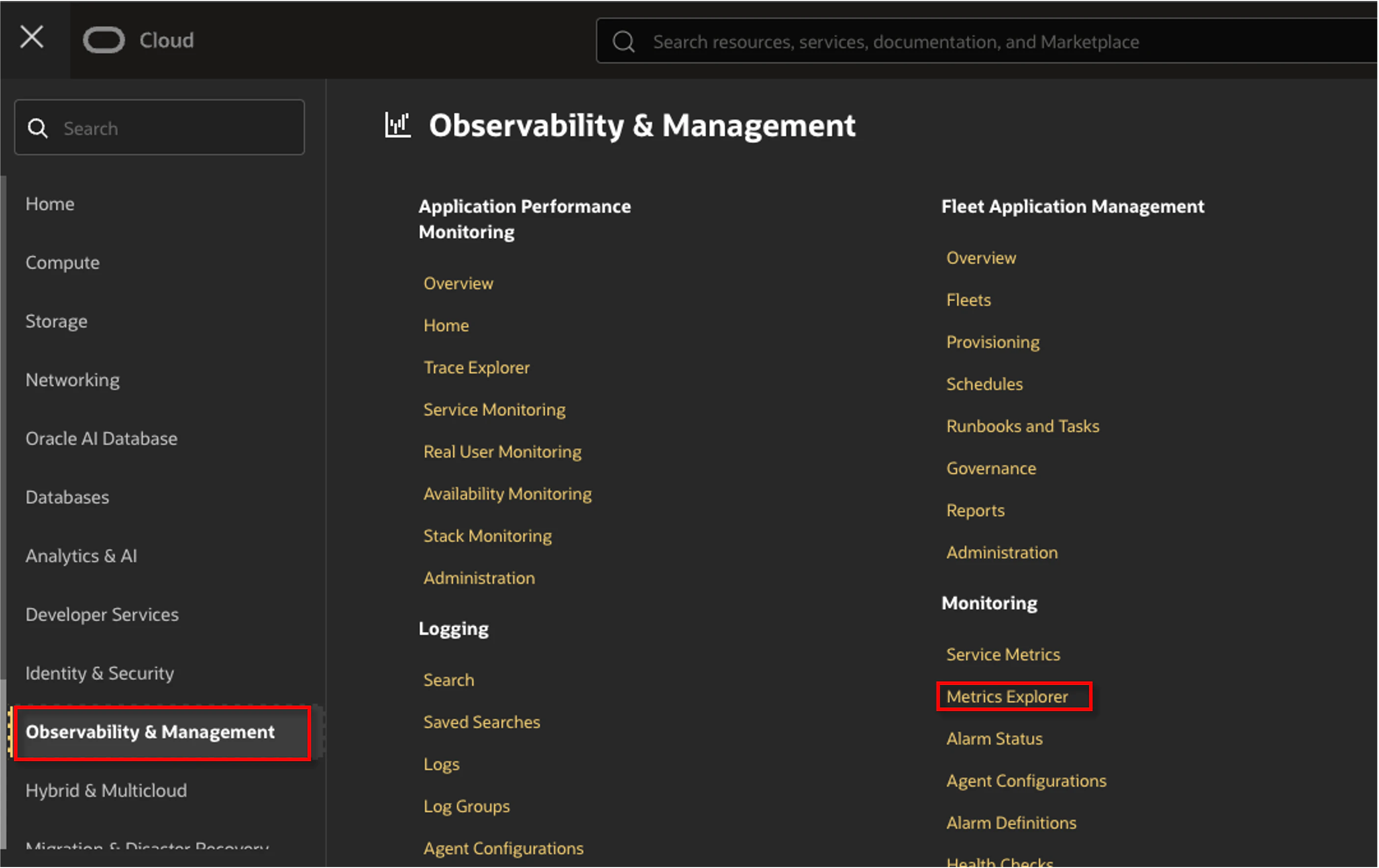
OCI コンソール左上のハンバーガーマークをクリックし、Observability & Management → Metrics Explorer をクリックします。
-
Service Metricsは、OCIサービスが出力するメトリクスのみ確認できる機能です -
Metrics Explorerは、OCIサービスのメトリクス及びカスタムメトリクスが確認できる機能です
各種項目を入力し、Update Chart をクリックします。
今回は、Linux インスタンス内で事前にサービス化した Nginx のプロセス数を確認します。

クリック後、画面上部に移動すると、問題なく取得できているのが確認できます。

おわりに
本記事では、OCI Compute のカスタムメトリクスを スクリプト で取得する方法についてまとめました。
次回は Oracle Cloud Agent (Management Agent Plugin) 方式をまとめたいと思います。
🌟この記事が誰かの役に立てば幸いです!
また、ご質問やフィードバックもお待ちしています。
参考資料
リファレンス
- APIを使用したカスタム・メトリックの公開 - Oracle Cloud Infrastructureドキュメント
- oci
- Oracle Cloud Infrastructureカスタム・メトリックを使用したディスク使用率の監視
- モニタリングのカスタム・メトリックでユーザ独自のメトリックを監視する