

📝 注意
本記事はAIの補助を受けて編集しています。
内容は大規模Webアプリケーションの実務経験に基づいています。
目次
- UIがカクつく原因は誰か?
- たった3行でパフォーマンスを壊す例
- Reflow / Repaint / Composite の本質
- イメージで理解:描画パイプライン
- なぜReflowは「悪夢」なのか?
- Layout Thrashing – 絶対に避けるべきパターン
- DevToolsで高速にデバッグする
- チェックリスト(すぐ使える)
- まとめ & 次回予告
1. UIがカクつく原因は誰か?
こんな現象、経験ありませんか?
- スクロールがガクガクする
- アニメーションが滑らかじゃない
- CPUが急に跳ね上がる
👉 これはビジネスロジックの問題ではありません。
本当の原因:
ブラウザが不要な再描画処理を大量に実行している
メンタルモデル(最重要)
UIが遅いのはコードが長いからではない
👉 ブラウザがレイアウト計算をやりすぎているから
2. たった3行でパフォーマンスを壊す例
const box = document.getElementById("box");

for (let i = 0; i < 100; i++) {
  box.style.width = i + "px";
  console.log(box.offsetHeight);
}
❌ 内部で起きていること
-
width変更 → レイアウト無効化 -
offsetHeight参照 → Layoutを強制実行 - 100回ループ → 100回Reflow
結果:UIがフリーズ
Insight
DOMが遅いわけではない
👉 Reflowこそが本当のボトルネック
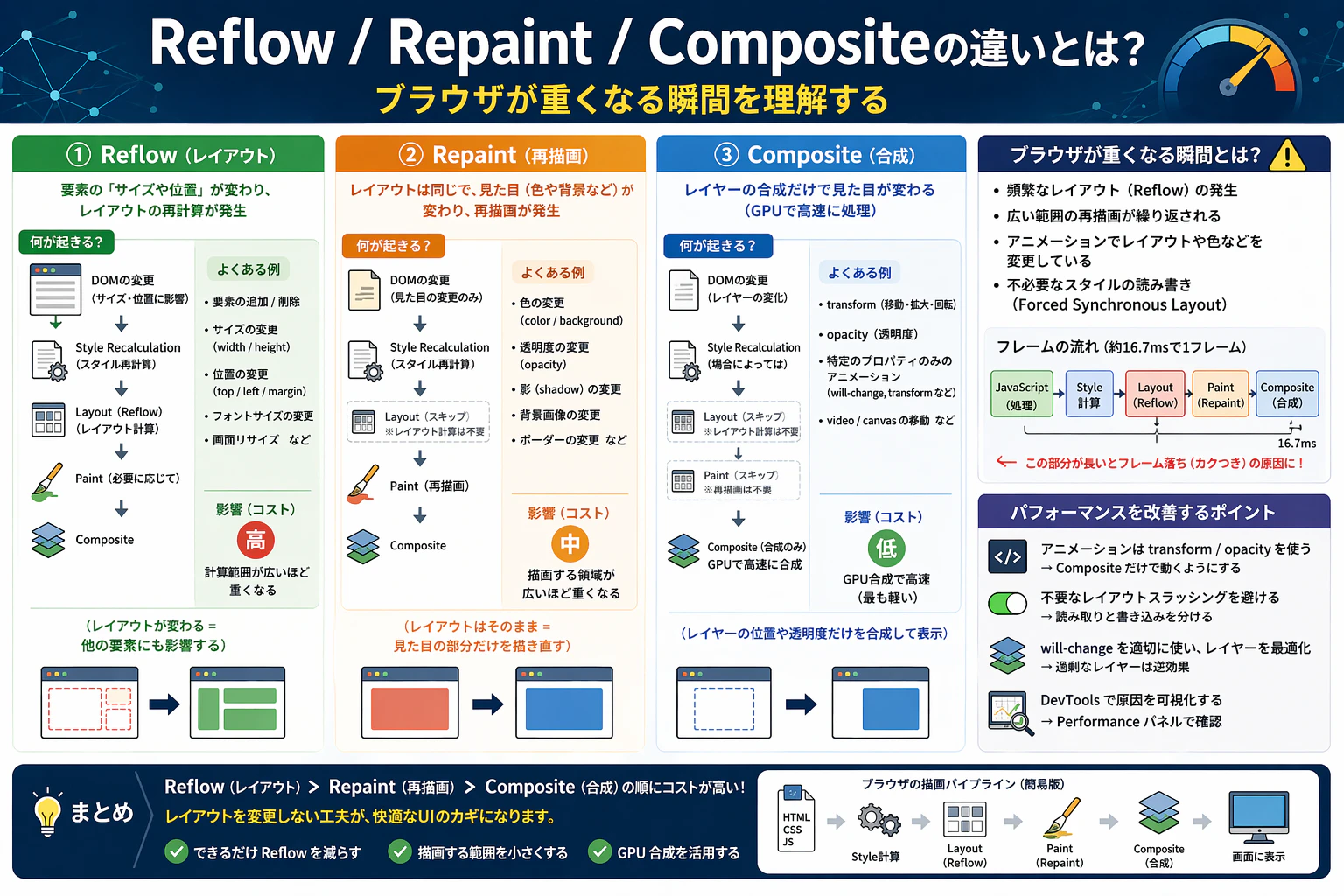
3. Reflow / Repaint / Composite の本質
| 種類 | 内容 | コスト | 例 |
|---|---|---|---|
| 🔴 Reflow | レイアウト再計算 | ⭐⭐⭐⭐ | width / height / margin |
| 🟡 Repaint | 見た目の再描画 | ⭐⭐ | color / background |
| 🟢 Composite | レイヤー合成 | ⭐ | transform / opacity |
🧠 覚えるべきルール
レイアウトを触るな(必要な時だけ)
-
top / left❌ →transform✅ -
visibility❌ →opacity✅
4. イメージで理解:描画パイプライン
まず全体の流れ:
DOM変更
   │
   ▼
Style計算
   │
   ▼
Layout(Reflow)
   │
   ▼
Paint(Repaint)
   │
   ▼
Composite
   │
   ▼
画面表示
変更による影響の違い
🔴 Reflow(最悪パターン)
Layout
 ↓
Paint
 ↓
Composite
👉 全部再実行
🟡 Repaint
Paint
 ↓
Composite
👉 Layoutスキップ
🟢 Composite(最速)
Compositeのみ
👉 GPU処理(超軽い)
🧠 まとめ図(最重要)
Reflow     → Layout + Paint + Composite   ❌ 最重
Repaint    → Paint + Composite            ⚠️ 中
Composite  → Compositeのみ               ✅ 最軽
💡 ブラウザは毎回全部やってるわけじゃない
👉 変更の種類で処理が変わる
5. なぜReflowは「悪夢」なのか?
element.style.width = "200px";
これだけで:
- 親要素再計算
- 子要素再配置
- 兄弟要素にも影響
ドミノ効果
1変更 → DOM全体に波及
本質
Reflowは重い + 影響範囲が広い
6. Layout Thrashing – 絶対に避けるべきパターン
// ❌ NG
items.forEach(item => {
  item.style.width = "100px";     // write
  console.log(item.offsetHeight); // read → 強制Reflow
});
問題
- browserが最適化できない
- 毎回Reflow
✅ 改善
// writeまとめる
items.forEach(item => {
  item.style.width = "100px";
});

// readまとめる
items.forEach(item => {
  console.log(item.offsetHeight);
});
原則
read と write を分離する
7. DevToolsで高速にデバッグする
手順
- Performanceタブ
- Record
- 操作
- Stop
見るポイント
- 🟣 Layout → Reflow
- 🟢 Paint → Repaint
- 🟡 Script
🎯 確認
- Layoutが多すぎないか?
- 50ms以上のTaskはあるか?
💡 見えないものは最適化できない
8. チェックリスト(すぐ使える)
✅ やるべき
- transformを使う
- DOM操作をまとめる
- read / write 分離
- will-changeを適切に使用
❌ 避ける
- offsetHeightをループ内で使う
- styleを細かく更新
- 不要なDOM再生成
9. まとめ & 次回予告
覚えるべき4つ
- Reflow = 最も重い
- Repaint = 中
- Composite = 最軽
- パフォーマンスは「処理の種類」で決まる
🔥 最適化とは「速くする」ことではない
👉 重い処理を避けること
👉 次回予告
[Frontend Performance - Part 3] 初期表示の遅さの正体:Critical Rendering Path入門
- FCP / LCPの本質
- CSS / JSのブロッキング
- 実務で効くロード最適化