
私は絵コンテアプリを作っていて、カット情報として記入したセリフなどを整理して台本として出力したいと考えました。
PDFでも表組みを表現できるけど、docxの方が一般的に扱いやすいだろうと思い、↓を使っていい感じの台本を作ってみようとおもいました。
準備
諸事情あって .netstandard 2.0 互換が求められるので追加対応が必要です(元のリポジトリの方は.NET 8.0以上対応とのこと)
→ Polyfillを導入してさくっと対応したい
- https://github.com/SimonCropp/Polyfill (ほぼそのままで動作)
- https://github.com/Sergio0694/PolySharp (非対応APIはいくつかあるけど追加対応すればAOTコンパイルも問題なく起動&動作確認完了
台本扱いにおける課題と対処
エクスキューズ:ほぼそのままでテンプレート的に展開したい形としてめちゃくちゃ忠実に動作する最&高ライブラリであります。以下の課題と感じた部分も重箱の隅をつつくような話であります。
テンプレート置換前のループ制御などのパラグラフが消えずに残る問題
→ DocxTemplaterをforkして対処。不要パラグラフを消す処理をTemplaterProcessor.Cleanup()に追加
意図しないパラグラフ(=改行のみの空行)は残ったままだと文書レイアウトが制御しづらくなります。ですので条件分岐やループ制御だけのパラグラフは消したいです。
縦書き時に半角文字を全角に変換したい
→ DocxTemplater.IFormatter を継承した ToWideCharFormatter を実装して DocxDocument.RegisterFormatter()に渡して解決。変数に:Wをつけて{{.CutNumber}:W}と記述すると全角文字に変換できるように
日本語など縦書きレイアウトがあり得る言語特有の問題ですが、縦書き時に半角文字は横倒しに表示されてしまいます。以下の画像のように

全角に変換するとこう見えます
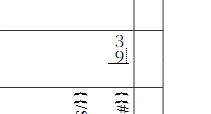
(桁数のわかっている数字だけならセルのスタイルに 横書き を指定したほうがスッキリ表示されます。ただあくまで例示ということで)
public class ToWideCharFormatter : IFormatter
{
    public bool CanHandle(Type type, string prefix)
    {
        return prefix.Equals("w", StringComparison.InvariantCultureIgnoreCase)
            || prefix.Equals("towide", StringComparison.InvariantCultureIgnoreCase);
    }

    static readonly StringBuilder _sb = new();
    public void ApplyFormat(ITemplateProcessingContext templateContext, FormatterContext formatterContext, Text target)
    {
        if (formatterContext.Formatter.Equals("w", StringComparison.InvariantCultureIgnoreCase)
            || formatterContext.Formatter.Equals("towide", StringComparison.InvariantCultureIgnoreCase))
        {
            _sb.Clear();
            if (formatterContext.Value is string s)
            {
                _sb.Append(s);
            }
            else if (formatterContext.Value is int integer)
            {
                _sb.Append(integer);
            }
            else if (formatterContext.Value is object o)
            {
                _sb.Append(o);
            }
            else
            {
                throw new OpenXmlTemplateException($"Formatter {formatterContext.Formatter} can only be applied to string objects - property {formatterContext.Placeholder}");
            }

            for (int i = 0; i < _sb.Length; i++)
            {
                _sb[i] = ToWideChar(_sb[i]);
            }
            target.Text = _sb.ToString();
        }
    }

    static char ToWideChar(char c)
    {
        // 半角英数字・記号の範囲
        if (c >= 0x0021 && c <= 0x007E)
        {
            return (char)(c + 0xFEE0);
        }
        else
        {
            return c;
        }
    }
}
縦書き時にテーブル列の高さ指定をAutoに強制したい
縦書き時のテーブル列の高さに固定値が残ってしまいコンパクトに表示したい場合邪魔になります。(LibraOffice Writerに特有の問題かもしれません)
以下のように特定要素に処理を加えるExtensionを追加して対処しました。
doc.RegisterExtension(new PropertySetDocxTemplaterExtension<TableRow>(null, row =>
{
    if (row.TableRowProperties?.GetFirstChild<TableRowHeight>() is { } rowHeight)
    {
        rowHeight.HeightType = HeightRuleValues.Auto;
        rowHeight.Val = 0;
    }
}));
class PropertySetDocxTemplaterExtension<T> : ITemplateProcessorExtension where T : OpenXmlElement
{
    private readonly Action<T>? _preProcess;
    private readonly Action<T>? _replaceVar;

    public PropertySetDocxTemplaterExtension(Action<T>? preProcess, Action<T>? replaceVar)
    {
        _preProcess = preProcess;
        _replaceVar = replaceVar;
    }
    public void PreProcess(DocumentFormat.OpenXml.OpenXmlCompositeElement content)
    {
        if (_preProcess == null) { return; }
        if (content.Descendants<T>().FirstOrDefault() is { } tp)
        {
            _preProcess(tp);
        }
    }

    public void ReplaceVariables(ITemplateProcessingContext templateContext, DocumentFormat.OpenXml.OpenXmlElement parentNode, List<DocumentFormat.OpenXml.OpenXmlElement> newContent)
    {
        if (_replaceVar == null) { return; }
        foreach (var content in newContent.OfType<T>())
        {
            _replaceVar(content);
        }
    }
}
おわり
作ってる絵コンテアプリはこちら