

はじめに 🌟
Windows で curl を使って API をたたくと、同じコマンドなのにシェルによって結果が変わることがあります。特に PowerShell 5.1 のエイリアス(alias)問題は、初見だと「curl が壊れている」と感じやすいポイントです。
この記事は、PowerShell 5.1 / PowerShell 7 / cmd.exe を使い分ける開発者向けに、一次情報と実機検証を並べて整理します。🔍
参考リンク(一次情報):
ゴール ✅
- ✅ PowerShell 5.1 で
curlが alias になる理由を説明できる - ✅ PowerShell 7 と cmd.exe での挙動差を把握できる
- ✅ JSON POST 時のエスケープ事故を避けられる
- ✅ Windows 同梱の curl と公式配布版のバージョン追従の考え方を持てる
前提条件 🧰
- ✅ OS: Windows 10/11
- ✅ シェル: Windows PowerShell 5.1 / PowerShell 7 / cmd.exe
- ✅ 接続先エンドポイント:
https://localhost:7143/products - ✅ 送信 JSON:
{
  "name": "りんご",
  "price": 120
}
解説 🧭
Microsoft Learn には、PowerShell 5.1 では curl が Invoke-WebRequest のエイリアス(alias)であること、実体の curl を使うには curl.exe を明示することが示されています。
同じページで、PowerShell 7 ではこのエイリアス(alias)が定義されない点も確認できます。
また、curl 公式ページには、Windows 同梱版は Microsoft ビルドであり、curl プロジェクトの配布版と機能差・更新タイミング差があり得ることが説明されています。
| 観点 | PowerShell 5.1 | PowerShell 7 | cmd.exe |
|---|---|---|---|
🔤 curl の解決先 |
Invoke-WebRequest alias |
curl.exe(alias なし) |
通常は curl.exe
|
📮 -H -d など curl オプション |
期待どおり動かないことがある | curl 構文を使いやすい | 実行可能(クォートの差に注意) |
| 🧪 検証時のおすすめ |
curl.exe を明示 |
そのまま curl で可 |
curl 実行可(環境差は要確認) |
| 📦 バージョン運用 | 同梱版依存だと追従差に注意 | 同左 | 同左 |
要するに、Windows では「どのシェルで実行したか」を先に固定するのが安全です。PowerShell では Get-Command curl で解決先を確認し、curl -V でバージョンや機能を確認してから検証すると、原因切り分けが速くなります。➡️
実例 🧪
実例では次の 3 点を確認します。
-
Get-Command curlで解決先を確認できるか - JSON(
name/price)を期待どおり送信できるか - レスポンスで
nameとpriceを確認できるか
検証に使った C# サーバーコード
var builder = WebApplication.CreateBuilder(args);

builder.Services.AddOpenApi();
builder.Services.Configure<RouteHandlerOptions>(options => options.ThrowOnBadRequest = false);

var app = builder.Build();

if (app.Environment.IsDevelopment())
{
    app.MapOpenApi();
}

app.UseHttpsRedirection();

app.Use(async (context, next) =>
{
    context.Request.EnableBuffering();

    using var reader = new StreamReader(context.Request.Body, leaveOpen: true);
    var requestBody = await reader.ReadToEndAsync();
    context.Request.Body.Position = 0;

    await next();

    if (context.Response.StatusCode == StatusCodes.Status400BadRequest)
    {
        Console.WriteLine($"400 request body: {requestBody}");
    }
});

app.MapPost("/products", (CreateProductRequest request) =>
{
    if (string.IsNullOrWhiteSpace(request.Name))
    {
        return Results.BadRequest(new { message = "Name is required." });
    }

    if (request.Price < 0)
    {
        return Results.BadRequest(new { message = "Price must be zero or greater." });
    }

    Console.WriteLine(request.Name);
    Console.WriteLine(request.Price);

    return Results.Ok(new
    {
        name = request.Name,
        price = request.Price
    });
})
.WithName("CreateProduct");

app.Run();

internal record CreateProductRequest(string Name, decimal Price);
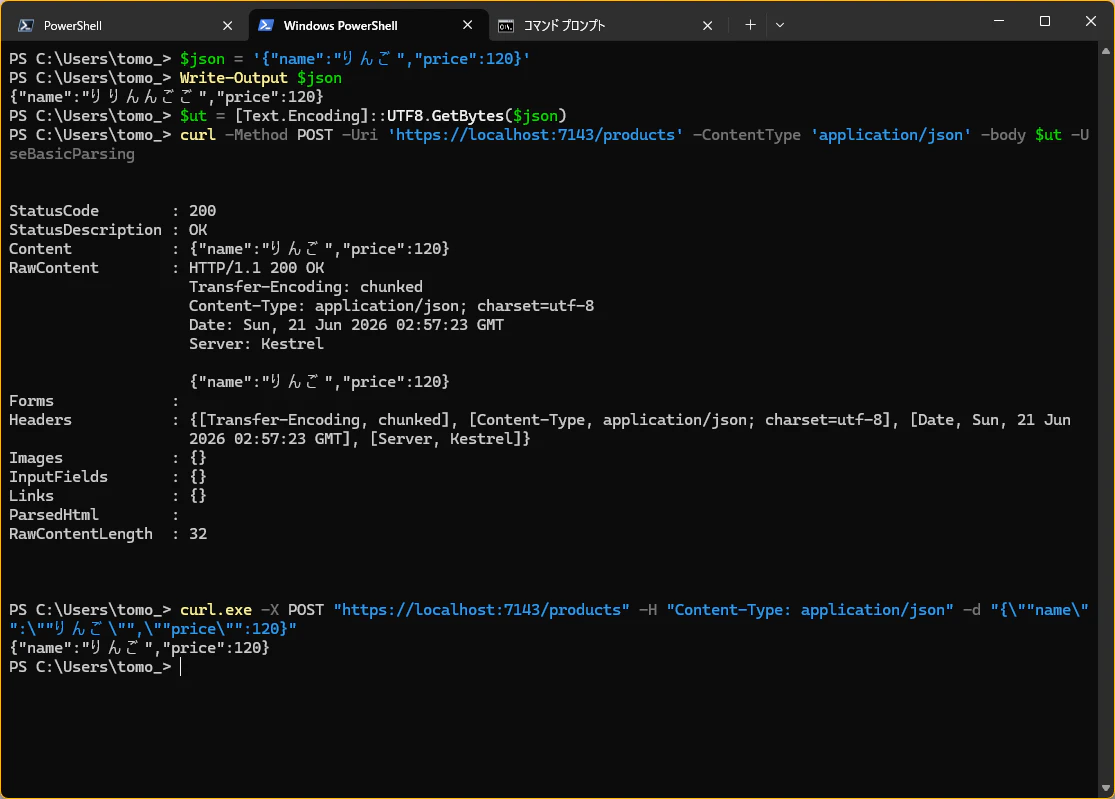
1) PowerShell 5.1(curl が alias の場合)
まず JSON を用意し、Invoke-WebRequest 相当として呼び出す例です(ユーザーによる検証内容)。
$json = '{"name":"りんご","price":120}'
Write-Output $json
$ut = [Text.Encoding]::UTF8.GetBytes($json)
curl -Method POST -Uri 'https://localhost:7143/products' -ContentType 'application/json' -body $ut -UseBasicParsing
PowerShell 5.1 で「curl のオプション書式(-X -H -d)」を使いたい場合は、curl.exe を明示します。
curl.exe -X POST "https://localhost:7143/products" -H "Content-Type: application/json" -d "{\""name\"":\""りんご\"",\""price\"":120}"
実行結果の例です(PowerShell 5.1 で curl alias と curl.exe の両方を検証)。
2) PowerShell 7(curl をそのまま利用)
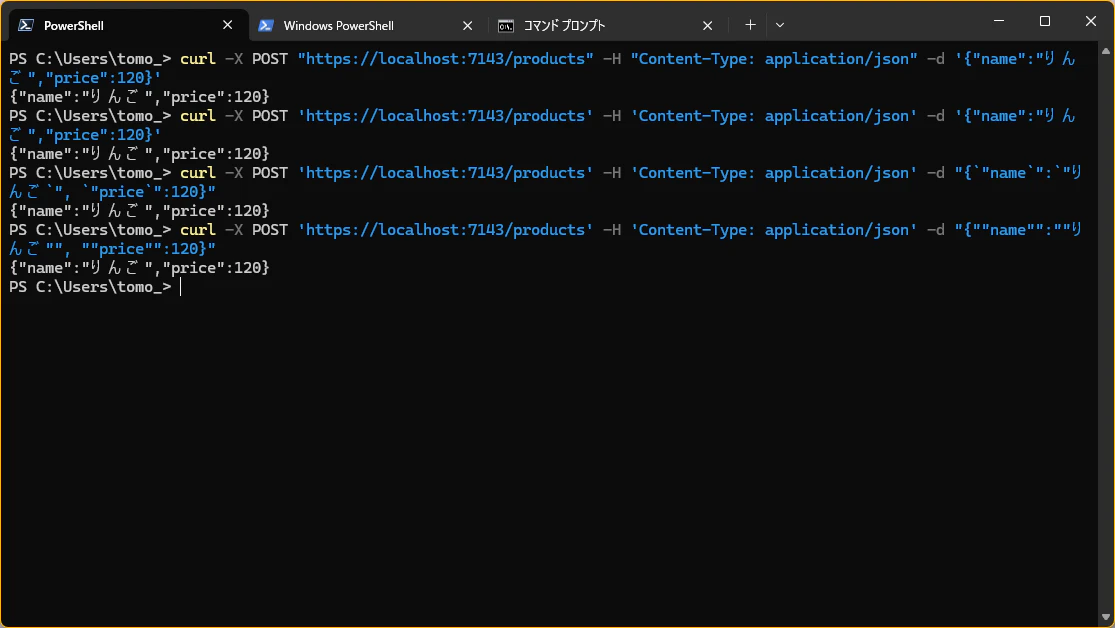
シングルクォートの JSON をそのまま渡す、最もシンプルな例です。
curl -X POST "https://localhost:7143/products" -H "Content-Type: application/json" -d '{"name":"りんご","price":120}'
URL もシングルクォートにそろえた例です。
curl -X POST 'https://localhost:7143/products' -H 'Content-Type: application/json' -d '{"name":"りんご","price":120}'
バッククォートでダブルクォートをエスケープする例です。
curl -X POST 'https://localhost:7143/products' -H 'Content-Type: application/json' -d "{`"name`":`"りんご`", `"price`":120}"
ダブルクォートを重ねる書き方の例です。
curl -X POST 'https://localhost:7143/products' -H 'Content-Type: application/json' -d "{""name"":""りんご"", ""price"":120}"
実行結果の例です(PowerShell 7 で複数の書き方が通ることを確認)。
3) cmd.exe(比較用)
curl -X POST "https://localhost:7143/products" -H "Content-Type: application/json" -d "{\"name\":\"りんご\",\"price\":120}"
実行結果の例です(cmd.exe での POST 検証)。

確認ポイントは、レスポンス側で name と price が期待どおり受け取れているかです。curl -v を付けると、ヘッダーと本文の切り分けがしやすくなります。➡️
注意点 ⚠️
PowerShell 5.1 で「とりあえず curl」は事故になりやすいです。検証コマンドを共有するときは、curl ではなく curl.exe と書いておくと再現性が上がります。
- JSON 文字列はシェルごとにエスケープ規則が異なります(PowerShell は
'...'が扱いやすく、cmd.exe は\"が必要になるケースが多いです)。 - 同梱の curl は Microsoft ビルドのため、curl 公式配布版と機能差・更新差が出る可能性があります。機能が見つからないときは
curl -Vでまず実体を確認するのがおすすめです。 - 具体的な違いは、curl 公式ページの Disabled features 節を確認すると把握しやすいです(例: HTTP/2、HTTP/3 などの扱い)。
- なお、同梱版と公式配布版の差分は時点依存です。本記事は 2026-06-21 時点の情報として読み替えてください。
- チーム手順書には「使用シェル」「サンプルコマンド」「期待レスポンス(エンドポイントと JSON)」をセットで残すと、トラブルを減らせます。
まとめ 🎉
Windows で curl コマンドを実行するときは、環境(PowerShell 5.1 / PowerShell 7 / cmd.exe)を意識することがとても大事です。
PowerShell 5.1 は alias 問題があるため curl.exe を明示し、PowerShell 7 / cmd.exe では JSON エスケープ規則を意識して使い分ける運用が安定します。
一次情報を最後に再掲します。困ったときはここに戻るのが最短です。📚