
概要
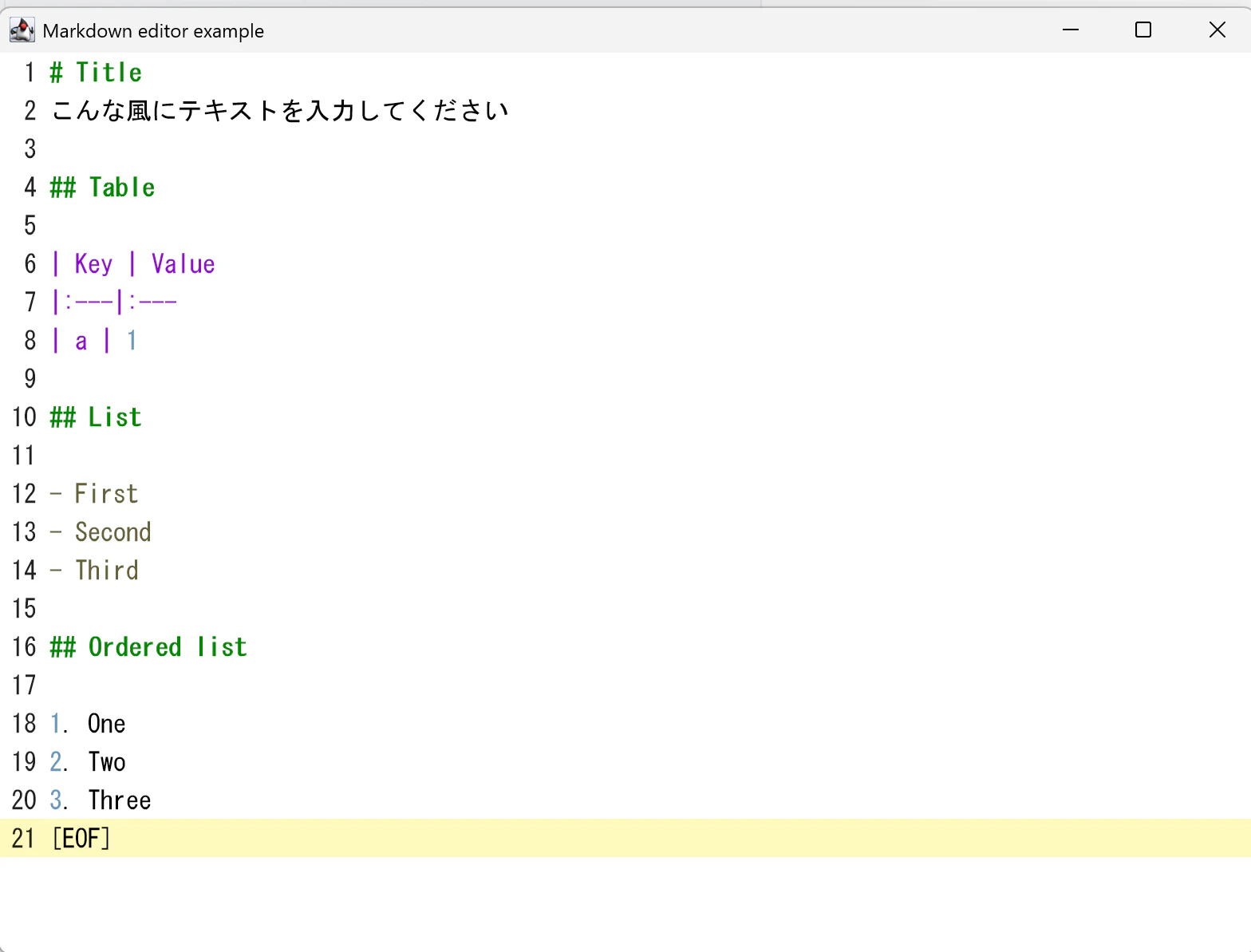
Jetpack Compose for Desktop を使って Markdown エディターを作っています。
その実装で使っていた TextFieldValue を TextFieldState へ切り替えた際に得た知見をまとめました。
キーボードショートカットを除けば Desktop 固有の話はあまりないので、 Android 版でも参考にはなるかと思います。
Desktop 版の TextField は Jetpack Compose 1.8.0-rc01 以降、日本語入力で致命的なバグ(例:入力内容が消滅)があるので、極力この TextFieldState 版を使っていった方が無難です。
Jetpack Compose のバージョンを上げられないと Kotlin のバージョンも上げられなくなります。
Example
コード全体は以下の Repository に置いてあります。
以下のコマンドで起動できます。
$ ./gradlew run
実装
環境
以下の環境で実装・動作確認しています。
| Tool | Version |
|---|---|
| OS | Windows 11 |
| JDK | Amazon Corretto jdk21.0.5_11 |
| Gradle Wrapper | 8.10 |
| Kotlin | 2.2.10 |
| Jetpack Compose | 1.10.0-beta02 |
オブジェクトの保持
TextFieldState 自体は mutable なオブジェクトです。ViewModel で mutableState を使って TextFieldValue を保持していた場合、
TextFieldState を直接保持するよう修正します。
Before
class TextEditorViewModel {

  private val content = mutableStateOf(TextFieldValue())
After
class TextEditorViewModel {

  private val content = TextFieldState()
テキストの差し替え
全体を差し替える場合は setTextAndPlaceCursorAtEnd 関数が使えます
edit
insert, replace, delete といった一部の操作をしたい場合は edit 関数を使い、TextBuffer を操作することで実現します。
textFieldState.edit {
    replace(0, length, newText)
selection と composition
TextFieldState でも引き続き selection (カーソルとテキスト選択範囲)と composition (変換範囲)が使われています。
selection は edit で差し替えが可能です。
textFieldState.edit {
    selection = TextRange(22)
composition は内部的なフィールドになっており外側からの差し替えが難しくなっています。テストコードを書く際に地味に影響しそうです。
テキスト変更に対するアクション
TextFieldValue 版では onValueChange のタイミングで何かしらの処理を呼び出すことにより実現できていました。
同じことを TextFieldState 版でやる場合は stateFlow を使います。
val state = TextFieldState()
LaunchedEffect(state) {
    snapshotFlow { state.text to (state.composition == null) } // state.composition == null は括弧で括る必要あり
        .distinctUntilChanged()
        .collect { textAndComposition ->
            if (textAndComposition.second.not()) {
                return@collect
            }

            // ここに処理を書く
        }
}
数字のカンマ区切り
従来の VisualTransformation でやっていた見た目の変更は OutputTransformation で実装します。
VisualTransformation では手動でやらないといけなかった Offset Mapping を、OutputTransformation では自動で実施してくれます。
ただし、数字のカンマ区切りのような処理を実装する場合には工夫が必要でした。
以下のように DecimalFormat の結果を , の位置を探すためだけに使うようにしたら上手くいきました。
class DecimalOutputTransformation : OutputTransformation {

    private val formatter = DecimalFormat("#,###.##")

    private fun toDecimal(input: String): BigDecimal? {
        return input.toBigDecimalOrNull();
    }

    override fun TextFieldBuffer.transformOutput() {
        val input = asCharSequence().toString()
        val decimal = toDecimal(input)
        val useFormatter = decimal != null && decimal != BigDecimal.ZERO && !input.contains(".")
        if (useFormatter.not() || decimal.intValueExact() < 999) { //1,000未満は区切る必要がないので打ち切り
            return
        }

        val formatted = formatter.format(decimal)
        var index = formatted.indexOf(",")
        while (index != -1) {
            insert(index, ",")
            index = formatted.indexOf(",", index + 1)
        }
    }
}
ちなみに、テストケースはこんな感じで , を挿し込む操作を確認する形で実装できそうでした。
@Test
fun filter() {
    val buffer = mockk<TextFieldBuffer>()
    every { buffer.asCharSequence() } returns "1000000"
    every { buffer.replace(any(), any(), any()) } just Runs
    with(subject) {
        buffer.transformOutput()
    }
    verify { buffer.replace(1, 1, ",") }
    verify { buffer.replace(5, 5, ",") }
}
内部の androidx.compose.foundation.text.input.internal.TransformedTextFieldState の実装を見て調べましたた。
TextFieldBuffer は 1.10.0 時点では外からインスタンス化できないので Mock を使う必要があります。
Markdown テキストの色分け
ごく簡単な Markdown テキストの着色も OutputTranslation を使えば可能です。
import androidx.compose.foundation.text.input.OutputTransformation
import androidx.compose.foundation.text.input.TextFieldBuffer
import androidx.compose.foundation.text.input.TextFieldState
import androidx.compose.runtime.Immutable
import androidx.compose.ui.graphics.Color
import androidx.compose.ui.text.SpanStyle
import androidx.compose.ui.text.font.FontWeight
import java.util.concurrent.atomic.AtomicReference
import java.util.regex.Pattern

@Immutable
private data class EditorStyle(
    val regex: Pattern,
    val lightStyle: SpanStyle,
    val darkStyle: SpanStyle
)

class TextEditorOutputTransformation(
    private val content: TextFieldState,
    private val darkMode: Boolean
) : OutputTransformation {

    private val patterns = listOf(
        EditorStyle(
            Pattern.compile("[0-9]*", Pattern.MULTILINE),
            SpanStyle(Color(0xFF6897BB)),
            SpanStyle(Color(0xFFA8B7EE))
        ),
        EditorStyle(
            Pattern.compile("^#.*?$", Pattern.MULTILINE),
            SpanStyle(Color(0xFF008800), fontWeight = FontWeight.Bold),
            SpanStyle(Color(0xFF00DD00), fontWeight = FontWeight.Bold)
        ),
        EditorStyle(
            Pattern.compile("^\\|.*?$", Pattern.MULTILINE),
            SpanStyle(Color(0xFF8800CC)),
            SpanStyle(Color(0xFF86EEC7))
        ),
        EditorStyle(
            Pattern.compile("^>.*?$", Pattern.MULTILINE),
            SpanStyle(Color(0xFF7744AA)),
            SpanStyle(Color(0xFFCCAAFF))
        ),
        EditorStyle(
            Pattern.compile("^-.*?$", Pattern.MULTILINE),
            SpanStyle(Color(0xFF666239)),
            SpanStyle(Color(0xFFFFD54F))
        ),
        EditorStyle(
            Pattern.compile("^\\*.*?$", Pattern.MULTILINE),
            SpanStyle(Color(0xFF666239)),
            SpanStyle(Color(0xFFFFD54F))
        )
    )

    private val styleCache = mutableListOf<Triple<Int, Int, SpanStyle>>()

    private val transformedText = AtomicReference<CharSequence?>(null)

    override fun TextFieldBuffer.transformOutput() {
        val last = transformedText.get()
        if (last != null && content.composition == null && last == content.text) {
            applyStyles(this)
            return
        }

        transformedText.set(content.text)
        calculateStyle(darkMode, content.text.toString())
        applyStyles(this)
    }

    private fun applyStyles(buffer: TextFieldBuffer) {
        styleCache.forEach { triple ->
            buffer.addStyle(triple.third, triple.first, triple.second)
        }
    }

    private fun calculateStyle(darkTheme: Boolean, str: String) {
        styleCache.clear()
        patterns.forEach { pattern ->
            val find = pattern.regex.matcher(str)
            while (find.find()) {
                val spanStyle = if (darkTheme) pattern.darkStyle else pattern.lightStyle
                styleCache.add(Triple(find.start(), find.end(), spanStyle))
            }
        }
    }

}
TextFieldBuffer.transformOutput 内で TextBuffer に対し、テキストの index range と style を与えて addStyle することでテキストの装飾が可能です。
注意点
OutputTransformation を普通に実装するとテキスト入力やカーソル移動の度に変換処理がコールされます。
あまり複雑な正規表現などを用いるとテキスト編集のパフォーマンスが著しく悪化します。
上記の例では styleCache というオブジェクトを使って正規表現でのパターン抽出結果を保持し、
テキストの長さの変更がない場合は正規表現での抽出をスキップするように実装してあります。
ファイル終端表示の挿入
先ほどの TextFieldBuffer.transformOutput() の最後に以下を入れるだけで可能です。
append("[EOF]")
この "[EOF]" は表示されるだけで、状態とは無関係です。
Alt キーでキーボードショートカットを設定している時に文字列が入力されてしまう
Desktop 版限定の話です。アプリケーション側に Altキーと何かでキーボードショートカットを設定している場合、
そのショートカットを使うと TextFieldState の値が変更されてしまいます。
(例:Alt+B でショートカットを設定した場合に B が入力されてしまう)
これを回避するには inputTransformation を使います。具体的には
- onPreviewKeyEvent で Alt キーの入力を値に保持
- inputTransformation で1の値を見て true なら revertAllChanges をコール
ViewModel 側
private val altPressed = AtomicBoolean(false)

fun onPreviewKeyEvent(it: KeyEvent, coroutineScope: CoroutineScope): Boolean {
    altPressed.set(it.isAltPressed)
}

fun inputTransformation(): InputTransformation {
    return InputTransformation {
        if (altPressed.get()) {
            revertAllChanges()
            return@InputTransformation
        }
    }
}
Composable 側
@Composable
fun TextEditor() {
    val viewModel = remember { TextEditorViewModel() }

    BasicTextField(
        state = viewModel.content(),
        inputTransformation = viewModel.inputTransformation(),
        modifier = modifier
            .focusRequester(viewModel.focusRequester())
            .fillMaxWidth()
            .onPreviewKeyEvent {
                viewModel.onPreviewKeyEvent(it)
            }