0
0

Delete article

Deleted articles cannot be recovered.

Draft of this article would be also deleted.

Are you sure you want to delete this article?

🚀 【完成記事】Google ColabでGoogle Drive内のファイル一覧を一発取得する方法(初心者向け)

Last updated at Posted at 2025-12-08

🟦 はじめに

Google Colaboratory は Google Drive と簡単に連携でき、
データ分析やモデル学習に必要なファイルをすぐ扱えるのが魅力です。

しかし、
1. 「Drive のどこにファイルがあるかわからない」
2. 「フォルダ内のファイル一覧を Python で取得したい」
3. 「特定拡張子だけ取り出したい」
といった場面でつまずく初心者が多いです。

本記事では、
Google Drive をマウント → ファイル一覧取得 → 特定条件で絞り込み
までを最短のコードで紹介します。

🟩 1. Google Drive をマウントする

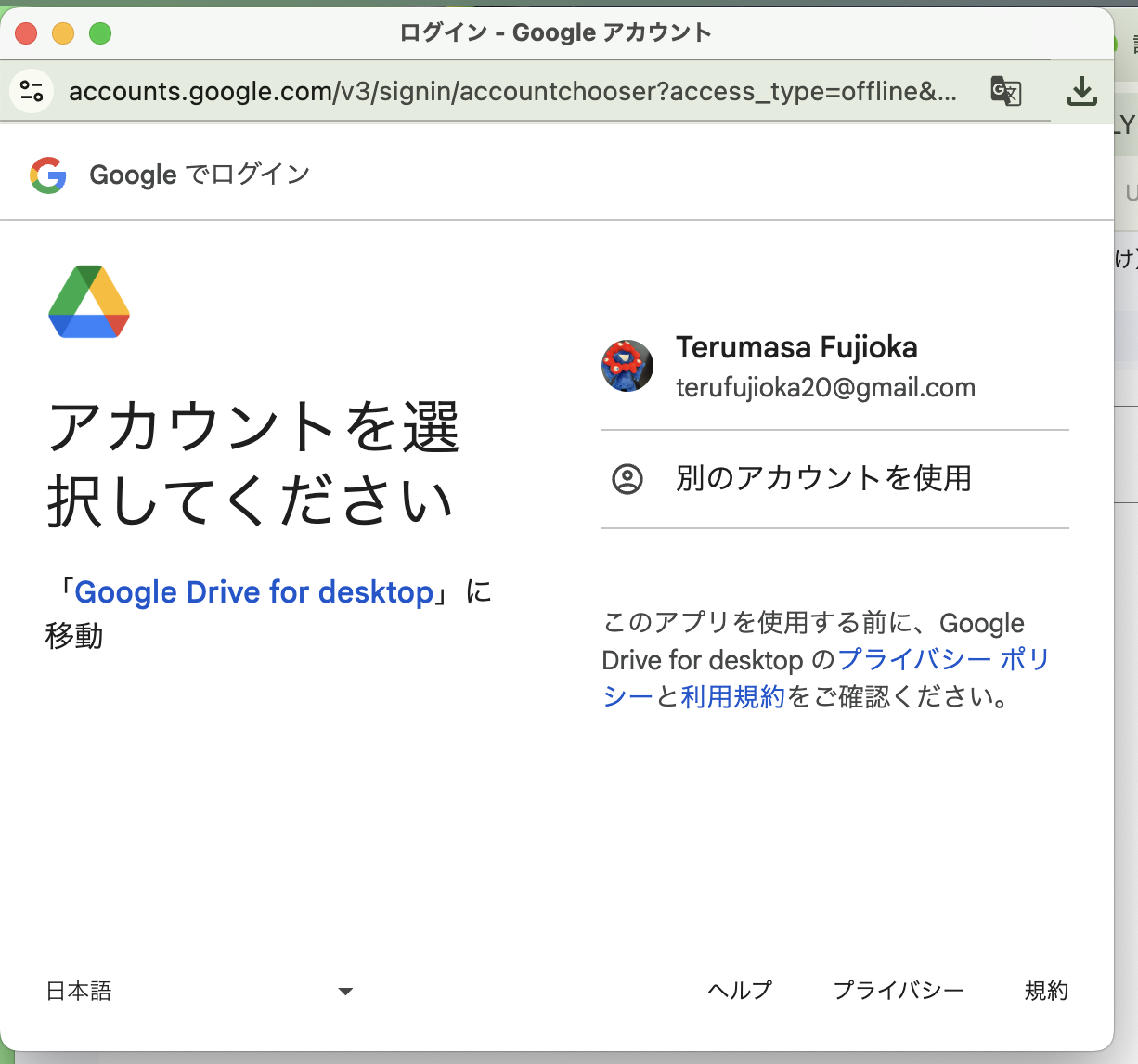
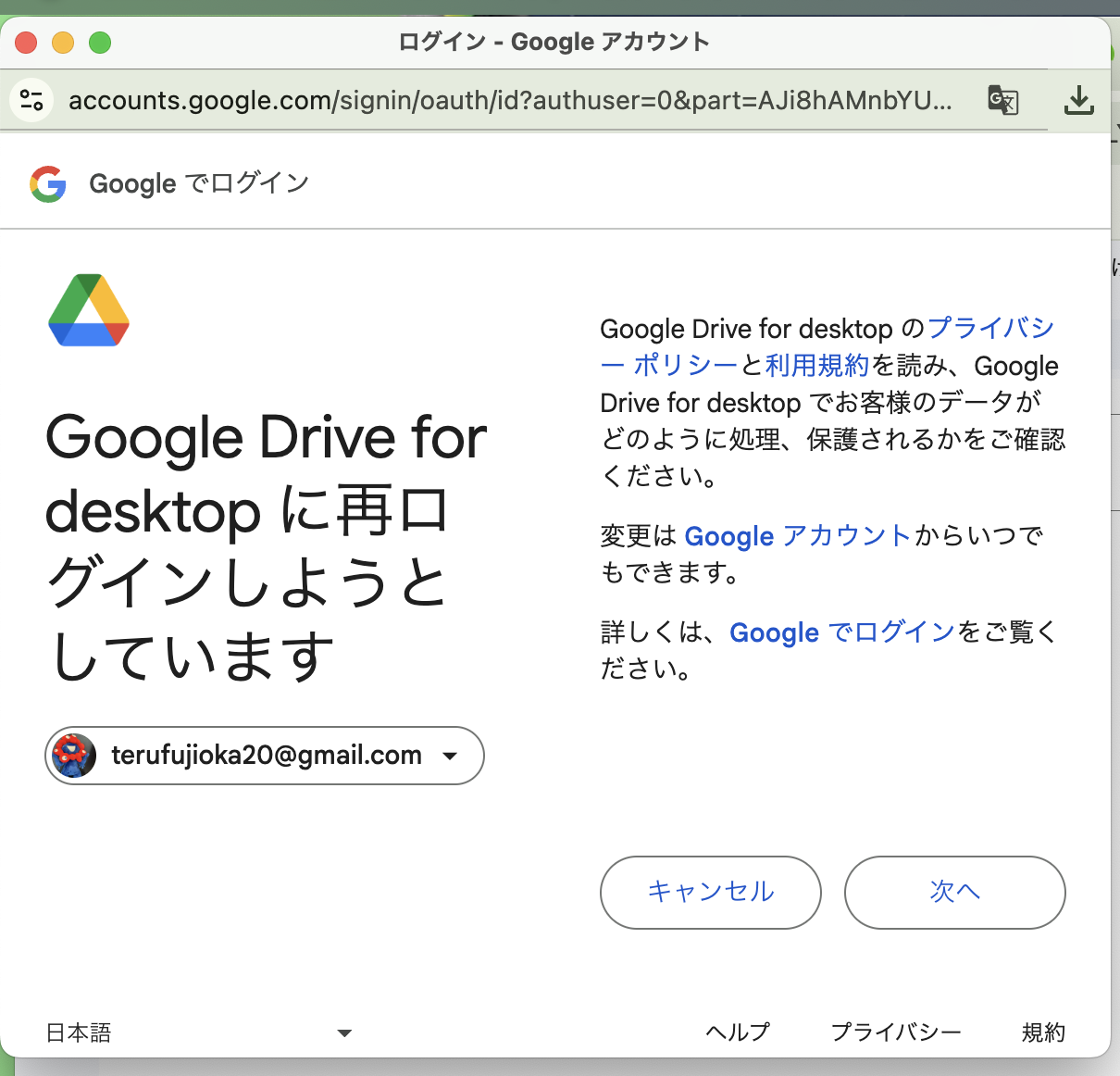
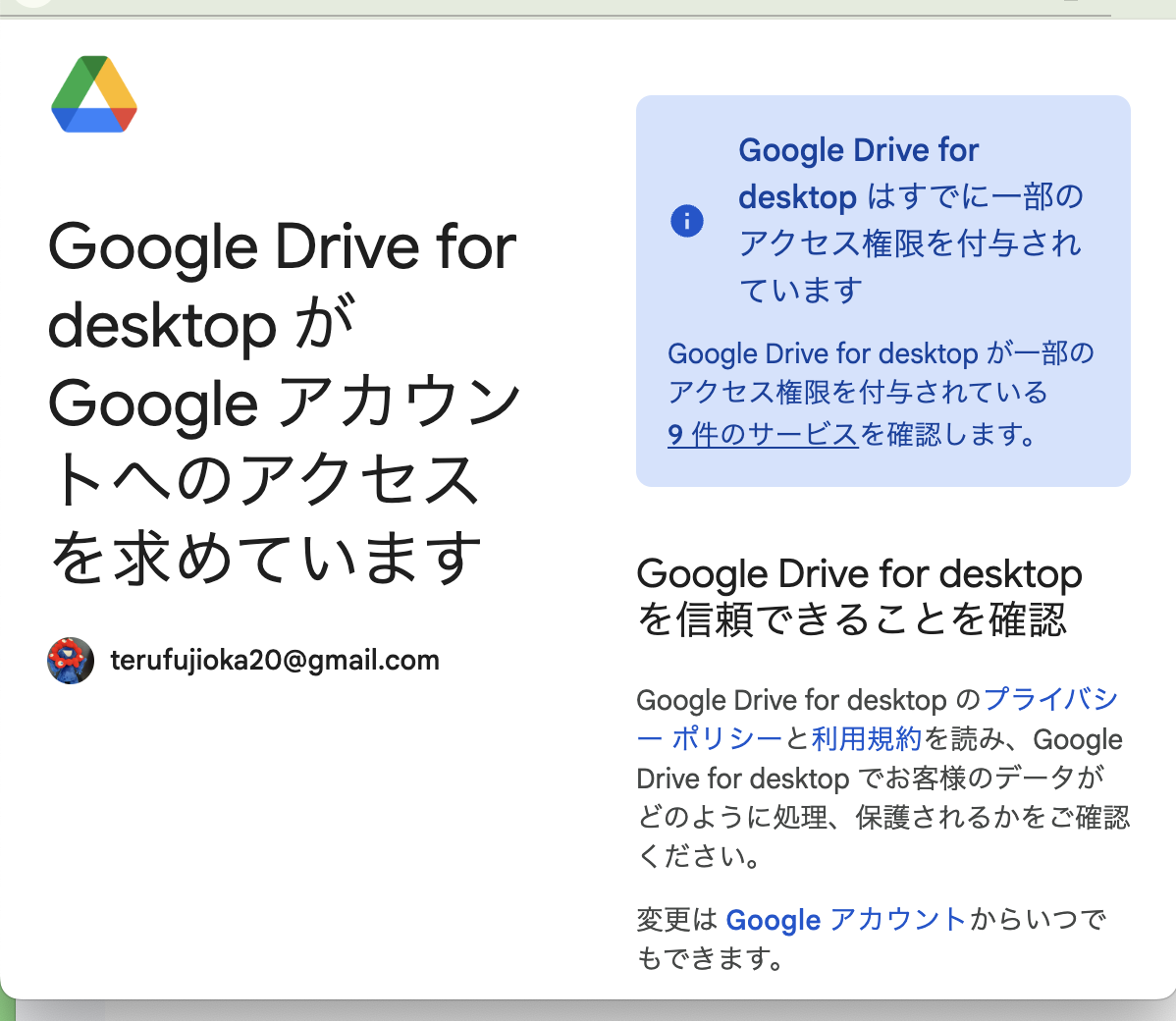
まずは Drive を Colab に接続します。
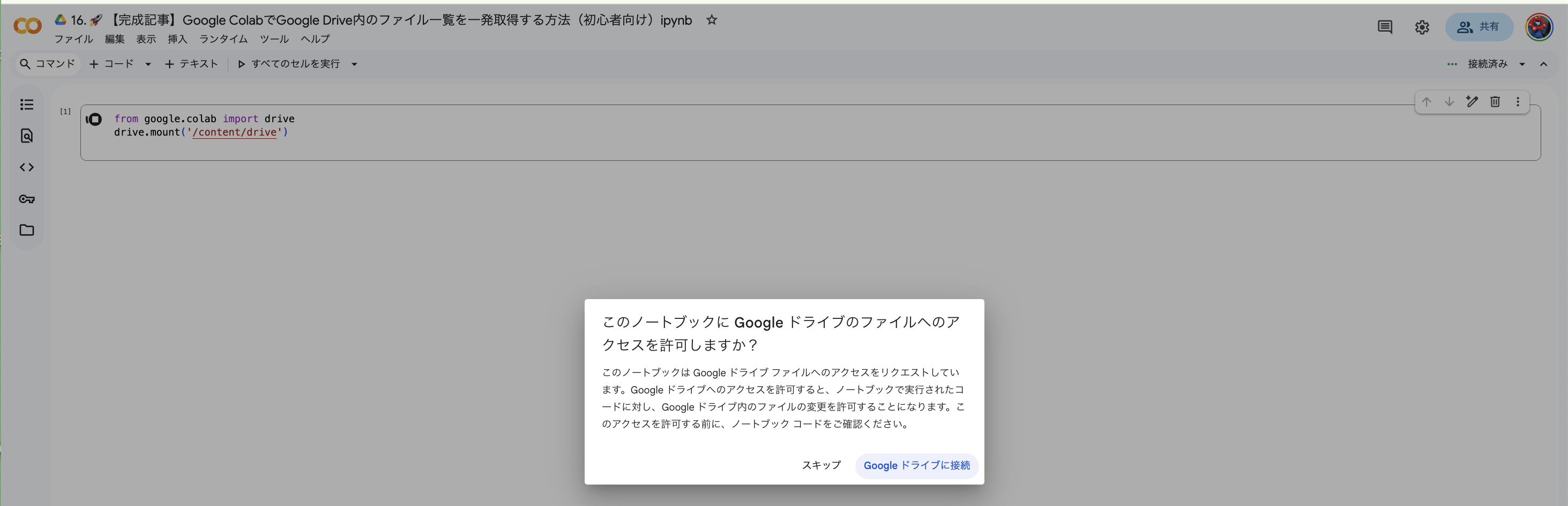
Screenshot 2025-11-18 at 13.12.47.png

Screenshot 2025-11-18 at 13.12.59.png

Screenshot 2025-11-18 at 13.13.07.png

Screenshot 2025-11-18 at 13.13.18.png

Screenshot 2025-11-18 at 13.13.47.png

認証を許可すれば、/content/drive/MyDrive にドライブ内容が見えるようになります。

🟧 2. 特定フォルダのファイル一覧を取得する

実は Python の標準ライブラリだけで簡単にできます。
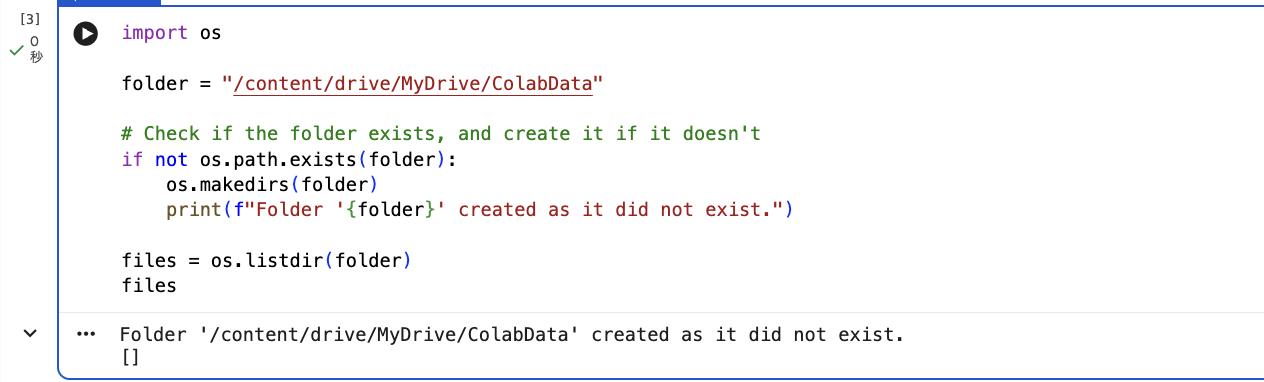
Screenshot 2025-11-18 at 13.14.46.png

これで指定フォルダの中身を一瞬で取得できます。

🟨 3. ファイル名とフルパスをまとめて表示する

可読性を上げるならこちらが便利。

Screenshot 2025-11-18 at 13.15.25.png

🟥 4. 特定の拡張子だけを抽出する(CSV だけ / 画像だけ)

▶ CSV のみ取得

Screenshot 2025-11-18 at 13.15.55.png

▶ 画像(png / jpg)すべて取得

Screenshot 2025-11-18 at 13.16.21.png

🟪 5. サブフォルダも含めて再帰的に一覧を取得する

大量のファイルを扱う場合はこちらが便利です。
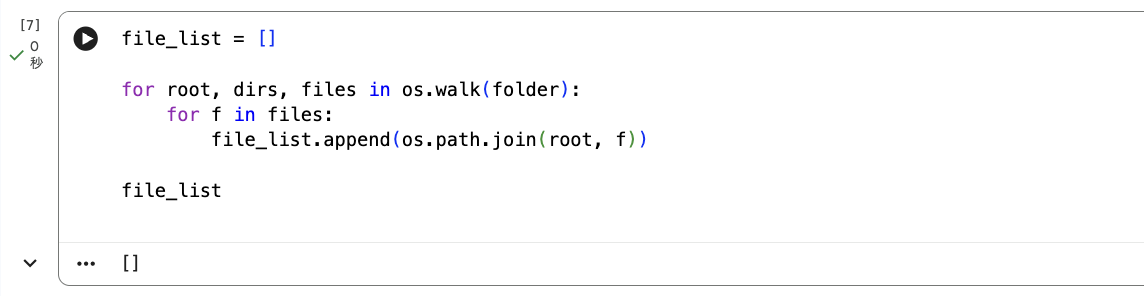
Screenshot 2025-11-18 at 13.16.46.png

🟫 まとめ

本記事では、Google Colaboratory で Google Drive 内のファイルを扱う際に重要な
1. Drive のマウント
2. フォルダ一覧の取得
3. 拡張子フィルタ
4. サブフォルダも含めた再帰的検索

最短コードで紹介しました。

Google Drive 内のファイル構造を把握しておくと、
データ分析・画像処理・機械学習での作業効率が大幅に向上します。

ぜひ普段の Colab 作業に活用してみてください!

0
0
0

Register as a new user and use Qiita more conveniently

  1. You get articles that match your needs
  2. You can efficiently read back useful information
  3. You can use dark theme
What you can do with signing up
0
0

Delete article

Deleted articles cannot be recovered.

Draft of this article would be also deleted.

Are you sure you want to delete this article?