
Parcel について
Parcel が注目されているとのことで、興味本位で触ってみました。
きっかけはこちら。
- webpack時代の終わりとparcel時代のはじまり
ちなみに、僕はRails5 をこの1年くらい触ったくらいで、フロントのJS周りは詳しくありません。Railsと一緒にCSS3までやったので、HTML5/CSS3 は書けます。
install
公式のドキュメントに従いインストールします。 Yarn か npm で簡単に入れられます。
https://parceljs.org/getting_started.html
開発用のディレクトリ
working ディレクトリで init します。
$ cd working/
$ yarn init -y
すると作業ディレクトリに
package.json
が出来上がります。
実装用のファイルを作る
working ディレクトリに index.html を作ります。
$ vi index.html
まずは Vue を読み込みます。
<!DOCTYPE html>
<html lang="ja">
 <head>
   <script src="https://cdn.jsdelivr.net/npm/vue"></script>
 </head>
 <body>
 </body>
</html>
続いて、Vue の簡単なHellow Worldで parcel を試します。画像を読みたいので、画像ファイル名 something.jpg を出力してみます。
<!DOCTYPE html>
<html lang="ja">
 <head>
  <script src="https://cdn.jsdelivr.net/npm/vue"></script>
 </head>
<body>
 <div id="imagebox">
  {{imageName}}
 </div>
 <script>
  new Vue({
   el: '#imagebox',
   data: {
    imageName: 'something.jpg'
   }
  })
 </script>
</body>
</html>
実行結果
parcel の起動は簡単です。ファイルを指定するだけ。
$ parcel index.html
⏳  Building...
Server running at http://localhost:1234
✨  Built in 100ms.
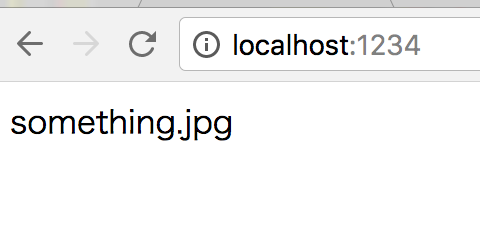
表示されました。
画像を読み込んでみる
working/ の中に imagesを作り、画像を保存します。
今回は3枚を用意しました。
$ working/images/
bitcoin.jpg
chuhai.jpg
hiratakan.jpg
画像は、「ぱたくそ」から拝借しました。
Vue
切り替え先の div#imagebox を作り、Vue の bindをするところまでは、先ほどと同じです。imageSelector は画像をclickした時にイベントが発生するように bind します。
先に言っておくと、parcel が images/ を読まないので、これだと画像は変わらないんですが、とりあえず実行します。
<!DOCTYPE html>
<html lang="ja">
  <head>
    <script src="https://cdn.jsdelivr.net/npm/vue"></script>
  </head>
  <body>

    <div id="imagebox">
      <img v-bind:src="imageName" alt="" width="310" />
    </div>

    <div id="imageSelector">
      <a href="#" v-on:click="switch_image('images/hiratakan.jpg')">
        <img width="100" height="100" src="images/hiratakan.jpg" alt="" />
      </a>
      <a href="#" v-on:click="switch_image('images/chuhai.jpg')">
        <img width="100" height="100" src="images/chuhai.jpg" alt="" />
      </a>
      <a href="#" v-on:click="switch_image('images/bitcoin.jpg')">
        <img width="100" height="100" src="images/bitcoin.jpg" alt="" />
      </a>
    </div>

    <script>
      new Vue({
        el: '#imageSelector',
        methods: {
          switch_image: function (src) {
            img.imageName = src;
          }
        }
      })

      var img = new Vue({
        el: '#imagebox',
        data: {
          imageName: '/images/hiratakan.jpg'
        }
      })

    </script>

  </body>
</html>
画像とVueをセットした状態で実行
再び building が完了しました。
$ parcel index.html
⏳  Building...
Server running at http://localhost:1234
✨  Built in 105ms.
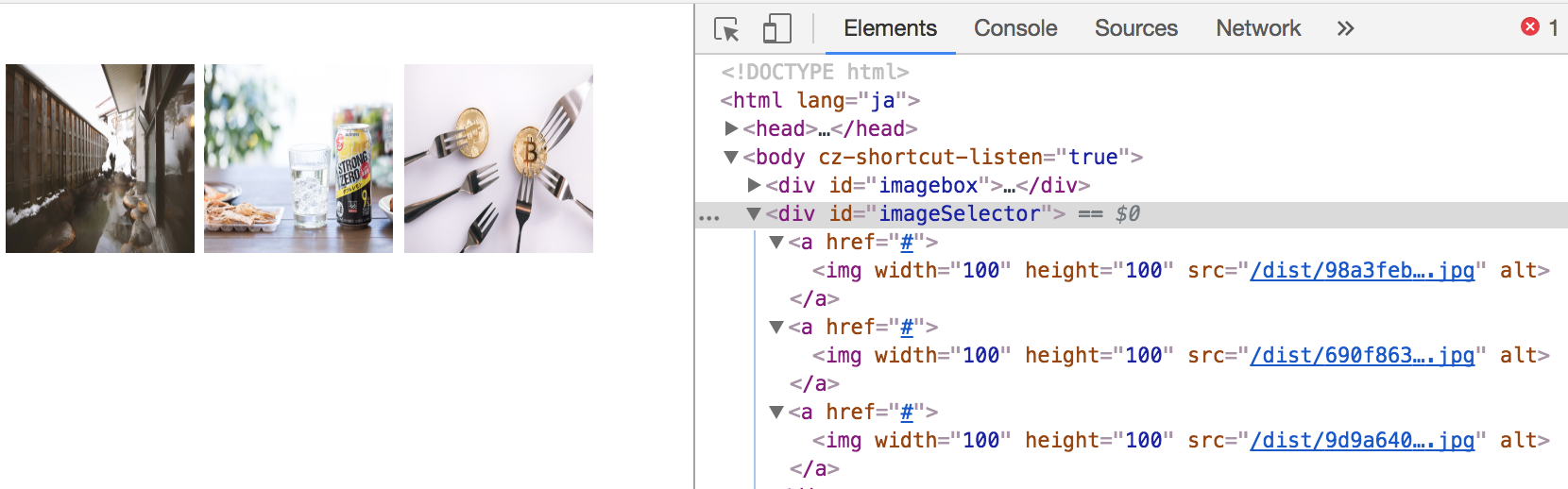
アクセスすると画像が3つ表示されています。そして画像が /dist/ に格納されています。
アナログな方法で画像のパスを入れる・・・
この先どうすればいいかは分からず、一旦 src をコピペしました。動作させたいだけなので、ヨシとしましょう。
imageSelector の中の click に関連づいている switch_image の引数を /dist/ のPATHへ書き換えています。
    <div id="imageSelector">
      <a href="#" v-on:click="switch_image('/dist/98a3febe3a017ef3fede3814b19d5dd3.jpg')">
        <img width="100" height="100" src="images/hiratakan.jpg" alt="" />
      </a>
      <a href="#" v-on:click="switch_image('/dist/690f863c61c4bb8da2967f2a8505e0f5.jpg')">
        <img width="100" height="100" src="images/chuhai.jpg" alt="" />
      </a>
      <a href="#" v-on:click="switch_image('/dist/9d9a6401133695a6bd012dc54a281224.jpg')">
        <img width="100" height="100" src="images/bitcoin.jpg" alt="" />
      </a>
    </div>
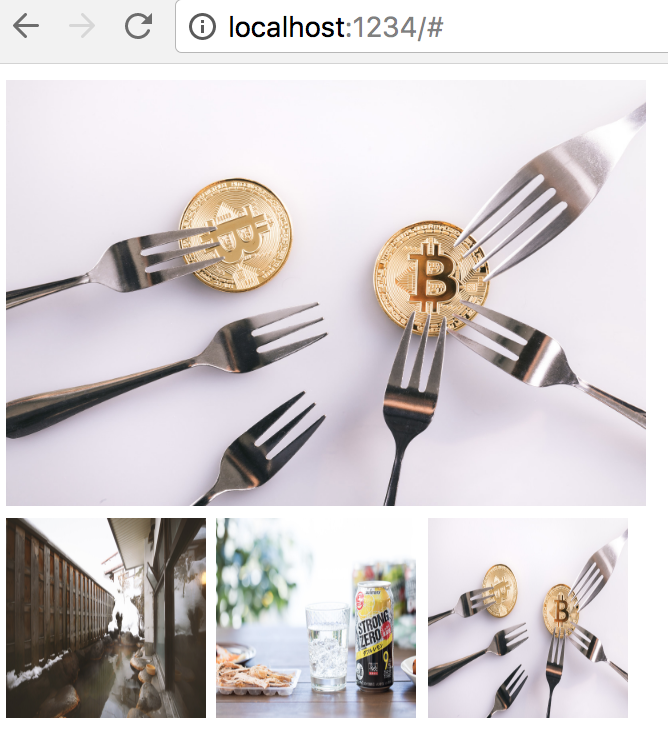
再度実行。画像3枚をクリックすると、その上で画像が切り替わります。
最後に
僕は parcel も Vue も初めて触るのですが、どちらも比較的簡単に実装することができました。parcel のビルドは非常に簡単で、実行するだけなので、迷うことはありませんでした。
画像のpathをコピペしたところは実用的には対応が必要ですね。
parcel が bundle した後 path が変わるので、click した img から src の値を取得して切り替えるようにすればいけると思います。
ただ、/images/ を参照できないので、初期画像をどうセットしておくのか悩みました。
今回は webpack 自体が分かってない中だったので、そこも含めて学習になりました。
実用的にどうなのか?というのは、こちらが参考になりました。
- Parcel 入門 ~Parcelはwebpackの代わりになるのか~