

こんにちは!tatata-keshiです
今回はFlutterでレイアウトを組む方法についてまとめてみました。
この記事はFlutter歴1週間未満の人が書いています!間違ったことを記載していても寛大な心で教えていただけると幸いです
Column
Columnは要素を縦に並べるレイアウトです。
CSSで言うとdisplay: flex; flex-direction: column;のようなイメージです。
実装例
class HomePage extends StatelessWidget {
  const HomePage({super.key});

  @override
  Widget build(BuildContext context) {
    return Scaffold(
      appBar: AppBar(title: Text('ホームページ'), backgroundColor: Colors.greenAccent),
      body: Container(
        color: Colors.grey,
        child: Column(
          children: [
            Icon(Icons.home, size: 100, color: Colors.blueAccent),
            Icon(Icons.favorite, size: 100, color: Colors.redAccent),
            Icon(Icons.star, size: 100, color: Colors.yellowAccent)
          ],
        ),
      )
    );
  }
}

Row
次に紹介するのはRowです。RowはColumnとは異なり横に要素を並べるレイアウトです。
CSSで言えばdisplay: flex; flex-direction: rowのような感じだと思っています。
実装例
class HomePage extends StatelessWidget {
  const HomePage({super.key});

  @override
  Widget build(BuildContext context) {
    return Scaffold(
      appBar: AppBar(title: Text('ホームページ'), backgroundColor: Colors.greenAccent),
      body: Container(
        color: Colors.grey,
        child: Row(
          children: [
            Icon(Icons.home, size: 100, color: Colors.blueAccent),
            Icon(Icons.favorite, size: 100, color: Colors.redAccent),
            Icon(Icons.star, size: 100, color: Colors.yellowAccent)
          ],
        ),
      )
    );
  }
}
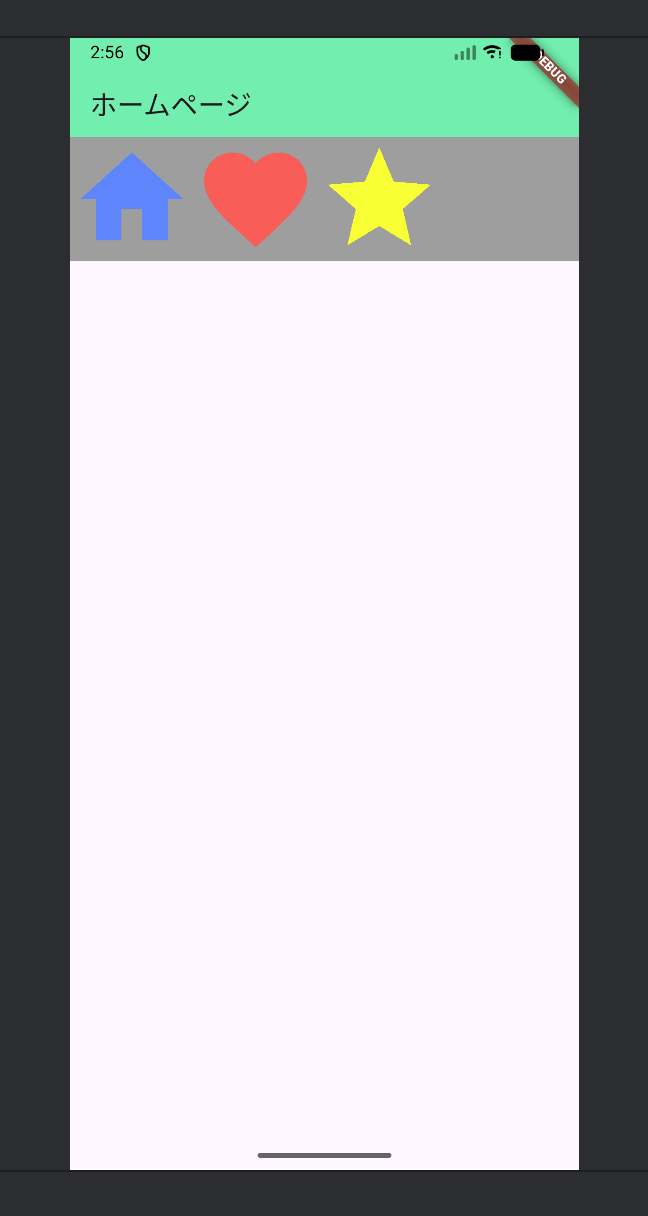
ちなみにこれらのレイアウトはmaxAxisAlignmentやcrossAxisAlignmentを用いて中央寄せや左右上下寄せといった設定を加えることができます。
そのためCSSのFlexboxのような使用感で使えそうですね!
Stack
先述のColumnとRowがそれぞれy軸とx軸方向に要素を並べるレイアウトなのに対して、このStackはz軸方向に要素を並べるレイアウトになります。
あまり要素を重ねるというのは個人的にイメージがついていないのですが、どのような使われ方が一般的なんでしょうかね
実装例
class HomePage extends StatelessWidget {
  const HomePage({super.key});

  @override
  Widget build(BuildContext context) {
    return Scaffold(
      appBar: AppBar(title: Text('ホームページ'), backgroundColor: Colors.greenAccent),
      body: Container(
        color: Colors.grey,
        child: Stack(
          children: [
            Icon(Icons.home, size: 100, color: Colors.blueAccent),
            Icon(Icons.favorite, size: 100, color: Colors.redAccent),
            Icon(Icons.star, size: 100, color: Colors.yellowAccent)
          ],
        ),
      )
    );
  }
}

まとめ
今回はFlutterで要素を並べるときのレイアウトについて調べてみました。
個人的にはとりあえず
- x軸なら
Row - y軸なら
Column - z軸なら
Stack
というのを覚えておけば問題ないように感じました