
はじめに
Unity6.2でUIToolkitのWorldSpace表示がサポートさた
2Dもしくは3D空間上にVisualElementを配置することがでる
他のオブジェクト同様に移動, 回転, 拡大縮小できるので、体力バーやプレイヤー名ラベルなどに最適だ
この記事では、WorldSpaceへのUIの配置をやってみる
参考
Unity 6.2でのワールド空間UIについてのチュートリアル
Unity6.2の新機能
マニュアル
やってみる
1. Universal 3Dテンプレートで新しいプロジェクトを作成
(今回は最新の6.3で作業する)

2. UXMLの作成
Projectウィンドウで右クリックし、Create/UI Toolkit/UI Document(UXML)を選択

するとUXMLファイルが作成される
作成したUXMLファイルをダブルクリックしてUI Builderウィンドウを開き、表示確認用のUIを作成する
今回は以下のようなUIを作成した

NewUXMLTemplate.uxml
<ui:UXML xmlns:xsi="http://www.w3.org/2001/XMLSchema-instance" xmlns:ui="UnityEngine.UIElements" xmlns:uie="UnityEditor.UIElements" noNamespaceSchemaLocation="../UIElementsSchema/UIElements.xsd" editor-extension-mode="False">
    <ui:VisualElement style="flex-grow: 1; background-color: rgb(134, 212, 117); justify-content: center; align-items: center;">
        <ui:Label text="UI Test" style="font-size: 57px; -unity-font-style: bold; -unity-text-align: middle-center;"/>
    </ui:VisualElement>
</ui:UXML>
3. UI Documentオブジェクトの配置
Hierarchyウィンドウで右クリックし、UI Toolkit/UI Documentを選択
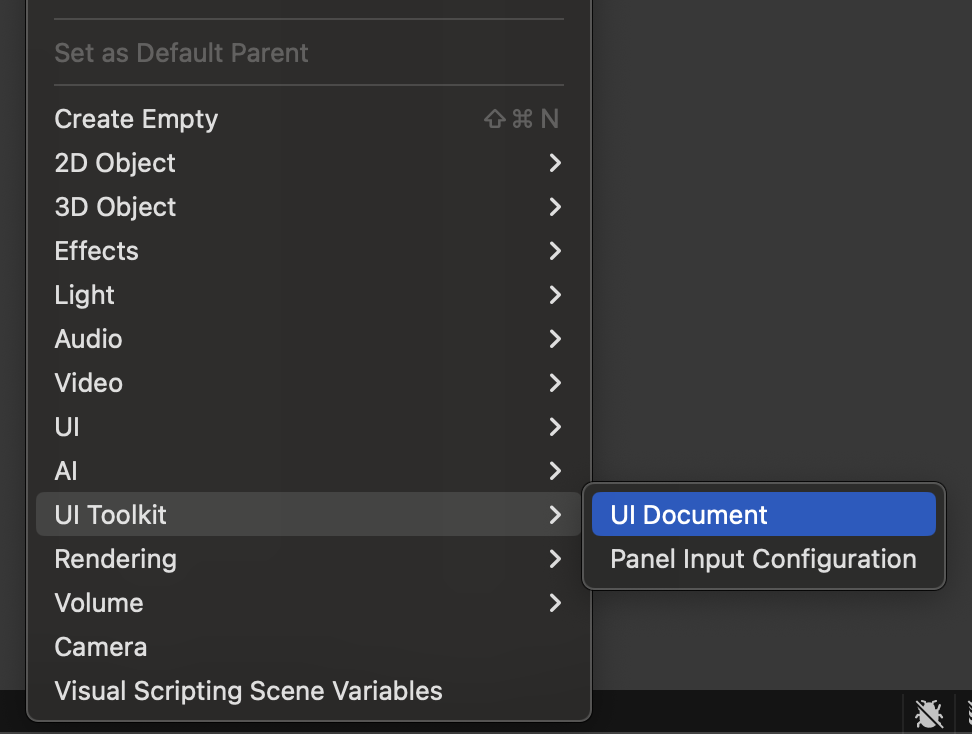
作成されたオブジェクトを選択し、InspectorからSource Assetに先ほど作成したUXMLファイルをセットする

4. PanelSettingsの設定
3で作成したUIDocumentにセットされているPanelSettingを選択すると、Projectウィンドウでハイライトされる
ハイライトされたPanelSettingsをクリックし、Inspectorから Render ModeをWorld Spaceへ変更する

5. シーン上の見え方修正
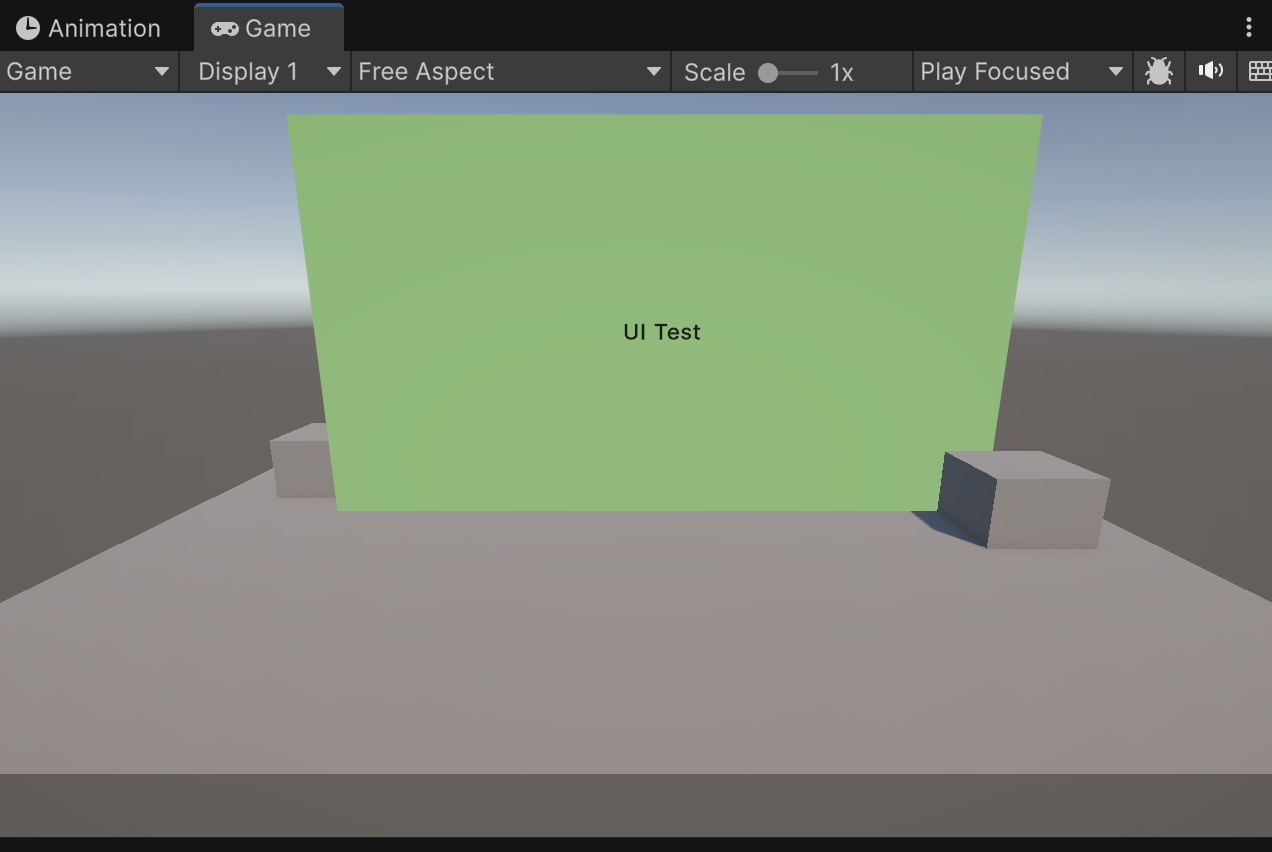
適当にオブジェクトを配置してみる
UIDocumentオブジェクトの移動や回転がそのままUIに反映される
また、WorldSpaceなので当然オブジェクト間の前後関係もちゃんと考慮されて表示される
終わりに
非常に直感的にシーンへ追加できるので、UIToolkitへの移行が進みそうな機能だと感じた
これからどんどん使っていきたい