
記事一覧:https://qiita.com/takulabo/items/d5f56132c02d4136687c
SSH接続先のプロジェクトをVScodeで編集しよう
SSH接続先のプロジェクトをターミナルで編集していませんか?
VScodeから、ローカルファイルと同様にフォルダをプロジェクトとして開いて編集可能にできます。
手順をご案内いたします。

ざっくり構成
ざっくり手順
【クライアント側で実施】
①OpenSSH(client版)インストール
②VScodeインストール
③VScodeに、Opensshインストール
④VScodeで、openssh接続設定
【要点】
クライアント側でファイルに接続先情報追記
「C:\Users[ユーザ名].ssh\config」
「C:\Users[ユーザ名]\AppData\Roaming\Code\User\settings.json」
鍵がない場合
クライアント側「ssh-keygen -t ed25519」鍵作成
クライアント側「type C:\Users\exeo.ssh\id_ed25519.pub」鍵表示
サーバ側「~/.ssh/authorized_keys」に追記
クライアントセットアップ手順
◆OpenSSH(Client)インストール
※管理者権限でpowershellコマンドを実行
Add-WindowsCapability -Online -Name OpenSSH.Client~~~~0.0.1.0
◆確認
Get-WindowsCapability -Online | Where-Object Name -like 'OpenSSH.Client*'
ssh -V
インストール済みであることを確認
- state:Installed:インストール済み
- state:NotPresent:未インストール
◆VScodeインストール
→以前の解説リンク
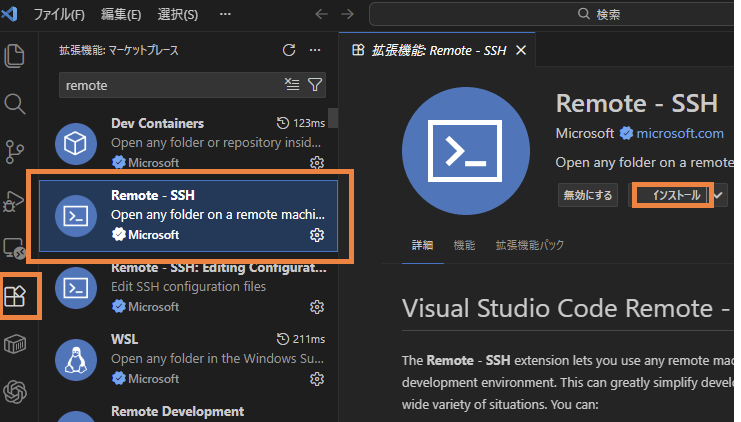
◆VScode(OpenSSHインストール)
①VScodeを開きます。
②左パネル内の「拡張機能」ボタンをクリック
③検索バーに「remote」入力
④表示された「Remote - SSH」を選択
⑤「インストール」をクリック
◆VScodeにてSSH設定
①左メニューの「リモート」ボタンをクリック
②「>SSH」欄の「+」をクリック
③接続先アドレスを入力して接続

◆ここまでで接続できなかった場合
※SSHキーが無くて接続できなかった事象がありました
追加手順です。
ファイルを確認「 C:\Users\[ユーザ名]\.ssh\config 」
Host [IPaddress]
HostName [IPaddress]
User [ユーザ名]
※設定内容不足
・Host名がIP直書き
・認証方式が未定義
認証キー情報確認
dir $HOME\.ssh
Directory: C:\Users\[ユーザ名]\.ssh

Mode  Name
----  ----
-a--- id_ed25519
-a--- id_ed25519.pub
-a--- known_hosts
この場合 → id_ed25519 を使う
Mode  Name
----  ----
-a--- id_rsa
-a--- id_rsa.pub
-a--- known_hosts
この場合 → id_rsa を使う
両方ある場合、👉 id_ed25519 を優先(新しく安全)
どちらもない場合
①SSH鍵を作る
ssh-keygen -t ed25519 -C "[ユーザ名]@windows"
質問が出ますが、すべて[Enter]でOKです。
dir $HOME\.ssh
C:\Users\[ユーザID]\.ssh\
  id_ed25519
  id_ed25519.pub
②configを置き換えます
C:\Users[ユーザ名].ssh\config
Host [接続先ホスト名]
  HostName [接続先IPアドレス]
  User [ユーザ名]
  IdentityFile ~/.ssh/id_ed25519
  IdentitiesOnly yes
③Windowsクライアント → 公開鍵の中身を確認
type C:\Users\[ユーザ名]\.ssh\id_ed25519.pub
ssh-ed25519 AAAAC3NzaC1lZDI1NTE5AAAAI... [ユーザ名]@windows
④接続先にSSHログインし接続先でauthorized_keysに追加
ssh [ユーザ名]@[IPアドレス]
mkdir -p ~/.ssh
chmod 700 ~/.ssh
nano ~/.ssh/authorized_keys
⑤ ③で表示した1行をそのまま貼り付け
※ctrl+O→[Enter]で保存
Ctrl+x編集終了
⑥権限変更
chmod 600 ~/.ssh/authorized_keys
⑦接続確認
ssh [接続先ホスト名]
接続できることを確認
・パスワード聞かれない
・即ログインできる
※SSH鍵認証が完成です。
⑧VScodeを終了
notepad C:\Users\[ユーザ名]\AppData\Roaming\Code\User\settings.json
{
    "remote.SSH.remotePlatform": {
        "[IPアドレス]": "linux",
        "[IPアドレス]": "linux"
    },
    "remote.SSH.useLocalServer": false,
    "remote.SSH.useExecServer": false
}
上記の形式で保存します。
⑨ Remote-SSH の完全リセット
Remove-Item -Recurse -Force "$env:APPDATA\Code\User\globalStorage" -ErrorAction SilentlyContinue
Remove-Item -Recurse -Force "$env:USERPROFILE\.vscode" -ErrorAction SilentlyContinue
Remove-Item -Recurse -Force "$env:LOCALAPPDATA\Temp\vscode-ssh*" -ErrorAction SilentlyContinue
◆VSコード接続
①VSCode再起動
②Ctrl + shift + p
③「Remote-SSH: Connect to Host...」
④「ホスト名」を選択
接続できればOKです。
「表示」にてエクスプローラーで、ファイル編集が楽になります。
※接続できない場合コメントください。
◆おまけ(接続先を増やす)
① ~/.ssh/config に接続先を追加する
→ VS Code(Remote-SSH)はここをそのまま使います。
notepad C:\Users\[ユーザ名]\.ssh\config
Host linux-0001
  HostName 192.168.10.10
  User user
  IdentityFile ~/.ssh/id_ed25519
  IdentitiesOnly yes

Host [接続先ホスト名]
  HostName [接続先IPアドレス]
  User [接続先ログインID]
  IdentityFile ~/.ssh/id_ed25519
  IdentitiesOnly yes

Host [接続先ホスト名②]
  HostName [接続先IPアドレス②]
  User [接続先ログインID②]
  IdentityFile ~/.ssh/id_ed25519
  IdentitiesOnly yes
ポイント
- Host名は自由
- VS Code には この Host 名が表示される
- IP直打ちより Host名運用が楽
②鍵が必要な場合(初回のみ)
鍵がないサーバには初回のみ一度だけ。
type C:\Users\exeo\.ssh\id_ed25519.pub
接続先サーバのファイルに追記
nano ~/.ssh/authorized_keys
※ctrl+O→[Enter]で保存
Ctrl+x編集終了
③VS Code で接続
VS Code 左下「><」
Remote-SSH: Connect to Host
Linux-0001 / [追記したホスト名] / [追記したホスト名②] が一覧に出る