
Obsidian Syncを使っていますが画像は別管理にしたいので、S3 Image Uploaderプラグインを使ってCloudflare R2に保存することにしました。画像ファイルのアクセス制限は掛けないので、設定は簡単です。
環境
- Obsidian 1.12.7
- Windows版(Arm64)およびLinux版で動作確認
- S3 Image Uploader 0.2.47
Cloudflare側の準備
まずCloudflareアカウントでCloudflare R2を有効化し、バケットを作成します。
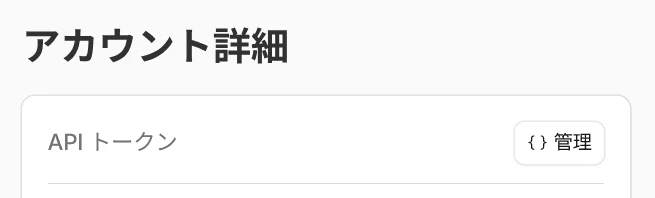
「アカウント詳細」の「API トークン」の「{} 管理」から、API トークンを作成します。
対象バケットに「オブジェクト読み取りと書き込み」権限を付けておきます。
作成したら「アクセスキーID」「シークレットアクセスキー」をメモしておきます。
Obsidian側の設定
コミュニティプラグインからS3 Image Uploaderをインストールし、設定から以下の値を入力します。
- AWS Access Key ID
- 先ほどメモしたアクセスキーIDを入力
- AWS Secret Key
- 先ほどメモしたシークレットアクセスキーを入力
- Region
-
autoと入力 - ※Cloudflare R2にはAWSと違ってリージョンの指定がありませんが、空文字だと動作しません
-
- S3 Bucket
- 設定したバケット名を入力
- Use Custom Endpoint
- 有効化
- Custom S3 Endpoint
- Cloudflare R2 オブジェクトストレージの「設定」→「一般」→「S3 API」の値を入力
- Use Custom Image URL
- 有効化
- Custom Image URL
-
https://<ドメイン>/<バケット名>を入力 - ドメインは、Cloudflare R2 オブジェクトストレージ側で、カスタムドメインかパブリック開発 URLで設定できます
- バケット名も付けないといけない点に注意してください
-
設定が終わったら、適当な画像をObsidianにペーストしてみて、画像がアップロードされて表示できれば成功です。