
最近は減ってきたものの、私はいまだにフルリモートの会社で働いています。
バーチャルオフィスとして定番のGatherを使っているのですが、ここ2~3年で社員数が4倍に増えて、オフィスを広げたら会議室まで遠くなって歩くのがめんどくさくなっちゃいました。
初期ドラクエ(どちらかというとMOTHER寄りな気はする)のようなUIでトコトコ歩くのが最初は楽しかったんですが、会議直前に「会議室どこやねん」と慌てて移動する毎日が嫌になり、瞬間移動できるChrome拡張「Gather Teleporter」を作りました。
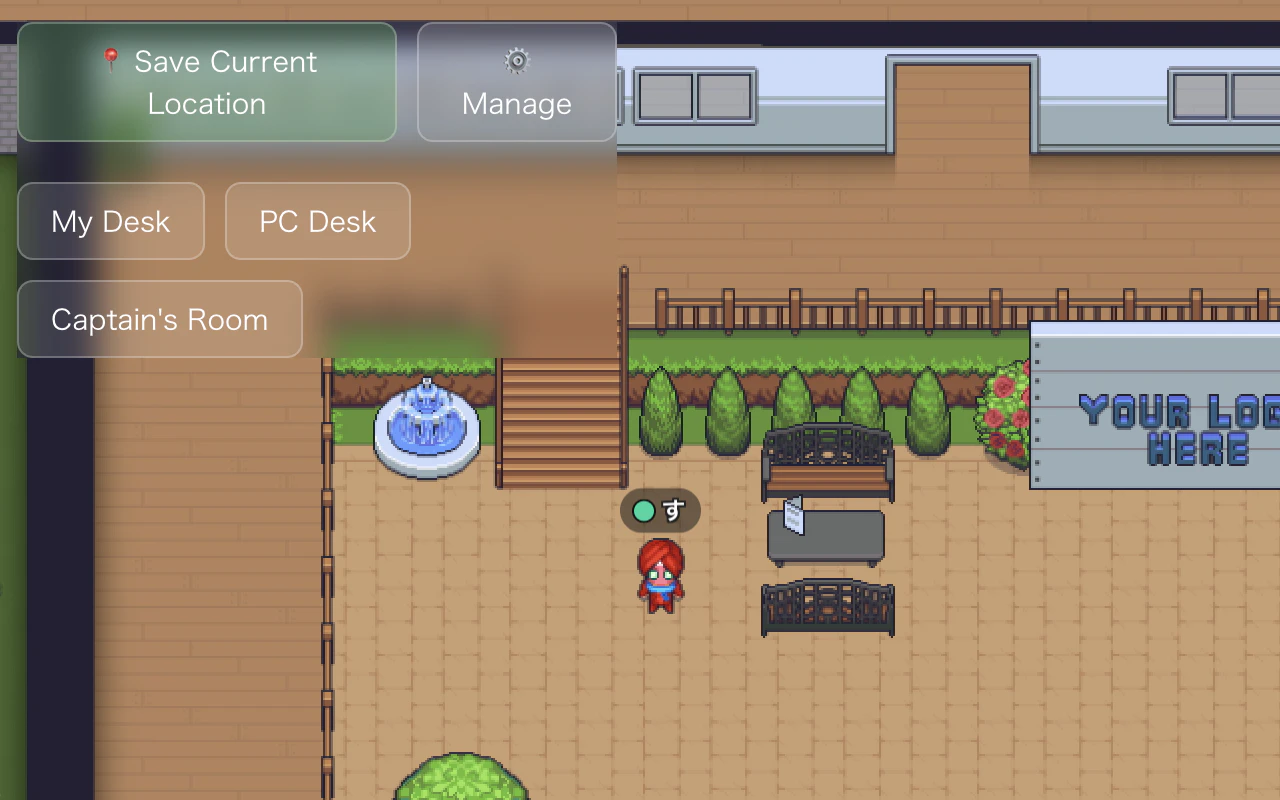
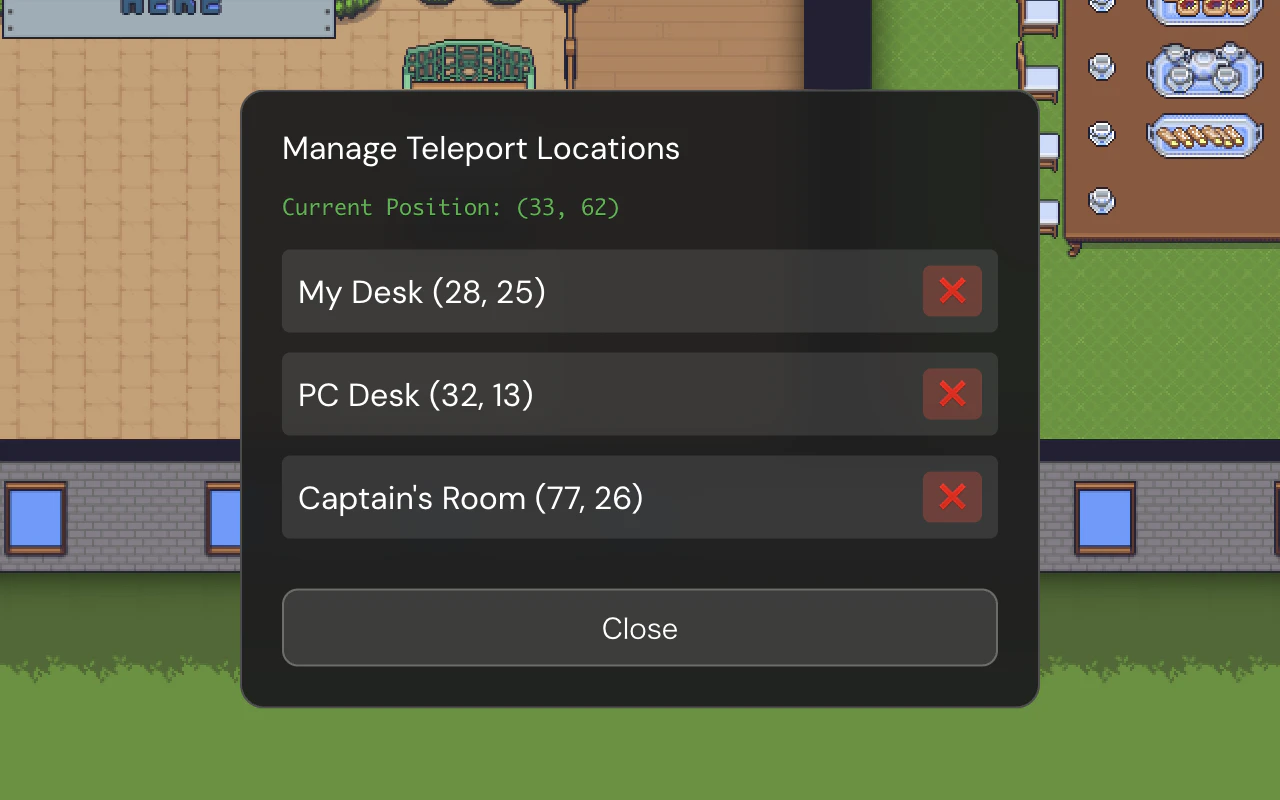
こんな感じでテレポートできるようになります。

また、移動先もボタン一発で保存できます。
元記事
仕組み
GatherのWebクライアントは、以下のようなAPIをグローバルに公開してくれています。
- プレイヤー情報取得:
window.game.getMyPlayer() - テレポート実行:
window.game.teleport(mapId, x, y)
拡張はページ読み込み時にスクリプトを注入し、ゲームオブジェクトが使えるようになるのを待ってから、画面左上に「テレポートボタン」と「移動先保存ボタン」を追加します。
移動先リストはlocalStorage管理なので、再起動しても消えません。
ざっくりコード解説
// 1. window.gameが生えるまで監視
// 2. ボタンや管理用UIを生成
// 3. テレポートボタン押すと
const mapId = window.game.getMyPlayer().map;
window.game.teleport(mapId, x, y);
// 4. localStorageで永続化
コード全体はinjected.jsにまとまっています。
難しい処理はしていませんが、Chrome拡張やDOM操作の基本は一通り入っています。
番外編: デスクトップ版Gatherでも瞬間移動したい場合
導入手順
1.デスクトップアプリ上でDevToolsを開く
- Mac:
⌘ + Option + I - Windows:
Ctrl + Option + I
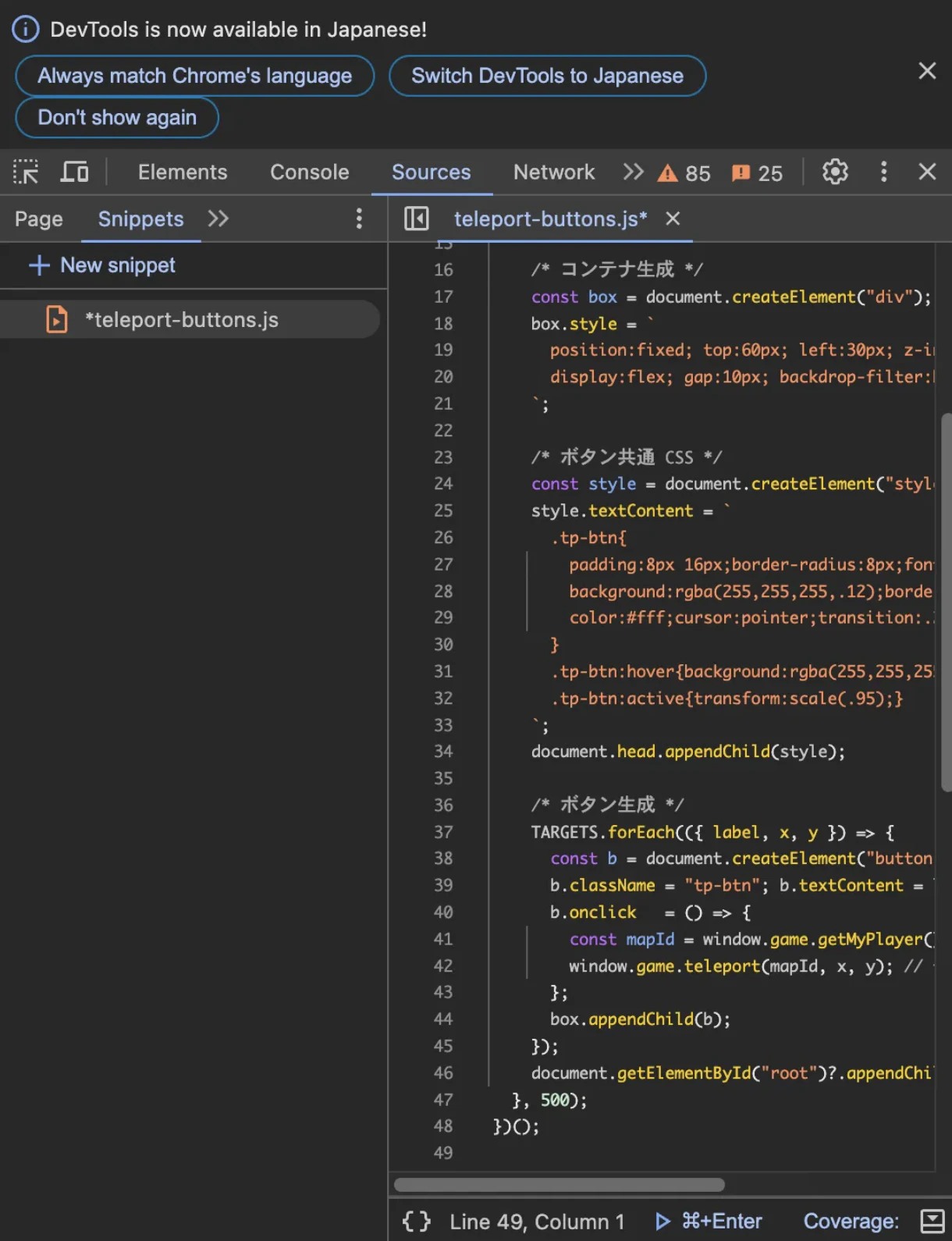
2.Sources < Snippets < New Snippetに以下のスクリプトを貼ってteleport-buttons.js(名前は何でもいい)という名前をつける
/* Gather Teleport Buttons – Desktop App */
(() => {
  const TARGETS = [
    { label: "My Desk", x: 28, y: 25 },
    { label: "PC Desk", x: 32, y: 13 },
    { label: "Captain's Room", x: 77, y: 26 }
  ];

  const wait = setInterval(() => {
    if (!window.game?.getMyPlayer) return;
    clearInterval(wait);

    const box = document.createElement("div");
    box.style = `
      position:fixed; top:60px; left:30px; z-index:9999;
      display:flex; gap:10px; backdrop-filter:blur(8px);
    `;

    const style = document.createElement("style");
    style.textContent = `
      .tp-btn{
        padding:8px 16px;border-radius:8px;font:14px/1 "Segoe UI",sans-serif;
        background:rgba(255,255,255,.12);border:1px solid rgba(255,255,255,.25);
        color:#fff;cursor:pointer;transition:.2s background,.1s transform;
      }
      .tp-btn:hover{background:rgba(255,255,255,.25);transform:scale(1.05);}
      .tp-btn:active{transform:scale(.95);}
    `;
    document.head.appendChild(style);

    TARGETS.forEach(({ label, x, y }) => {
      const b = document.createElement("button");
      b.className = "tp-btn"; b.textContent = label;
      b.onclick   = () => {
        const mapId = window.game.getMyPlayer().map;
        window.game.teleport(mapId, x, y); // ← 核心呼び出し
      };
      box.appendChild(b);
    });
    document.getElementById("root")?.appendChild(box);
  }, 500);
})();
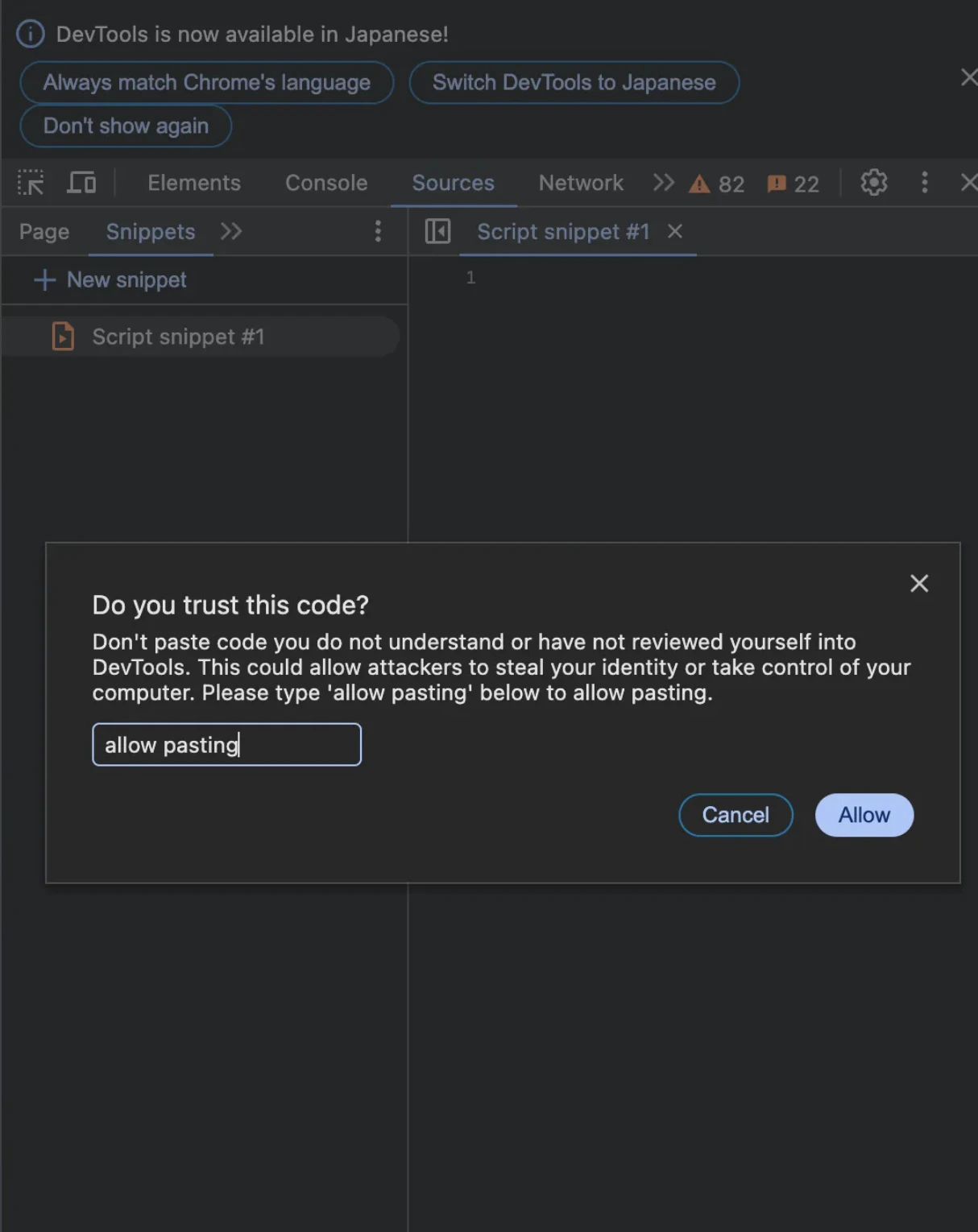
※ 以下のようなポップアップが出たらallow pastingと入力する
3.スクリプトを実行する(デスクトップアプリを立ち上げるたびに必要)
- Mac:
⌘ + Enter - Windows:
Ctrl + Enter
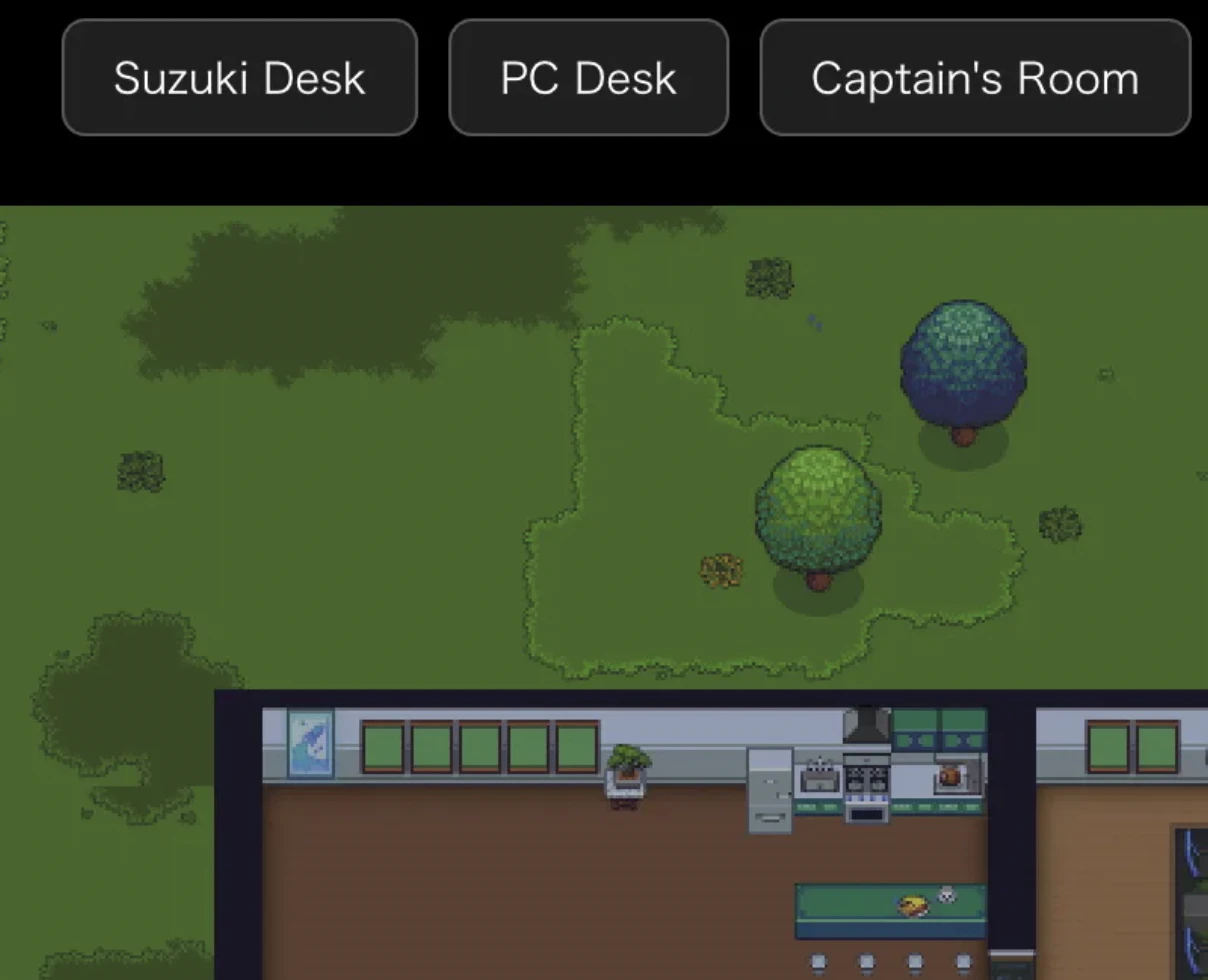
4.以下のようになっていたら成功
移動場所の追加
1.瞬間移動したい場所に移動する
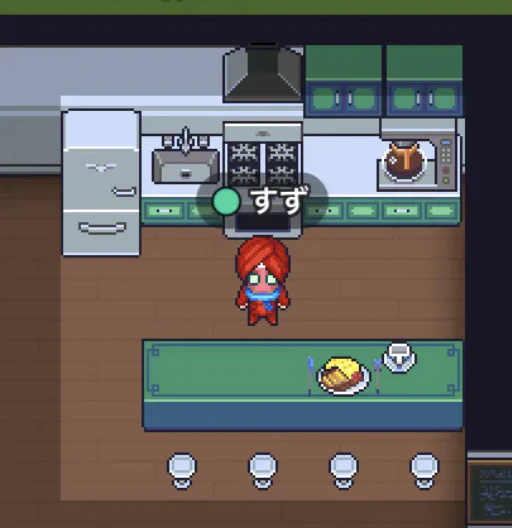
2.DevToolsからConsoleを開いて{ x: game.getMyPlayer().x, y: game.getMyPlayer().y } を実行して座標(x, y)を取得する

3.使用しているスクリプトにラベル(ボタン名)と座標(x, y)を追加する
  const TARGETS = [
    ...,
    { label: "Kitchen", x: 28, y: 25 },
  ];
- スクリプトを保存してGatherを再起動する
Q. 他のマップやエリアへのテレポートは?
座標保存方式なので、マップをまたぐ移動は未対応です。
変な場所に飛んだら「ロビーに戻る」で復帰してください!