
VScodeを起動します。
Ctrl + Shift + P と入力します。コマンドパレットが表示されます。

「すみそー!」というコマンドが存在します。クリックしてみましょう。
\すみそー!/
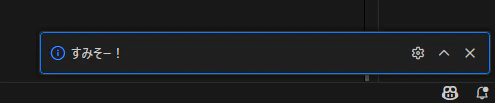
通知の表示と同時にsumisoの鳴き声がします。以上です。
本記事はクソアプリ Advent Calendar 2025シリーズ3、11日目の記事です。
いつ使うの?
隣の人から「ぬた和えって何?」と聞かれたときにすぐ回答できます。使いどころが謎すぎるためクソアプリです。
VScode拡張機能の作り方
すーみそー
sumiso_c0db8cだ。
今回は、VScodeで音を再生する拡張機能を作ってみたので作り方を紹介します。
本記事はwindowsで動作確認を行っています。
プロジェクト生成
VScodeの拡張機能用のテンプレートを生成します。npmでライブラリをインストールします。Node.jsが必要です。
npm install -g yo generator-code
プロジェクトを作成します。質問に答える形で初期設定を行います。
yo code

✔ What type of extension do you want to create? New Extension (TypeScript)
✔ What's the name of your extension? sumiso-code
✔ What's the identifier of your extension? sumiso-code
✔ What's the description of your extension? すみそー!
✔ Initialize a git repository? No
✔ Which bundler to use? webpack
✔ Which package manager to use? npm
ファイルが生成されます。
そのままデバッグ実行します。F5キーを押すと、新しくVScodeが立ち上がります。
Ctrl + Shift + P でコマンドパレットを表示し、Hello Worldのコマンドが実行できることを確認します。
コマンドが表示されないときは、拡張機能の有効化に失敗している可能性があります。自分の環境では、VScodeのバージョンが古く、拡張機能が指定しているバージョンの方が新しくエラーになっていました。
VScodeを最新版に更新するか、対応バージョンを下げることで回避できます。バージョンの指定はpackage.jsonです。
{
    "name": "sumiso-code",
    "displayName": "sumiso-code",
    "description": "すみそー!",
    "version": "1.0.0", // こっちは拡張機能自体のバージョン
    "engines": {
        "vscode": "^1.106.0" // VScodeのバージョンを手元の環境に合わせる
    },
    // 以下略
音を再生する機能
src\extension.tsが拡張機能の本体です。このファイルに音を再生する機能を追加します。
import * as vscode from "vscode";
import * as path from "path";
import { exec } from "child_process";
import { promisify } from "util";

// child_process.exec を Promise 化して非同期処理を扱いやすくする
const execAsync = promisify(exec);

export function activate(context: vscode.ExtensionContext) {
    console.log('Congratulations, your extension "sumiso-code" is now active!')

    const disposable = vscode.commands.registerCommand(
        "sumiso-code.helloWorld",
        async () => {
            const mp3Path = path.join(
                context.extensionPath,
                "media",
                "sumiso.wav"
            );

            vscode.window.showInformationMessage("すみそー!");
            await playWav(mp3Path);
        }
    );

    context.subscriptions.push(disposable);
}

// This method is called when your extension is deactivated
export function deactivate() {}

/**
 * Windowsで指定されたwavファイルを非同期で再生します。
 * @param filePath 再生したいwavファイルの絶対パス
 */
async function playWav(filePath: string): Promise<void> {
    // Windowsでファイルを再生するためのコマンド
    const command = `powershell -Command "$player = New-Object System.Media.SoundPlayer '${filePath}'; $player.PlaySync()"`;

    try {
        // コマンド実行(非同期)
        await execAsync(command, { windowsHide: true });
        // console.log(`Sound played: ${filePath}`);
    } catch (error: any) {
        // エラー処理(ファイルが見つからない、権限がないなど)
        vscode.window.showErrorMessage(
            `Failed to play sound: ${error.message}`
        );
    }
}
powershellで指定の音声ファイルを再生します。音声ファイルはmediaフォルダを作成して格納しています。
なおpowershellが使える環境でないと動作しません。
コマンドの定義を修正します。package.jsonのHello Worldのコマンドを書き換えます。
    "contributes": {
        "commands": [
            {
                "command": "sumiso-code.helloWorld",
                "title": "すみそー!"
            }
        ]
    },
F5を押してデバッグ実行し、動作確認を行います。
パッケージ化
拡張機能を.vsixファイルにパッケージ化します。マーケットプレイスに公開せずに、ファイルを配布することで、他の端末で利用できます。
README.md整備
デフォルトのREADMEそのままだとパッケージ化のときエラーになります。
ERROR It seems the README.md still contains template text. Make sure to edit the README.md file before you package or publish your extension.
適当に内容を書き換えます。
# sumiso-code README

すみそー!
アイコン設定
128x128のpng画像を用意します。プロジェクトルートにicon.pngの名前で配置し、package.jsonに設定します。
"icon": "icon.png",
作成者
package.jsonにpublisherを指定します。
sumiso_c0db8c(筆者の名前)を記載したところ
ERROR Invalid extension "publisher": "sumiso_c0db8c" in package.json. Expected the identifier of a publisher, not its human-friendly name.
not its human-friendly name.
名前否定されて草。おそらく、アクセストークンと間違えて記載していない?というエラーです。
諦めてsumisoにします。
"publisher": "sumiso",
パッケージ化
ライブラリを追加でインストールします。
npm install @vscode/vsce
パッケージを作成します。
npx vsce package
A 'repository' field is missing from the 'package.json' manifest file.
Use --allow-missing-repository to bypass.
Do you want to continue? [y/N] y
リポジトリがないと聞かれますが、Yで無視します。
WARNING LICENSE, LICENSE.md, or LICENSE.txt not found
Do you want to continue? [y/N] y
ライセンスが無いと聞かれますが、配布予定はないのでYで無視します。
vsixファイルが生成されます。
sumiso-code-0.0.1.vsix
├─ [Content_Types].xml
├─ extension.vsixmanifest
└─ extension/
   ├─ changelog.md [0.03 KB]
   ├─ icon.png [2.28 KB]
   ├─ package.json [1.39 KB]
   ├─ readme.md [0.04 KB]
   ├─ dist/
   │  └─ extension.js [1.8 KB]
   └─ media/
      └─ sumiso.wav [25.22 KB]
vsixファイルよりVScodeに拡張機能としてインストールできるようになります。
まとめ
コマンドから音声ファイルを再生する拡張機能を作成しました。powershellのコマンド経由でwavファイルを再生できます。publisherに16進数ネーム入れるとエラーになるのでご注意ください。