
これなに
- ちょっとお手伝いしている会社で「紙のチラシからデジタルデータに変換して活用したい」との要望があった
- その際に色々あったものの、「ちょっと AI 組み込んで楽に実装してみたいな」と思ったので実際にどのような候補を検討して、どのように実装したかを記録しました
ソリューション案
方針検討
今回の話で考えたのは大きく2つで、flutter のパッケージで機械学習的なものが使えないかどうか、もう1つはAIを利用しての実装でした。
処理方針としては Extract text from image (画像からテキスト抽出) => Comprehend text (テキスト理解) を行うことだったので、これを実装できそうな案を検討しました。
案1:パッケージ利用
最初はなにかしら良さげなパッケージで安くできないかなと思ったのですが、探したのは以下のパッケージ
ただ、これはテキスト抽出までであり、テキスト理解までを行うパッケージは探してもあまり良さげなものがなく、flutterパッケージ案の利用は実現できませんでした
案2:AI利用
案1の調査によって、やはり数少ない実装量でやりたいことを実現するにはAI利用が早そうでした。
そこで検討したのは価格面で、小さいアプリなのでとにかく安くしたかったのですが、調べたのは以下の通り:
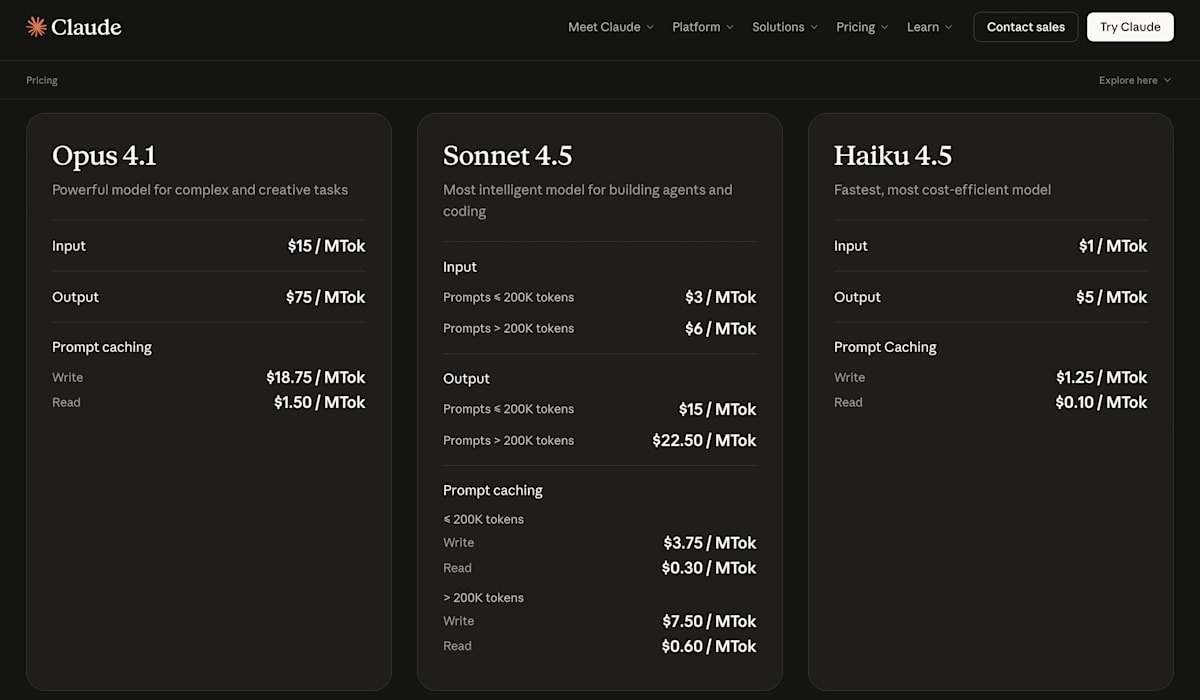
Claude
以下の通り有料プランのみで、大量テキスト処理が得意なClaudeは魅力的ではあったものの、ちょっと難しそうだなと思いました。
- Input: $1 / MTok
- Output: $5 / MTok
- Ref: https://www.claude.com/pricing
Gemini
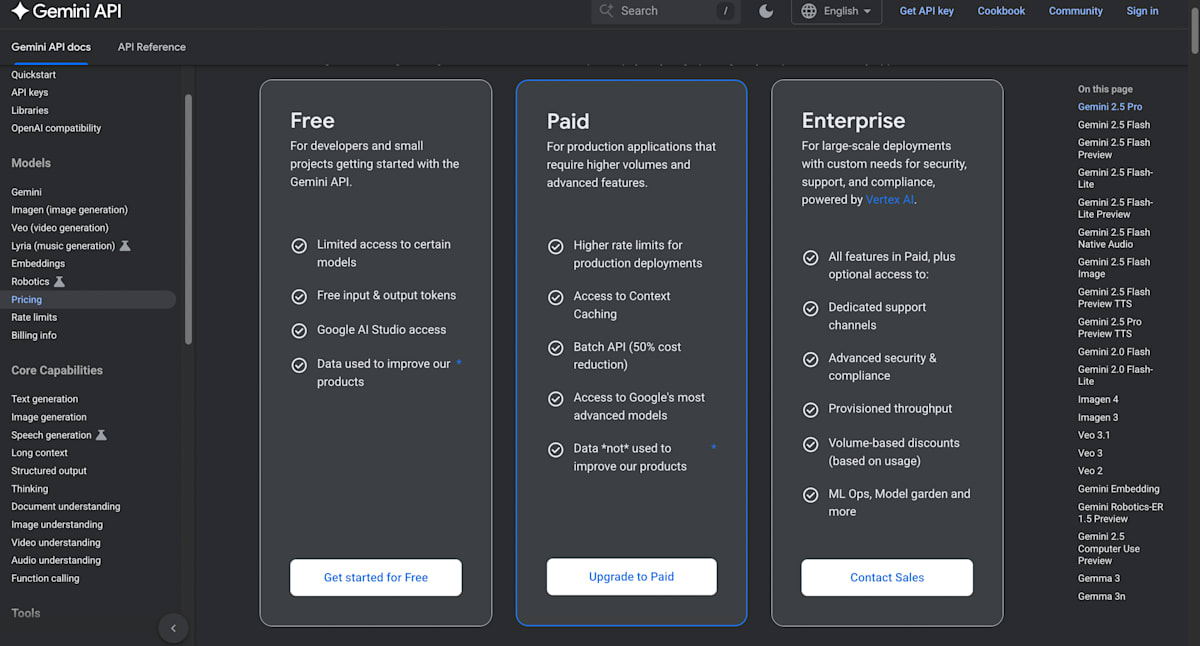
Free, Paid, Enterprise と無料プランが用意されていたので、即決で Gemini を利用することに。
ChatGPT
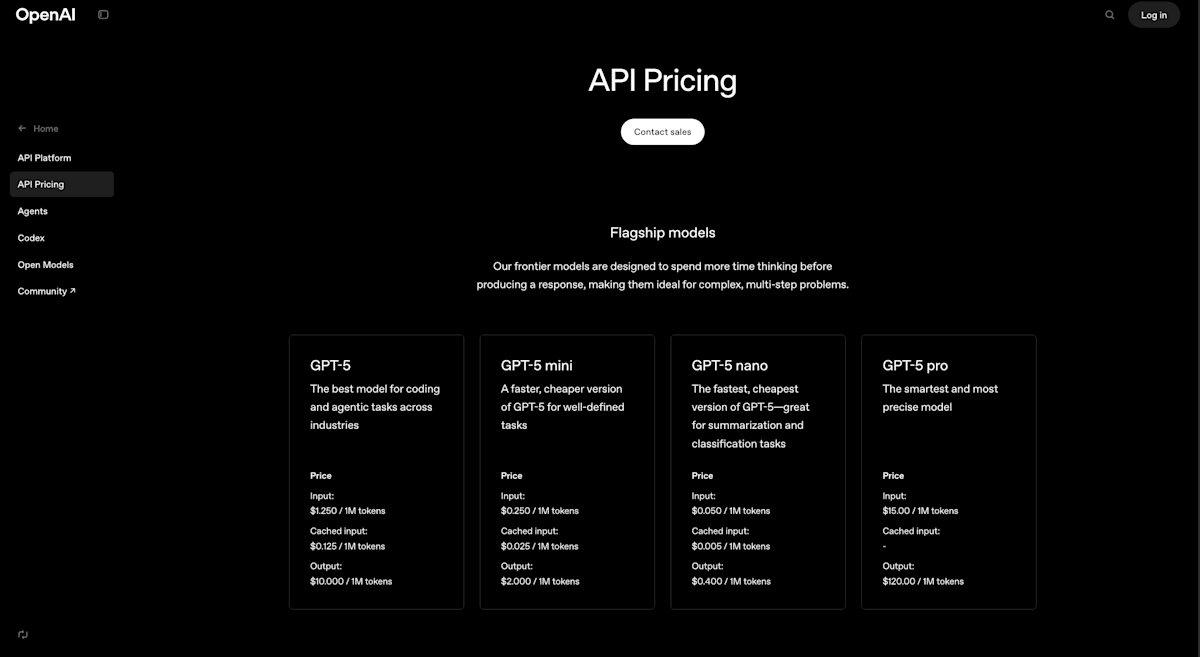
一応 ChatGPT も調べましたが、有料プランのみで Claude 同様に速攻で候補から外しました
- Input: $0.050 / 1M tokens
- Output: $0.400 / 1M tokens
- Ref: https://openai.com/api/pricing/
Gemini を Flutter に組み込んで画像データからテキスト情報に変換するまでの実装
Step 1: Gemini API キーを発行して環境変数ファイルに追記
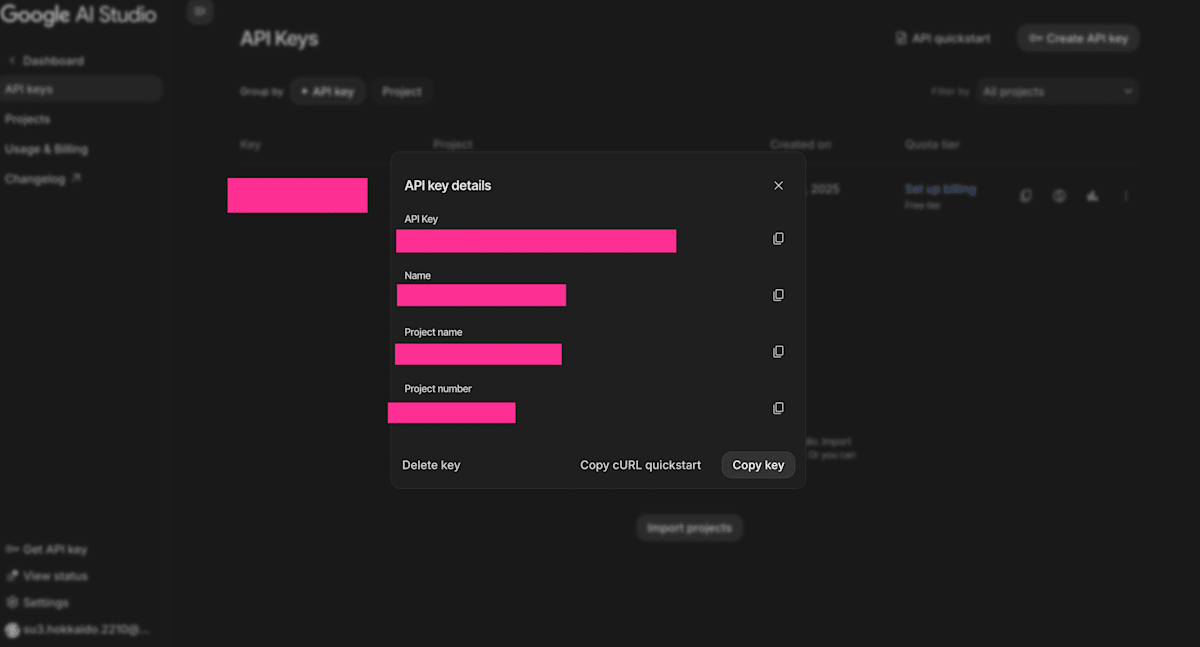
以下の URL から API キーを発行します。
その後、プロジェクトルートディレクトリに ./.env の環境変数ファイルを作成して、発行したAPIキーを設定します。
Step 2: プロンプトを準備
lib/prompts/gemini/flyer_extraction_prompt.dart に何をして欲しいのかプロンプトを準備します。
ちなみに自分は以下のようなプロンプトを準備し、アウトプット形式も指定しました。
/// Prompts for Gemini AI to extract information from flyer images
class FlyerExtractionPrompt {
  /// Get the prompt for extracting flyer information
  static String get extractFlyerInfo => '''
This image is a flyer for an event or campaign. Please extract the following information and return it in JSON format:

1. title: The title of the event or campaign (the most prominent text. Return empty string if not found. **Must be in Japanese**)
2. description: Event description or details (2-3 sentences. Return empty string if not found. **Must be in Japanese**)
3. start_date: Start date (YYYY/MM/DD format. Return empty string if not found)
4. end_date: End date (YYYY/MM/DD format. Return empty string if not found)
5. guest_capacity: Capacity or attendance limit (numbers only. Return empty string if not found or if 0)

Important notes:
- The title and description fields must be returned in Japanese (日本語)
- If the corresponding information does not exist in the image for each field, you must return an empty string ("")
- Dates must be returned in YYYY/MM/DD format (e.g., 2025/3/1)
- Guest capacity should return numbers only. Do not include units (e.g., "people", "persons")
- Do not include uncertain information or guesses, only extract information that is clearly stated

JSON format example (when information is available):
{
  "title": "春の特別セール",
  "description": "期間限定の特別価格でご提供します",
  "start_date": "2025/3/1",
  "end_date": "2025/3/31",
  "guest_capacity": "50"
}

JSON format example (when some information is missing):
{
  "title": "夏祭り",
  "description": "地域の夏祭りイベント",
  "start_date": "2025/7/15",
  "end_date": "",
  "guest_capacity": ""
}

Do not return any text other than JSON.
''';
}
Step 3: flutter で必要なパッケージをインストール
Flutter で Gemini を利用するには flutter_gemini パッケージをインストール必要があります。
また、後ほど .env からの値読み込みが必要なので、併せて flutter_dotenv もインストールしましょう。
flutter pub add flutter_gemini
flutter pub add flutter_dotenv
Step 4: Gemini初期化
直接APIキーをコードに書くのは一般的には推奨されないので、 main.dart に flutter_gemini と flutter_dotenv をインポートしつつ、環境変数の読み込みを行なって前のステップで設定している Gemini API キーを取得します。
..
import 'package:flutter_dotenv/flutter_dotenv.dart';
import 'package:flutter_gemini/flutter_gemini.dart';

..

Future<void> main() async {
  // Load environment variables
  await dotenv.load(fileName: '.env');

  // Initialize Gemini
  final geminiApiKey = dotenv.env['GEMINI_API_KEY'];
  if (geminiApiKey != null && geminiApiKey.isNotEmpty) {
    Gemini.init(apiKey: geminiApiKey);
  }

  runApp(const MyApp());
}
Step 5: Flutterコード内でGeminiを呼び出して Textract ==> Comprehend を実行する
ポイントのみを抜粋すると以下の3つの処理を行うことで画像からテキスト情報に変換することができます。
- 画像ファイルをバイトに変換
- Geminiインスタンス作成
- Geminiを使ってプロンプトを投げて画像からレスポンスを取得
// Read image as bytes
final bytes = await imageFile.readAsBytes();

// Get Gemini instance
final gemini = Gemini.instance;

// Request Gemini API with the flyer extraction prompt
final response = await gemini.textAndImage(
  text: FlyerExtractionPrompt.extractFlyerInfo,
  images: [bytes],
);
全ての処理を書くと以下の通り。
import 'dart:convert';
import 'package:flutter_gemini/flutter_gemini.dart';
import 'package:flutter_sample/prompts/gemini/flyer_extraction_prompt.dart';

...

  /// Take a photo by camera
  Future<void> _pickImageFromCamera() async {
    try {
      final XFile? image = await _picker.pickImage(
        source: ImageSource.camera,
        imageQuality: 85,
      );

      if (image != null) {
        final imageFile = File(image.path);
        setState(() {
          _imageFile = imageFile;
        });
        if (mounted) {
          Navigator.pop(context);
        }

        // Textract with Gemini AI
        await _extractTextWithGemini(imageFile);
      }
    } catch (e) {
      debugPrint('Error taking photo from camera: $e');
    }
  }

  /// Textract from image by using Gemini AI
  Future<void> _extractTextWithGemini(File imageFile) async {
    setState(() {
      _isProcessing = true;
    });

    try {
      // Clear all form fields except store dropdown before API call
      _titleController.clear();
      _descriptionController.clear();
      _startDateController.clear();
      _endDateController.clear();
      _guestCapacityController.clear();

      // Read image as bytes
      final bytes = await imageFile.readAsBytes();

      // Get Gemini instance
      final gemini = Gemini.instance;

      // Request Gemini API with the flyer extraction prompt
      final response = await gemini.textAndImage(
        text: FlyerExtractionPrompt.extractFlyerInfo,
        images: [bytes],
      );

      // Analyze response
      final text = response?.output;
      if (text != null && text.isNotEmpty) {
        debugPrint('Gemini response: $text');

        // Get JSON (Remove markdown code block)
        String jsonText = text.trim();
        if (jsonText.startsWith('```json')) {
          jsonText = jsonText.substring(7);
        }
        if (jsonText.startsWith('```')) {
          jsonText = jsonText.substring(3);
        }
        if (jsonText.endsWith('```')) {
          jsonText = jsonText.substring(0, jsonText.length - 3);
        }
        jsonText = jsonText.trim();

        // Parse JSON
        final data = jsonDecode(jsonText) as Map<String, dynamic>;
        _fillFormFromGeminiResponse(data);
      }
    } catch (e) {
      debugPrint('Error extracting text with Gemini: $e');
    } finally {
      setState(() {
        _isProcessing = false;
      });
    }
  }

  /// Input responses retrieved from Gemini into forms
  void _fillFormFromGeminiResponse(Map<String, dynamic> data) {
    setState(() {
      // Title
      if (data['title'] != null && data['title'].toString().trim().isNotEmpty) {
        _titleController.text = data['title'].toString().trim();
      }

      // Description
      if (data['description'] != null &&
          data['description'].toString().trim().isNotEmpty) {
        _descriptionController.text = data['description'].toString().trim();
      }

      // Start date and End date
      // If only one date is provided, set both fields to the same value
      final startDateStr = data['start_date']?.toString().trim() ?? '';
      final endDateStr = data['end_date']?.toString().trim() ?? '';

      final hasStartDate = startDateStr.isNotEmpty && _isValidDate(startDateStr);
      final hasEndDate = endDateStr.isNotEmpty && _isValidDate(endDateStr);

      if (hasStartDate && hasEndDate) {
        // Both dates are available
        _startDateController.text = startDateStr;
        _endDateController.text = endDateStr;
      } else if (hasStartDate && !hasEndDate) {
        // Only start date is available, set both fields to the same value
        _startDateController.text = startDateStr;
        _endDateController.text = startDateStr;
      } else if (!hasStartDate && hasEndDate) {
        // Only end date is available, set both fields to the same value
        _startDateController.text = endDateStr;
        _endDateController.text = endDateStr;
      }
      // If no dates are available, leave both fields blank

      // Guest capacity
      if (data['guest_capacity'] != null &&
          data['guest_capacity'].toString().trim().isNotEmpty) {
        final capacity = data['guest_capacity'].toString().trim();
        // Retrieve only numeric
        final numericCapacity = capacity.replaceAll(RegExp(r'[^0-9]'), '');
        // Set in case that there is not any 0 values
        if (numericCapacity.isNotEmpty &&
            int.tryParse(numericCapacity) != null &&
            int.parse(numericCapacity) > 0) {
          _guestCapacityController.text = numericCapacity;
        }
      }
    });
  }

  /// Date validation
  bool _isValidDate(String dateStr) {
    if (dateStr.isEmpty) return false;

    final datePattern = RegExp(r'^\d{4}[/-]\d{1,2}[/-]\d{1,2}$');
    if (!datePattern.hasMatch(dateStr)) return false;

    try {
      final parts = dateStr.split(RegExp(r'[/-]'));
      final year = int.parse(parts[0]);
      final month = int.parse(parts[1]);
      final day = int.parse(parts[2]);

      if (year < 1900 || year > 2100) return false;
      if (month < 1 || month > 12) return false;
      if (day < 1 || day > 31) return false;

      return true;
    } catch (e) {
      return false;
    }
  }
おわりに
- 実のところコードの8割くらいは Claude に書いてもらいました
- Claude を何も指示せずテキトーにコードを書いてもらうと1つのコードファイルで完結しようとしちゃうのでその辺り指示が必要だし、レビューも必要なのですが、やはり自分で書くより圧倒的に速いですね
- そんな AI 使って AI 組み込みしたのが楽しくてツイッターにお気持ちポストしちゃいました