
タイトル通りのPowershellPGMです
AI出力のコードを修正して作りました.
画像番号の最初の画像からスペースを押すたびに次の番号の画像に画像が変わります.
これとペダル式のusbのフットスイッチを併用することで足踏みしながら室内で可変のスピードで
仮想散歩をすることができます。
PGM内容
# 必要なアセンブリのロード

Add-Type -AssemblyName System.Windows.Forms
Add-Type -AssemblyName System.Drawing


#マックスの画像表示枚数
$script:ImageCountMax = 10;
$script:ImageCount = 1;
#最初の画像番号
$script:ImageIdxStart = 2;
#現在の画像番号
$script:ImageIdxCurrent = $ImageIdxStart;
$script:KeyUpFlg = $true;

# 画像ファイルのパスを指定
$ImagePath = "C:\hogehoge\" + $ImageIdxStart.ToString() +".jpg"
# 実際の画像パスに変更してください

# フォーム(ウィンドウ)の作成
$Form = New-Object System.Windows.Forms.Form
$Form.Text = "画像表示とキー入力"
$Form.Size = New-Object System.Drawing.Size(800, 600)
$Form.StartPosition = [System.Windows.Forms.FormStartPosition]::CenterScreen

# 画像を表示するためのPictureBoxコントロールの作成
$PictureBox = New-Object System.Windows.Forms.PictureBox
$PictureBox.Dock = [System.Windows.Forms.DockStyle]::Fill
$PictureBox.SizeMode = [System.Windows.Forms.PictureBoxSizeMode]::Zoom
$PictureBox.Image = [System.Drawing.Image]::FromFile($ImagePath)
$Form.Controls.Add($PictureBox)

# キー入力を処理するイベントハンドラの設定
$Form.Add_KeyDown({
    # 押されたキーの情報を取得
    $key = $_.KeyCode
    Write-Host "キーが押されました: $($key)"

    # 例: 'Q' キーが押されたらアプリケーションを終了する
    if ($key -eq [System.Windows.Forms.Keys]::Q) {
        Write-Host "Q キーが押されたため終了します。"
        $Form.Close()
    }elseif($script:KeyUpFlg -eq $true -and
            $key -eq [System.Windows.Forms.Keys]::Space){

        if($script:ImageCount -lt $script:ImageCountMax){
            $script:ImageCount = $script:ImageCount + 1
            $script:ImageIdxCurrent = $script:ImageIdxCurrent + 1;

                #変更先の画像のフォルダパスを設定
                $ImagePath2 = "C:\hogehoge\" + $script:ImageIdxCurrent.ToString() +".jpg";
            $PictureBox.Image = [System.Drawing.Image]::FromFile($ImagePath2)

            $script:KeyUpFlg = $false

        }else{
            Write-Host "表示できる画像の最後です"
        }
    }
})

$Form.Add_KeyUp({
    $script:KeyUpFlg = $true
}
)


# フォームを表示し、イベントループを開始
# これにより、キー入力があるまでスクリプトの実行がブロックされる
$Form.ShowDialog()
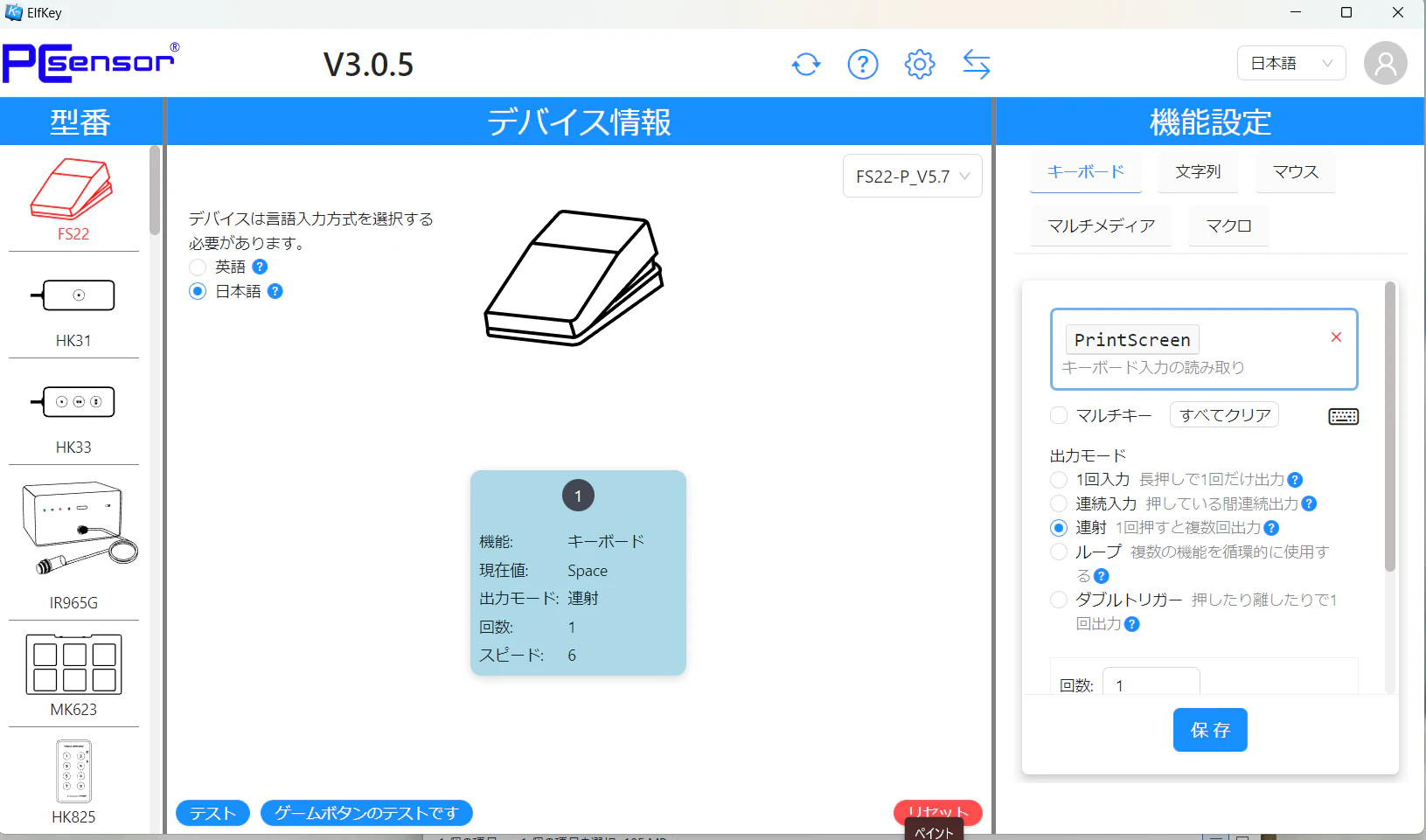
以下の足踏み式スイッチを併用することで足踏みに対応して画像を更新して行くことを確認しました。
設定は以下のように足踏みの連射一回でスペースを押すように設定しました。
なお、一連の画像を取得するの以前のこのPGMが役に立ちます。