


第1回では、Object Storageに配置したCSVとParquetをOCI Data Catalogへハーベストし、Data Asset、Connection、論理Data Entity、Attribute、増分ハーベストなどの基本機能を確認しました。
これにより、「どこに、どのような構造のデータがあるのか」を可視化できましたが、データを見つけられるようになっただけでは、その意味や利用方法まで判断できるとは限りません。
従来のRDBでは、データを書き込む前にテーブル、カラム、データ型、主キー、制約などを定義する「Schema-on-Write」が基本です。
一方、Data Lakeでは、保存時にスキーマを厳密に固定せず、データを利用する段階でスキーマを適用する「Schema-on-Read」を採用しやすいという特徴があります。
ただし、Schema-on-ReadはSchema-lessという意味ではありません。
Data Lakeは設計不要なのではなく、設計のタイミングと適用方法を選べる仕組みです。データの管理単位、カラム、データ型、識別子、保存場所、メタデータなどを設計しなければ、データを発見できても、それが何を表し、どのように利用すべきかを判断できません。
設計や管理ルールのないData Lakeは、データが増えるほど中身を理解しにくくなり、やがて「データの沼(Data Swamp)」へと変わってしまいます。
今回は、その例として、Object Storageに配置したOracle Databaseの公式マニュアルPDFを扱います。
Oracle Databaseのマニュアルは、26ai、19c、12.2などの製品バージョンごとに多数存在します。PDFをObject Storageへ配置すればファイルを一元管理できますが、ファイル名と保存場所だけでは、正式な文書名、製品バージョン、文書系列、文書番号、文書カテゴリ、Oracle公式URL、RAGで使用するかどうか、将来DatabaseでJOINするための文書IDなどを十分に管理できません。
そこで今回は、すでにObject Storageへ配置されているPDFファイル群を対象に、文書管理情報を人が確認しやすいCSVとして作成します。そのCSVをPythonで検証し、カラムとデータ型を明示した文書インベントリParquetへ変換します。
その後、PDFと文書インベントリParquetをOCI Data Catalogへハーベストします。PDFにはCustom Propertiesを使用して、正式な文書名、製品バージョン、公式URLなどの業務メタデータを追加します。文書インベントリParquetにはFilename Patternを適用し、後続のAutonomous AI Database同期で使用できるdocument_inventory Logical Entityとして管理します。
これにより、第1回で確認したデータの所在と構造を可視化する技術メタデータに加えて、第2回ではデータの意味と利用方法を表す業務メタデータを管理できるようにします。
ということで、Object Storage上のOracle DatabaseマニュアルPDFを、文書インベントリParquetとCustom Propertiesでカタログ化してみてみます。
● シリーズについて
本シリーズでは、Object Storageに保存したデータをOCI Data Catalogで発見・管理し、Autonomous AI Database、AI Vector Search、Select AIへ段階的に接続します。
| 回 | 内容 |
|---|---|
| 第1回 | Object Storage上のCSVとParquetをOCI Data Catalogでハーベスト |
| 第2回(今回) | Oracle DatabaseマニュアルPDFと文書インベントリParquetをカタログ化 |
| 第3回 | Object Storage上のPDFを使用してSelect AI with RAGを構築 |
| 第4回 | 文書インベントリ外部表、ADB内部の業務表、Vector StoreをJOINしたLakehouse検索 |
第2回では、document_idをADB内部の業務表と結び付けるキーとして、object_nameをVector Storeの元PDFと対応付けるキーとして準備します。document_family_idは、製品バージョンをまたいだ文書系列の比較に使用します。
● 今回のゴール
今回のゴールは、次の状態を作成することです。
Oracle DatabaseマニュアルPDF
        ↓
OCI Object Storageへ配置
        ↓
OCI Data CatalogでPDFをハーベスト
        ↓
ファイル名、パスなどの技術メタデータを確認
        ↓
Custom Propertiesで文書名、バージョン、公式URLなどを付与

文書管理情報CSV
        ↓
Pythonで必須項目、型、重複、URL、Object名を検証
        ↓
HTTPS形式のobject_uriを持つ文書インベントリParquetを生成
        ↓
ローカルとObject Storage上のParquetを検査
        ↓
OCI Data CatalogでParquetのスキーマをハーベスト
        ↓
Filename Patternでdocument_inventory Logical Entityを作成
        ↓
第4回でAutonomous AI Databaseへ同期できる状態にする
・ 今回確認できた結果
今回の検証では、次の状態まで確認できました。
| 対象 | 確認結果 |
|---|---|
| Oracle DatabaseマニュアルPDF | 10ファイルをUnrecognized FileとしてData Entityへ登録 |
document_inventory.parquet |
初回ハーベストでFile Data Entityとして登録し、20個のAttributeを抽出 |
document_inventory Logical Entity |
Filename Patternから1つのLogical Entityを作成。Status Active、20 Attributes、1 Fileを確認 |
object_name |
10文書の実Object名と一致することを確認 |
object_uri |
10件すべてをHTTPS Object URIとして生成し、ローカルとObject Storage上のParquetで不正値0件を確認 |
| Custom Properties | PDF向けに7項目を作成 |
| Excel Export/Import | 10個のPDFへ文書管理情報を一括設定 |
| 検索 |
Product Version、RAG Enabled、Data Ownerで絞り込み |
今回作成する主なファイルは次のとおりです。
| ファイル | 役割 |
|---|---|
document_inventory.csv |
人が編集する文書管理台帳 |
create_document_inventory.py |
CSVを検証し、明示的な型でParquetを生成 |
document_inventory.parquet |
OCI Data Catalog、Autonomous AI Database、データ処理基盤などで再利用する共通インベントリ |
document-inventory-pattern |
Parquetをdocument_inventory Logical Entityとして導出するFilename Pattern |
| Oracle DatabaseマニュアルPDF | カタログ化および第3回のRAGで使用する文書本体 |
● Agenda
| 大項目 | 内容 |
|---|---|
 設計 設計
|
対象文書、PDFと文書インベントリの役割、Object Storage配置、管理項目を決定 |
|
事前準備
|
CSV、Python環境、生成スクリプトを準備し、Parquetを作成・検証 |
|
Object Storageへのドキュメント配置
|
10個のPDFと文書インベントリParquetをアップロード |
|
Data Catalog設定
|
IAM、Resource Principal Connection、初回ハーベスト、Filename Pattern、Logical Entity用再ハーベストを設定 |
|
Data Catalog設定確認
|
PDF/ParquetのData Entity、document_inventory Logical Entity、Custom Properties、一括Import、検索を確認 |
|
運用と次回への接続
|
CSVをマスターとする運用、第3回・第4回への接続を整理 |
|
注意点・トラブルシューティング
|
制約、よくあるエラー、確認項目を整理 |
|
まとめ
|
今回実施した内容と得られた結果を整理 |
|
参考資料
|
今回の参考資料 |
最初に、PDF本体と文書インベントリの役割、対象ドキュメント、Object Storageの配置、管理項目を決定します。
● 今回の重要なポイント
・ PDFと文書インベントリを分けて管理する
PDFは文書の実体です。
documents/oracle-database/26ai/admin/database-administrators-guide.pdf
文書インベントリは、PDFを説明する管理情報です。
catalog/document_inventory/current/document_inventory.parquet
文書インベントリの各行はdocument_idで一意に識別し、PDF実体とはobject_nameで対応付けます。Document ID Custom Propertyへ同じdocument_idを設定すると、Data CatalogのPDF Data Entityからも文書管理台帳の行を追跡できます。
・ OCI Data CatalogはParquetの行データを文書として登録するわけではない
OCI Data Catalogは、Parquetをハーベストすると、列名やデータ型などの技術メタデータをData EntityとAttributeとして登録します。
document_inventory.parquetの各行が、自動的に個別のPDF Data Entityへ変換されたり、PDFのCustom Propertiesへ自動転記されたりするわけではありません。
Parquet
  → File Data Entityでファイルとスキーマを確認
  → Filename PatternでLogical Entityとして管理

PDF
  → ファイル名、パスなどの基本情報をカタログ化

Custom Properties
  → PDFへ製品バージョン、正式文書名、公式URLなどを付与
今回のCSVとParquetは、次の用途で使用します。
- 文書管理情報のマスター
- Data Catalogで管理する文書項目の定義
- 第4回でAutonomous AI Databaseの外部表として参照
-
document_idを使用してADB内の業務・ガバナンス表とJOIN -
object_nameを使用してVector Storeの元PDFと対応付け - Autonomous AI Databaseや別のデータ・カタログへ渡す共通データ
今回の設定でSelect AIが自動生成したVector Storeには、文書インベントリの
document_idは自動的に格納されませんでした。今回のシリーズでは、ADB内の業務表とはdocument_idでJOINし、Vector Storeとは完全Object名で対応付けます。
・ Autonomous AI Databaseとの同期にはLogical Entityを使用する
OCI Data CatalogのObject Storageハーベストでは、Parquetを通常のFile Data Entityとして登録し、列とDatatypeを確認できます。
一方、第4回でDBMS_DCATからAutonomous AI Databaseへ同期する対象は、Filename Patternから導出したLogical Entityです。
File Data Entity
  → 単一Parquetの技術メタデータを確認

Logical Entity
  → Filename Patternに一致する1つ以上のファイルを論理的な表として管理
  → Autonomous AI Database同期時にExternal Tableへマッピング
今回は、次のObjectをdocument_inventoryというLogical Entityとして管理します。
catalog/document_inventory/current/document_inventory.parquet
このため、第2回の中でFile Data Entityの確認に加えて、Filename Patternの作成、Data Assetへの割当て、Logical Entity用の再ハーベストまで実施します。
・ PDFをハーベストするにはInclude Unrecognized Filesが必要
OCI Data CatalogがObject Storageでスキーマを認識する主な形式には、CSV、XML、Avro、Excel、Parquet、ORC、JSONがあります。
PDFはサポート対象の構造化ファイル形式ではないため、ハーベスト・ジョブでInclude Unrecognized Filesを有効にします。
PDFから取得されるのは、主にファイル名やObject Storage上のパスなどの基本情報です。
参考:
● 全体構成
ローカルPCまたはOCI Cloud Shell
├── data/
│   └── document_inventory.csv
├── documents/
│   └── oracle-database/
│       ├── 26ai/
│       ├── 19c/
│       └── 12.2/
├── scripts/
│   └── create_document_inventory.py
└── output/
    ├── document_inventory.parquet
    └── document_inventory.preview.csv

                    │ Upload
                    ▼
OCI Object Storage
├── documents/
│   └── oracle-database/
│       ├── 26ai/
│       │   ├── admin/
│       │   ├── installation_linux/
│       │   ├── concepts/
│       │   └── vector_search/
│       ├── 19c/
│       └── 12.2/
│
└── catalog/
    └── document_inventory/
        └── current/
            └── document_inventory.parquet

                    │ Harvest
                    ▼
OCI Data Catalog
├── PDF Data Entities
│   ├── 基本的な技術メタデータ
│   └── Custom Properties
│
├── document_inventory.parquet File Data Entity
│   └── Attributesとして各列と型を確認
│
└── document_inventory Logical Entity
    ├── Filename Pattern: document-inventory-pattern
    ├── Attributes: 20
    └── Files: document_inventory.parquet
● 対象ドキュメント
今回は、26ai、19c、12.2で共通して存在する次の3系列を対象にします。
- Database Administrator's Guide
- Database Installation Guide for Linux
- Database Concepts
26aiについては、AI Vector Search User's Guideも追加します。
document_family_id |
26ai | 19c | 12.2 |
|---|---|---|---|
database_administrator_guide |
○ | ○ | ○ |
database_installation_guide_linux |
○ | ○ | ○ |
database_concepts |
○ | ○ | ○ |
ai_vector_search_users_guide |
○ | - | - |
今回のサンプルでは合計10文書を管理します。
文書番号や発行年月はOracleのドキュメント更新により変わる場合があります。CSVの値は、Object Storageへ配置したPDFの表紙またはTitle and Copyright Informationを確認して設定してください。
Oracle Database Booksページ:
● Object Storageの配置ルール
Object Storageでは、製品、バージョン、文書系列がパスから判断できるようにします。
documents/oracle-database/<version>/<document-family>/<file-name>.pdf
今回の配置例です。
documents/
└── oracle-database/
    ├── 26ai/
    │   ├── admin/
    │   │   └── database-administrators-guide.pdf
    │   ├── installation_linux/
    │   │   └── oracle-ai-database-installation-guide-linux.pdf
    │   ├── concepts/
    │   │   └── database-concepts.pdf
    │   └── vector_search/
    │       └── ai-vector-search-users-guide.pdf
    │
    ├── 19c/
    │   ├── admin/
    │   │   └── database-administrators-guide.pdf
    │   ├── installation_linux/
    │   │   └── database-installation-guide-linux.pdf
    │   └── concepts/
    │       └── database-concepts.pdf
    │
    └── 12.2/
        ├── admin/
        │   └── database-administrators-guide.pdf
        ├── installation_linux/
        │   └── database-installation-guide-linux.pdf
        └── concepts/
            └── database-concepts.pdf
文書インベントリは、PDFとは別のPrefixへ配置します。
catalog/document_inventory/current/document_inventory.parquet
この分離には次の利点があります。
- PDFと構造化データを別々に管理できる
- Parquet専用PrefixをAutonomous AI Databaseや別のデータ処理基盤から指定できる
- 第3回のRAG対象PrefixをPDFだけに限定できる
- ハーベスト結果を確認しやすい
● 文書インベントリの項目設計
今回の文書インベントリでは、次の項目を管理します。
| 列名 | Parquet型 | 内容 | 将来の用途 |
|---|---|---|---|
document_id |
string | 文書を一意に識別するID | ADB内の業務・ガバナンス表とのJOINキー |
document_family_id |
string | バージョンをまたぐ文書系列ID | 26ai、19c、12.2の比較 |
product_name |
string | 製品名 | 製品別検索 |
product_version |
string |
26ai、19c、12.2
|
バージョン絞り込み |
document_title |
string | 正式な文書名 | 表示、検索、出典 |
document_type |
string | 文書種別 | Guide、Conceptsなど |
category |
string | 大分類 | Administration、AIなど |
subcategory |
string | 小分類 | Vector Searchなど |
language_code |
string | 言語コード |
en、jaなど |
document_number |
string | Oracle文書番号 | 改訂識別 |
publication_year |
int16 | 発行年 | 年での絞り込み |
publication_month |
int8 | 発行月 | 月単位の更新管理 |
official_url |
string | Oracle公式HTML URL | 出典リンク |
object_name |
string | Object Storage上のObject名 | PDF実体の識別、Vector Storeとの対応付け |
rag_enabled |
boolean | RAG対象か | 第3回以降で使用 |
document_priority |
int16 | 検索や取込の優先度 | RAG対象選択 |
data_owner |
string | 文書管理責任者 | ガバナンス |
tags |
string | パイプ区切りのタグ | 簡易分類 |
bucket_name |
string | Bucket名 | Pythonで追加 |
object_uri |
string | OCI Object StorageのHTTPS Object URI | DBMS_CLOUD、Select AI with RAG、文書原本URIの参照 |
・ object_uriをHTTPS形式にする理由
oci://<bucket>@<namespace>/<object-name>形式は、OCI Data FlowやSpark/HadoopからObject Storageを参照するときに使用されます。
一方、Autonomous AI DatabaseのDBMS_CLOUDでは、Object Storage上のファイルを参照するURIにhttps://から始まるHTTPS URIを指定します。Select AI with RAGでも、Vector Indexの入力元となるObject Storageの場所をHTTPS URIで指定します。
今回は第3回と第4回でAutonomous AI Databaseから再利用するため、object_uriにはPDFごとのHTTPS Object URIを保存します。
東京リージョンを含む商用レルム(OC1)では、次のObject Storage Dedicated Endpoint形式を使用します。
https://<namespace>.objectstorage.<region>.oci.customer-oci.com/n/<namespace>/b/<bucket>/o/<object-name>
たとえば、今回のPDFは次の形式になります。
https://<namespace>.objectstorage.ap-tokyo-1.oci.customer-oci.com/n/<namespace>/b/oracle-database-doc-catalog/o/documents/oracle-database/26ai/vector_search/ai-vector-search-users-guide.pdf
Object名に空白、日本語、#、?などが含まれる場合に備え、Pythonではurllib.parse.quote()でObject名をURLエンコードします。Prefixを表す/は区切りとして残します。
ただし、Select AI with RAGではマルチバイト文字を含む入力文書のファイル名がVectorizationでスキップされるため、RAG対象のPDFファイル名には英数字、ハイフン、アンダースコアを使用します。
object_uriは各行のPDFを指すURIです。第4回でdocument_inventory.parquetそのものを外部表として参照するときは、次のParquetファイル用HTTPS URIを別途使用します。https://<namespace>.objectstorage.<region>.oci.customer-oci.com/n/<namespace>/b/<bucket>/o/catalog/document_inventory/current/document_inventory.parquet
参考:
・ product_versionを文字列にする理由
CSVを型推論だけで読み込むと、12.2が数値として扱われる場合があります。
製品バージョンは計算する値ではなく識別子であるため、必ず文字列として扱います。
26ai → string
19c  → string
12.2 → string
・ 発行日を年月に分ける理由
Oracle Databaseマニュアルの表紙には、日付ではなくJuly 2026のように年月だけが記載される場合があります。
存在しない日付を2026-07-01として補うと、元データより高い精度の日付を作ることになります。
そのため、今回は次の2列に分けます。
publication_year  = 2026
publication_month = 7
・ document_idとdocument_family_idの違い
document_idは、バージョンを含む文書単位の一意なIDです。
oracle_db_26ai_admin
oracle_db_19c_admin
oracle_db_12_2_admin
document_family_idは、バージョンをまたいだ文書系列のIDです。
database_administrator_guide
第4回では、document_idを文書インベントリとADB内の業務・ガバナンス表を結び付けるキーとして使用します。
SELECT
    i.document_id,
    i.product_version,
    i.document_title,
    g.approval_status,
    g.ai_use_allowed
FROM document_inventory_ext_v i
LEFT JOIN document_governance g
    ON g.document_id = i.document_id;
一方、Select AIがObject StorageのPDFから自動生成するVector Storeには、document_idが自動追加されません。今回の検証では、Vector Storeのlocation_uriとobject_nameから完全Object名を再構成し、文書インベントリのobject_nameと一致させます。
Data Lake側
  documents/oracle-database/26ai/vector_search/ai-vector-search-users-guide.pdf

Vector Store側
  location_uriのObject Prefix
  + attributes.object_name
  ↓
  documents/oracle-database/26ai/vector_search/ai-vector-search-users-guide.pdf
このため、今回のシリーズでは次の2種類のキーを使い分けます。
document_id
  → 文書インベントリとRDBMS表のJOIN

object_name
  → 文書インベントリとVector Storeの対応付け
■ 事前準備
ローカルPCまたはOCI Cloud Shellで、文書インベントリCSVとParquetを作成する環境を準備します。
● 前提条件
今回の手順では、次の環境を前提とします。
- OCIアカウントを使用できること
- OCI Object StorageのBucketを作成できること
- OCI Data Catalogインスタンスが作成済みであること
- Data Catalogを操作するIAM権限が付与されていること
- Data Catalog用Dynamic Groupを作成できること
- Python 3.10以降を使用できること
-
pandasとpyarrowをインストールできること - 使用条件を確認したうえで、対象PDFをあらかじめ用意していること
今回は、第1回で作成したData CatalogインスタンスとObject Storage Data Assetを再利用し、文書用のBucketとResource Principal Connectionを追加します。
本記事では、次の値を使用します。実際の環境に合わせて読み替えてください。
| 項目 | 例 |
|---|---|
| OCI Region | ap-tokyo-1 |
| Object Storage Namespace | <your-namespace> |
| Bucket名 | oracle-database-doc-catalog |
| Data Catalog名 | Data-Catalog-Demo |
| Data Asset名 |
object-storage-csv-parquet-demo(第1回で作成したData Assetを再利用) |
| Connection名 | oracle-document-resource-principal |
| Dynamic Group名 | data-catalog-demo-dg |
| ハーベスト・ジョブ名 | harvest-oracle-document-catalog |
● 作業用ディレクトリの作成
1) 作業用ディレクトリを作成
mkdir -p oracle-document-catalog/{data,documents/oracle-database,scripts,output}
cd oracle-document-catalog
2) PDF配置用ディレクトリを作成
mkdir -p documents/oracle-database/26ai/{admin,installation_linux,concepts,vector_search}
mkdir -p documents/oracle-database/19c/{admin,installation_linux,concepts}
mkdir -p documents/oracle-database/12.2/{admin,installation_linux,concepts}
3) 用意したPDFを配置
documents/oracle-database/26ai/admin/database-administrators-guide.pdf
documents/oracle-database/26ai/installation_linux/oracle-ai-database-installation-guide-linux.pdf
documents/oracle-database/26ai/concepts/database-concepts.pdf
documents/oracle-database/26ai/vector_search/ai-vector-search-users-guide.pdf

documents/oracle-database/19c/admin/database-administrators-guide.pdf
documents/oracle-database/19c/installation_linux/database-installation-guide-linux.pdf
documents/oracle-database/19c/concepts/database-concepts.pdf

documents/oracle-database/12.2/admin/database-administrators-guide.pdf
documents/oracle-database/12.2/installation_linux/database-installation-guide-linux.pdf
documents/oracle-database/12.2/concepts/database-concepts.pdf
4) 配置結果を確認
% find documents -type f -name '*.pdf' | sort

    documents/oracle-database/12.2/admin/database-administrators-guide.pdf
    documents/oracle-database/12.2/concepts/database-concepts.pdf
    documents/oracle-database/12.2/installation_linux/database-installation-guide-linux.pdf
    documents/oracle-database/19c/admin/database-administrators-guide.pdf
    documents/oracle-database/19c/concepts/database-concepts.pdf
    documents/oracle-database/19c/installation_linux/database-installation-guide-linux.pdf
    documents/oracle-database/26ai/admin/database-administrators-guide.pdf
    documents/oracle-database/26ai/concepts/database-concepts.pdf
    documents/oracle-database/26ai/installation_linux/oracle-ai-database-installation-guide-linux.pdf
    documents/oracle-database/26ai/vector_search/ai-vector-search-users-guide.pdf
・ pdfファイル数確認
10ファイル表示されることを確認します。
% find documents -type f -name '*.pdf' | wc -l

    10
● 文書インベントリCSVの作成
1) data/document_inventory.csvを作成
document_id,document_family_id,product_name,product_version,document_title,document_type,category,subcategory,language_code,document_number,publication_year,publication_month,official_url,object_name,rag_enabled,document_priority,data_owner,tags
oracle_db_26ai_admin,database_administrator_guide,Oracle AI Database,26ai,Database Administrator's Guide,guide,administration,database_administration,en,G42927-08,2026,7,https://docs.oracle.com/en/database/oracle/oracle-database/26/admin/index.html,documents/oracle-database/26ai/admin/database-administrators-guide.pdf,true,10,database_platform_team,oracle_database|26ai|dba|administration
oracle_db_26ai_ladbi,database_installation_guide_linux,Oracle AI Database,26ai,Oracle AI Database Installation Guide for Linux,installation_guide,installation,linux,en,G43069-07,2026,7,https://docs.oracle.com/en/database/oracle/oracle-database/26/ladbi/index.html,documents/oracle-database/26ai/installation_linux/oracle-ai-database-installation-guide-linux.pdf,true,20,database_platform_team,oracle_database|26ai|installation|linux
oracle_db_26ai_cncpt,database_concepts,Oracle AI Database,26ai,Database Concepts,concepts_guide,architecture,database_fundamentals,en,G42938-05,2026,4,https://docs.oracle.com/en/database/oracle/oracle-database/26/cncpt/index.html,documents/oracle-database/26ai/concepts/database-concepts.pdf,true,30,database_platform_team,oracle_database|26ai|architecture|concepts
oracle_db_26ai_vecse,ai_vector_search_users_guide,Oracle AI Database,26ai,AI Vector Search User's Guide,users_guide,ai_and_machine_learning,vector_search,en,G43963-15,2026,7,https://docs.oracle.com/en/database/oracle/oracle-database/26/vecse/index.html,documents/oracle-database/26ai/vector_search/ai-vector-search-users-guide.pdf,true,5,database_platform_team,oracle_database|26ai|ai_vector_search|rag|embeddings
oracle_db_19c_admin,database_administrator_guide,Oracle Database,19c,Database Administrator's Guide,guide,administration,database_administration,en,E96348-21,2026,1,https://docs.oracle.com/en/database/oracle/oracle-database/19/admin/index.html,documents/oracle-database/19c/admin/database-administrators-guide.pdf,true,10,database_platform_team,oracle_database|19c|dba|administration
oracle_db_19c_ladbi,database_installation_guide_linux,Oracle Database,19c,Database Installation Guide for Linux,installation_guide,installation,linux,en,E96432-50,2026,5,https://docs.oracle.com/en/database/oracle/oracle-database/19/ladbi/index.html,documents/oracle-database/19c/installation_linux/database-installation-guide-linux.pdf,true,20,database_platform_team,oracle_database|19c|installation|linux
oracle_db_19c_cncpt,database_concepts,Oracle Database,19c,Database Concepts,concepts_guide,architecture,database_fundamentals,en,E96138-11,2025,9,https://docs.oracle.com/en/database/oracle/oracle-database/19/cncpt/index.html,documents/oracle-database/19c/concepts/database-concepts.pdf,true,30,database_platform_team,oracle_database|19c|architecture|concepts
oracle_db_12_2_admin,database_administrator_guide,Oracle Database,12.2,Database Administrator's Guide,guide,administration,database_administration,en,E85760-09,2020,5,https://docs.oracle.com/en/database/oracle/oracle-database/12.2/admin/index.html,documents/oracle-database/12.2/admin/database-administrators-guide.pdf,true,10,database_platform_team,oracle_database|12_2|dba|administration
oracle_db_12_2_ladbi,database_installation_guide_linux,Oracle Database,12.2,Database Installation Guide for Linux,installation_guide,installation,linux,en,E85758-08,2024,8,https://docs.oracle.com/en/database/oracle/oracle-database/12.2/ladbi/index.html,documents/oracle-database/12.2/installation_linux/database-installation-guide-linux.pdf,true,20,database_platform_team,oracle_database|12_2|installation|linux
oracle_db_12_2_cncpt,database_concepts,Oracle Database,12.2,Database Concepts,concepts_guide,architecture,database_fundamentals,en,E85769-04,2018,3,https://docs.oracle.com/en/database/oracle/oracle-database/12.2/cncpt/index.html,documents/oracle-database/12.2/concepts/database-concepts.pdf,true,30,database_platform_team,oracle_database|12_2|architecture|concepts
CSV内の文書番号と発行年月はサンプルです。Object Storageへ配置したPDFの版と一致することを確認してください。
2) CSVの行数を確認
ヘッダーを除いて10行であることを確認します。
% tail -n +2 data/document_inventory.csv | wc -l

    10
3) CSVの先頭を確認
% head -n 3 data/document_inventory.csv
	document_id,document_family_id,product_name,product_version,document_title,document_type,category,subcategory,language_code,document_number,publication_year,publication_month,official_url,object_name,rag_enabled,document_priority,data_owner,tags
	oracle_db_26ai_admin,database_administrator_guide,Oracle AI Database,26ai,Database Administrator's Guide,guide,administration,database_administration,en,G42927-08,2026,7,https://docs.oracle.com/en/database/oracle/oracle-database/26/admin/index.html,documents/oracle-database/26ai/admin/database-administrators-guide.pdf,true,10,database_platform_team,oracle_database|26ai|dba|administration
	oracle_db_26ai_ladbi,database_installation_guide_linux,Oracle AI Database,26ai,Oracle AI Database Installation Guide for Linux,installation_guide,installation,linux,en,G43069-07,2026,7,https://docs.oracle.com/en/database/oracle/oracle-database/26/ladbi/index.html,documents/oracle-database/26ai/installation_linux/oracle-ai-database-installation-guide-linux.pdf,true,20,database_platform_team,oracle_database|26ai|installation|linux
	oracle_db_26ai_cncpt,database_concepts,Oracle AI Database,26ai,Database Concepts,concepts_guide,architecture,database_fundamentals,en,G42938-05,2026,4,https://docs.oracle.com/en/database/oracle/oracle-database/26/cncpt/index.html,documents/oracle-database/26ai/concepts/database-concepts.pdf,true,30,database_platform_team,oracle_database|26ai|architecture|concepts
	oracle_db_26ai_vecse,ai_vector_search_users_guide,Oracle AI Database,26ai,AI Vector Search User's Guide,users_guide,ai_and_machine_learning,vector_search,en,G43963-15,2026,7,https://docs.oracle.com/en/database/oracle/oracle-database/26/vecse/index.html,documents/oracle-database/26ai/vector_search/ai-vector-search-users-guide.pdf,true,5,database_platform_team,oracle_database|26ai|ai_vector_search|rag|embeddings
	oracle_db_19c_admin,database_administrator_guide,Oracle Database,19c,Database Administrator's Guide,guide,administration,database_administration,en,E96348-21,2026,1,https://docs.oracle.com/en/database/oracle/oracle-database/19/admin/index.html,documents/oracle-database/19c/admin/database-administrators-guide.pdf,true,10,database_platform_team,oracle_database|19c|dba|administration
	oracle_db_19c_ladbi,database_installation_guide_linux,Oracle Database,19c,Database Installation Guide for Linux,installation_guide,installation,linux,en,E96432-50,2026,5,https://docs.oracle.com/en/database/oracle/oracle-database/19/ladbi/index.html,documents/oracle-database/19c/installation_linux/database-installation-guide-linux.pdf,true,20,database_platform_team,oracle_database|19c|installation|linux
	oracle_db_19c_cncpt,database_concepts,Oracle Database,19c,Database Concepts,concepts_guide,architecture,database_fundamentals,en,E96138-11,2025,9,https://docs.oracle.com/en/database/oracle/oracle-database/19/cncpt/index.html,documents/oracle-database/19c/concepts/database-concepts.pdf,true,30,database_platform_team,oracle_database|19c|architecture|concepts
	oracle_db_12_2_admin,database_administrator_guide,Oracle Database,12.2,Database Administrator's Guide,guide,administration,database_administration,en,E85760-09,2020,5,https://docs.oracle.com/en/database/oracle/oracle-database/12.2/admin/index.html,documents/oracle-database/12.2/admin/database-administrators-guide.pdf,true,10,database_platform_team,oracle_database|12_2|dba|administration
	oracle_db_12_2_ladbi,database_installation_guide_linux,Oracle Database,12.2,Database Installation Guide for Linux,installation_guide,installation,linux,en,E85758-08,2024,8,https://docs.oracle.com/en/database/oracle/oracle-database/12.2/ladbi/index.html,documents/oracle-database/12.2/installation_linux/database-installation-guide-linux.pdf,true,20,database_platform_team,oracle_database|12_2|installation|linux
	oracle_db_12_2_cncpt,database_concepts,Oracle Database,12.2,Database Concepts,concepts_guide,architecture,database_fundamentals,en,E85769-04,2018,3,https://docs.oracle.com/en/database/oracle/oracle-database/12.2/cncpt/index.html,documents/oracle-database/12.2/concepts/database-concepts.pdf,true,30,database_platform_team,oracle_database|12_2|architecture|concepts
● Python実行環境の作成
1) Pythonのバージョンを確認
% python3 --version
    Python 3.14.3
2) Virtual Environmentを作成
% python3 -m venv .venv
% source .venv/bin/activate
Windows PowerShellの場合は次のように有効化します。
.venv\Scripts\Activate.ps1
3) requirements.txtを作成
% vi requirements.txt
% cat requirements.txt
    pandas>=2.2.0
    pyarrow>=18.0.0
4) パッケージをインストール
% python -m pip install --upgrade pip
% python -m pip install -r requirements.txt
5) インストール結果を確認
% python -c "import pandas, pyarrow; print('pandas:', pandas.__version__); print('pyarrow:', pyarrow.__version__)"

    pandas: 3.0.5
    pyarrow: 25.0.0
● CSVからParquetを生成するPythonスクリプト
今回のスクリプトでは、単にpandas.DataFrame.to_parquet()を実行するだけではなく、次の検証を行います。
- 必須列の存在確認
- 必須値の空欄確認
-
document_idの形式確認 -
document_idの重複確認 -
object_nameの重複確認 -
rag_enabledのBoolean変換 - 発行年、発行月、優先度の数値変換
- 発行月が1から12であることを確認
- Oracle公式URLであることを確認
- Object名がPDFであることを確認
- Namespace、Region、BucketにPlaceholderが含まれていないことを確認
- 生成した
object_uriがHTTPS形式であることを確認 - PyArrow Schemaによる明示的なParquet型指定
- 作成後のParquet再読込みとスキーマ確認
1) scripts/create_document_inventory.pyを作成
from __future__ import annotations

import argparse
import re
from pathlib import Path
from urllib.parse import quote, urlparse

import pandas as pd
import pyarrow as pa
import pyarrow.parquet as pq


INPUT_COLUMNS = [
    "document_id",
    "document_family_id",
    "product_name",
    "product_version",
    "document_title",
    "document_type",
    "category",
    "subcategory",
    "language_code",
    "document_number",
    "publication_year",
    "publication_month",
    "official_url",
    "object_name",
    "rag_enabled",
    "document_priority",
    "data_owner",
    "tags",
]

STRING_COLUMNS = [
    "document_id",
    "document_family_id",
    "product_name",
    "product_version",
    "document_title",
    "document_type",
    "category",
    "subcategory",
    "language_code",
    "document_number",
    "official_url",
    "object_name",
    "data_owner",
    "tags",
]

REQUIRED_COLUMNS = INPUT_COLUMNS.copy()

OUTPUT_COLUMNS = INPUT_COLUMNS + [
    "bucket_name",
    "object_uri",
]

ID_PATTERN = re.compile(r"^[a-z0-9][a-z0-9_]*$")

PARQUET_SCHEMA = pa.schema(
    [
        pa.field("document_id", pa.string(), nullable=False),
        pa.field("document_family_id", pa.string(), nullable=False),
        pa.field("product_name", pa.string(), nullable=False),
        pa.field("product_version", pa.string(), nullable=False),
        pa.field("document_title", pa.string(), nullable=False),
        pa.field("document_type", pa.string(), nullable=False),
        pa.field("category", pa.string(), nullable=False),
        pa.field("subcategory", pa.string(), nullable=False),
        pa.field("language_code", pa.string(), nullable=False),
        pa.field("document_number", pa.string(), nullable=False),
        pa.field("publication_year", pa.int16(), nullable=False),
        pa.field("publication_month", pa.int8(), nullable=False),
        pa.field("official_url", pa.string(), nullable=False),
        pa.field("object_name", pa.string(), nullable=False),
        pa.field("rag_enabled", pa.bool_(), nullable=False),
        pa.field("document_priority", pa.int16(), nullable=False),
        pa.field("data_owner", pa.string(), nullable=False),
        pa.field("tags", pa.string(), nullable=False),
        pa.field("bucket_name", pa.string(), nullable=False),
        pa.field("object_uri", pa.string(), nullable=False),
    ]
)


def parse_args() -> argparse.Namespace:
    parser = argparse.ArgumentParser(
        description="文書インベントリCSVを検証し、Parquetへ変換します。"
    )
    parser.add_argument(
        "--input",
        type=Path,
        required=True,
        help="入力CSVファイル",
    )
    parser.add_argument(
        "--output",
        type=Path,
        required=True,
        help="出力Parquetファイル",
    )
    parser.add_argument(
        "--namespace",
        required=True,
        help="OCI Object Storage Namespace",
    )
    parser.add_argument(
        "--region",
        required=True,
        help="OCI Region Identifier(例: ap-tokyo-1)",
    )
    parser.add_argument(
        "--bucket",
        required=True,
        help="OCI Object Storage Bucket名",
    )
    return parser.parse_args()


def normalize_boolean(series: pd.Series, column_name: str) -> pd.Series:
    mapping = {
        "true": True,
        "false": False,
        "yes": True,
        "no": False,
        "1": True,
        "0": False,
    }

    normalized = series.astype("string").str.strip().str.lower()
    invalid_values = sorted(
        set(normalized.loc[~normalized.isin(mapping.keys())].tolist())
    )

    if invalid_values:
        raise ValueError(
            f"{column_name}にBooleanへ変換できない値があります: "
            f"{invalid_values}"
        )

    return normalized.map(mapping).astype("boolean")


def is_oracle_docs_url(value: str) -> bool:
    parsed = urlparse(value)
    return parsed.scheme == "https" and parsed.netloc == "docs.oracle.com"


def validate_required_values(dataframe: pd.DataFrame) -> None:
    for column in REQUIRED_COLUMNS:
        empty_rows = dataframe.index[dataframe[column].astype("string").str.strip() == ""]
        if len(empty_rows) > 0:
            csv_rows = [int(index) + 2 for index in empty_rows]
            raise ValueError(
                f"必須列 {column} に空欄があります。CSV行: {csv_rows}"
            )


def validate_identifiers(dataframe: pd.DataFrame) -> None:
    for column in ["document_id", "document_family_id"]:
        invalid = dataframe.loc[
            ~dataframe[column].astype("string").map(
                lambda value: bool(ID_PATTERN.fullmatch(value))
            ),
            column,
        ]
        if not invalid.empty:
            raise ValueError(
                f"{column}は小文字英数字とアンダースコアで指定してください: "
                f"{invalid.tolist()}"
            )


def validate_duplicates(dataframe: pd.DataFrame) -> None:
    for column in ["document_id", "object_name"]:
        display_columns = ["document_id", "document_title"]
        if column not in display_columns:
            display_columns.append(column)

        duplicated = dataframe.loc[
            dataframe[column].duplicated(keep=False),
            display_columns,
        ]
        if not duplicated.empty:
            raise ValueError(
                f"{column}が重複しています:\n"
                f"{duplicated.to_string(index=False)}"
            )


def validate_urls(dataframe: pd.DataFrame) -> None:
    invalid = dataframe.loc[
        ~dataframe["official_url"].map(is_oracle_docs_url),
        ["document_id", "official_url"],
    ]
    if not invalid.empty:
        raise ValueError(
            "official_urlはhttps://docs.oracle.comのURLを指定してください:\n"
            f"{invalid.to_string(index=False)}"
        )


def validate_object_names(dataframe: pd.DataFrame) -> None:
    invalid = dataframe.loc[
        dataframe["object_name"].map(
            lambda value: (
                value.startswith("/")
                or "\\" in value
                or not value.lower().endswith(".pdf")
                or not value.startswith("documents/")
            )
        ),
        ["document_id", "object_name"],
    ]

    if not invalid.empty:
        raise ValueError(
            "object_nameはdocuments/から始まるPDFのObject名を指定してください:\n"
            f"{invalid.to_string(index=False)}"
        )


def validate_generated_object_uris(dataframe: pd.DataFrame) -> None:
    invalid = dataframe.loc[
        dataframe["object_uri"].str.contains(
            r"<|>|your-namespace",
            regex=True,
            case=False,
            na=False,
        )
        | ~dataframe["object_uri"].str.startswith("https://"),
        ["document_id", "object_name", "object_uri"],
    ]

    if not invalid.empty:
        raise ValueError(
            "object_uriにPlaceholderまたはHTTPS以外のURIがあります:\n"
            f"{invalid.to_string(index=False)}"
        )


def build_object_storage_https_uri(
    namespace: str,
    region: str,
    bucket: str,
    object_name: str,
) -> str:
    """OCI Object StorageのOC1 Dedicated Endpoint形式URIを生成します。"""
    encoded_namespace = quote(namespace, safe="")
    encoded_bucket = quote(bucket, safe="")
    encoded_object_name = quote(object_name, safe="/")

    return (
        f"https://{namespace}.objectstorage.{region}.oci.customer-oci.com/"
        f"n/{encoded_namespace}/b/{encoded_bucket}/o/{encoded_object_name}"
    )


def load_and_validate_csv(
    input_path: Path,
    namespace: str,
    region: str,
    bucket: str,
) -> pd.DataFrame:
    if not input_path.is_file():
        raise FileNotFoundError(f"入力CSVが見つかりません: {input_path}")

    dataframe = pd.read_csv(
        input_path,
        dtype="string",
        keep_default_na=False,
        encoding="utf-8",
    )

    missing_columns = [
        column for column in INPUT_COLUMNS if column not in dataframe.columns
    ]
    if missing_columns:
        raise ValueError(f"CSVに必須列がありません: {missing_columns}")

    unexpected_columns = [
        column for column in dataframe.columns if column not in INPUT_COLUMNS
    ]
    if unexpected_columns:
        raise ValueError(f"CSVに未定義の列があります: {unexpected_columns}")

    dataframe = dataframe[INPUT_COLUMNS].copy()

    for column in STRING_COLUMNS:
        dataframe[column] = dataframe[column].astype("string").str.strip()

    validate_required_values(dataframe)
    validate_identifiers(dataframe)
    validate_duplicates(dataframe)
    validate_urls(dataframe)
    validate_object_names(dataframe)

    dataframe["rag_enabled"] = normalize_boolean(
        dataframe["rag_enabled"],
        "rag_enabled",
    )

    dataframe["publication_year"] = pd.to_numeric(
        dataframe["publication_year"],
        errors="raise",
    ).astype("int16")

    dataframe["publication_month"] = pd.to_numeric(
        dataframe["publication_month"],
        errors="raise",
    ).astype("int8")

    dataframe["document_priority"] = pd.to_numeric(
        dataframe["document_priority"],
        errors="raise",
    ).astype("int16")

    invalid_year = dataframe.loc[
        ~dataframe["publication_year"].between(1900, 2100),
        ["document_id", "publication_year"],
    ]
    if not invalid_year.empty:
        raise ValueError(
            "publication_yearは1900から2100の範囲で指定してください:\n"
            f"{invalid_year.to_string(index=False)}"
        )

    invalid_month = dataframe.loc[
        ~dataframe["publication_month"].between(1, 12),
        ["document_id", "publication_month"],
    ]
    if not invalid_month.empty:
        raise ValueError(
            "publication_monthは1から12の範囲で指定してください:\n"
            f"{invalid_month.to_string(index=False)}"
        )

    invalid_priority = dataframe.loc[
        ~dataframe["document_priority"].between(1, 999),
        ["document_id", "document_priority"],
    ]
    if not invalid_priority.empty:
        raise ValueError(
            "document_priorityは1から999の範囲で指定してください:\n"
            f"{invalid_priority.to_string(index=False)}"
        )

    namespace = namespace.strip()
    region = region.strip().lower()
    bucket = bucket.strip()

    if not namespace:
        raise ValueError("namespaceを指定してください。")
    if (
        "/" in namespace
        or any(character.isspace() for character in namespace)
        or "<" in namespace
        or ">" in namespace
        or namespace.lower() == "your-namespace"
    ):
        raise ValueError(
            "namespaceにはOCIで取得した実際のNamespaceを指定してください。"
        )
    if not region:
        raise ValueError("regionを指定してください。")
    if not re.fullmatch(r"[a-z0-9-]+", region):
        raise ValueError(
            "regionはap-tokyo-1のようなRegion Identifierで指定してください。"
        )
    if not bucket:
        raise ValueError("bucketを指定してください。")
    if "/" in bucket or "<" in bucket or ">" in bucket:
        raise ValueError("bucket名にスラッシュやPlaceholderは指定できません。")

    dataframe["bucket_name"] = bucket
    dataframe["object_uri"] = dataframe["object_name"].map(
        lambda object_name: build_object_storage_https_uri(
            namespace=namespace,
            region=region,
            bucket=bucket,
            object_name=object_name,
        )
    )

    validate_generated_object_uris(dataframe)

    return dataframe[OUTPUT_COLUMNS]


def write_parquet(dataframe: pd.DataFrame, output_path: Path) -> None:
    output_path.parent.mkdir(parents=True, exist_ok=True)

    table = pa.Table.from_pandas(
        dataframe,
        schema=PARQUET_SCHEMA,
        preserve_index=False,
        safe=True,
    )

    pq.write_table(
        table,
        output_path,
        compression="snappy",
        use_dictionary=True,
    )

    written_table = pq.read_table(output_path)
    if not written_table.schema.equals(PARQUET_SCHEMA, check_metadata=False):
        raise RuntimeError(
            "出力Parquetのスキーマが定義と一致しません。\n"
            f"Expected:\n{PARQUET_SCHEMA}\n"
            f"Actual:\n{written_table.schema}"
        )

    preview_path = output_path.with_suffix(".preview.csv")
    written_table.to_pandas().to_csv(
        preview_path,
        index=False,
        encoding="utf-8",
    )

    print(f"Parquetを作成しました: {output_path}")
    print(f"Preview CSVを作成しました: {preview_path}")
    print(f"行数: {written_table.num_rows}")
    print(f"列数: {written_table.num_columns}")
    print("object_uri検査: すべて正常です。")
    print("Schema:")
    print(written_table.schema)


def main() -> None:
    args = parse_args()

    dataframe = load_and_validate_csv(
        input_path=args.input,
        namespace=args.namespace,
        region=args.region,
        bucket=args.bucket,
    )

    write_parquet(
        dataframe=dataframe,
        output_path=args.output,
    )


if __name__ == "__main__":
    main()
● Parquetの生成
1) Object Storage Namespaceを確認
OCI CLIを使用できる場合は、次のコマンドで確認できます。
oci os ns get --query data --raw-output
<your-namespace>
2) 環境変数を設定
<your-namespace>は、前のコマンドで取得した実際のNamespaceへ置き換えます。
export OCI_NAMESPACE='<your-namespace>'
export OCI_REGION='ap-tokyo-1'
export OCI_BUCKET='oracle-database-doc-catalog'
設定値を確認します。
printf 'NAMESPACE=%s\nREGION=%s\nBUCKET=%s\n' \
  "$OCI_NAMESPACE" \
  "$OCI_REGION" \
  "$OCI_BUCKET"
3) 使用するPythonスクリプトを確認
実行前に--helpを表示し、--regionが含まれていることを確認します。
python scripts/create_document_inventory.py --help
--namespace NAMESPACE
--region REGION
--bucket BUCKET
--regionが表示されない場合は、object_uriを旧形式で生成する以前のスクリプトです。Parquetを作成せず、本記事のcreate_document_inventory.pyへ更新してから実行します。
4) 以前の出力ファイルを退避
スクリプト実行が失敗した後に古いParquetを誤ってアップロードしないよう、既存ファイルがある場合は退避します。
mkdir -p output/backup

[ ! -f output/document_inventory.parquet ] || \
  cp output/document_inventory.parquet \
     output/backup/document_inventory.parquet.before_regenerate

[ ! -f output/document_inventory.preview.csv ] || \
  cp output/document_inventory.preview.csv \
     output/backup/document_inventory.preview.csv.before_regenerate
5) Pythonスクリプトを実行
python scripts/create_document_inventory.py \
  --input data/document_inventory.csv \
  --output output/document_inventory.parquet \
  --namespace "$OCI_NAMESPACE" \
  --region "$OCI_REGION" \
  --bucket "$OCI_BUCKET"
実行結果例です。
Parquetを作成しました: output/document_inventory.parquet
Preview CSVを作成しました: output/document_inventory.preview.csv
行数: 10
列数: 20
object_uri検査: すべて正常です。
Schema:
document_id: string not null
document_family_id: string not null
product_name: string not null
product_version: string not null
document_title: string not null
document_type: string not null
category: string not null
subcategory: string not null
language_code: string not null
document_number: string not null
publication_year: int16 not null
publication_month: int8 not null
official_url: string not null
object_name: string not null
rag_enabled: bool not null
document_priority: int16 not null
data_owner: string not null
tags: string not null
bucket_name: string not null
object_uri: string not null
以前の
oci://形式や<your-namespace>を含むParquetを作成済みの場合も、この更新後のスクリプトでCSVから再生成します。object_uriのDatatypeは引き続きstringのため、Data Catalog上のAttribute構成は変わりません。
6) 出力ファイルを確認
ls -lh output/document_inventory.parquet \
       output/document_inventory.preview.csv
● Parquetの内容確認
1) PyArrowでスキーマと行数を確認
python - <<'PY_CHECK_SCHEMA'
import pyarrow.parquet as pq

path = "output/document_inventory.parquet"
table = pq.read_table(path)

print(table.schema)
print()
print(f"ROW_COUNT={table.num_rows}")
print(f"COLUMN_COUNT={table.num_columns}")
PY_CHECK_SCHEMA
ROW_COUNT=10
COLUMN_COUNT=20
2) 主要なDatatypeを確認
python - <<'PY_CHECK_TYPES'
import pyarrow.parquet as pq

schema = pq.read_schema("output/document_inventory.parquet")

for column_name in (
    "product_version",
    "rag_enabled",
    "publication_year",
    "publication_month",
    "object_uri",
):
    print(schema.field(column_name))
PY_CHECK_TYPES
pyarrow.Field<product_version: string not null>
pyarrow.Field<rag_enabled: bool not null>
pyarrow.Field<publication_year: int16 not null>
pyarrow.Field<publication_month: int8 not null>
pyarrow.Field<object_uri: string not null>
3) object_uriにPlaceholderや旧形式が残っていないことを確認
Object Storageへアップロードする前に、Parquet内部の値を検査します。
python - <<'PY_CHECK_URI'
import pyarrow.parquet as pq

path = "output/document_inventory.parquet"
df = pq.read_table(path).to_pandas()

invalid = df[
    df["object_uri"].str.contains(
        r"<your-namespace>|<|>",
        regex=True,
        na=False,
    )
    | ~df["object_uri"].str.startswith("https://")
]

print(f"INVALID_OBJECT_URI_COUNT={len(invalid)}")

if not invalid.empty:
    print(
        invalid[
            ["document_id", "object_name", "object_uri"]
        ].to_string(index=False)
    )
    raise SystemExit(
        "不正なobject_uriが残っています。アップロードを中止します。"
    )
PY_CHECK_URI
INVALID_OBJECT_URI_COUNT=0
0以外の場合は、Object Storageへアップロードしません。
4) Oracle AI Database 26ai Installation GuideのObject名を確認
26aiのInstallation Guideは、19cと12.2とはPDFファイル名が異なります。
grep 'oracle_db_26ai_ladbi' \
  output/document_inventory.preview.csv
確認する値です。
object_name:
documents/oracle-database/26ai/installation_linux/oracle-ai-database-installation-guide-linux.pdf

object_uriの形式:
https://{namespace}.objectstorage.ap-tokyo-1.oci.customer-oci.com/n/{namespace}/b/oracle-database-doc-catalog/o/documents/oracle-database/26ai/installation_linux/oracle-ai-database-installation-guide-linux.pdf
実際の実行結果ではNamespaceが表示されます。公開用の画面やログでは必要に応じてマスクします。
5) Preview CSV全体を確認
Placeholderと旧oci://形式が残っていないことを確認します。
grep -nE '<your-namespace>|oci://' \
  output/document_inventory.preview.csv
正常な場合は何も表示されません。
object_uri列が10件ともHTTPS URIになっていることも確認します。
python - <<'PY_COUNT_HTTPS'
import pandas as pd

path = "output/document_inventory.preview.csv"
df = pd.read_csv(path, dtype="string", keep_default_na=False)

valid_count = (
    df["object_uri"].str.startswith("https://")
    & ~df["object_uri"].str.contains(r"<|>", regex=True)
).sum()

print(f"VALID_OBJECT_URI_COUNT={valid_count}")
PY_COUNT_HTTPS
VALID_OBJECT_URI_COUNT=10
● 入力エラーの検証
正常なデータだけでなく、入力ミスを検出できることも確認します。
・ document_idの重複
CSV内で同じdocument_idを2回使用すると、次のようなエラーになります。
ValueError: document_idが重複しています
・ rag_enabledの入力ミス
true、false、yes、no、1、0以外を入力するとエラーになります。
ValueError: rag_enabledにBooleanへ変換できない値があります
・ publication_monthの範囲外
13などを指定するとエラーになります。
ValueError: publication_monthは1から12の範囲で指定してください
・ Oracle公式サイト以外のURL
official_urlにhttps://docs.oracle.com以外のURLを設定するとエラーになります。
ValueError: official_urlはhttps://docs.oracle.comのURLを指定してください
この検証により、誤ったデータをParquet化してカタログへ登録することを防ぎます。
■ Object Storageへのドキュメント配置
作成したPDFファイル群と文書インベントリParquetを、設計したPrefixへ配置します。
● PDFをObject Storageへアップロード
・ OCIコンソールを使用する場合
1) Bucketを開く
OCIコンソールで次のメニューを開きます。
Storage
  → Object Storage & Archive Storage
  → Buckets
  → oracle-database-doc-catalog

2) documents/oracle-database/配下へPDFをアップロード
ObjectsページでUploadを選択します。
Object name prefixまたはフォルダーを使用し、設計したObject名になるようにアップロードします。
例です。
documents/oracle-database/26ai/admin/database-administrators-guide.pdf

・ OCI CLIを使用する場合
macOSでは、Finderが作成する.DS_Storeがディレクトリ内へ残っている場合があります。PDF以外のファイルを誤ってアップロードしないように、最初に削除して内容を確認します。
1) .DS_Storeを削除
find documents -type f -name '.DS_Store' -delete
find documents -type f ! -name '*.pdf' -print
2つ目のコマンドで何も表示されないことを確認します。
2) PDFを一括アップロード
ローカルのdocumentsディレクトリ以下を一括アップロードします。
oci os object bulk-upload \
  --bucket-name "$OCI_BUCKET" \
  --src-dir documents \
  --object-prefix documents/ \
  --content-type application/pdf \
  --verify-checksum \
  --overwrite
アップロード後、10個のPDFが配置されていることを確認します。
oci os object list \
  --bucket-name "$OCI_BUCKET" \
  --prefix 'documents/oracle-database/' \
  --all \
  --query 'data[].name' \
  --output table
+---------------------------------------------------------------------------------------------------+
| Column1                                                                                           |
+---------------------------------------------------------------------------------------------------+
| documents/oracle-database/12.2/admin/database-administrators-guide.pdf                            |
| documents/oracle-database/12.2/concepts/database-concepts.pdf                                     |
| documents/oracle-database/12.2/installation_linux/database-installation-guide-linux.pdf           |
| documents/oracle-database/19c/admin/database-administrators-guide.pdf                             |
| documents/oracle-database/19c/concepts/database-concepts.pdf                                      |
| documents/oracle-database/19c/installation_linux/database-installation-guide-linux.pdf            |
| documents/oracle-database/26ai/admin/database-administrators-guide.pdf                            |
| documents/oracle-database/26ai/concepts/database-concepts.pdf                                     |
| documents/oracle-database/26ai/installation_linux/oracle-ai-database-installation-guide-linux.pdf |
| documents/oracle-database/26ai/vector_search/ai-vector-search-users-guide.pdf                     |
+---------------------------------------------------------------------------------------------------+
すでに.DS_StoreをObject Storageへアップロードしている場合は、初回ハーベスト前にObject Storageの画面から削除します。
● 文書インベントリParquetをObject Storageへアップロード
ローカル検査でINVALID_OBJECT_URI_COUNT=0になったParquetだけをアップロードします。
1) document_inventory.parquetをアップロード
NamespaceとRegionを明示し、アップロード先を固定します。
oci os object put \
  --namespace-name "$OCI_NAMESPACE" \
  --region "$OCI_REGION" \
  --bucket-name "$OCI_BUCKET" \
  --name 'catalog/document_inventory/current/document_inventory.parquet' \
  --file output/document_inventory.parquet \
  --verify-checksum \
  --force
Uploading object  [####################################]  100%
{
  "etag": "<etag>",
  "last-modified": "<last-modified>",
  "opc-content-md5": "<md5>"
}
Uploading object 100%はファイル転送の成功を示しますが、Parquet内部のobject_uriが正しいことまでは保証しません。次の手順でObject Storage上のファイルを再取得して確認します。
2) ローカルParquetのChecksumを記録
shasum -a 256 output/document_inventory.parquet
3) Object Storage上のParquetを再取得
rm -f /tmp/document_inventory.remote.parquet

oci os object get \
  --namespace-name "$OCI_NAMESPACE" \
  --region "$OCI_REGION" \
  --bucket-name "$OCI_BUCKET" \
  --name 'catalog/document_inventory/current/document_inventory.parquet' \
  --file /tmp/document_inventory.remote.parquet
4) 再取得したParquetのobject_uriを検査
python - <<'PY_CHECK_REMOTE'
import pyarrow.parquet as pq

path = "/tmp/document_inventory.remote.parquet"
df = pq.read_table(path).to_pandas()

invalid = df[
    df["object_uri"].str.contains(
        r"<your-namespace>|<|>",
        regex=True,
        na=False,
    )
    | ~df["object_uri"].str.startswith("https://")
]

print(f"REMOTE_INVALID_OBJECT_URI_COUNT={len(invalid)}")

row = df.loc[
    df["document_id"] == "oracle_db_26ai_ladbi",
    ["document_id", "object_name", "object_uri"],
]

print()
print(row.to_string(index=False))
PY_CHECK_REMOTE
REMOTE_INVALID_OBJECT_URI_COUNT=0
oracle_db_26ai_ladbiのobject_nameが、次の値になっていることも確認します。
documents/oracle-database/26ai/installation_linux/oracle-ai-database-installation-guide-linux.pdf
5) Object Storage上のObjectを一覧で確認
oci os object list \
  --namespace-name "$OCI_NAMESPACE" \
  --region "$OCI_REGION" \
  --bucket-name "$OCI_BUCKET" \
  --prefix 'catalog/document_inventory/current/' \
  --all \
  --query 'data[].{name:name,size:size,timeModified:"time-modified"}' \
  --output table
Object Storage上が次の状態になっていることを確認します。
catalog/document_inventory/current/document_inventory.parquet
参考:
- Uploading an Object Storage Object to a Bucket
- OCI CLI: os object put
- OCI CLI: os object get
- OCI CLI: os object bulk-upload
■ Data Catalog設定
Data Catalogから文書用Bucketを参照できるようにし、PDFとParquetをハーベストします。
● Data CatalogからObject StorageへアクセスするIAM設定
第1回でDynamic Groupを作成済みの場合は、今回使用するBucketにも読取り権限があることを確認します。
・ Dynamic GroupのMatching Rule
Any {resource.id = '<data-catalog-ocid>'}
<data-catalog-ocid>には、使用するData CatalogインスタンスのOCIDを指定します。
・ Object Storage読取りポリシー
第1回のポリシーを別のBucket名へ限定している場合は、今回のBucketを対象とするステートメントを追加します。
Allow dynamic-group data-catalog-demo-dg to read object-family
in compartment <compartment-name>
where any {target.bucket.name='oracle-database-doc-catalog'}
これにより、Data CatalogのResource Principalは、今回使用するoracle-database-doc-catalogだけを読み取れます。Dynamic Group名とCompartment名は、実際の環境に合わせて置き換えます。
参考:
● 既存Data AssetへResource Principal Connectionを追加
1) Data Catalogを開く
OCIコンソールで次のメニューを開きます。
Analytics & AI
  → Data Lake
  → Data Catalog

2) Data Catalogインスタンスを選択
今回使用するData Catalogインスタンスを選択します。

3) Data Assetを選択
HomeページのQuick ActionsからData Assetを選択します。

4) 既存のData Assetを開く
今回は新しいData Assetを作成せず、第1回で作成したobject-storage-csv-parquet-demoをクリックします。

5) Connectionを追加
[Add Connection]をクリックします。

6) Add connection画面
Data Assetの詳細画面で、ConnectionsまたはConnection Informationを確認します。
既存のResource Principal Connectionが今回のObject StorageのCompartmentへ接続できる場合は、そのConnectionを再利用できます。新しく作成する場合は次の値を設定し、[Test connection]が成功したことを確認してから[Add]をクリックします。
| 項目 | 設定例 |
|---|---|
| Name | oracle-document-resource-principal |
| Description | Resource principal connection for Oracle document bucket |
| Type | Resource Principal |
| OCI Region | ap-tokyo-1 |
| Compartment | Object Storage Bucketを配置したCompartment |
| Make this the default connection | 有効 |

7) Connectionの追加完了

● PDFとParquetの初回ハーベスト
1) Data AssetのHarvestを選択
Data Asset詳細ページでHarvestを選択します。

2) Connectionを選択
作成したResource Principal Connectionを選択し、Nextを選択します。

3) Data Entitiesを選択
Available Bucketから、今回使用するoracle-database-doc-catalogを追加します。今回の検証ではBucket単位でハーベストし、PDFと文書インベントリParquetを同じジョブの対象にします。

4) Create Jobを設定
| 項目 | 設定例 |
|---|---|
| Job Name | harvest-oracle-document-catalog |
| Job Description | Harvest Oracle Database PDFs and document inventory Parquet |
| Incremental Harvest | 有効 |
| Include Unrecognized Files | 有効 |
| Include matched files only | 無効 |
| Time of Execution | Run job now |
PDFを登録するため、Include Unrecognized Filesを必ず有効にします。
今回はFilename Patternを使用していないため、Include matched files onlyは無効にします。

5) Create Jobを選択
ハーベスト・ジョブが開始されます。

6) Jobの完了を確認
JobsタブでStatusがSucceededになることを確認します。
次の値も確認します。
- Harvested
- Skipped
- Unrecognized
- Errors

ハーベスト後は、10個のPDFがUnrecognized File、文書インベントリParquetが通常のFile Data Entityとして登録されます。File Data Entityでは20個のAttributeを確認できます。
ただし、第4回でAutonomous AI Databaseへ同期するにはLogical Entityが必要です。続いて、文書インベントリ専用のFilename Patternを作成します。
● 文書インベントリ用Filename Patternを作成
catalog/document_inventory/current/配下のParquetを、document_inventory Logical Entityとして導出するFilename Patternを作成します。
1) Manage filename patternsを開く
Data Catalog Homeで[Manage filename patterns]をクリックします。

2) Create Filename Patternを選択
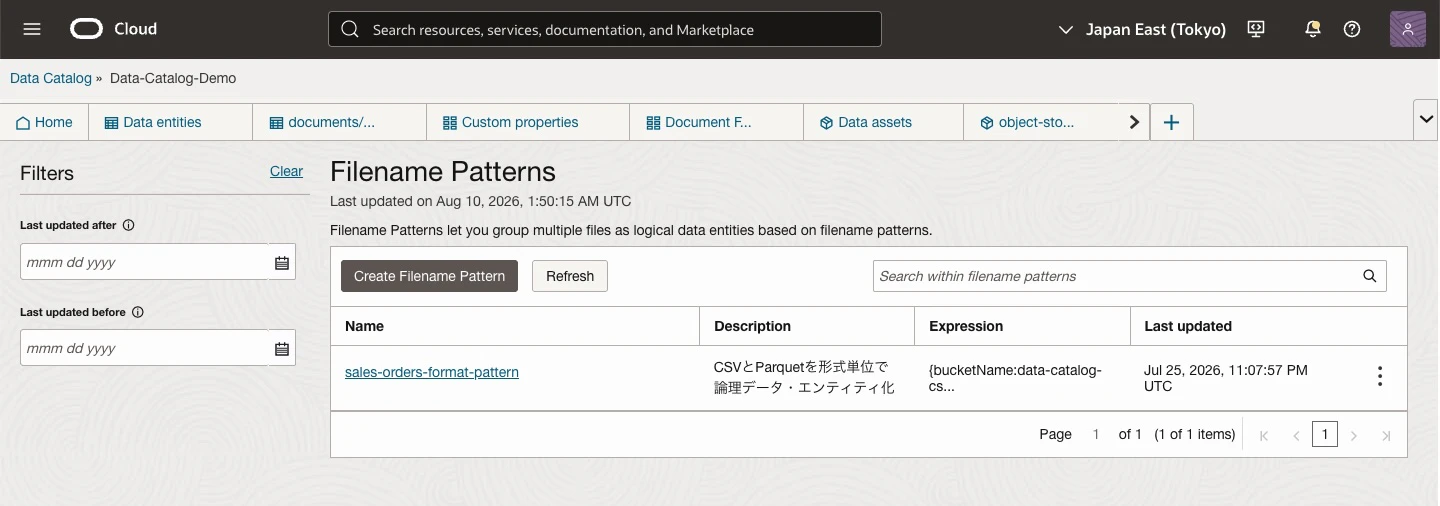
3) Patternを設定
| 項目 | 設定値 |
|---|---|
| Name | document-inventory-pattern |
| Pattern Type | Regular Expression |
| Description | Document inventory ParquetをLogical Entityとして管理 |
Patternです。
{bucketName:oracle-database-doc-catalog}/catalog/{logicalEntity:document_inventory}/current/.*\.parquet$
Test Expressionには、Bucket名を含む次の値を入力します。
oracle-database-doc-catalog/catalog/document_inventory/current/document_inventory.parquet
document_inventoryというLogical Entityが導出されることを確認し、[Create]をクリックします。

4) 作成結果を確認

● Data AssetへFilename Patternを割り当て
1) 対象Data Assetを開く
Data Catalog Home
  → Data Assets
  → object-storage-csv-parquet-demo

2) Assign Filename Patternsを選択

3) document-inventory-patternを割り当て

4) 割当て結果を確認
Filename Patternsにdocument-inventory-patternが表示されれば完了です。

● Logical Entity用に再ハーベスト
Filename Patternを割り当てた後、文書インベントリをLogical Entityとして再ハーベストします。
1) Connectionを選択
今回使用するResource Principal Connectionを選択します。
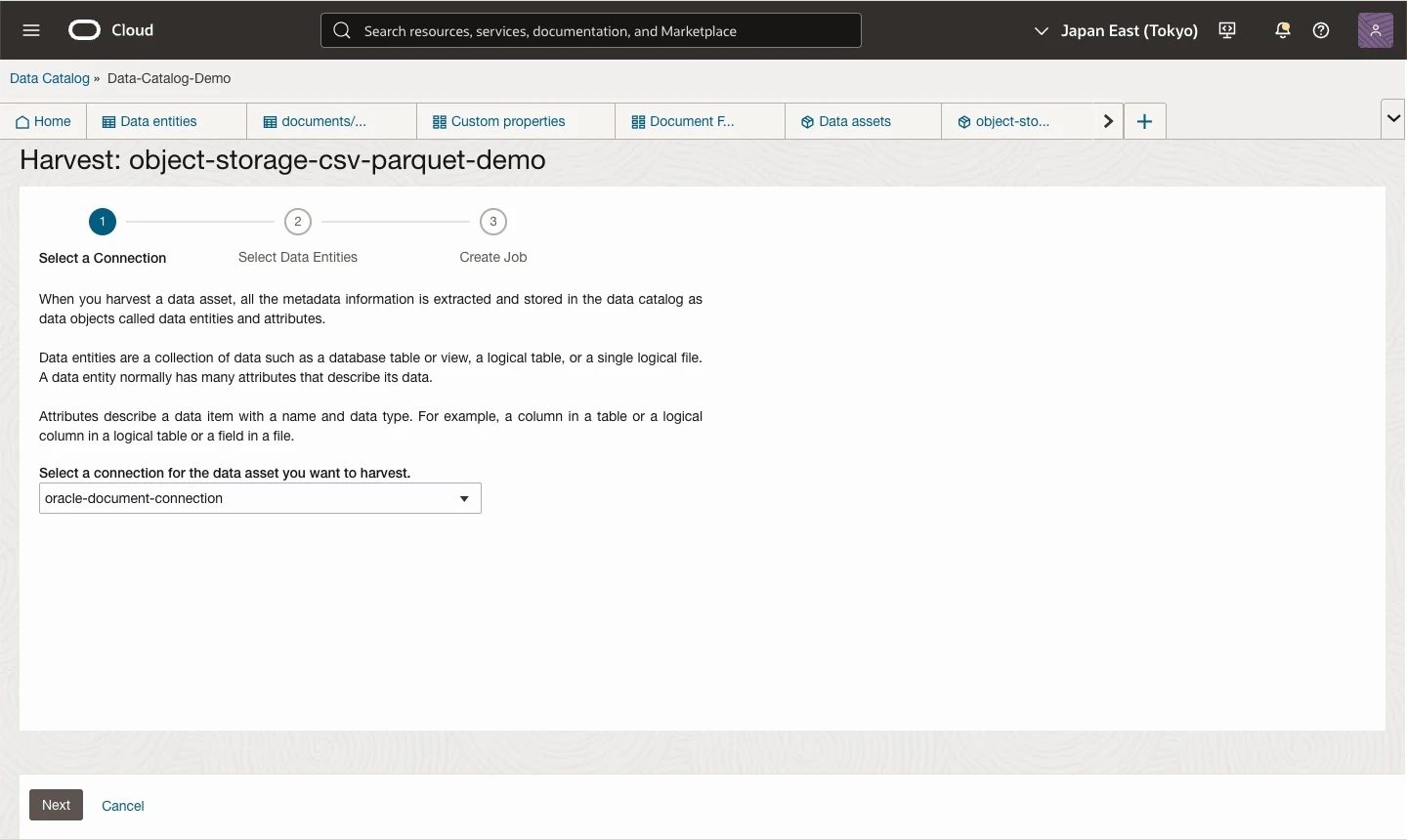
2) Bucketを選択
oracle-database-doc-catalog Bucketを選択します。

Harvest画面には
catalog/document_inventory/current/というPrefixが個別項目として表示されません。Bucket全体を選択し、割り当て済みのFilename PatternがObject名へ適用されます。
3) Harvest Jobを設定
| 項目 | 設定 |
|---|---|
| Incremental Harvest | 無効 |
| Include Unrecognized Files | 無効 |
| Include matched files only | 有効 |
| Time of Execution | Run job now |
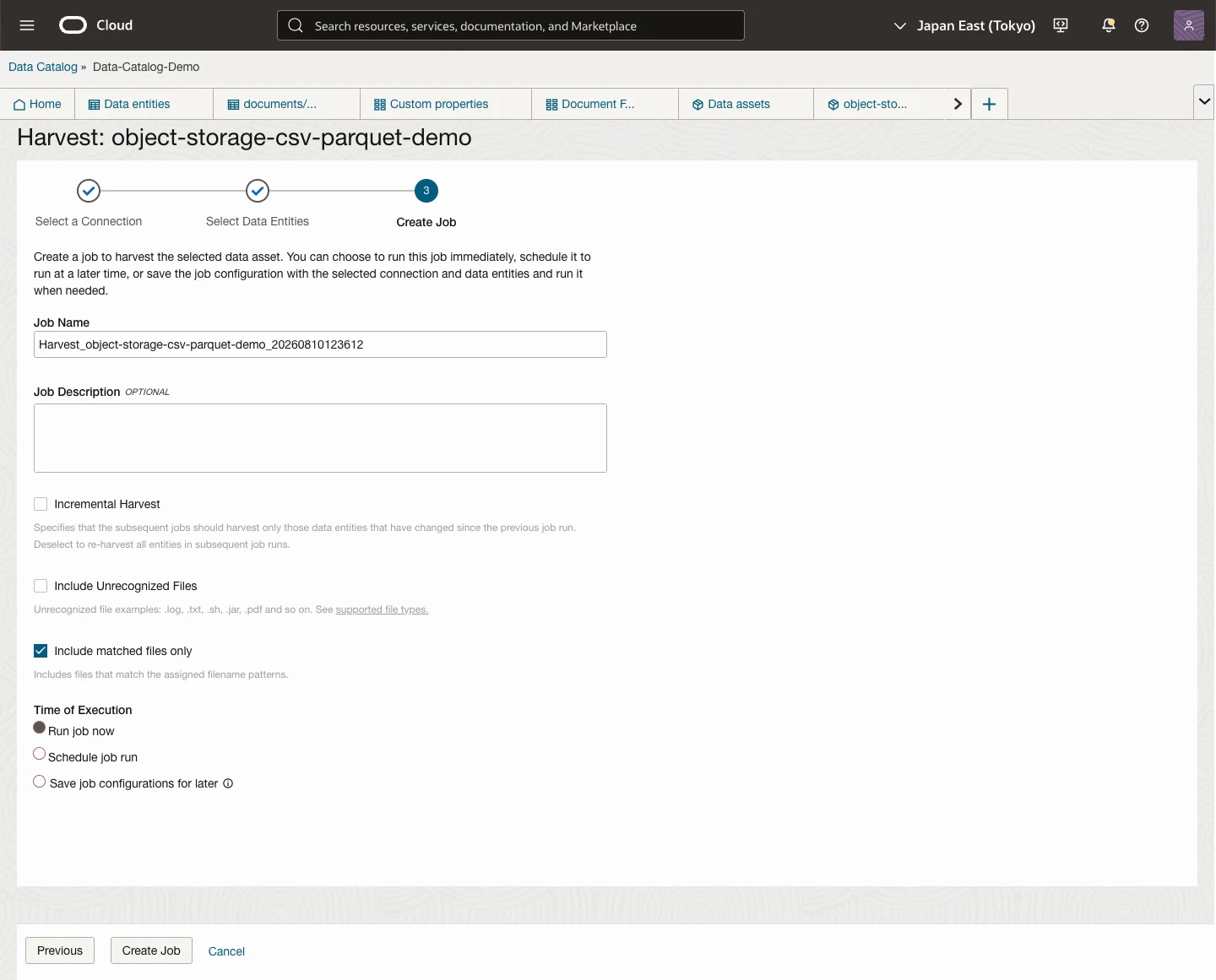
新しく割り当てたPatternを確実に評価するため、初回はIncremental Harvestを無効にします。Include matched files onlyを有効にすると、Patternに一致する文書インベントリParquetだけがLogical Entityの対象になります。
4) Jobの成功を確認
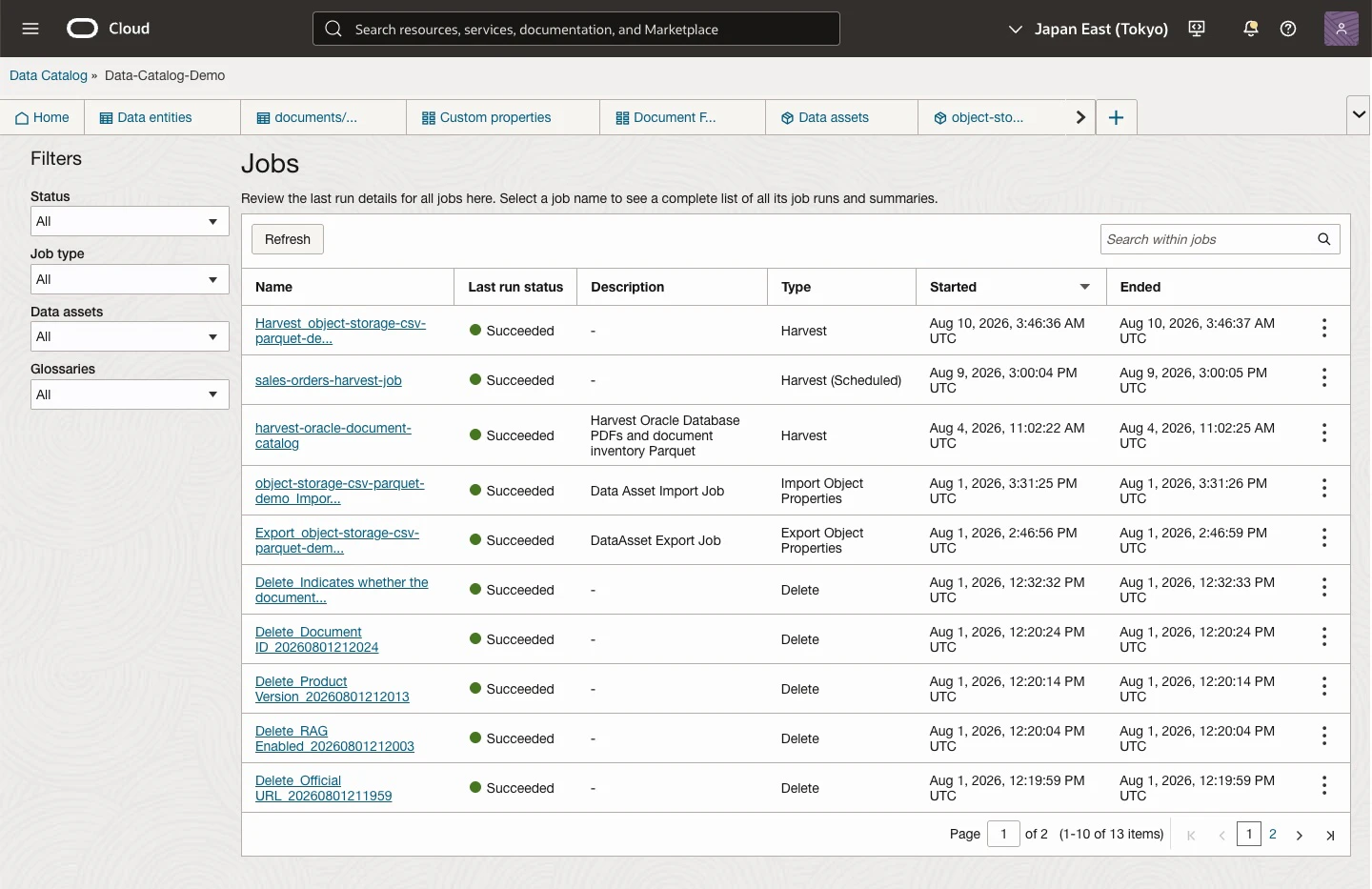
Job詳細で次を確認します。
Status                          = Succeeded
Patterns used                   = document-inventory-pattern
Logical data entities harvested = 1(1 files)
Harvest errors                  = 0
Harvest warnings                = 0

Skipped filesが表示されても問題ありません。今回はInclude matched files onlyを有効にしているため、Patternに一致しないPDFなどはスキップされます。
■ Data Catalog設定確認
ハーベスト結果を確認し、PDFへ業務メタデータを付与して検索できる状態へ拡張します。
● PDF Data Entityの確認
1) Data Entitiesを開く
Data CatalogのHomeからData Entitiesを選択します。

2) PDFファイル名で検索

3) PDF Data Entityを開く
PDFはUnrecognized Fileとして登録され、主に次の情報を確認できます。
- Name
- Object path
- Data Asset
- Bucket
- File type
- Last harvested
- Custom Properties
- Tags
PDFの本文、章構造、製品バージョンなどが自動的に抽出されるわけではありません。

● Parquet Data Entityの確認
1) Parquetファイル名で検索
document_inventory.parquet

2) Data Entityを開く
SummaryタブでObject Storage上のパスなどを確認します。

3) Attributesタブを開く
次のAttributeが表示されることを確認します。
document_id
document_family_id
product_name
product_version
document_title
document_type
category
subcategory
language_code
document_number
publication_year
publication_month
official_url
object_name
rag_enabled
document_priority
data_owner
tags
bucket_name
object_uri
product_versionが文字列、rag_enabledがBoolean、publication_yearとpublication_monthが整数として認識されていることを確認します。


catalog/document_inventory/current/document_inventory.parquetというObject Storage上のフルパスがData Entity名として表示され、20個のAttributeが抽出されました。currentには常に最新の文書インベントリを配置する構成とします。
● document_inventory Logical Entityの確認
1) Logical Entityを検索
Data EntitiesでData Entity Type = Logical Entityを選択し、検索欄へdocument_inventoryと入力します。

2) Summaryを確認
次の内容を確認します。
Logical Entity       = document_inventory
Status               = Active
Filename Pattern     = document-inventory-pattern
File Type            = PARQUET
Number of Attributes = 20
Number of Files      = 1
Bucket               = oracle-database-doc-catalog

3) Filesタブを確認
Filesタブに次のObjectが1件表示されることを確認します。
catalog/document_inventory/current/document_inventory.parquet

これで、文書インベントリを第4回のDBMS_DCAT同期でExternal Tableへマッピングできる状態になりました。
● Custom Propertiesの作成
PDF Data Entityへ、文書インベントリで管理している業務メタデータを付与します。
今回作成するCustom Propertiesは次のとおりです。
| Custom Property | Datatype | 値の例 | 検索での用途 |
|---|---|---|---|
Document ID |
String (Plain Text) | oracle_db_26ai_vecse |
一意な文書識別 |
Document Title |
String (Plain Text) | AI Vector Search User's Guide |
正式文書名検索 |
Document Family |
String (Plain Text) | ai_vector_search_users_guide |
文書系列で絞込み |
Product Version |
String (Plain Text) | 26ai |
バージョンで絞込み |
Official URL |
String (Plain Text) | Oracle公式URL | 出典確認 |
RAG Enabled |
Boolean | True |
RAG対象で絞込み |
Data Owner |
String (Plain Text) | database_platform_team |
管理者で絞込み |
・ Object TypeはUnrecognized Fileを選択
今回のCustom Propertiesは、PDFのData Entityへ文書管理情報を付与するために作成します。
PDFはハーベスト後にUnrecognized Fileとして登録されるため、7個すべてのCustom Propertyで、Data catalog object typesに次を設定します。
Unrecognized File
文書インベントリParquetには、文書管理項目が20個のAttributeとしてすでに登録されています。そのため、今回のCustom PropertiesはParquetへ付与せず、PDF Data Entityだけを対象にします。
Custom Propertyの作成時にUnrecognized Fileを設定しておけば、PDFごとに追加の関連付け作業は必要ありません。7個のCustom Propertiesを作成した後、PDF Data Entityを開くと、Custom Propertiesセクションから値を入力できます。
・ Custom Propertyの作成手順
1) Custom Propertiesを開く
Data Catalog Home
  → Custom Properties

2) Custom Properties画面
[Create Custom Property]をクリックします。

3) Document IDを作成
次のように設定し、[Create]をクリックします。
| 項目 | 設定 |
|---|---|
| Name | Document ID |
| Description | Stable identifier used to join document metadata and vector chunks |
| Datatype | String (Plain Text) |
| Use list of values | 無効 |
| Allow multiple values | 無効 |
| Data catalog object types | Unrecognized File |
| Enable events | 無効 |
| Show in search results | 有効 |
| Allow filtering | 無効 |
| Allow sorting | 有効 |
| Allow view and edit | 無効 |
4) 残りのCustom Propertiesを作成
Document IDと同じ手順で、残りの6個のCustom Propertiesを作成します。
すべてを同じ設定にするのではなく、Datatype、値リスト、検索結果オプションを用途に合わせて変更します。
共通設定
残りの6個では、次の項目を共通設定とします。
| 項目 | 設定 | 理由 |
|---|---|---|
| Data catalog object types | Unrecognized File |
PDF Data Entityへ表示するため |
| Enable events | 無効 | 今回はCustom Property変更イベントを使用しないため |
| Allow multiple values | 無効 | 1文書につき1つの値を設定するため |
| Allow view and edit | 無効 | Attribute表からのクイック編集を使用しないため |
Allow multiple valuesは、一度有効にすると後から無効へ戻せません。今回の文書インベントリでは、各項目を1文書につき1値として管理するため、すべて無効にします。
Custom Properties設定項目一覧
次の表に従って、6個のCustom Propertiesを順番に作成します。
| Name | Description | Datatype | Use list of values | List of values | Show in search results | Allow filtering | Allow sorting |
|---|---|---|---|---|---|---|---|
Document Title |
Official title of the Oracle Database document |
String (Plain Text) |
無効 | - | 有効 | 無効 | 無効 |
Document Family |
Logical document family used to group related documents across product versions |
String (Plain Text) |
有効 | 後述の4値 | 無効 | 有効 | 無効 |
Product Version |
Oracle Database product version associated with the document |
String (Plain Text) |
有効 |
26ai、19c、12.2
|
有効 | 有効 | 無効 |
Official URL |
Official Oracle documentation URL for the source document |
String (Plain Text) |
無効 | - | 無効 | 無効 | 無効 |
RAG Enabled |
Indicates whether the document is included in the Select AI with RAG target |
Boolean |
設定不可 | - | 有効 | 有効 | 無効 |
Data Owner |
Owner responsible for maintaining and governing the document metadata |
String (Plain Text) |
有効 | database_platform_team |
有効 | 有効 | 無効 |
Document FamilyのList of valuesには、次の4値を1つずつ追加します。
database_administrator_guide
database_installation_guide_linux
database_concepts
ai_vector_search_users_guide
Product VersionのList of valuesには、次の3値を追加します。
26ai
19c
12.2
Data OwnerのList of valuesには、今回の文書インベントリCSVで使用している次の値を追加します。
database_platform_team
作成操作
各Custom Propertyについて、次の操作を繰り返します。
-
Custom Properties画面で[Create Custom Property]をクリックします。 - 設定項目一覧に従って
Name、Description、Datatypeを入力します。 - 値を固定する項目は、
Use list of valuesを有効にして値を追加します。 -
Data catalog object typesでUnrecognized Fileを選択します。 - 設定項目一覧に従って
Show in search results、Allow filtering、Allow sortingを設定します。 - [Create]をクリックします。
- 同じ手順で次のCustom Propertyを作成します。
作成する順番は次のとおりです。
Document Title
Document Family
Product Version
Official URL
RAG Enabled
Data Owner
Use list of valuesへ登録した値は後から追加できますが、既存の値は削除できません。また、Custom PropertyのDatatypeも作成後は変更できません。表記を確認してから[Create]をクリックします。
5) 作成したCustom Propertiesを確認
Custom Properties画面に、次の7個が表示されることを確認します。
Document ID
Document Title
Document Family
Product Version
Official URL
RAG Enabled
Data Owner

6) Object Typeを確認
作成したCustom Propertyを開き、詳細画面右上のAssociated typesにUnrecognized Fileが表示されることを確認します。作成画面のData catalog object typesは、作成後の詳細画面ではAssociated typesという名称で表示されます。
この設定によって、ハーベスト済みのPDF Data EntityにCustom Propertiesが表示されます。Custom Propertiesの作成はハーベストとは別の設定なので、通常はPDFを再ハーベストせず、Data Entityを開き直すか[Refresh]をクリックして確認します。
参考:
● 1件のPDF Data EntityへCustom Propertiesを設定
まず、26aiのAI Vector Search User's Guideへ文書管理情報を設定します。
Custom Propertiesは、作成時にUnrecognized Fileへ関連付け済みです。そのため、PDF Data Entityを開いた後は、Custom Propertiesセクションから値を入力するだけです。
1) Data Entitiesを開く
Data Catalog Home
  → Data Entities

2) PDF Data Entityを開く
検索欄で次のファイルを検索し、Data Entityを開きます。
ai-vector-search-users-guide.pdf

3) Custom Propertiesを確認
SummaryタブのCustom Propertiesセクションに、次の7項目が表示されることを確認します。
Document ID
Document Title
Document Family
Product Version
Official URL
RAG Enabled
Data Owner

PDF Data EntityをCustom Properties作成前から開いていた場合は、[Refresh]をクリックするか、Data Entityを開き直します。
4) Custom PropertiesのEditを選択
Custom Propertiesセクションにある[Edit]をクリックします。
5) 値を設定
| Custom Property | 値 |
|---|---|
| Document ID | oracle_db_26ai_vecse |
| Document Title | AI Vector Search User's Guide |
| Document Family | ai_vector_search_users_guide |
| Product Version | 26ai |
| Official URL | https://docs.oracle.com/en/database/oracle/oracle-database/26/vecse/index.html |
| RAG Enabled | True |
| Data Owner | database_platform_team |
Document Family、Product Version、Data Ownerは、Custom Property作成時に登録した値リストから選択します。Document ID、Document Title、Official URLはテキストとして直接入力します。

6) Save changesを選択
[Save changes]をクリックします。
7) 設定結果を確認
PDF Data EntityのSummaryタブに戻り、Custom Propertiesセクションへ設定した値が表示されることを確認します。

参考:
● 複数PDFへCustom Propertiesを一括設定
10文書程度であれば、各PDFを開いて手作業で入力することもできます。
ただし、OCI Data Catalogには、Object StorageのData EntityとCustom PropertiesをExcelへExportし、値を編集してImportする機能があります。
文書数が多い場合は、この方法が便利です。
・ Custom PropertiesのExport
1) Data Assetを開く
Home
  → Data Assets
  → object-storage-csv-parquet-demo


2) Bucketsタブを開く
対象Bucketを選択します。

3) Export custom propertiesを選択
BucketとAttributesのチェックを外し、Data Entitiesだけを選択します。

4) Export custom properties画面
Export先を設定します。
| 項目 | 設定例 |
|---|---|
| Select the object types to export custom properties |
Data Entitiesのみ有効 |
| Compartment | Export先BucketのCompartment |
| Bucket | oracle-database-doc-catalog |
| Filename | oracle_document_custom_properties |
Exportを実行すると、Excelファイルが指定したBucketへ作成されます。

5) Exportファイルを確認
指定したBucketへoracle_document_custom_properties.xlsxが作成されたことを確認します。

・ ExportしたExcelの編集
ExcelファイルのData Entitiesシートで、PDFのObject pathまたはNameを確認し、10個のPDF行にCustom Property値を入力します。document_inventory.parquetなどPDF以外の行は空欄のままにします。
次の列は変更しません。
- Type
- Object path
- Name
- Internal Key
Internal Keyは、Import時にData CatalogのObjectを一意に識別するために使用されます。行の追加、削除、並べ替え、シート名の変更は避け、Custom Property列だけを編集して.xlsx形式で保存します。
文書インベントリCSVとの主な対応は次のとおりです。
| CSV列 | Data Catalog Custom Property |
|---|---|
document_id |
Document ID |
document_title |
Document Title |
document_family_id |
Document Family |
product_version |
Product Version |
official_url |
Official URL |
rag_enabled |
RAG Enabled |
data_owner |
Data Owner |
値リストを使用するDocument Family、Product Version、Data Ownerには、Custom Property作成時に登録したAllowed Valuesと完全に一致する値を入力します。
Document Family : database_administrator_guide など
Product Version : 26ai / 19c / 12.2
Data Owner      : database_platform_team
・ Custom PropertiesのImport
1) Exportを実行したBucket詳細ページを開く

2) [Import custom properties]を選択
Bucket詳細ページで[Import custom properties]をクリックします。
3) 編集したExcelファイルを指定
既存値を空欄で上書きしない場合は、Skip empty values in the excel fileを有効にします。

4) Importを実行して結果を確認
ImportジョブがSucceededになったことを確認します。その後、PDF Data Entityを開き、Custom Propertiesが反映されたことを確認します。

参考:
● Custom Propertiesを使用した検索
1) Data Entitiesを開く
Data Catalog Home
  → Data Entities

2) Product Versionで絞り込む
Custom Filtersから次の値を選択します。
Product Version = 26ai

3) RAG Enabledで絞り込む
RAG Enabled = True

4) 文書名で検索
検索欄へ次のように入力します。
AI Vector Search

5) Data Ownerで絞り込む
Data Owner = database_platform_team

26aiかつRAG対象のPDFだけを検索できることを確認します。
Custom Propertyは、作成時にShow in search results、Allow filtering、Allow sortingを有効にすることで、検索結果へ表示したり、Custom Filtersへ追加したりできます。
参考:
● 今回の実作業結果
Custom Propertiesを使用した検索結果を確認できた時点で、今回の実作業は完了です。
ここから先は、追加のOCI操作ではなく、文書インベントリの運用方針と第3回・第4回へ引き継ぐ設計を整理します。
今回確認できた内容は次のとおりです。
- 10個のOracle DatabaseマニュアルPDFをData Entityとして登録
-
document_inventory.parquetから20個のAttributeを抽出 - Filename Patternから
document_inventoryLogical Entityを作成 - Logical Entityが
Active、20 Attributes、1 Fileであることを確認 - 7個のCustom PropertiesをPDFへ関連付け
- Excel Export/Importで10個のPDFへ管理情報を一括設定
- Product Version、RAG Enabled、Data Ownerで検索
■ 運用と次回への接続
ここからは追加のOCI操作ではなく、今回作成した文書インベントリの運用方針と次回以降の設計を整理します。
● 文書インベントリCSVをマスターとする
Custom Propertiesを設定すると、文書管理情報は次の2か所に存在します。
document_inventory.csv / Parquet
  → カタログ製品やDatabaseをまたいで使用する共通インベントリ

OCI Data Catalog Custom Properties
  → Data Catalog内でPDFを検索、分類するための業務メタデータ
今回の運用では、人が編集するdocument_inventory.csvをマスターとし、ParquetとCustom PropertiesはCSVから展開する派生データとして扱います。
CSVを更新
  ↓
Pythonで検証してParquetを再生成
  ↓
INVALID_OBJECT_URI_COUNT=0を確認
  ↓
Object Storageへ同じObject名で上書き
  ↓
REMOTE_INVALID_OBJECT_URI_COUNT=0を確認
  ↓
Schema、対象ファイル、Filename Patternを変更した場合は再ハーベスト
  ↓
必要に応じてCustom PropertiesをExcel Export/Importで更新
文書数が増えた場合は、OCI Data Catalog APIを使用してCustom Propertiesの更新を自動化する構成へ発展できます。
● 他のデータ基盤でも再利用しやすい設計
今回のParquetは、特定のカタログ製品だけに依存しないように、次の方針で作成しています。
- 1文書を1行で表現
- 列名を
snake_caseで統一 - ネストした構造を使用しない
- IDとObject StorageのHTTPS URIを保持
- 文字列、Boolean、整数などの基本型を使用
- 文書本体と管理メタデータを分離
- 製品固有の内部IDを主キーに使用しない
このため、OCI Data Catalogだけでなく、Autonomous AI Databaseの外部表、Data Flow、pandas、PyArrow、Spark、BIツール、独自のRAG処理などへ再利用できます。
● 次回以降への接続
・ 第3回:Select AI with RAG
第3回では、今回Object Storageへ配置したPDFをAutonomous AI Databaseから読み取り、Vector Indexを作成してSelect AI with RAGの対象にします。
Object Storage上のPDF
        ↓
Autonomous AI Database
        ↓
テキスト抽出とチャンク分割
        ↓
Embedding生成とVector Index
        ↓
Select AI with RAG
文書インベントリの次の列を引き続き使用します。
document_id
document_family_id
product_version
document_title
official_url
object_name
object_uri
rag_enabled
object_uriはPDFごとのHTTPS URIとして、検索結果と文書原本を対応付けるために使用します。
Vector Indexを複数PDFからまとめて作成するときは、個別のobject_uriではなく、次のようなPDF格納PrefixのHTTPS URIをlocationへ指定する構成にします。
https://<namespace>.objectstorage.<region>.oci.customer-oci.com/n/<namespace>/b/<bucket>/o/documents/oracle-database/
・ 第4回:構造化データとVector検索結果のJOIN
第4回では、第2回で作成したdocument_inventory Logical EntityをDBMS_DCATでAutonomous AI Databaseへ同期し、External Tableとして参照します。そのうえで、次の2段階でLakehouseを構成します。
文書インベントリ外部表
  + ADB内部の業務・ガバナンス表
  → document_idでJOIN

文書インベントリ
  + Select AI Vector Store
  → 完全Object名でJOIN
外部表として参照する対象は、各PDF行のobject_uriではなく、次のParquetファイルです。
catalog/document_inventory/current/document_inventory.parquet
Vector Storeとの対応では、location_uriに含まれるObject Prefixとattributes.object_nameを連結します。
WITH vector_source AS (
    SELECT
        content AS chunk_content,
        RTRIM(
            REGEXP_SUBSTR(
                JSON_VALUE(
                    attributes,
                    '$.location_uri'
                    RETURNING VARCHAR2(2000)
                ),
                '/o/(.*)$',
                1,
                1,
                NULL,
                1
            ),
            '/'
        ) || '/' ||
        LTRIM(
            JSON_VALUE(
                attributes,
                '$.object_name'
                RETURNING VARCHAR2(1000)
            ),
            '/'
        ) AS vector_full_object_name
    FROM OCI_DB_MANUAL_IDX$VECTAB
)
SELECT
    i.document_id,
    i.document_title,
    i.product_version,
    i.category,
    i.official_url,
    g.approval_status,
    v.chunk_content
FROM document_inventory_ext_v i
LEFT JOIN document_governance g
    ON g.document_id = i.document_id
JOIN vector_source v
    ON v.vector_full_object_name = i.object_name
WHERE i.product_version = '26ai';
今回作成したdocument_idはRDBMS表との安定したJOINキー、object_nameはVector Storeの元PDFと対応付けるキーとして使用します。
第4回の実検証では、26aiの4文書すべてがVector Storeへ結び付き、次の結果になりました。
DOCUMENT_COUNT      = 4
JOINED_CHUNK_COUNT  = 9590
JOIN漏れ             = 0件
文書ごとのチャンク数です。
Database Administrator's Guide                      4586
Database Concepts                                   2386
Oracle AI Database Installation Guide for Linux      733
AI Vector Search User's Guide                       1885
この検証によって、26ai Installation Guideのobject_nameを含め、文書インベントリのObject名がVector Storeの元PDFと一致することを確認できました。
参考:
- Query External Data with ORC, Parquet, or Avro Source Files
- DBMS_CLOUD URI Formats
- DBMS_CLOUD_AI Package
■ 注意点・トラブルシューティング
運用時に注意する点と、設定で問題が発生した場合の確認項目をまとめます。
● 注意点
・ macOSの.DS_Storeをアップロードしない
.DS_Storeをアップロードすると、PDFと同様にUnrecognized FileとしてData Catalogへ登録され、検索結果やExportしたExcelへ不要な行が増えます。アップロード前に削除し、PDF以外のファイルが残っていないことを確認します。
・ 値リストはAllowed Valuesと完全に一致させる
Document Family、Product Version、Data Ownerは値リストを使用します。画面入力やExcel Importでは、登録済みのAllowed Valuesから選択するか、文字列を完全に一致させます。
・ Data Catalogはデータ本体をコピーしない
OCI Data Catalogは、Object Storage上のPDFやParquetをData Catalog内へコピーするサービスではありません。
ハーベストによって取得したメタデータを管理します。
・ Parquetの行値はData Catalogの検索対象にならない
Parquetの列定義はAttributeとして確認できますが、各行にあるdocument_titleやproduct_versionの値が、そのままData CatalogのData Entity検索へ展開されるわけではありません。
PDFを製品バージョンやRAG対象フラグで検索するには、Custom Propertiesへ値を設定します。
・ PDF本文はData Catalogで解析されない
PDFはUnrecognized Fileとして基本情報が登録されます。
PDF本文のチャンク化とEmbedding生成は、第3回のSelect AI with RAGで実施します。
・ ParquetとPDFは自動的に関連付かない
今回のdocument_idとobject_nameは将来の関連付けに使用するキーです。
Data Catalogの画面上で、Parquetの1行とPDF Data Entityが自動的なリレーションとして作成されるわけではありません。
・ 文書の改訂を考慮する
Oracleのマニュアルは同じURLでも文書番号や発行年月が更新される場合があります。
文書更新を厳密に管理する場合は、将来次の列を追加できます。
file_size_bytes
sha256
object_etag
object_last_modified
inventory_updated_at
supersedes_document_number
・ PDFの使用条件を確認する
Oracleドキュメントを保存、共有、二次利用する場合は、対象文書に記載されたライセンス条件、著作権表示、組織内の利用ルールを確認してください。
・ 公開前にスクリーンショットの情報を確認する
OCIコンソールの画面には、メールアドレス、OCID、Object Storage Namespace、Compartment名などが表示される場合があります。公開不要な情報は、Qiitaへ掲載する前にマスクします。特に、画面内のUpdated byに表示されるメールアドレスを確認します。
● トラブルシューティング
・ Data CatalogからBucketが表示されない
確認項目です。
- Data Catalog OCIDがDynamic GroupのMatching Ruleに含まれているか
- Dynamic GroupへObject Storageの
read権限があるか - Connectionで正しいRegionを選択したか
- Connectionで正しいCompartmentを選択したか
- Data CatalogとObject Storageが想定したTenancyに存在するか
・ Test Connectionが失敗する
確認項目です。
- Data AssetのURLがSwift endpoint形式か
- Region Identifierが正しいか
- Object Storage Namespaceが正しいか
- IAM Policy作成後、反映まで少し時間を置いたか
- Resource Principal Connectionを選択しているか
URL例です。
https://swiftobjectstorage.ap-tokyo-1.oraclecloud.com
・ PDFがハーベストされない
ハーベスト・ジョブの次の項目を確認します。
Include Unrecognized Files = Enabled
PDFは構造化ファイルのサポート形式ではないため、この設定が必要です。
・ PDFがSkippedになる
Include matched files onlyを有効にしている場合、Filename Patternに一致しないPDFがSkippedになることがあります。
今回の手順ではFilename Patternを使用しないため、Include matched files onlyは無効にします。
・ ParquetにAttributesが表示されない
次の点を確認します。
- ファイル拡張子が
.parquetであるか - Pythonスクリプトが正常終了したか
- ローカルで
pyarrow.parquet.read_table()を実行できるか - 0 Byteのファイルをアップロードしていないか
- ハーベスト・ジョブのErrorsを確認したか
- 同じObject名へ新しいParquetを上書きした後、増分ハーベストを実行したか
・ document_inventory Logical Entityが作成されない
確認する項目です。
Filename Pattern       = document-inventory-pattern
Pattern Expression     = catalog/document_inventory/current/.*\.parquet$
Incremental Harvest    = 無効(初回確認時)
Include matched files only = 有効
対象Bucket             = oracle-database-doc-catalog
Pattern Testでは、Bucket名を含む次の値を使用します。
oracle-database-doc-catalog/catalog/document_inventory/current/document_inventory.parquet
Harvest画面でPrefixが表示されなくても、Bucketを選択していれば問題ありません。Harvest後にLogical EntityのFilesタブを開き、対象Parquetが含まれていることを確認します。
・ File Data EntityとLogical Entityの違いが分からない
同じParquetが、用途の異なる2つの単位で表示されることがあります。
File Data Entity
  → 単一ファイルのSchemaを確認

Logical Entity
  → Filename Patternに一致するファイル群を表として扱う
  → 第4回のData Catalog同期で使用
第4回へ進む前に、document_inventoryがLogical Entity、Status = Activeになっていることを確認します。
・ --regionがunrecognized argumentsになる
次のエラーは、ローカルのcreate_document_inventory.pyが旧版であることを示します。
create_document_inventory.py:
error: unrecognized arguments: --region ap-tokyo-1
確認します。
python scripts/create_document_inventory.py --help
--regionが表示されない場合は、Parquetの生成が完了していません。その状態で既存のoutput/document_inventory.parquetをアップロードすると、古い内容を再アップロードする可能性があります。
次の順序で対応します。
1. 本記事のcreate_document_inventory.pyへ更新
2. --helpで--regionを確認
3. Parquetを再生成
4. INVALID_OBJECT_URI_COUNT=0を確認
5. Object Storageへアップロード
6. 再取得してREMOTE_INVALID_OBJECT_URI_COUNT=0を確認
・ object_uriに<your-namespace>またはoci://が残る
ローカルParquetを検査します。
python - <<'PY_TROUBLE_URI'
import pyarrow.parquet as pq

path = "output/document_inventory.parquet"
df = pq.read_table(path).to_pandas()

invalid = df[
    df["object_uri"].str.contains(r"<|>", regex=True, na=False)
    | ~df["object_uri"].str.startswith("https://")
]

print(f"INVALID_OBJECT_URI_COUNT={len(invalid)}")
PY_TROUBLE_URI
期待する結果です。
INVALID_OBJECT_URI_COUNT=0
10など0以外になる場合は、旧版スクリプトまたは旧Parquetを使用しています。アップロードを中止し、CSVから再生成します。
・ 26ai Installation GuideだけVector Storeと結び付かない
26ai、19c、12.2ではInstallation Guideのファイル名が同一ではありません。
26ai
  oracle-ai-database-installation-guide-linux.pdf

19c / 12.2
  database-installation-guide-linux.pdf
26aiの正しいobject_nameです。
documents/oracle-database/26ai/installation_linux/oracle-ai-database-installation-guide-linux.pdf
文書インベントリの値は、Object Storage上の実Object名と完全に一致させます。ハイフン、アンダースコア、大文字・小文字も確認します。
・ アップロードは成功したがADBから古い値が見える
まず、Object Storage上のParquetを再ダウンロードし、REMOTE_INVALID_OBJECT_URI_COUNT=0であることを確認します。
リモート側が古い場合は、Namespace、Region、Bucket、Object名を明示して同じObjectへ上書きします。
oci os object put \
  --namespace-name "$OCI_NAMESPACE" \
  --region "$OCI_REGION" \
  --bucket-name "$OCI_BUCKET" \
  --name 'catalog/document_inventory/current/document_inventory.parquet' \
  --file output/document_inventory.parquet \
  --force
今回の検証では、ParquetのObject名、列名、Datatypeを変更せず行値だけを更新したため、再Harvestや再Syncを行わなくても既存のExternal Tableから更新値を参照できました。Schemaや対象Objectを変更した場合は再Harvestと再Syncを実行します。
・ 12.2が数値になってしまう
CSV読込み時に全列を文字列として読み込み、PyArrow Schemaでproduct_versionを文字列に指定します。
今回のスクリプトでは次の指定をしています。
dataframe = pd.read_csv(
    input_path,
    dtype="string",
    keep_default_na=False,
)
Parquet Schemaでも次のように指定しています。
pa.field("product_version", pa.string(), nullable=False)
・ rag_enabledが文字列として登録される
CSVのtrue、falseをPythonでBooleanへ変換し、PyArrow Schemaでboolを指定します。
pa.field("rag_enabled", pa.bool_(), nullable=False)
・ PDF Data EntityにCustom Propertiesが表示されない
Custom Propertyの詳細画面右上に、次が表示されることを確認します。
Associated types: Unrecognized File
確認後、PDF Data Entityを開き直すか[Refresh]をクリックします。
・ 値リストのCustom Propertyを保存できない
Document Family、Product Version、Data Ownerは、Custom Propertyに登録したAllowed Valuesだけを設定できます。必要な値がない場合は、Custom Propertyを編集して値リストへ追加してから、PDF Data EntityまたはExcel Importで使用します。
・ Custom Propertiesを設定したのに検索Filterへ表示されない
Custom Propertyの設定で、次を有効にします。
Allow filtering
検索結果一覧へ値を表示する場合は、次も有効にします。
Show in search results
■ まとめ
● 今回実施した内容
今回、次の内容を実施しました。
- Oracle Database 26ai、19c、12.2のPDFをObject Storageへ配置
- 文書管理情報を1文書1行のCSVとして作成
-
document_idとdocument_family_idを設計 - Pythonで必須値、重複、URL、Object名を検証
-
object_uriのPlaceholderと旧形式をアップロード前後で検査 - PyArrow Schemaで型を明示してParquetを生成
-
product_versionを文字列として保持 -
rag_enabledをBooleanとして保持 - PDFとParquetをOCI Data Catalogでハーベスト
- PDFをUnrecognized Fileとして登録
- Parquetの列と型をAttributeとして確認
-
document-inventory-patternを作成してData Assetへ割り当て -
document_inventoryLogical Entityを作成し、20 Attributes、1 Fileを確認 - Custom PropertiesでPDFへ文書管理情報を付与
- Excel Export/Importで10個のPDFへCustom Propertiesを一括設定
- Product Version、RAG Enabled、Data OwnerでPDFを検索
-
document_idをRDBMS表とのJOINキー、object_nameをVector Storeとの対応キーとして準備
● Medallion Architectureで見た今回の位置づけ
今回の構成をMedallion Architectureに当てはめると、
Object Storageへ配置したOracle DatabaseマニュアルPDFは、
原本をそのまま保持するBronze Layer相当です。
一方、document_inventory.csvをPythonで検証し、
型を明示して生成したdocument_inventory.parquetは、
検証・標準化されたSilver Layer相当と考えられます。
OCI Data CatalogはBronze、Silver、Goldのいずれかの
データ保存層ではなく、各層にあるデータの所在、型、
所有者、分類などを管理するCatalog/Governance層です。
Bronze
  → Oracle DatabaseマニュアルPDF原本

Silver
  → 検証済みdocument_inventory.parquet
  → 第3回で作成する文書チャンク

Gold/Serving
  → Vector Index
  → Select AI with RAG
  → 文書インベントリや業務表とJOINした検索結果

Catalog/Governance
  → OCI Data Catalog
今回の第2回では、Bronze相当のPDF原本を発見・管理できる
状態にし、Silver相当の文書インベントリを用意しました。
・ 一番簡潔な整理
PDF原本
  = Bronze

検証済み文書インベントリParquet
  = Silver

PDFから抽出・正規化したチャンク
  = Silver

RAG用Vector Indexや目的別検索ビュー
  = Gold/Serving

OCI Data Catalog
  = 全レイヤーを横断するCatalog/Governance
● まとめと次回予告
今回は、Oracle DatabaseマニュアルPDFと文書インベントリParquetをOCI Data Catalogでハーベストし、Custom Propertiesを使用して製品バージョン、正式な文書名、RAG対象、Data Ownerなどの業務メタデータを付与しました。
人が管理
  → document_inventory.csv

Pythonが検証して生成
  → document_inventory.parquet

Object Storageが保持
  → PDF本体とParquet

OCI Data Catalogが管理
  → 技術メタデータ、Logical Entity、Custom Properties
今回やってみて一番面白かったのは、Data CatalogがPDFの内容を勝手に理解して分類してくれるものではなく、document_id、文書系列、製品バージョン、RAG対象といったメタデータを先に設計することが重要だと、実際の操作を通して確認できたことです。
PDFをObject Storageへ置くことは文書管理のスタートですが、それだけではAI Readyな状態にはなりません。人が確認しやすいCSV、型を持ったParquet、検索に使用するCustom Propertiesを分けて作ることで、Data CatalogからDatabase、Vector Search、RAGへつなげられる形になってきました。
次回は、今回カタログ化したPDFをAutonomous AI Database 26aiから読み取り、Select AI with RAGを実際に構築してみてみます。
第4回では、今回作成したdocument_inventory Logical EntityをAutonomous AI Databaseへ同期して外部表として参照し、ADB内の業務表とはdocument_idで、Vector Storeとは完全Object名でJOINします。
■ 解説
■ おまけ
技術解説を初心者でもわかりやすいように解説しています。
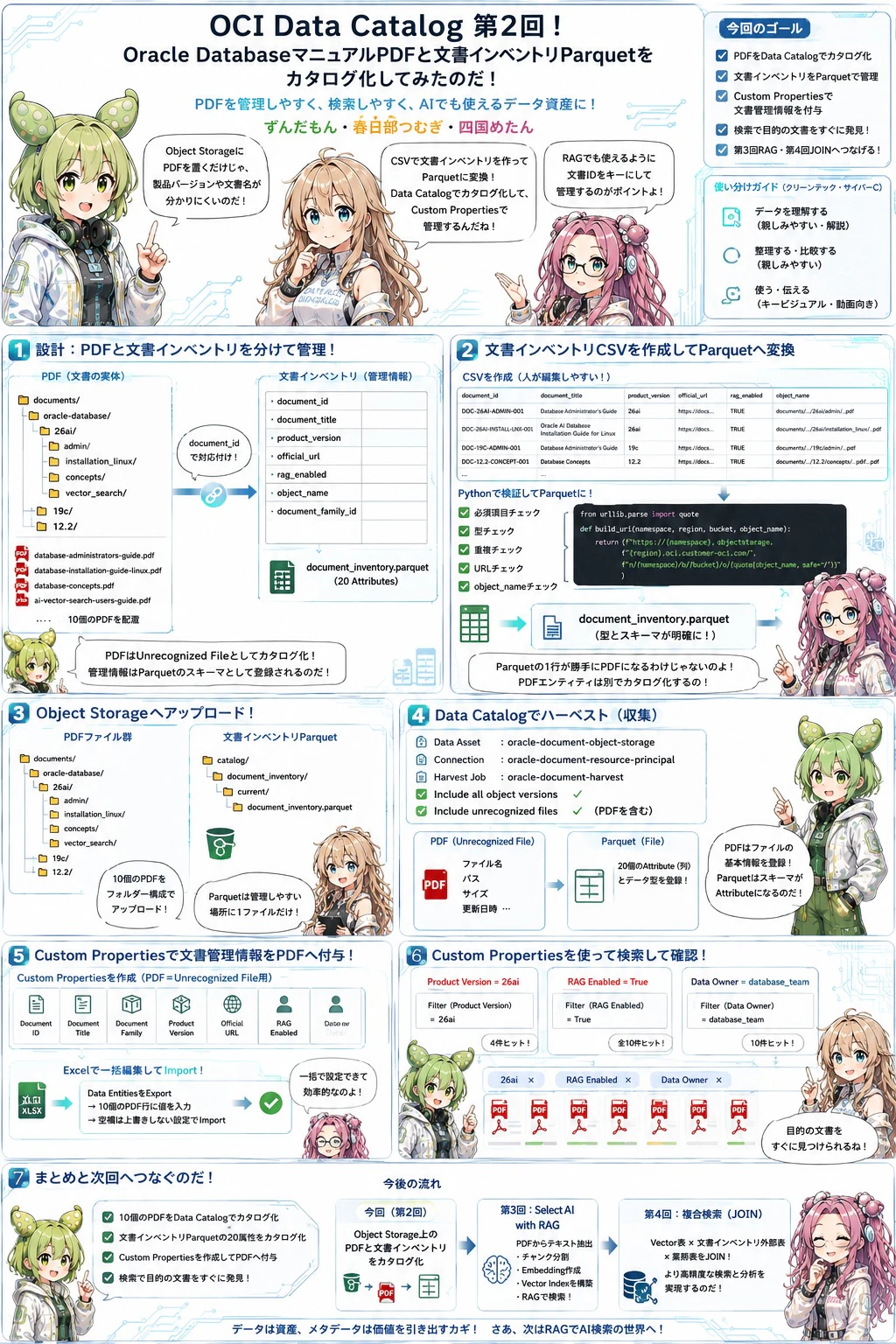
■ 参考資料
- OCI Data Catalog
- Overview of Data Catalog
- Harvest from Oracle Object Storage
- Harvesting Technical Metadata
- Harvesting a Data Asset
- Harvesting Object Storage Files as Logical Data Entities
- Creating a Filename Pattern
- Assigning Filename Patterns
- Viewing Harvested Logical Data Entities
- Using Custom Properties
- Creating Custom Properties
- Editing Data Entity Custom Properties
- Exporting Custom Property Values
- Importing Custom Property Values
- Using Custom Properties in Search
- Uploading an Object Storage Object to a Bucket
- OCI CLI Object Put
- OCI CLI Object Get
- OCI CLI Object Bulk Upload
- Query External Data with ORC, Parquet, or Avro Source Files
- Oracle AI Database 26ai Books
- Oracle Database 19c Books
- Oracle Database 12c Release 2 Books