

Azure Bastionは、ローカル コンピューター上のネイティブ クライアント (SSH または RDP) から仮想ネットワーク内の VM への接続を受け入れるように Bastion デプロイを構成できます。
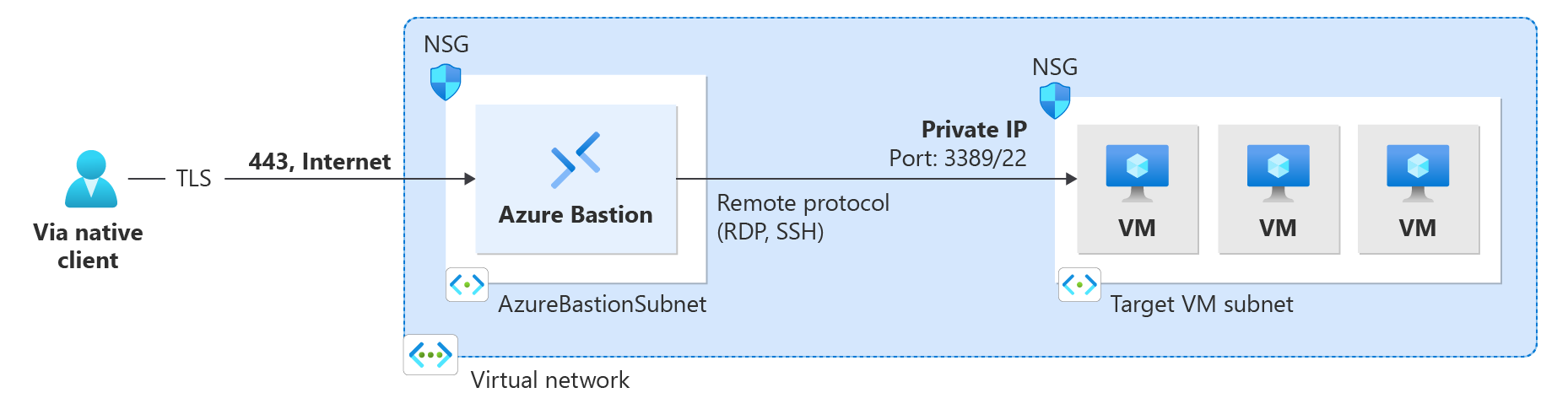
ネイティブ クライアント機能を使うと、Azure CLI を使って Bastion 経由でターゲット VM に接続し、サインイン オプションを拡張して、ローカル SSH キー ペアと Microsoft Entra ID を含めることができます。 さらに、接続の種類とクライアントに応じてファイルを転送することもできます。
ということで、MacBook から Azure Bastion 経由で Oracle Database@Azure へ ssh接続してみてみます。
■ 構成図
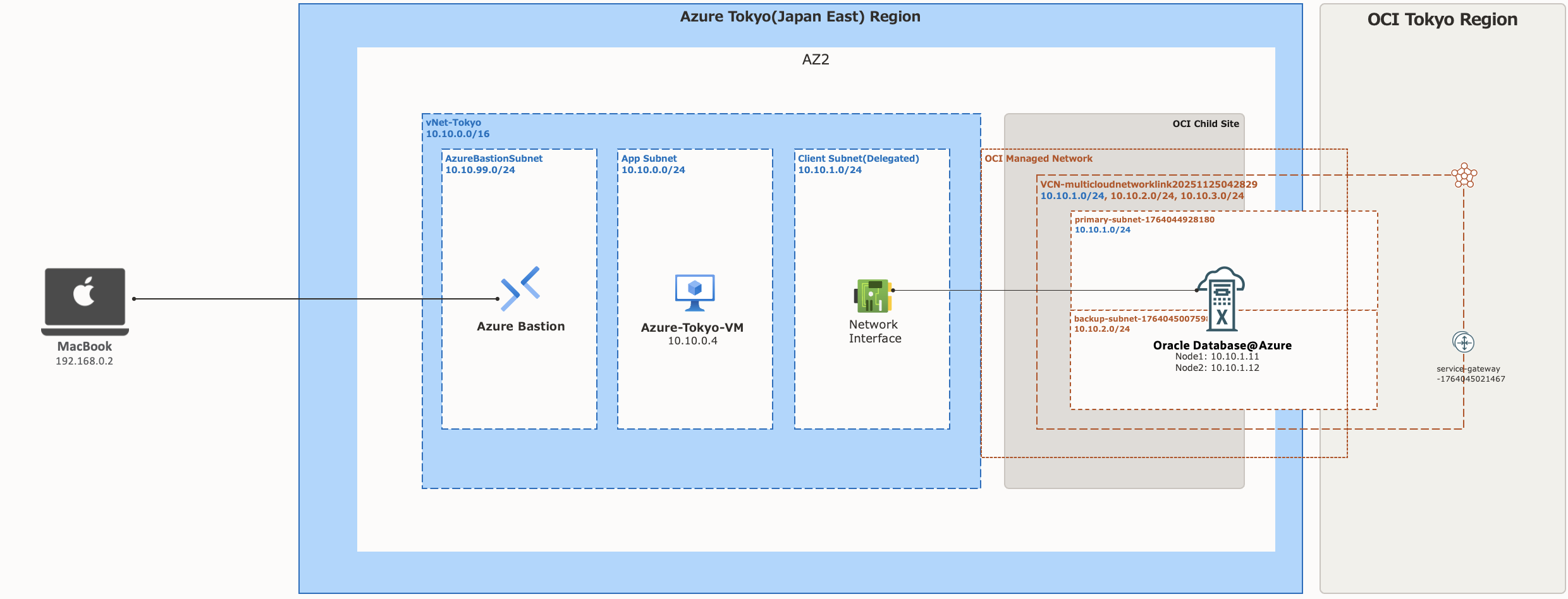
Azure Bastionと Oracle Database@Azure作成は次を参考に作成しておきます。
・ Azure Bastion作成
・ Oracle Exadata Database@Azure作成
■ Bastion 設定
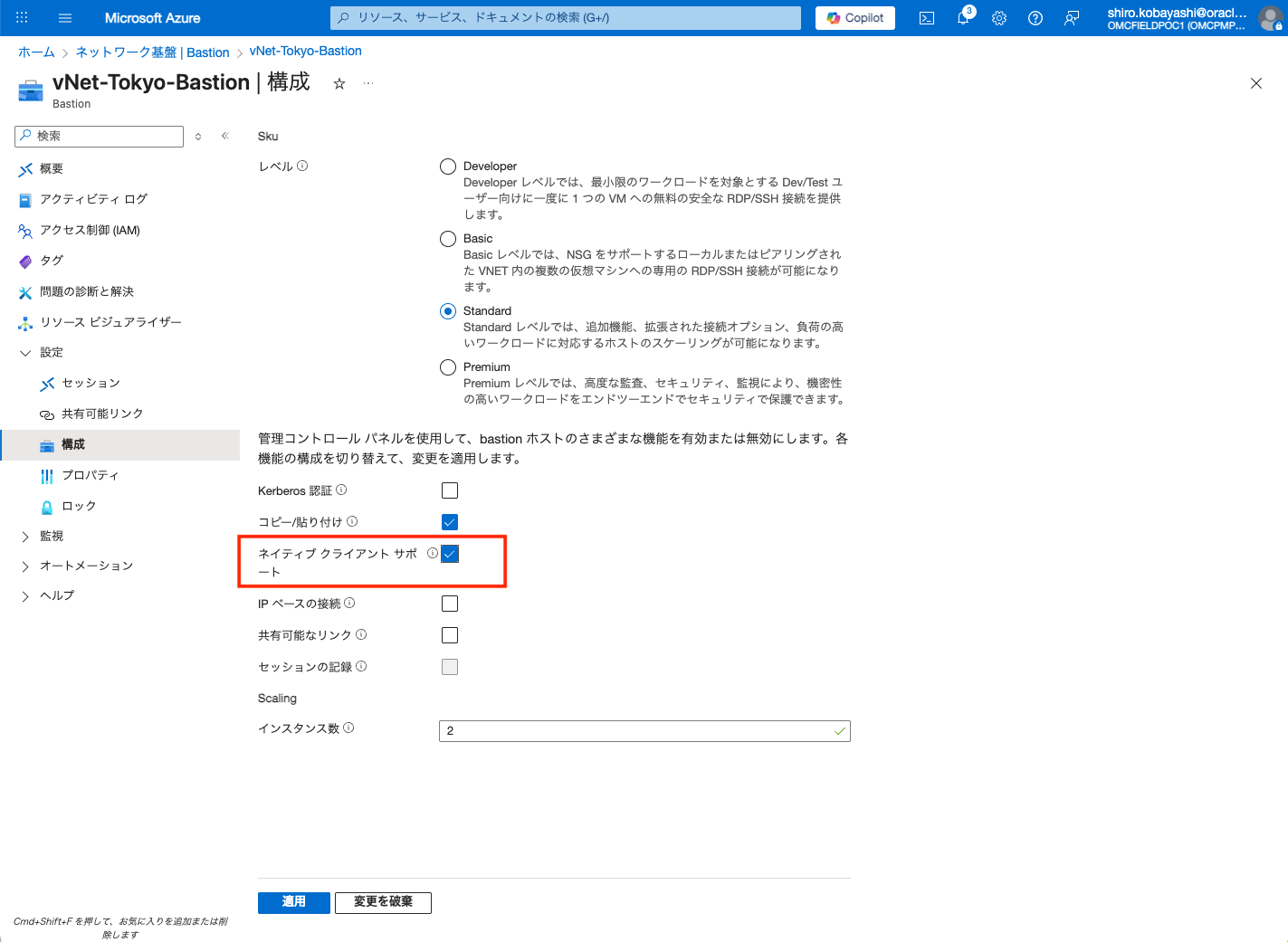
● ネイティブ クライアント接続有効化
既存Bastion画面にある 構成画面で、[ネイティブ クライアント サポート] のチェック ボックスを ON にし、変更を適用します。
● ネイティブクライアント接続をセキュリティで保護する
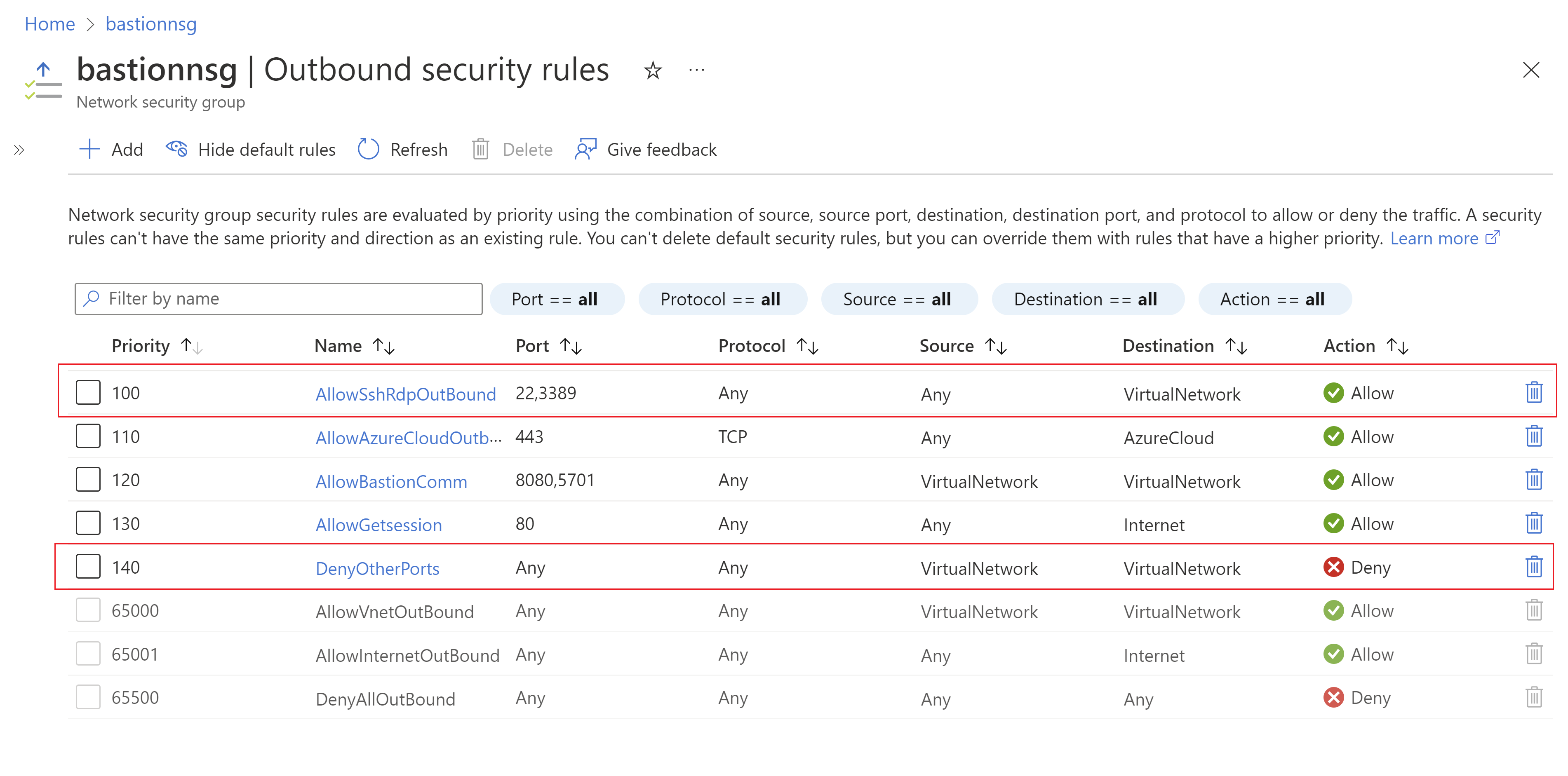
ネイティブクライアント接続をさらにセキュリティで保護したい場合は、ポート 22/3389 へのアクセスのみを提供することによってポート アクセスを制限できます。 ポート アクセスを制限するには、AzureBastionSubnet に次の NSG 規則をデプロイして、選択されたポートへのアクセスを許可し、その他のすべてのポートからのアクセスを拒否する必要があります。
■ Bastion Tunnel接続でクライアントPC接続
VM への接続は、接続元のホスト コンピューター、そして接続先のクライアント VM によって、異なる接続手順があります。
ネイティブ クライアントから接続する方法を理解するには、次のドキュメントを参考します。
今回は、MacBook から Bastion経由で、接続します。
● Azure CLI インストール
次を参考に MacBook へ Azure CLI をインストールします。
● Azure CLI 実行
1) Azure CLI ログイン
Azure CLI でログインします。
user@macbook ~ % az login
A web browser has been opened at https://login.microsoftonline.com/organizations/oauth2/v2.0/authorize. Please continue the login in the web browser. If no web browser is available or if the web browser fails to open, use device code flow with `az login --use-device-code`.

Retrieving tenants and subscriptions for the selection...
The following tenants don't contain accessible subscriptions. Use `az login --allow-no-subscriptions` to have tenant level access.
6e2c6053-81ce-78f2-ad6d 'Oracle Corporation'

[Tenant and subscription selection]

No     Subscription name    Subscription ID        Tenant
-----  -------------------  ---------------------  ------------
[1] *  shirokpoc1           aa2583-5a9e-460f-70f2  poc

The default is marked with an *; the default tenant is 'shirokpoc1' and subscription is 'shirokpoc1' (aa2583-5a9e-460f-70f2).

Select a subscription and tenant (Type a number or Enter for no changes):

Tenant: shirokpoc1
Subscription: shirokpoc1 (aa2583-5a9e-460f-70f2)

[Announcements]
With the new Azure CLI login experience, you can select the subscription you want to use more easily. Learn more about it and its configuration at https://go.microsoft.com/fwlink/?linkid=2271236

If you encounter any problem, please open an issue at https://aka.ms/azclibug

[Warning] The login output has been updated. Please be aware that it no longer displays the full list of available subscriptions by default.
2) Bastion, SSH 用の拡張機能インストール
Bastion, SSH 用の拡張機能を入れておきます。
user@macbook ~ % az extension add --name bastion
user@macbook ~ % az extension add --name ssh
3) ターゲット仮想マシンへのトンネル接続
Azure Bastion 経由でターゲット仮想マシンへのトンネルを開きます。
Ctrl + C することで、トンネルを Close することができます。
az network bastion tunnel --name <Bastion名> --resource-group <リソース・グループ名> --target-resource-id <仮想マシン・リソースID> --resource-port <sshポート番号> --port <トンネル用ローカル・ポート番号>
user@macbook ~ % az network bastion tunnel --name "vNet-Tokyo-Bastion" --resource-group "RG-POC" --target-resource-id "/subscriptions/aa2583-5a9e-460f-70f2/resourceGroups/RG-POC/providers/Microsoft.Compute/virtualMachines/Azure-Tokyo-VM" --resource-port "22" --port "10022"

Opening tunnel on port: 10022
Tunnel is ready, connect on port 10022
Ctrl + C to close
4) SSHポートフォワーディング接続
異なるコマンドラインを開き localhost 127.0.0.1 へ ssh接続
「SSHトンネル 127.0.0.1」は、SSHポートフォワーディングという技術を使い、ローカルホスト(127.0.0.1)経由で安全な通信経路(トンネル)を構築し、外部から直接アクセスできないリモートサーバー上のサービスに接続する方法を指します。具体的には、ローカルのポートとリモートのサービスポートをSSH接続で結びつけ、暗号化された安全な通信で内部サービスを利用できるようにするものです。
user@macbook ~ % ssh azureuser@127.0.0.1 -p 10022 -i Azureid_rsa
The authenticity of host '[127.0.0.1]:10022 ([127.0.0.1]:10022)' can't be established.
RSA key fingerprint is SHA256:qLmvx1Ti7i4E+ausgHNUxHsQbx2Aw5bZ4JTGp+SODvc.
This key is not known by any other names.
Are you sure you want to continue connecting (yes/no/[fingerprint])? yes
Warning: Permanently added '[127.0.0.1]:10022' (RSA) to the list of known hosts.
Activate the web console with: systemctl enable --now cockpit.socket

Last login: Tue Dec  2 07:58:28 2025 from 10.10.99.4

[azureuser@Azure-Tokyo-VM ~]$ hostname
	Azure-Tokyo-VM

[azureuser@Azure-Tokyo-VM ~]$ id
	uid=1000(azureuser) gid=1000(azureuser) groups=1000(azureuser),4(adm),190(systemd-journal) context=unconfined_u:unconfined_r:unconfined_t:s0-s0:c0.c1023
5) Oracle Database@Azure への接続
接続した Azure 仮想マシンから、ssh で Oracle Database@Azureへ接続
[azureuser@Azure-Tokyo-VM ~]$  ssh opc@10.10.1.11
[opc@vm-tokyo-exa1 ~]$ hostname
	vm-tokyo-exa1

[opc@vm-tokyo-exa1 ~]$ id
	uid=2000(opc) gid=2000(opc) groups=2000(opc) context=unconfined_u:system_r:unconfined_t:s0-s0:c0.c1023
■ 参考
・ ネイティブ クライアント接続用に Bastion を構成する
・ Azure Command-Line インターフェイス (CLI) のドキュメント
・ az network bastion tunnel
・ Bastion をデプロイする
・ Bastion の構成設定について
・ Azure Bastion を使用して Azure portal から仮想マシンに接続する
・ Bastion Premium SKU
・ Bastion インスタンスとホストのスケーリング
・ Bastion の共有可能リンクを作成する