
たまにはプログラミングも良いものだ。
1.notepadで以下のテキストファイルを作成する。保存する拡張子間違えないように。
「fileName = ~」のところを分割したいファイル名に変更する。
「ReadBytes(100000000)」のところは、分割後のファイルサイズ。ここでは100MB。
using System;
using System.IO;

class ConsoleApplication
{
    const string fileName = "14393.0.160911-2111.RS1_Refresh_SERVER_OEMRET_X64FRE_JA-JP.ISO";

    static void Main()
    {
        if (File.Exists(fileName))
        {
            Console.WriteLine("Opening file: " + fileName);
            using (BinaryReader reader = new BinaryReader(File.Open(fileName, FileMode.Open)))
            {
                int i = 0;
                byte[] buff;
                while ((buff = reader.ReadBytes(100000000)).Length != 0) {
                    String wfname = i.ToString() + ".dat";
                    Console.WriteLine("Writing file: " + wfname);
                    using (BinaryWriter writer = new BinaryWriter(File.Open(wfname, FileMode.CreateNew, FileAccess.Write)))
                    {
                        writer.Write(buff, 0, buff.Length);
                    }
                    i++;
                }
            }
            Console.WriteLine("Done!");
        }
    }
}
2.コマンドプロンプトで、プログラムをコンパイルする。
> C:\Windows\Microsoft.NET\Framework\v4.0.30319\csc.exe split.cs
3.プログラムを実行して、ファイルを分割する。
> split.exe
Opening file: 14393.0.160911-2111.RS1_Refresh_SERVER_OEMRET_X64FRE_JA-JP.ISO
Writing file: 0.dat
Writing file: 1.dat
...
Writing file: 57.dat
Writing file: 58.dat
Done!
4.分割後のファイルサイズ合計と、分割前のものを比較する。
エクスプローラーで分割後のファイルを全部選択して右クリック>プロパティで確認すると良い。
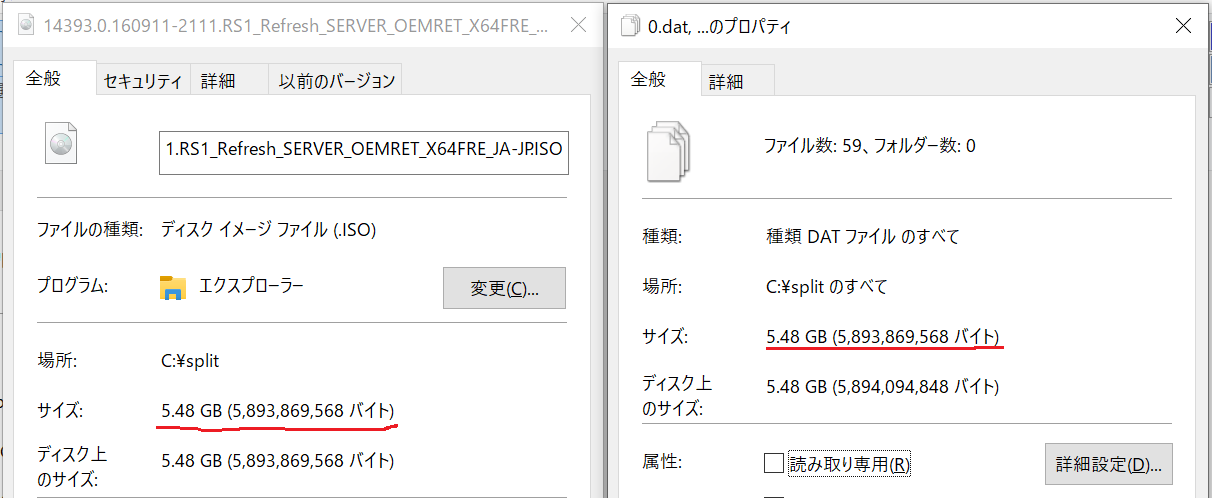
なお、分割後のファイルサイズには2GiB(2147483648バイト)を超えるサイズを指定することは出来ない。
多分1回、1GiB(1073741824バイト)とかに分割後、以下の様なCOPY /B +コマンドを使って2GB以上に結合するのが早い。面倒だが。
ファイルを結合する
(追記: 2020/01/04)
どうも、「Windows 10 ファイル 分割」でGoogle検索上位に入っているおかげかこの記事だけ妙にView数を稼ぐので追記。
元々の用途がAmazon s3へのマルチパート転送で必要だったことからファイル結合は気にしていなかったのだが、ファイルを結合したいときはWindowsのCOPYコマンドで結合->元のファイルに戻すことが出来る。
例えば分割の際に生成された*.datファイルをすべてあるフォルダに配置し、コマンドプロンプトを開き、以下のコマンドを実行すれば良い。
> cd <*.datファイルを置いたフォルダ>
> SET FILENAME=<復元したいファイル名>
> SET MAX=<分割したdatファイルの最大数>
> fsutil file createnew "%FILENAME%" 0
> FOR /L %I IN (0,1,%MAX%) DO COPY /B "%FILENAME%" + %I.dat

(元のファイルとの一致確認)
> fc /b <元のファイル名> <復元したファイル名>

(実行例)
C:\Tools>fc /b oc.exe result.dat
ファイル oc.exe と RESULT.DAT を比較しています
FC: 相違点は検出されませんでした
ちなみに、以下ブログのやり方でも良いと思う。
https://reosablo.hatenablog.jp/entry/2020/04/05/141821
さらにちなむと、Windows以外でファイル結合するにはcatコマンドを使えばいい。
cat *.dat > resultfile