
ポップアップの開閉にアニメーションを設定する
アニメーションスクリプトを作成する
- assets/scriptsに
PopupAnimation.tsを作成するPopupAnimation.tsimport { _decorator, Component, Node, Vec3, tween, UIOpacity } from 'cc'; const { ccclass, property } = _decorator; @ccclass('PopupAnimation') export class PopupAnimation extends Component { @property(Node) contentPanel: Node = null; @property(UIOpacity) bgOpacity: UIOpacity = null; public showMe() { this.node.active = true; if (this.bgOpacity) { this.bgOpacity.opacity = 0; tween(this.bgOpacity) .to(0.2, { opacity: 200 }) .start(); } if (this.contentPanel) { this.contentPanel.setScale(new Vec3(0, 0, 0)); tween(this.contentPanel) .to(0.2, { scale: new Vec3(1.1, 1.1, 1.1) }, { easing: 'backOut' }) .to(0.1, { scale: new Vec3(1, 1, 1) }) .start(); } } public hideMe() { if (this.bgOpacity) { tween(this.bgOpacity).to(0.15, { opacity: 0 }).start(); } if (this.contentPanel) { tween(this.contentPanel) .to(0.15, { scale: new Vec3(0, 0, 0) }, { easing: 'backIn' }) .call(() => { this.node.active = false; }) .start(); } else { this.node.active = false; } } } - MenuSceneのAuthPopupのAdd Compnentから
UIOpacityを追加する - PopupAnimation.tsをアタッチしノードの設定等を済ませる

開くアニメーションを設定する
- ヒエラルキーパネルのLoginButtonを選択する
- インスペクターのClick EventsをPopupAnimationへ置き換える
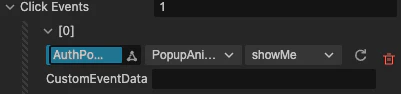
閉じるアニメーションを設定する
- PopupPanel内のLoginButtonを右クリック→Duplicateを選択する
- CloseButtonにリネームする
- LoginButtonとCloseButtonの位置を調整する
- CloseButtonのClick EbentsをPopupAnimationへ置き換える

-
LoginUI.tsから以下を削除するLoginUI.tsthis.scheduleOnce(() => { this.node.active = false; }, 0.5);
まとめ
これでポップアップの開閉にアニメーションが追加されました。