
はじめに
IT技術学習アプリの開発において、モバイル環境で他のアプリに切り替えた後に戻ると、アプリが初期化されてしまう問題に遭遇しました。この記事では、この問題の原因分析から最終的な解決策まで、実装コード例を交えて解説します。
発生していた問題
問題の詳細
モバイルブラウザで学習アプリを使用中、LINEやメールなどの他のアプリに切り替えてから戻ると、必ずログイン画面に戻ってしまう問題が発生していました。
ユーザー体験への深刻な影響:
- 問題を解いている途中でLINEの通知
- LINEアプリを開いて返信
- 学習アプリに戻る
- → ログイン画面に戻されている
- → 再度ゲストログインが必要
- → 進捗が失われて最初から...
原因分析
根本原因:モバイルブラウザの積極的メモリ管理
ネイティブアプリ(スマホにインストールするアプリ) vs Webアプリ(ブラウザで動くアプリ)の違い
| アプリ種類 | メモリ管理 | タブ切替時の動作 |
|---|---|---|
| ネイティブアプリ | OSが状態を保護 | 復帰時に元の画面から再開 ✅ |
| Webアプリ | ブラウザが独自管理 | タブがリロードされる場合がある ❌ |
技術的な問題箇所
// 🚨 修正前:危険なコード
useEffect(() => {
  // タブが復帰した時に認証状態が失われている
  if (!currentUser) {  // currentUser が null または undefined の場合
    setShowAuthChoice(true);  // ← 認証画面を表示
  }
}, [currentUser]);  // currentUser が変更されるたびに実行

// 🚨 修正前:ユーザーデータ初期化時
if (user.profile?.isFirstTime) {
  setShowWelcome(true);  // ← 毎回Welcome画面が表示される
}
何が問題?
- タブ復帰時に
currentUserが null になる - アプリが新規起動として判定される
- 認証選択 → Welcome画面のフローが再実行される
解決策:状態復元システム
localStorage を活用した状態復元システムを実装しました。
解決アプローチ
- 😫 Before: 問題5問目→タブ切替→認証選択画面→ゲスト選択→Welcome→1問目から再開
+ 😍 After:  問題5問目→タブ切替→問題5問目に復帰
この解決策により、ユーザーは中断前とまったく同じ状態から学習を再開できるようになりました。
実装方法
状態復元システム
モバイルブラウザによるタブリロード問題を解決するため、状態変更の都度、現在の詳細状態をlocalStorageに保存し、アプリ復帰時に復元するシステムを実装しました。
状態管理関数群の実装
現在の画面状態をlocalStorageに保存し、タブ復帰時に取り出すための関数群:
// ✨ AppStateManager: 統合状態管理クラス
const APP_STATE_STORAGE_KEY = 'chimakisoft_app_state_v2';
const APP_STATE_EXPIRY_HOURS = 2; // 2時間で状態リセット

const AppStateManager = {
  // 現在の詳細状態を保存
  saveState: (appStateData) => {
    try {
      const stateToSave = {
        ...appStateData,
        timestamp: Date.now(),
        version: getVersion(),
        sessionId: Date.now() + Math.random()
      };

      localStorage.setItem(APP_STATE_STORAGE_KEY, JSON.stringify(stateToSave));
      console.log('📱 アプリ状態保存:', stateToSave.currentView || 'unknown');
    } catch (error) {
      console.error('❌ 状態保存エラー:', error);
    }
  },

  // 保存された状態を復元
  restoreState: () => {
    try {
      const savedStateStr = localStorage.getItem(APP_STATE_STORAGE_KEY);
      if (!savedStateStr) return null;

      const savedState = JSON.parse(savedStateStr);
      const elapsedTime = Date.now() - savedState.timestamp;
      const expiryTime = APP_STATE_EXPIRY_HOURS * 60 * 60 * 1000;

      if (elapsedTime > expiryTime) {
        console.log('⏰ 状態保存期限切れ(' + Math.round(elapsedTime / 1000 / 60) + '分経過)');
        localStorage.removeItem(APP_STATE_STORAGE_KEY);
        return null;
      }

      console.log('🔄 アプリ状態復元:', savedState.currentView, `(${Math.round(elapsedTime / 1000)}秒前)`);
      return savedState;
    } catch (error) {
      console.error('❌ 状態復元エラー:', error);
      localStorage.removeItem(APP_STATE_STORAGE_KEY);
      return null;
    }
  },

  // 状態の整合性チェック
  validateState: (state, themeQuestions) => {
    if (!state || !state.currentView) return false;

    // 問題画面の場合の詳細チェック
    if (state.currentView === 'question') {
      if (!state.selectedTheme || !state.selectedSubTheme) return false;

      // 問題データ存在チェック
      const questions = themeQuestions[state.selectedTheme]?.[state.selectedSubTheme];
      if (!questions || questions.length === 0) return false;

      // 問題インデックス範囲チェック
      if (state.currentQuestionIndex >= questions.length || state.currentQuestionIndex < 0) {
        return false;
      }

      // 問題ID一致チェック(データ更新対策)
      const targetQuestion = questions[state.currentQuestionIndex];
      if (targetQuestion && state.currentQuestionId && targetQuestion.id !== state.currentQuestionId) {
        console.warn('⚠️ 問題データが更新されています');
        return false;
      }
    }

    console.log('✅ 状態検証成功:', state.currentView);
    return true;
  }
};
自動状態保存の実装
進捗状態に変化があった都度、useEffectを使ってlocalStorageに保存する処理(useEffect依存配列で指定している進捗状態が変更される度に処理が実行される仕組み):
// 🔧 状態変更時の自動保存
useEffect(() => {
  // 復元中は保存しない
  if (isRestoringState || !stateRestorationComplete) return;

  // 重要な状態が存在する場合のみ保存(ログインユーザーが何らかの学習活動をしている場合のみ保存)
  if (userData && (selectedTheme || showLessonModule || showLessonTopic || showLesson || showHistory || showUserProfile)) {
    const stateData = generateCurrentStateData({
      selectedTheme, selectedSubTheme, currentQuestion, selectedAnswer,
      showExplanation, isCorrect, userData, progress, completedLessons,
      lessonProgress, showLessonModule, showLessonTopic, showLesson,
      selectedLessonModule, selectedLessonTopic, selectedLesson,
      showHistory, showUserProfile, themeQuestions
    });

    AppStateManager.saveState(stateData);
  }
}, [
  // 依存配列:以下のいずれかが変更されるたびにuseEffectが実行される
  selectedTheme,         // テーマ選択時
  selectedSubTheme,      // サブテーマ選択時
  currentQuestion,       // 問題切り替え時
  selectedAnswer,        // 回答選択時
  showExplanation,       // 解説表示時
  isCorrect,            // 正誤判定時
  userData,             // ユーザーデータ変更時
  showLessonModule,     // レッスン画面遷移時
  showHistory,          // 履歴画面遷移時
  isRestoringState,     // 復元状態変更時
  stateRestorationComplete // 復元完了時
]);
状態復元の実装
アプリ起動時に保存されたデータの有無をチェックし、復元条件が整った時に復元処理を開始(useEffectを利用した高度な制御パターン):
// ✨ メイン状態復元処理
useEffect(() => {
  // 復元を一度だけ試行する制御(フラグによる実行制御)
  if (restorationAttempted) return; // 既に復元済み(restorationAttemptedがtrue)ならreturnでuseEffct内の残りの処理は何もせずに終了

  // テーマデータ読み込み完了後、且つユーザーデータ存在時に状態復元を試行
  if (Object.keys(themeQuestions).length > 0 && userData && !isRestoringState) {
    console.log('🔄 状態復元処理開始');

    setIsRestoringState(true);
    setRestorationAttempted(true); // ← ここで true にして今後の実行をブロック

    // 緊急復元データを優先チェック
    const emergencyState = AppStateManager.getEmergencyState();
    if (emergencyState) {
      console.log('🚨 緊急復元データを発見、優先復元実行');
      restoreFromEmergencyState(emergencyState);
      setIsRestoringState(false);
      setStateRestorationComplete(true);
      return;
    }

    // 通常の状態復元
    const restoredState = AppStateManager.restoreState();

    if (restoredState && AppStateManager.validateState(restoredState, themeQuestions)) {
      console.log('✅ 有効な状態復元:', restoredState.currentView);

      try {
        // 状態復元の実行
        restoreAppState(restoredState);

        // Google Analytics: 状態復元イベント
        trackGAEvent('app_state_restored', {
          event_category: 'app_lifecycle',
          event_label: restoredState.currentView,
          custom_parameter_1: restoredState.selectedTheme || 'none',
          custom_parameter_2: restoredState.currentQuestionIndex || 0
        });

      } catch (error) {
        console.error('❌ 状態復元エラー:', error);
        AppStateManager.clearState();
      }
    } else {
      console.log('❌ 復元可能な状態なし、通常開始');
    }

    setIsRestoringState(false);
    setStateRestorationComplete(true);
  }
}, [
  // 依存配列:以下の値が変更されるたびにuseEffectは実行される
  // ただし restorationAttempted フラグにより復元処理自体は一度だけ
  themeQuestions,        // テーマデータ準備完了の監視
  userData,              // ユーザーデータ準備完了の監視
  isRestoringState,      // 復元中フラグの監視
  restorationAttempted   // 復元実行済みフラグの監視(一度trueになると以降ブロック)
]);
アプリ起動時の流れ
// 1回目:アプリ起動直後
// themeQuestions = {}, userData = null, restorationAttempted = false
// → 条件不足で何もしない

// 2回目:themeQuestionsが読み込まれる
// themeQuestions = {データあり}, userData = null, restorationAttempted = false
// → まだ条件不足で何もしない

// 3回目:userDataも準備完了
// themeQuestions = {データあり}, userData = {データあり}, restorationAttempted = false
// → 条件OK!復元処理実行
// → setRestorationAttempted(true) で今後の実行をブロック

// 4回目以降:何らかの依存配列が変更
// restorationAttempted = true なので
// if (restorationAttempted) return; でリターン → 何もしない
状態復元実行関数
復元データを基に具体的なReact Stateを更新し、元の画面状態を再現する処理:
// 🔧 状態復元の実行関数
const restoreAppState = (restoredState) => {
  console.log('🔧 状態復元実行:', restoredState.currentView);

  // ビューフラグをリセット
  resetViewState();

  switch (restoredState.currentView) {
    case 'question':
      // 問題画面の復元
      setSelectedTheme(restoredState.selectedTheme);
      setSelectedSubTheme(restoredState.selectedSubTheme);

      // 問題の復元
      const questions = themeQuestions[restoredState.selectedTheme]?.[restoredState.selectedSubTheme];
      if (questions && questions[restoredState.currentQuestionIndex]) {
        const targetQuestion = questions[restoredState.currentQuestionIndex];
        setCurrentQuestion(targetQuestion);
        setSelectedAnswer(restoredState.selectedAnswer);
        setShowExplanation(restoredState.showExplanation);
        setIsCorrect(restoredState.isCorrect);

        console.log('📝 問題画面復元完了:', {
          theme: restoredState.selectedTheme,
          subTheme: restoredState.selectedSubTheme,
          questionIndex: restoredState.currentQuestionIndex,
          questionId: targetQuestion.id
        });
      }
      break;

    case 'lesson_module':
      setSelectedLessonModule(restoredState.selectedLessonModule);
      setShowLessonModule(true);
      break;

    case 'lesson':
      setSelectedLessonModule(restoredState.selectedLessonModule);
      setSelectedLessonTopic(restoredState.selectedLessonTopic);
      setSelectedLesson(restoredState.selectedLesson);
      setShowLesson(true);
      break;

    case 'history':
      setShowHistory(true);
      break;

    default:
      console.log('🏠 ホーム画面で開始');
      break;
  }

  // 復元成功メッセージを表示
  setRestoreInfo({
    level: restoreLevel,
    elapsedMinutes,
    restoredContent,
    currentView: restoredState.currentView
  });
  setShowRestoreMessage(true);

  // スプラッシュ画面を非表示
  setShowSplash(false);
  setShowWelcome(false);
};
復元成功メッセージの表示
復元時にユーザーに分かりやすいメッセージを表示することで、UXを向上させました:
// 🔧 復元成功メッセージコンポーネント
const RestoreSuccessMessage = ({ restoreInfo, onClose }) => {
  const [show, setShow] = useState(true);

  useEffect(() => {
    // 4秒後に自動で消す
    const timer = setTimeout(() => {
      setShow(false);
      onClose();
    }, 4000);
    return () => clearTimeout(timer);
  }, [onClose]);

  if (!show || !restoreInfo) return null;

  const getRestoreMessage = () => {
    switch (restoreInfo.level) {
      case 'COMPLETE':
        return `${restoreInfo.elapsedMinutes}分前の続きから完全復元しました`;
      case 'PARTIAL':
        return `前回の学習画面を復元しました`;
      case 'EMERGENCY':
        return `緊急復元: 問題画面を復元しました`;
      default:
        return '前回の状態を復元しました';
    }
  };

  return (
    <div className="fixed top-4 left-4 right-4 z-50 bg-green-100 border border-green-400 rounded-lg p-3 shadow-lg">
      <div className="flex items-center">
        <span className="text-2xl mr-2">🔄</span>
        <div>
          <p className="font-medium text-green-800">
            {getRestoreMessage()}
          </p>
          {restoreInfo.restoredContent && (
            <p className="text-sm text-green-600 mt-1">
              📚 復元内容: {restoreInfo.restoredContent}
            </p>
          )}
        </div>
        <button
          onClick={() => {
            setShow(false);
            onClose();
          }}
          className="ml-auto text-green-400 hover:text-green-600"
        >
          ✕
        </button>
      </div>
    </div>
  );
};
(実際のメッセージ表示例)
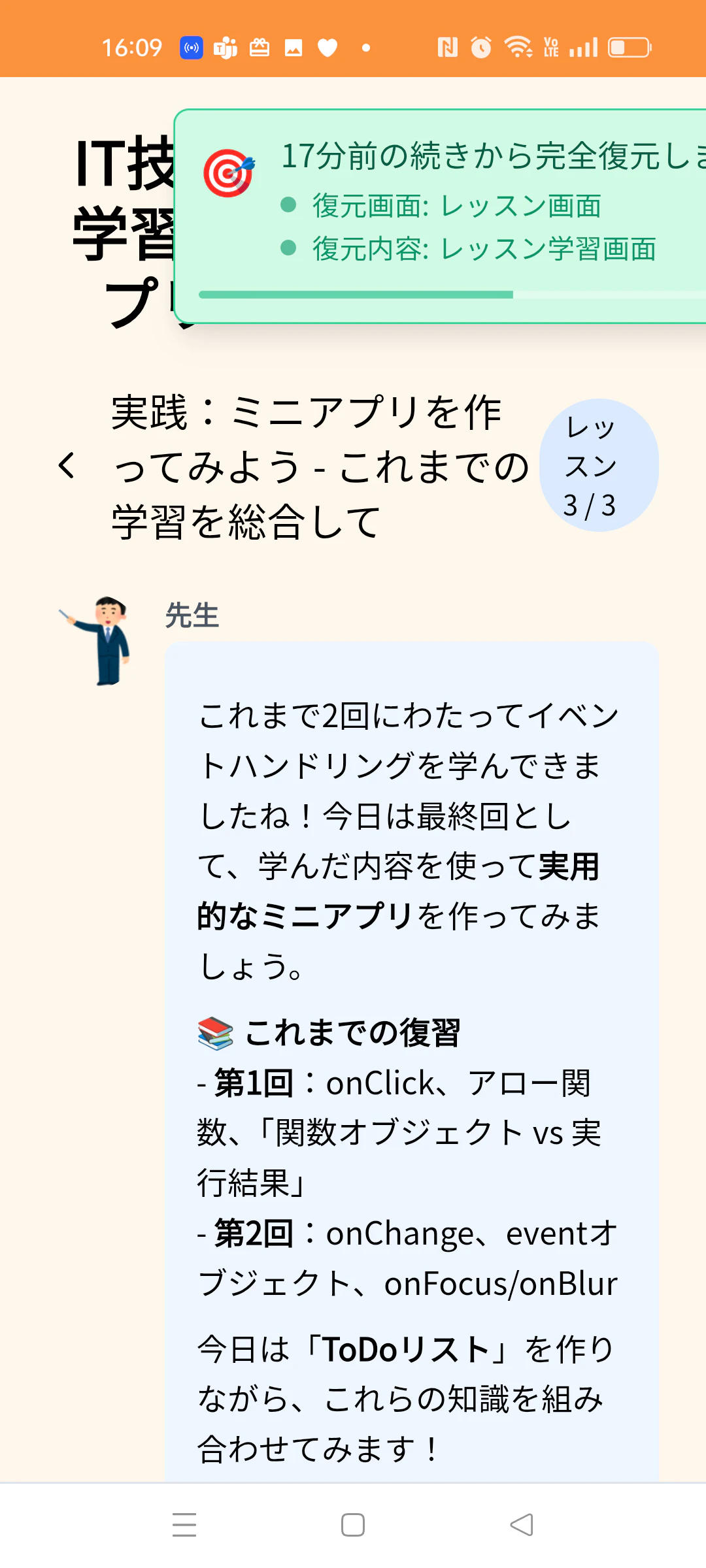
実際のユーザー体験の変化
修正前:😫 最悪のケース
- React問題の5問目「useStateの使い方」を解いている途中
- LINEの通知 → LINEアプリを開く
- 5分後、学習アプリに戻る
- → 認証選択画面が表示される
- → ゲストを選択し直す
- → また1問目「Reactとは?」から開始...
修正後:😍 理想的なユーザー体験
- React問題の5問目「useStateの使い方」を解いている途中
- LINEの通知 → LINEアプリを開く
- 5分後、学習アプリに戻る
- → 「前回の続きから復元中...」表示
- → そのまま5問目「useStateの使い方」が表示される!
安全性とエラー処理
データ整合性の確認
// ✨ データ整合性の確認
validateState: (state, themeQuestions) => {
  if (!state || !state.currentView) {
    console.log('❌ 検証失敗: 状態データなし');
    return false;
  }

  // 問題画面の場合の詳細チェック
  if (state.currentView === 'question') {
    // 問題データ存在チェック
    const questions = themeQuestions[state.selectedTheme]?.[state.selectedSubTheme];
    if (!questions || questions.length === 0) {
      console.warn('⚠️ 復元対象の問題データが見つかりません');
      return false;
    }

    // 問題インデックス範囲チェック
    if (state.currentQuestionIndex >= questions.length || state.currentQuestionIndex < 0) {
      console.warn('⚠️ 問題インデックスが範囲外');
      return false;
    }

    // 問題ID一致チェック(データ更新対策)
    const targetQuestion = questions[state.currentQuestionIndex];
    if (targetQuestion && state.currentQuestionId && targetQuestion.id !== state.currentQuestionId) {
      console.warn('⚠️ 問題データが更新されています');
      return false;
    }
  }

  console.log('✅ 状態検証成功:', state.currentView);
  return true;
}
エラーハンドリング
try {
  restoreAppState(restoredState);
} catch (error) {
  console.error('❌ 状態復元エラー:', error);
  AppStateManager.clearState(); // 破損データをクリア
  // 安全なフォールバック処理
  goToHomeScreen();
}
学んだ教訓
1. ユーザー視点での優先順位付け
致命的な問題(進捗が失われる)を確実に解決し、学習の継続性を重視しました。
2. localStorageの戦略的活用
- サーバー負荷軽減
- オフライン対応の副次効果
- 高速な状態復元
- 実装の簡素化
適用可能な他のWebアプリケーション
この手法は以下のようなアプリで特に効果的だと思われます。
- 学習・教育アプリ:進捗が重要
- フォーム入力アプリ:入力途中の保護
- ゲーム・クイズアプリ:スコア・レベル保持
- タスク管理アプリ:作業状況の維持
- ECサイトのカート機能:購入プロセスの保護
まとめ
モバイルWebアプリ開発では、ブラウザの制約による技術的な限界があります。しかし、段階的なアプローチと実装の工夫により、ユーザー体験を改善できます。
重要なポイント:
- 現実的な問題解決:完璧を求めず、実用的で効果的な解決策を選択
- ユーザー中心の設計:技術的な正しさよりもユーザーが困らないかを優先
- localStorage活用:状態復元の効率的な実装
- 適切なエラー処理:多層防御による堅牢性の確保
- UX向上:復元時のメッセージでユーザーに安心感を提供
技術的に完璧でなくても、ユーザーが困らない解決策を優先することが、実用的なWebアプリケーション開発において最も重要な視点です。
また、useEffectの実践的な利用方も身につけることができました!
IT技術学習アプリ
私が作成に取り組んでいる「IT技術学習アプリ」です。React等の技術について学習できるアプリになっています。
現在は開発中のベータ版ですが、周辺技術も学習しながら継続して改善中です。