
はじめに
今回はReactを使っていきます。
初めて触れたのですが、多機能すぎて、理解追いつきませんでした笑
ということでまずはpropsとuseStateの2つを駆使して以前作ったpokeAPIアプリを作成することで学んでいきたいと思います。
以前作成したものはこちら
環境構築
npxコマンドを使用しました。
npx create-react-app@latest react-sample --template typescript
npxはnpmに付属するコマンド実行用のコマンドらしいです。
後に続くコマンドやパッケージがローカルにインストールされている場所を探しにいき、存在しなければリモートから取得して実行してくれる便利なものらしいです。
@の後は使用するversionの指定ができて、latestとすると最新のものをインストールしてくれます。
npx create-react-app@[verの指定] [プロジェクト名] [オプション]
という感じですね。
インストールが完了すると
  cd [指定したプロジェクト名]
  npm start
という感じで、ターミナル上で教えてくれるので、この通りコマンドを実行すれば
参考資料:TypeScriptとReact/Next.jsでつくる実践Webアプリケーション開発
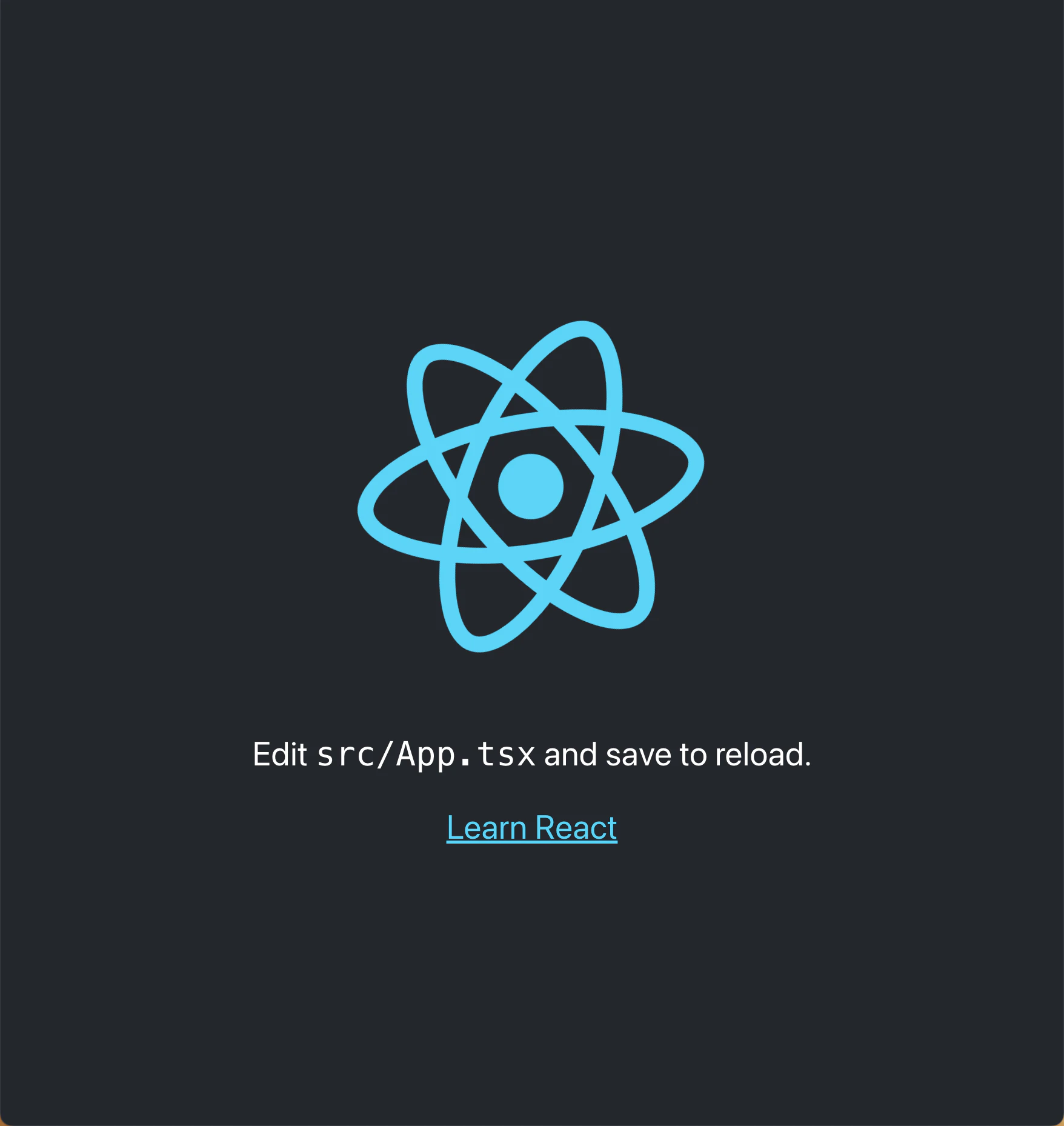
なんだかかっこいい画面が立ち上がります。
これで環境構築は完了です。
Reactの画面描画の仕組み
import React from 'react';
import ReactDOM from 'react-dom/client';
import './index.css';
import { App } from './App';
import reportWebVitals from './reportWebVitals';


const root = ReactDOM.createRoot(
  document.getElementById('root') as HTMLElement
);
root.render(
  <React.StrictMode>
    <App />
  </React.StrictMode>
);
まずReactはtsx(またはjsx)という拡張子を使用します。
今回はTypeScriptなのでtsx
JavaScriptならjsxになります。
これでTypeScriptの中にHTMLを書き込めるような形式となります。
const root = ReactDOM.createRoot(
  document.getElementById('root') as HTMLElement
);
ここでReactDOMのcreateRootメソッドの引数に設置先を渡してrootオブジェクトを生成しています。
ここで指定している設置先というのが
index.htmlのこちらになります
  <body>
    <noscript>You need to enable JavaScript to run this app.</noscript>
    <div id="root"></div>
    <!--
      This HTML file is a template.
      If you open it directly in the browser, you will see an empty page.

      You can add webfonts, meta tags, or analytics to this file.
      The build step will place the bundled scripts into the <body> tag.

      To begin the development, run `npm start` or `yarn start`.
      To create a production bundle, use `npm run build` or `yarn build`.
    -->
  </body>
</html>
このdiv配下にreactによって生成されたHTML、DOMが出力される感じだと私は認識してます(間違ってたらごめんなさい)
このrootオブジェクトに対して要素(コンポーネント)を渡して
renderメソッドで描画するというイメージです。
rootオブジェクトに渡すコンポーネントを作成する
ということでコンポーネントを作っていきます。
アプリの構成は前回の記事を参照してもらえたらと思います。
自分なりに考えた結果、4つのコンポーネントに分けることにしました。
- 見出し(Heading.tsx)
- 検索フォーム(Input.tsx)
- 検索ボタン(SearchButton.tsx)
- 画像、名前表示領域(ShowImage.tsx)
これらの子コンポーネントを親コンポーネントであるApp.tsxに集約させて先ほどのrootオブジェクトに渡して表示させていきます。
イメージが湧くように親コンポーネントの最終形をお見せするとこのような形です。
import React from 'react';
import './App.css';
import { Heading } from './components/Heading';
import { SearchButton } from './components/SearchButton';
import { ShowImage } from './components/ShowImage';
import { showPokeData } from './modules/getPokeData';
import { Input } from './components/Input';
import { showPokeName } from './modules/getPokeData';
import { getRandomId } from './modules/getPokeData';

export const App = () => {
  // Stateの定義
  const [searchKey, setSearchKey] = React.useState<string>('')
  const [pokeImage, setPokeImage] = React.useState<string>('')
  const [pokeName, setPokeName] = React.useState<string>('')

  // 関数の定義
  // fromに入力された値をsearchKeyにセットする
  const handleChange = (e: React.ChangeEvent<HTMLInputElement>) => {
    setSearchKey(e.target.value);
  };

  // searchKeyに入力された値を元にポケモンのデータを取得する
  const onClickSearch = async () => {
    if (searchKey === '') {
      alert('IDを入力してください')
      return
    }
    const pokeData = await showPokeData(searchKey)
    const pokeName = await showPokeName(searchKey)
     setPokeImage(pokeData)
     setPokeName(pokeName)
  };

  const onClickRandomSearch = async () => {
    const randomSearchKey:number = getRandomId();
    const pokeData = await showPokeData(`${randomSearchKey}`)
    const pokeName = await showPokeName(`${randomSearchKey}`)
      setPokeImage(pokeData)
      setPokeName(pokeName)
  }

  return (
    <>
    <Heading heading='ポケモンを検索しよう' description='図鑑Noを入れてね!' />
    <Input searchKey={searchKey} handleChange={handleChange}  />
    <SearchButton buttonName='検索' onClickSearch={onClickSearch} />
    <SearchButton buttonName='ランダム検索' onClickSearch={onClickRandomSearch} />
    < ShowImage image={pokeImage} pokeName={pokeName}/>
    </>
  );
}
作成したコンポーネントを呼び出している箇所がこちら
 return (
    <>
    <Heading heading='ポケモンを検索しよう' description='図鑑Noを入れてね!' />
    <Input searchKey={searchKey} handleChange={handleChange}  />
    <SearchButton buttonName='検索' onClickSearch={onClickSearch} />
    <SearchButton buttonName='ランダム検索' onClickSearch={onClickRandomSearch} />
    < ShowImage image={pokeImage} pokeName={pokeName}/>
    </>
  );
<[コンポーネント名] [props名]='propsに渡す値'>
という形で使用しています。propsについては後で説明します。
Reactは関数型コンポーネントと呼ばれるように、関数の戻り値として要素を返します。
return句の中に入っている理由がそれですね。
<>
</>
この見慣れないタグは、フラグメントと呼ぶようです。
Reactのコンポーネントは単一の要素しか返せないようになっているようです。
そこで複数のコンポーネント、要素をまとめる際にこちらのフラグメントを使用しグループ化することで単一の要素として扱うことができ返せるようになります。
propsとは
せっかくコンポーネント化しましたが、規模が小さすぎて再利用できているのが検索ボタンしかないのでこちらを例に解説していきます。
type SearchButtonProps = {
    buttonName: string;
    onClickSearch: () => void;
}

export const SearchButton = (props: SearchButtonProps) => {
    const { buttonName, onClickSearch } = props;
    return (
        <button onClick={onClickSearch}>{buttonName}</button>
    )
}
このseachButtonの関数の引数としてpropsというものが渡されています。
これはコンポーネント間でデータを受け渡す際に使われます。
propsを使うことで親コンポーネント(今回でいうとApp.tsx)から子コンポーネント(SearchButton.tsx)にデータを受け渡すことができます。
オブジェクトや関数や配列など様々なものを渡すことができます。
typeでは受け取るpropsのデータ型を宣言しています。
検索ボタンをクリックした際の関数とボタン名を受け取りたいので、その2つを定義しています。
const { buttonName, onClickSearch } = props;
そうして受け取ったpropsをオブジェクトを分割代入を使用して取り出しています。
実際に渡しているのがこちら
    return (
        <button onClick={onClickSearch}>{buttonName}</button>
    )
ボタンタグのクリック時のイベントに関数
ボタン名に受け取った文字列を渡しています。
じゃあ具体的に何を渡すのかは親コンポーネント側で決めます。
    <SearchButton buttonName='検索' onClickSearch={onClickSearch} />
    <SearchButton buttonName='ランダム検索' onClickSearch={onClickRandomSearch} />
ここでは先ほどのSearchButtonのコンポーネントに対して
"検索","ランダム検索"と2パターンの文字列を渡すことで同じコンポーネントを使用し、ボタン名を変更しています。
クリック時の関数は
検索ボタンの時は検索用の処理の関数
  // searchKeyに入力された値を元にポケモンのデータを取得する
  const onClickSearch = async () => {
    if (searchKey === '') {
      alert('IDを入力してください')
      return
    }
    const pokeData = await showPokeData(searchKey)
    const pokeName = await showPokeName(searchKey)
     setPokeImage(pokeData)
     setPokeName(pokeName)
  };
ランダム検索の時はランダム用の処理を渡しています。
  const onClickRandomSearch = async () => {
    const randomSearchKey:number = getRandomId();
    const pokeData = await showPokeData(`${randomSearchKey}`)
    const pokeName = await showPokeName(`${randomSearchKey}`)
      setPokeImage(pokeData)
      setPokeName(pokeName)
  }
これにより同じコンポーネントを使用しながらも、異なる表示、処理を作成できます。
ちなみに他の場所で読み込ませたい場合は
export const SearchButton
呼び出し側で
import { SearchButton } from './components/SearchButton';
とします。
これはnamed exportという方法で他にも別の形式もあるので調べてみてください。
そして親コンポーネントで渡したprops名と子コンポーネントで受け取るprops名は同一である点に注意してください。
useStateとは
const [pokeImage, setPokeImage] = React.useState<string>('')
こちらで使用しています。
React Hooks(フック)と呼ばれる、関数コンポーネント中で状態やライフサイクルを扱うための機能の一つです。
useStateは状態を扱うためのフックになります。
これらを利用することでコンポーネントは内部状態を持ち、その状態の変化に応じて表示を変更できます。
使用方法は
React.useStateとして引数には初期値を渡します。
戻り値は配列になっていて
1番目が現在の状態を保持する変数
2番目が状態を更新する関数が入っています。
使用箇所がこちら
  const onClickRandomSearch = async () => {
    const randomSearchKey:number = getRandomId();
    const pokeData = await showPokeData(`${randomSearchKey}`)
    const pokeName = await showPokeName(`${randomSearchKey}`)
      setPokeImage(pokeData)
      setPokeName(pokeName)
  }
ここでpokeAPIから取得した画像データと名前をセットしてます。
更新関数の引数に渡すだけです。これだけで反映してくれます。
要素取得したり、textcontentがどうのこうとしなくていいわけです。
めちゃくちゃ簡単で感動しました。
< ShowImage image={pokeImage} pokeName={pokeName}/>
useStateの値はpropsで渡すこともできるので、これをイメージ表示領域のコンポーネントに渡してあげれば完成です。
他のソースコード
type HeadingProps = {
    heading: string;
    description: string;
}
export const Heading = (props :HeadingProps) => {
    const { heading, description } = props;
    return (
        <>
        <h1>{ heading }</h1>
        <p>{ description}</p>
        </>
    )
}
type InputProps = {
    searchKey: string;
    handleChange: (e: React.ChangeEvent<HTMLInputElement>) => void;
}

export const Input = (props: InputProps) => {
    const {handleChange,searchKey} = props;
    return (
        <input type="text" value={searchKey} onChange={handleChange} />
    )
}
type ShowImageProps = {
    image: string;
    pokeName: string;
}

export const ShowImage = (props: ShowImageProps) => {
    const { image,pokeName } = props;
    return (
        <div>
        <img src={image} width="200px" />
        <p>{pokeName}</p>
        </div>
    )
}
pokeAPIからデータを取得するモジュール
const baseUri: string = "https://pokeapi.co/api/v2/pokemon/"
const nameUri: string = "https://pokeapi.co/api/v2/pokemon-species/"

export interface PokemonLanguageEntry {
    language: {
      name: string;
      url: string;
    };
    name: string;
  }

  export async function showPokeData(pokeId :string) {
    const res = await fetch(`${baseUri}${pokeId}`);
    const json = await res.json();
    const pokeData = json.sprites.front_default;
    return pokeData
}

export function getRandomId(): number {
    const min:number = 0;
    const max:number = 1000;
    return Math.floor(Math.random() * (max - min + 1)) + min;
}

export async function showPokeName(pokeId: string) {
    const res = await fetch(`${nameUri}${pokeId}`);
    const json = await res.json();
    const jaPokeName = json.names.find((nameEntry: PokemonLanguageEntry) => nameEntry.language.name === 'ja');
    return jaPokeName.name
}
まとめ
初めてReactを使用しましたが仕組みや概念が本当に難しいですね。
- 他のReactHooksについて知る
- 再レンダリングされるタイミングや範囲の指定など理解を深め、実行効率を意識する
- コンポーネントを効果的に切り分け、再利用しやすい設計を意識する
など課題をたくさん感じたので、今後しっかりと学んでいきたいです。
React入門の名の通り、初歩的な内容の記事となりましたが、同じような初学者の方の参考になれば幸いです。