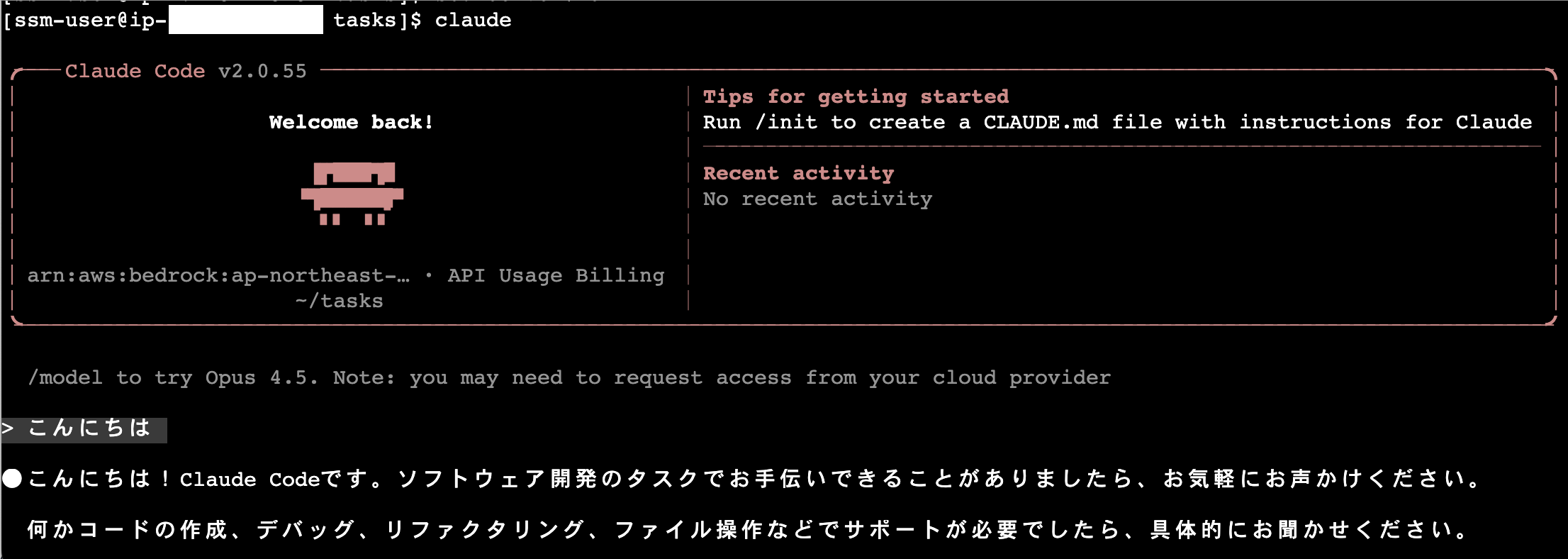
この記事はmediba adevent calendar 2025 の17日目です
AIアシスタントで問題視されていること
権限を適切に設定しないと上記のような問題が起こる
考えていること
権限を適切に管理するのは面倒
ローカルのPCには何も入れたくない(SSHやアクセスキー等)
Claudeでアカウント登録するのが面倒
どうしたら良いのか
権限を適切に管理するのは面倒 → 壊れても良い環境に隔離し全権限を渡す
ローカルのPCには何も入れたくない → SSM経由でEC2にアクセス
Claudeでアカウント登録するのが面倒 → Bedrock経由でClaudeCode利用
これで解決
壊れても良い環境に隔離
EC2を作れば完了
しかしそのままではSSHコマンドをローカルPCに入れる必要が生まれる
SSM経由でEC2接続
IAMサービスロールの準備
IAM画面から、「ロールを作成」から以下の画面に。
「サービスまたはユースケース」でEC2を選択、「ユースケース」でEC2 Role for AWS Systems Managerを選択します。
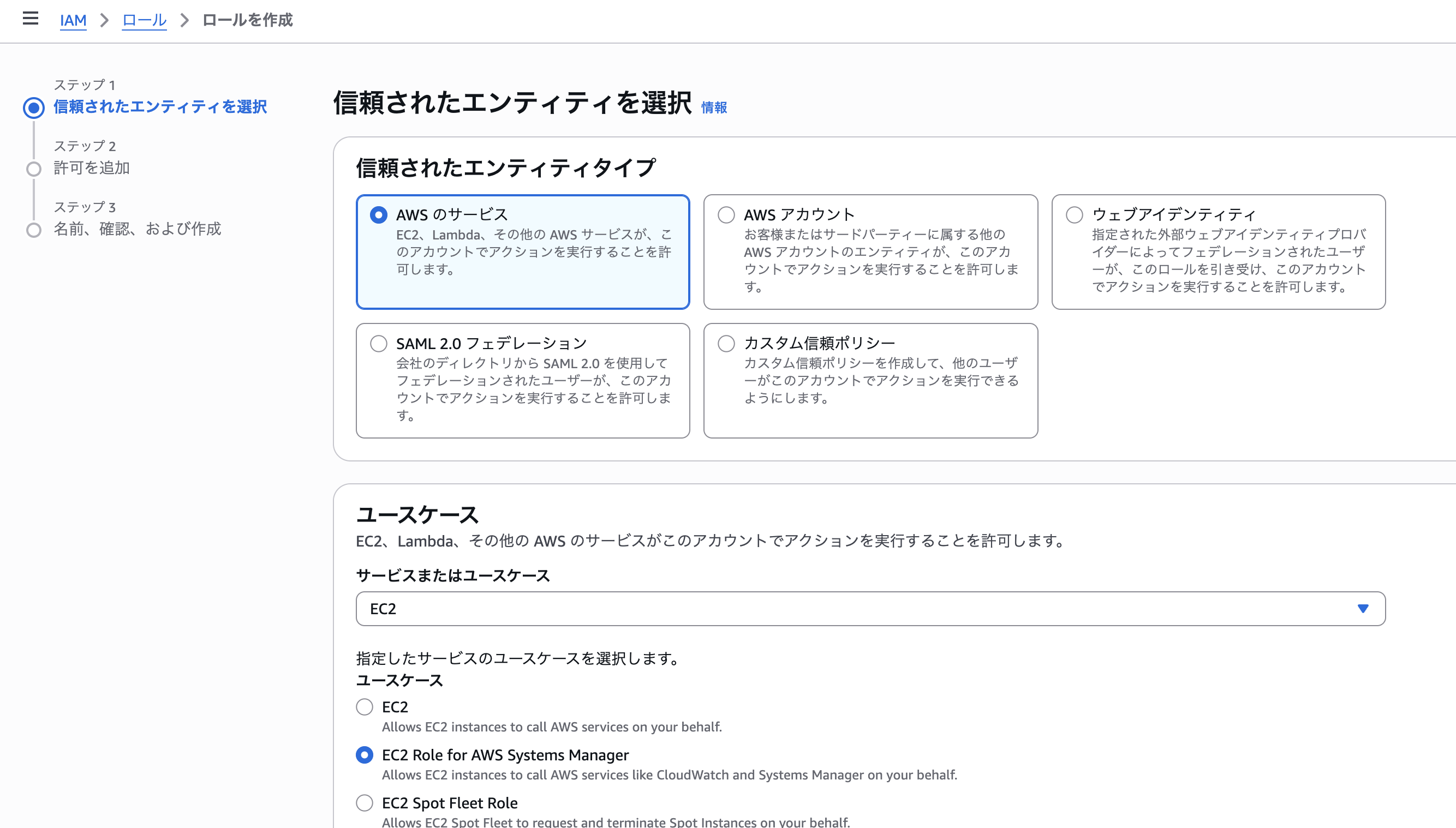
すると「許可を追加」の部分でAmazonSSMManagedInstanceCoreが選択されます。

[ロール名]は任意ですが、EC2_SSM_Roleを仮で入力します。

その他の設定は変えずに作成。
次はBedrock用の権限を追加します。同じくIAM画面にて「ポリシーの作成」、JSONを押下

ポリシーエディタに以下の値を入れ、 任意のポリシー名で作成します。
{
    "Version": "2012-10-17",
    "Statement": [
        {
            "Sid": "AllowModelAndInferenceProfileAccess",
            "Effect": "Allow",
            "Action": [
                "bedrock:InvokeModel",
                "bedrock:InvokeModelWithResponseStream",
                "bedrock:ListInferenceProfiles"
            ],
            "Resource": [
                "arn:aws:bedrock:*:*:inference-profile/*",
                "arn:aws:bedrock:*:*:application-inference-profile/*",
                "arn:aws:bedrock:*:*:foundation-model/*"
            ]
        },
        {
            "Sid": "AllowMarketplaceSubscription",
            "Effect": "Allow",
            "Action": [
                "aws-marketplace:ViewSubscriptions",
                "aws-marketplace:Subscribe"
            ],
            "Resource": "*",
            "Condition": {
                "StringEquals": {
                    "aws:CalledViaLast": "bedrock.amazonaws.com"
                }
            }
        }
    ]
}
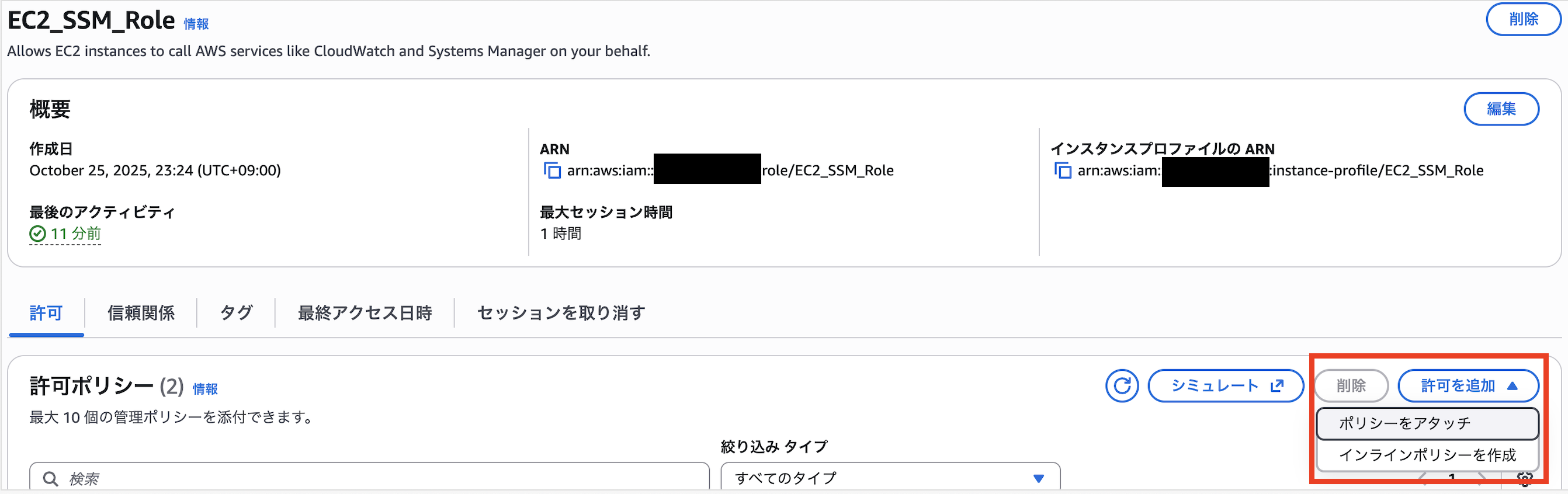
先ほど作成したロール「EC2_SSM_Role」に作成したポリシーをアタッチします。
アクセスキーの作成
同じくIAM画面から自分のユーザーを選択、「セキュリティ認証情報」より
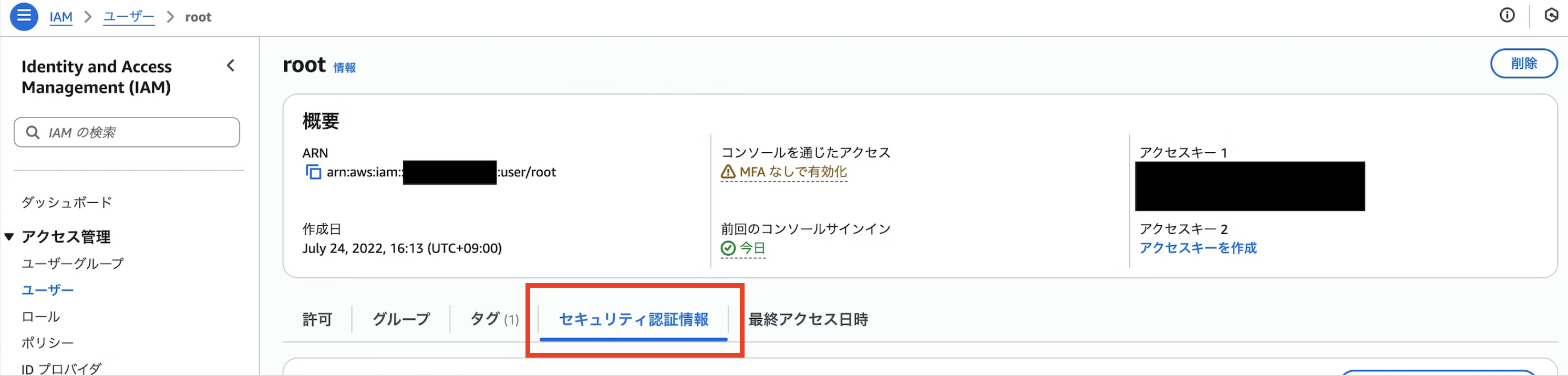
「アクセスキーを作成」を押下

作成時「ユースケース」にてCLIを選択して作成
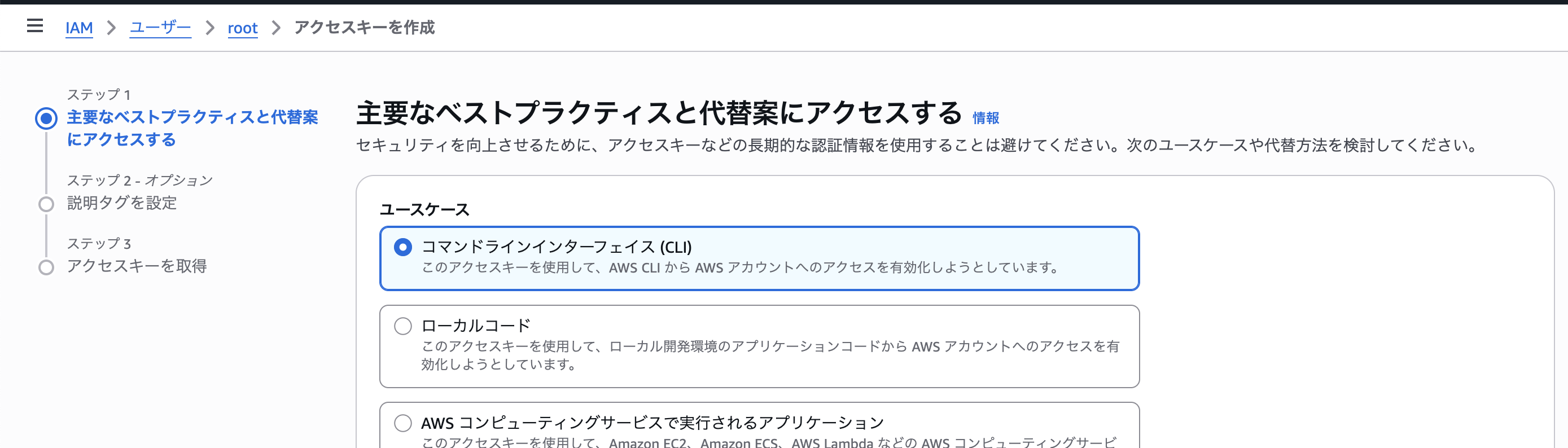
作成した「アクセスキー」と「シークレットアクセスキー」をメモ
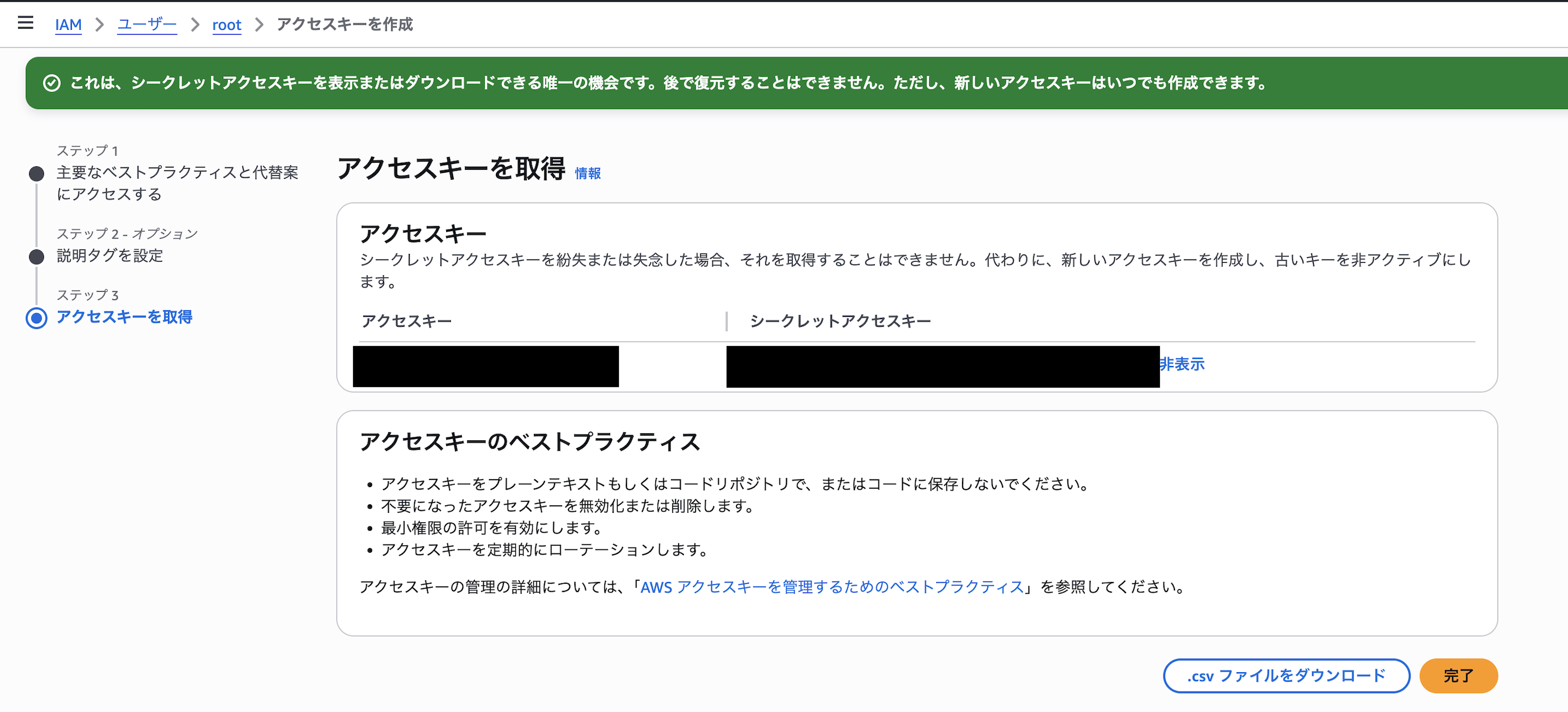
(Bedrock経由でClaudeCode利用で使用します)
SSM経由でEC2を起動
以下画像のように、SSMエージェントがプリインストールされているAmazon Linux AMIを選択します。

(2025/12/25時点)
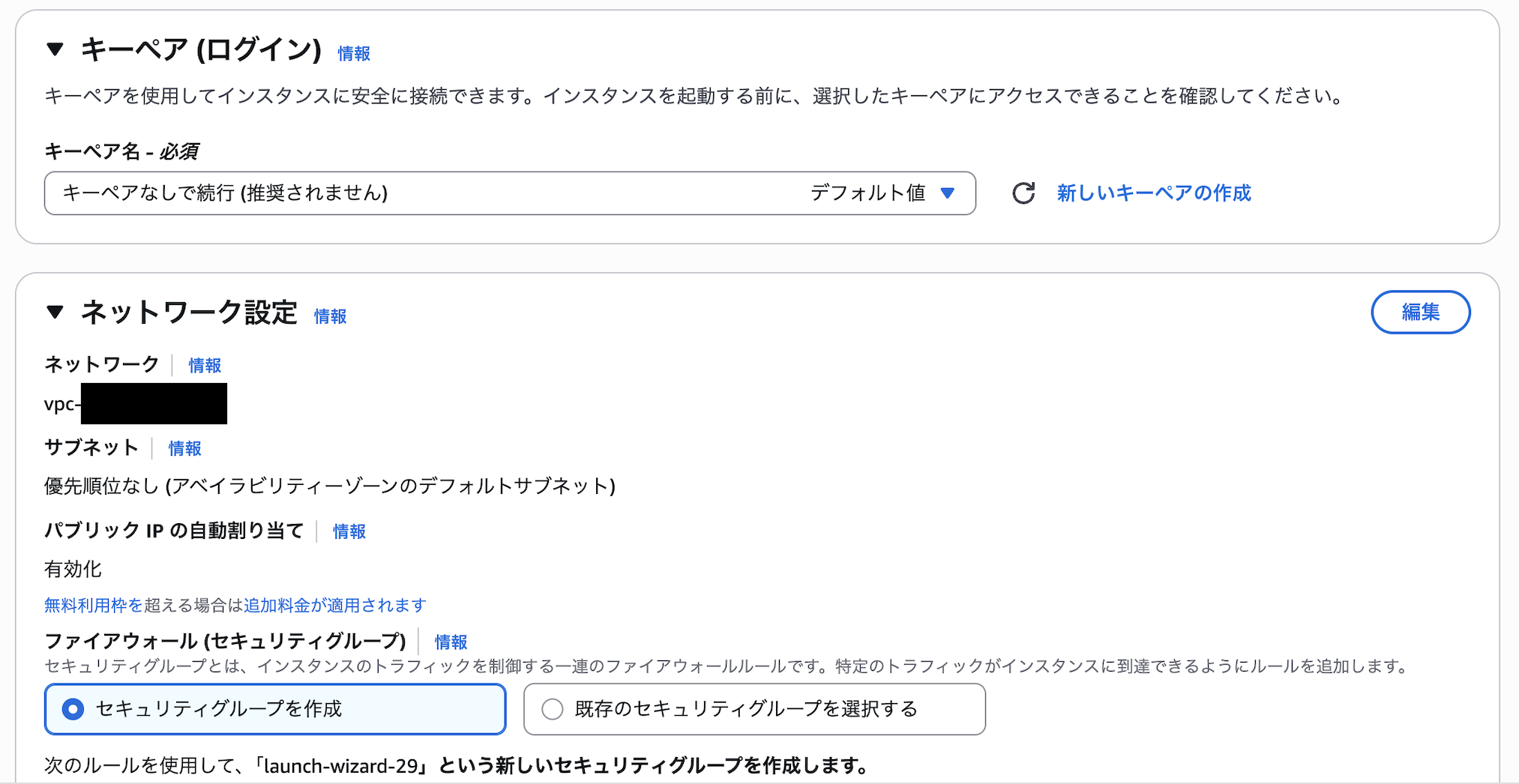
キーペア無し、セキュリティグループはデフォルトでOKです。
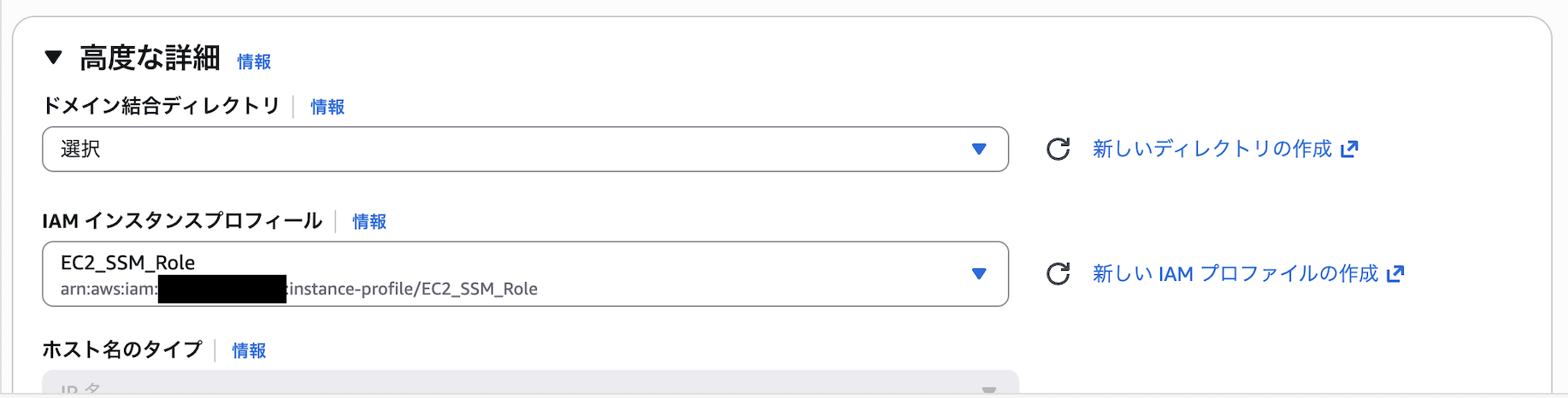
「高度な詳細」にて「IAMインスタンスプロフィール」に作成した「EC2_SSM_Role」を設定します。
この状態でEC2インスタンスを起動します。
起動が完了したら
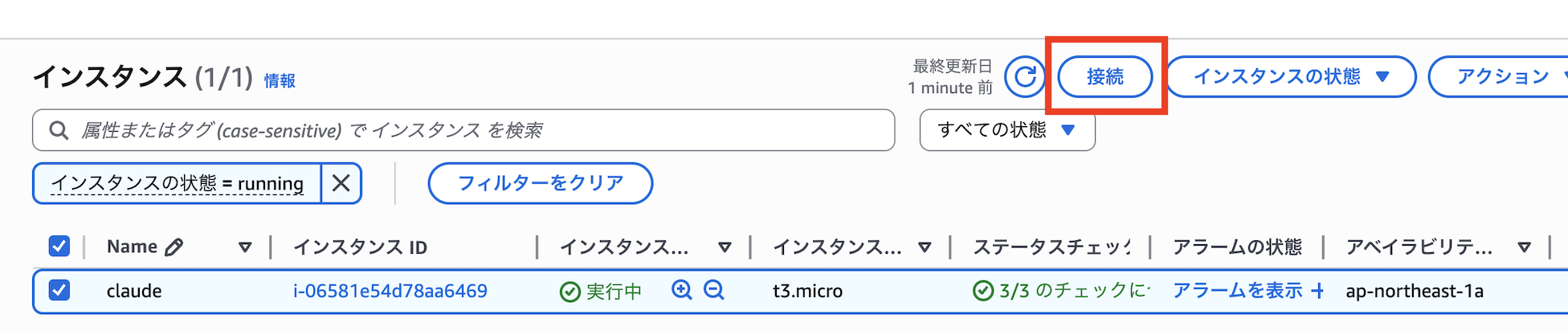
より、「セッションマネージャー」から接続します。

Bedrock経由でClaudeCode利用
以降はEC2インスタンス内部での作業です。
適当な作業ディレクトリを作成、作業場所を移動します。
cd
bash
mkdir work
cd work

claude cliを入れるために以下のコマンドを実行
sudo dnf install -y nodejs npm
sudo npm install -g @anthropic-ai/claude-code
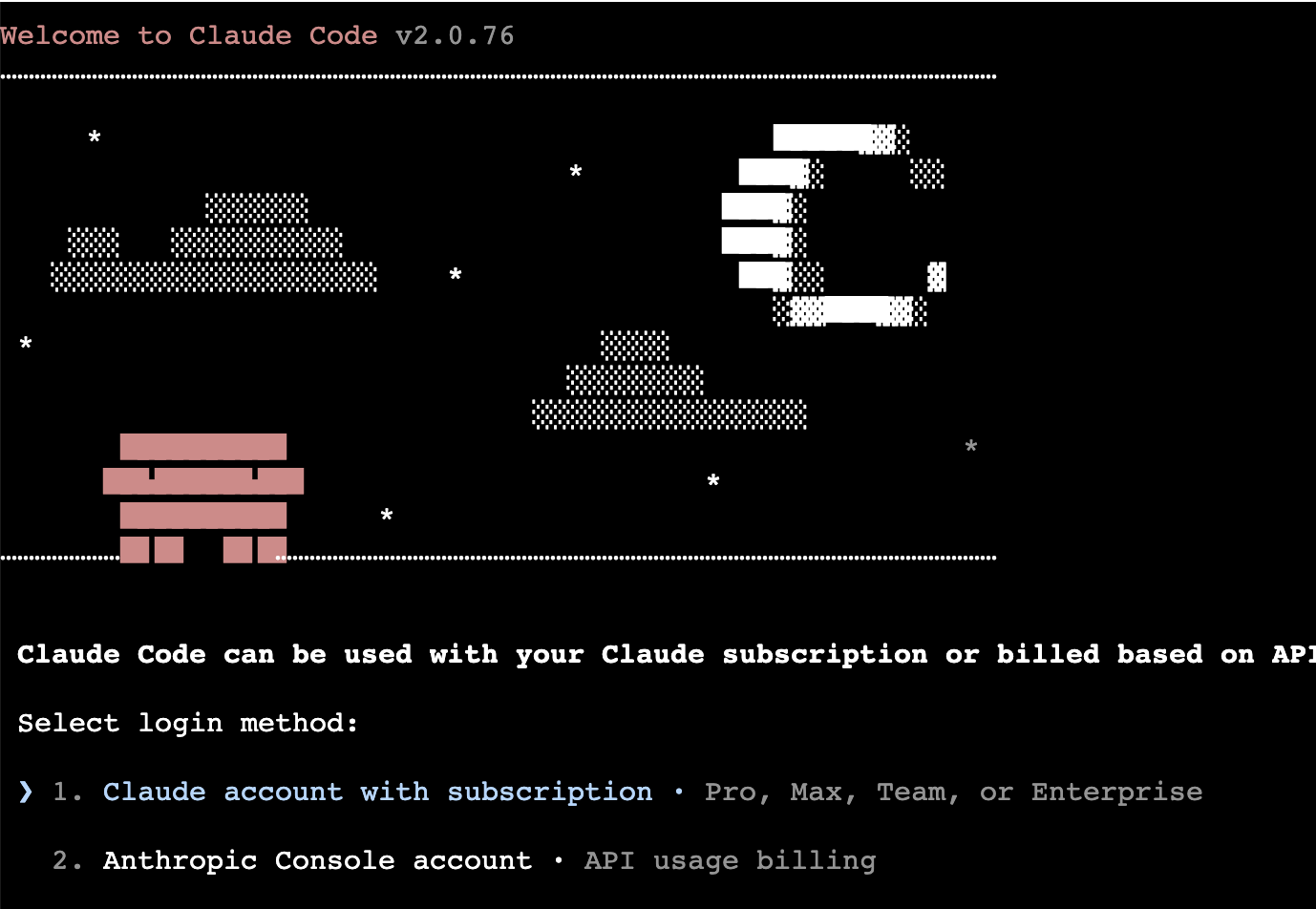
ここまででもclaudeが起動できるようになります

...が、ログインを求められるので嫌ですね。
必要な環境変数の設定
{ACCOUNT_ID}は自分のIDに置き換え、以下のコマンドを実行
cat <<'EOF' > .envrc
export CLAUDE_CODE_USE_BEDROCK=1
export ANTHROPIC_MODEL="arn:aws:bedrock:ap-northeast-1:{ACCOUNT_ID}:inference-profile/apac.anthropic.claude-sonnet-4-20250514-v1:0"
export AWS_REGION=ap-northeast-1
EOF
source .envrc
これでsource .envrcを実行することで必要な環境変数が設定できます。
EC2に入るたび実行、もしくは面倒であれば、ユーザーデータに入れる等で解決してください。
AWSプロファイルの設定
以下のコマンドを実行
aws configure --profile claude
ここで先ほどメモしたアクセスキーとシークレットアクセスキーを設定します。

以降は、
aws sts get-caller-identity --profile claude
で特定のプロファイルを設定可能です。
Claude実行
claude
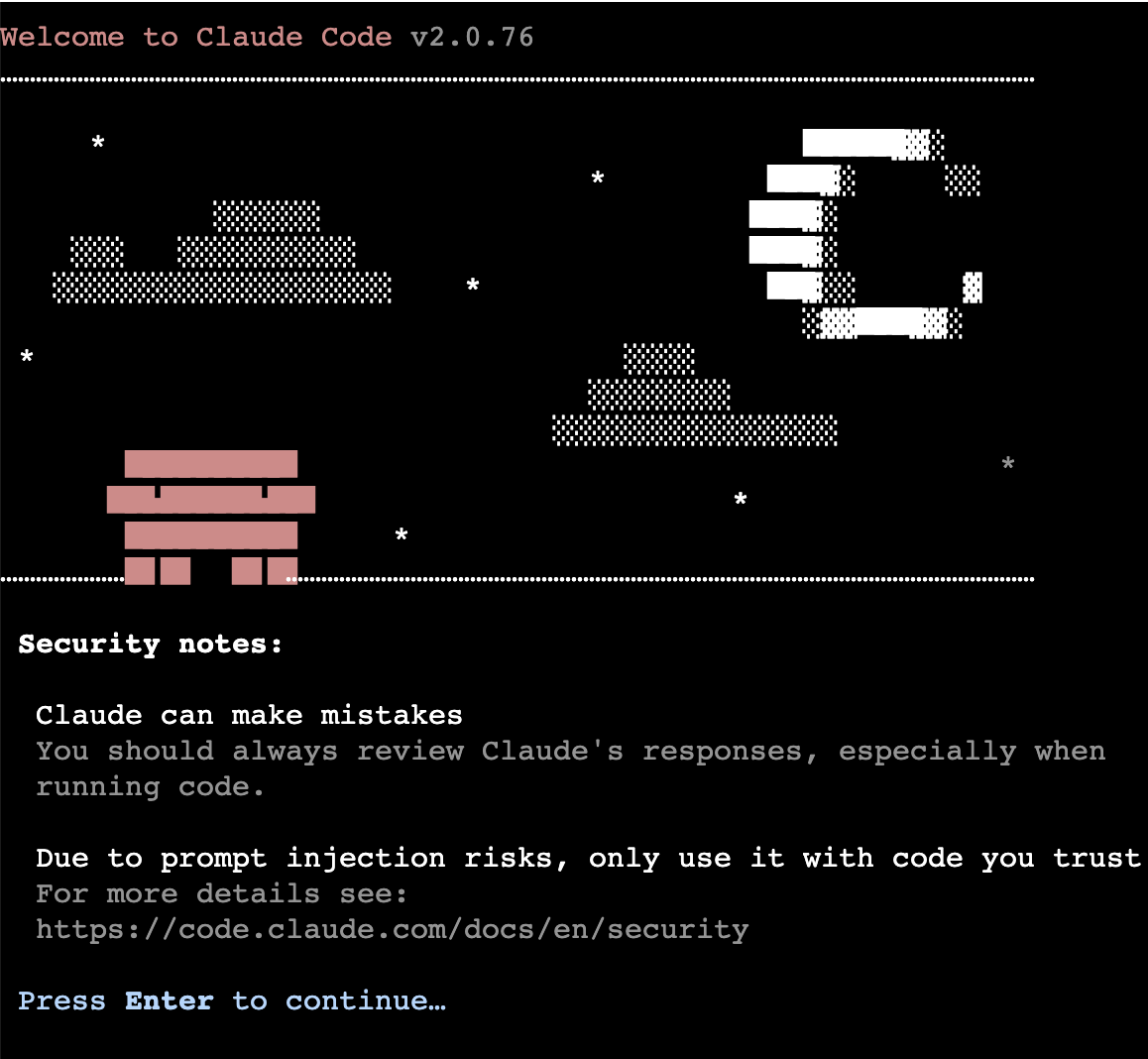
設定がうまくいくとセキュリティの警告が出るので、全部エンターで起動可能です。
ClaudeCode生活を楽しみましょう!