
はじめに
自作の macOS アプリを「App Store を経由せず」かつ「怪しいアプリ扱いされず」配布するには、
- Developer ID Application 証明書でコード署名
- Apple による Notarization(公証)
- チケットの Staple(貼り付け)
の3ステップが必要です。これを踏んでおかないと、ユーザーが .app をダウンロードして開いたときに Gatekeeper にブロックされて、
"GridPoint" は開発元を検証できないため開けません。
と言われてしまいます(最近の macOS だとさらに厳しくて「ゴミ箱に移動」しか選べないケースもある)。
この記事では、実際に自分が作ったメニューバーアプリGridPointを配布した時の手順をそのまま書きます。Xcode プロジェクトがある前提で、CLI から再現可能な最小構成を目指します。
事例と宣伝
この手順は、 GridPoint を作ったときに遭遇した問題です。
GridPointは、オンラインミーティングで画面を見せてもらっているときの、会話。
「一番上のメニューの、右から3番目の…」
「あ、そこじゃなくて、その横です」
「いや、それじゃなくて、2つめです」
「…どれですか?」
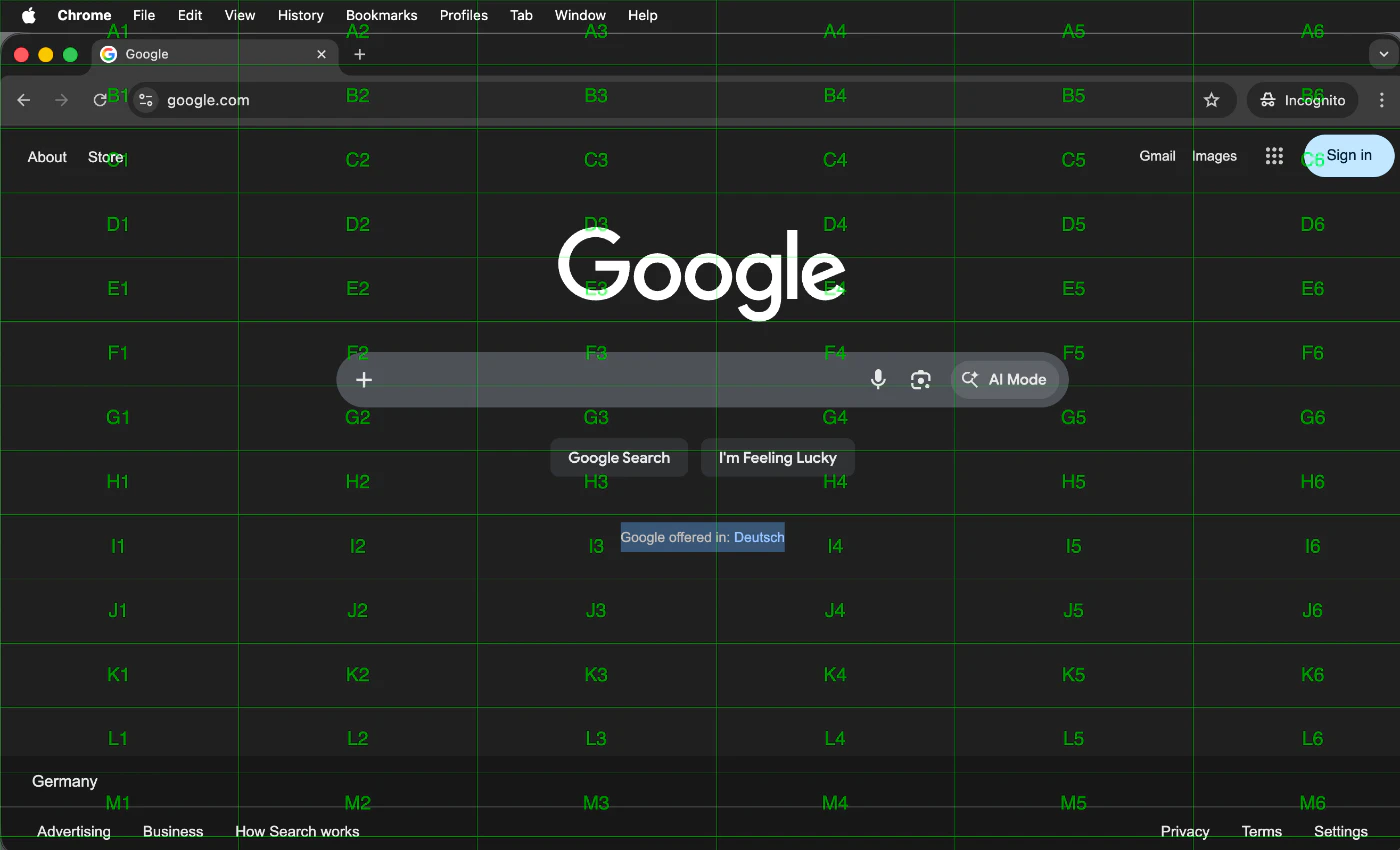
この小さな問題の解決のための小さなMacアプリです。
画面全体にうっすらグリッド(A1, B2, C3…)をオーバーレイするだけのメニューバーアプリです。例えば、シンプルな例ですがこの画面でヘッダーメニューのSign inを教えるのに「C6のSign inを押してくださいに」なります。
- サービスサイト: macOS グリッドオーバーレイ GridPoint
- リポジトリ: https://github.com/punkt-tokyo/gridpoint
- インストール(Homebrew):
brew tap punkt-tokyo/gridpoint https://github.com/punkt-tokyo/gridpoint
brew install --cask gridpoint
前提条件
-
Apple Developer Program に登録済み(年 11,800 円 / 99 USD)
- これがないと
Developer ID Application証明書が作れません
- これがないと
- macOS + 最近の Xcode(本記事は Xcode 15+ / macOS 14+ を想定)
- 配布したい
.appの Xcode プロジェクトがある
Mac App Store に出さないなら、App Sandbox は無効のままで OKです。GridPoint の場合、グローバルホットキー(Carbon RegisterEventHotKey)と全スペース上のオーバーレイのために、そもそも App Sandbox は無効にしてあります。
<!-- GridPoint.entitlements -->
<?xml version="1.0" encoding="UTF-8"?>
<plist version="1.0">
<dict>
    <key>com.apple.security.app-sandbox</key>
    <false/>
</dict>
</plist>
全体像(3ステップ)
1. 証明書を用意       → Developer ID Application
2. Xcode で署名込みでビルド → .app が生成される
3. Apple に提出して公証     → notarytool submit → stapler staple
                              ↓
                        ユーザーに配って OK な .app
Step 1: Developer ID Application 証明書を作る
Xcode からやるのが一番ラクです。
- Xcode を開く
- メニュー Xcode → Settings → Accounts で Apple ID を追加
- 自分のチーム(Personal でも Organization でも可)を選んで Manage Certificates...
- 左下の
+→ Developer ID Application を選んで作成
これで Keychain に秘密鍵つきの証明書が入ります。security find-identity -v -p codesigning で確認できます。
security find-identity -v -p codesigning
# 1) ABCDEF0123... "Developer ID Application: Your Name (TEAMID1234)"
この Developer ID Application: Your Name (TEAMID1234) という まるごとの文字列が、このあと Xcode や CLI から使う「Signing Identity」です。
Step 2: Xcode プロジェクトを署名込みでビルドできるようにする
Xcode で対象ターゲットを選び、
-
Signing & Capabilities タブ
- Automatically manage signing: ON
- Team: 自分のチームを選択
- Signing Certificate: Developer ID Application
を設定します。Automatically manage signing を ON にしておくと、Xcode が証明書とプロビジョニングプロファイルの紐付けを勝手にやってくれます。
コマンドラインからビルドするときは archive を切るのが一番素直です。
xcodebuild \
  -scheme GridPoint \
  -configuration Release \
  -archivePath build/GridPoint.xcarchive \
  archive
成功すると build/GridPoint.xcarchive/Products/Applications/GridPoint.app が出来ます。この時点で コード署名は済んでいます。確認しておきましょう。
codesign -dv --verbose=4 build/GridPoint.xcarchive/Products/Applications/GridPoint.app
# ...
# Authority=Developer ID Application: Your Name (TEAMID1234)
# Authority=Developer ID Certification Authority
# Authority=Apple Root CA
Hardened Runtime を忘れずに
Notarization を通すには Hardened Runtime が必須です。Xcode の Signing & Capabilities で + Capability から Hardened Runtime を追加しておきます。追加するだけで OK(特殊な権限が要る場合だけ com.apple.security.cs.* の entitlement を足す)。
Step 3: Apple に公証(Notarization)を依頼する
3-1. App 用パスワードを用意する
Notarization の認証には App 用パスワード(App-Specific Password) を使います。
- https://appleid.apple.com/ にログイン
-
サインインとセキュリティ → Appパスワード から新しいパスワードを生成(例: ラベル
notarytool) - 表示された
xxxx-xxxx-xxxx-xxxxを控える
このパスワードは Apple ID のログインパスワードとは別物です。
3-2. Keychain に認証情報を保存(初回のみ)
毎回パスワードを打ち込むのは面倒なので、Keychain にプロファイルとして保存します。
xcrun notarytool store-credentials GridPointNotary \
  --apple-id your-apple-id@example.com \
  --team-id TEAMID1234 \
  --password xxxx-xxxx-xxxx-xxxx
-
GridPointNotaryはこのプロファイルの名前(好きに付けて良い) -
--team-idはsecurity find-identityで見た括弧の中の 10 桁 -
--passwordは App 用パスワード
以後はこのプロファイル名を指定するだけで認証できます。
3-3. zip にまとめて提出
notarytool は .zip / .dmg / .pkg を受け付けます。.app を直接渡すのではなく、.app を zip に包んで渡すのが一般的です。
cd build/GridPoint.xcarchive/Products/Applications
zip -r ../../../../GridPoint-1.0.1.zip GridPoint.app
cd -

xcrun notarytool submit GridPoint-1.0.1.zip \
  --keychain-profile GridPointNotary \
  --wait
--wait を付けると Apple の判定が終わるまでブロックします。数十秒〜数分で結果が返ってきて、
status: Accepted
と出れば OK。Invalid になった場合は、
xcrun notarytool log <submission-id> --keychain-profile GridPointNotary
で詳細ログが取れます。よくハマるのは
- Hardened Runtime が無効
- 埋め込みの Framework/Helper が署名されていない
- 壊れた dylib / ad-hoc 署名が混ざっている
あたりです。
3-4. Staple(公証チケットを .app に貼る)
公証が通ったら、そのチケットを .app に貼り付けます。これをやるとオフライン環境でも Gatekeeper が公証済みと判定できるようになります。
xcrun stapler staple build/GridPoint.xcarchive/Products/Applications/GridPoint.app
# ...
# The staple and validate action worked!
最終チェック:
xcrun stapler validate build/GridPoint.xcarchive/Products/Applications/GridPoint.app
spctl -a -vv -t install build/GridPoint.xcarchive/Products/Applications/GridPoint.app
# ...
# source=Notarized Developer ID
source=Notarized Developer ID が出たら配布 OK です。
3-5. Staple 済みの .app で zip を作り直す
最初に作った zip の中の .app は「Staple される前」のものなので、配布用に zip をもう一度作り直します。
rm -f GridPoint-1.0.1.zip
cd build/GridPoint.xcarchive/Products/Applications
zip -r ../../../../GridPoint-1.0.1.zip GridPoint.app
cd -
shasum -a 256 GridPoint-1.0.1.zip
この zip を GitHub Releases なり自分のサイトなりに上げれば、ユーザー側は普通に解凍してダブルクリックで起動できます。
これを Makefile に固めておく
毎回打つのは面倒なので Makefile にまとめておくと捗ります。GridPoint で実際に使っているのはこんなやつです。
APP_NAME = GridPoint
VERSION = 1.0.1
BUILD_DIR = build
APP_PATH = $(BUILD_DIR)/$(APP_NAME).xcarchive/Products/Applications/$(APP_NAME).app
NOTARY_PROFILE = GridPointNotary

.PHONY: archive zip release clean

archive:
      xcodebuild -scheme $(APP_NAME) -configuration Release \
              -archivePath $(BUILD_DIR)/$(APP_NAME).xcarchive archive

zip: archive
      cd $(BUILD_DIR)/$(APP_NAME).xcarchive/Products/Applications && \
              zip -r ../../../../$(ZIP_NAME) $(APP_NAME).app
      shasum -a 256 $(ZIP_NAME)

release: zip
      xcrun notarytool submit $(ZIP_NAME) --keychain-profile $(NOTARY_PROFILE) --wait
      xcrun stapler staple $(APP_PATH)
      rm -f $(ZIP_NAME)
      cd $(BUILD_DIR)/$(APP_NAME).xcarchive/Products/Applications && \
              zip -r ../../../../$(ZIP_NAME) $(APP_NAME).app
      shasum -a 256 $(ZIP_NAME)

clean:
      rm -rf $(BUILD_DIR) $(ZIP_NAME)
make release 一発で「archive → zip → 公証 → staple → zip 再作成 → SHA256 表示」まで終わります。出てきた SHA256 はそのまま Homebrew Cask の sha256 に貼れるので、Cask 配布もラクです。
ハマりポイントまとめ
実際に通すまでに踏んだ地雷。
| 症状 | 原因 | 対処 |
|---|---|---|
notarytool submit が Invalid
|
Hardened Runtime OFF | Capability で Hardened Runtime を有効化 |
Invalid でログに The signature does not include a secure timestamp
|
codesign に --timestamp が無い |
Xcode ビルドならデフォルト有効。手動署名なら --timestamp を付ける |
source=Unnotarized Developer ID のまま |
staple し忘れ / staple 前の zip を配っている | 公証後に xcrun stapler staple して zip を作り直す
|
unable to build chain to self-signed root |
証明書チェーン欠損 | Keychain を再同期、もしくは Apple ID から再ログイン |
| ダブルクリックで「壊れているから開けない」 | ダウンロード時に quarantine がついた zip を展開した結果 staple が剥がれた風に見える | 基本は staple 済みなら OK。念のため spctl -a -vv -t install で確認 |
おわりに
最低限これだけです:
- Developer ID Application 証明書を Xcode から作る
- Hardened Runtime を有効にして archive
notarytool submit --wait→stapler staple→ zip を作り直す
一度 Makefile に固めてしまえば、2回目以降は make release で終わるので、個人開発でも苦になりません。Mac App Store のレビューの気を遣いたくない/Sandbox 制約を受けたくないアプリは、この方法で配るのがとても楽です。
参考までに、この手順で配布している実例:
- GridPoint: https://github.com/punkt-tokyo/gridpoint
- Homebrew からも入ります:
brew tap punkt-tokyo/gridpoint https://github.com/punkt-tokyo/gridpoint
brew install --cask gridpoint
同じようにアプリを世の中に出したい方の参考になれば。