
はじめに(開発の背景)
ローカル環境にGitサーバー(Gitea)やWebサーバーを構築し、Windowsサービスとして動かしている。「稼働状況をサクッと確認したい」「タスクトレイから1クリックで開始/停止したい」と感じることが幾度かあった。
既存のフリーソフト(「ServiceTray」)を利用する手もあるが、うまく動作しなかったので※、どうせならと、以下の要件を満たすように、汎用的なサービストレイ管理アプリを自作することにした。
※ 再起動が必要なだけだったっぽい、、
実現したいこと(要件)
-
汎用的なサービス管理
特定のサービスに依存せず、任意のWindowsサービスを複数同時に管理できること。 -
タスクトレイ常駐
アプリがタスクトレイ(インジケータ領域)に常駐し、右クリックメニューからサービスの「開始」「停止」を素早く実行できること。 -
状態の自動監視
対象サービスの稼働状態(実行中 / 停止中など)を自動チェックすること。 -
動的なUI変更
稼働状況に合わせて、タスクトレイのアイコンのカラーを変更する。
また、右クリックメニューから有効/無効をリアルタイムに切り替えられること。 -
カスタムアイコン設定:
管理するサービスごとに、任意のオリジナルアイコン(.ico)を割り当てられること。
本アプリの特徴とアーキテクチャ
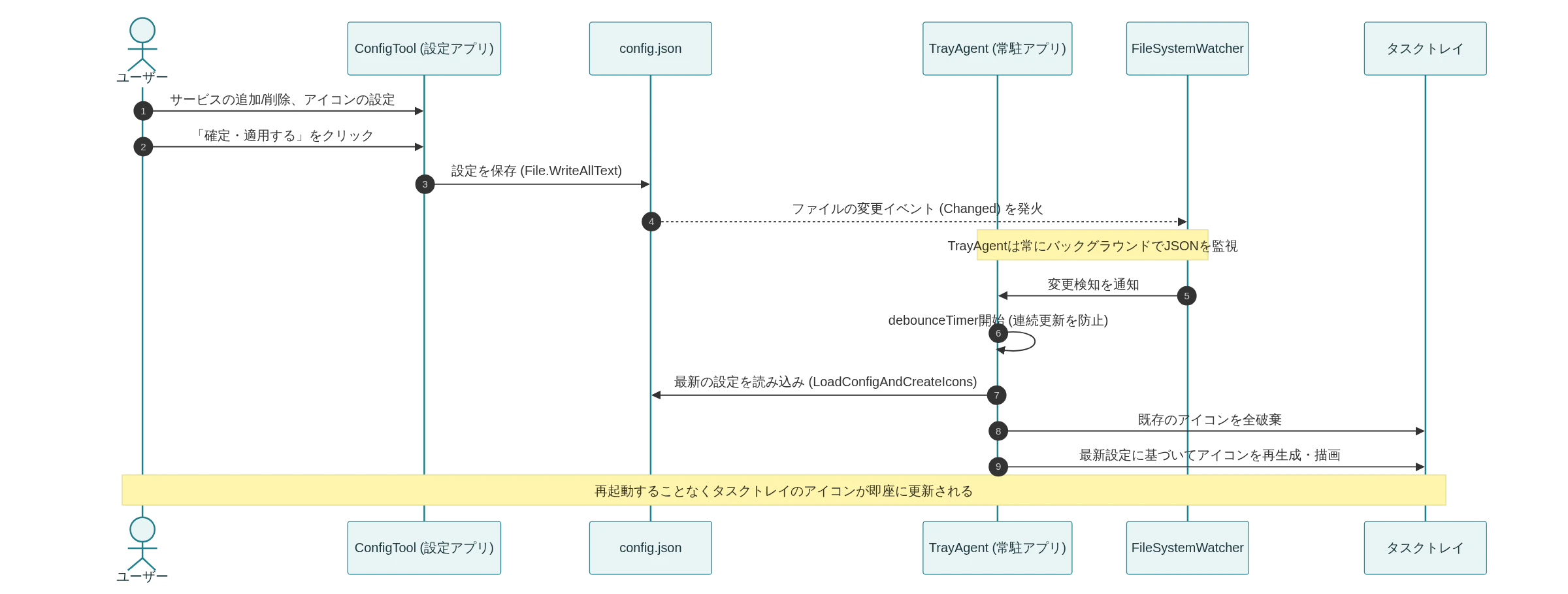
本アプリは、設定アプリと常駐アプリで構成し、設定アプリで作成した設定ファイルを常駐アプリが読み込むことで、対象のサービスのアイコンをタスクトレイに表示する。
-
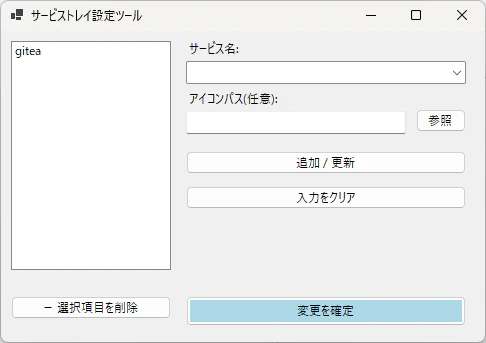
ConfigTool(設定アプリ)
監視対象のサービス名やアイコンを設定ファイル(JSON)に保存・編集するGUIアプリ。 -
TrayAgent(常駐アプリ)
サービスの監視と操作を行う裏方アプリ。
処理のフローは以下の通り。
工夫したポイント
ファイル監視によるリアルタイム連携
設定ファイルを外部化することで、設定を変更したあとに常駐アプリを再起動する手間が生じるのを避けたい。
→ 設定アプリがJSONファイルを更新した瞬間を常駐アプリが自動検知し、再起動なしでタスクトレイのアイコンを即座に再描画(増減)する連携を実現
UACプロンプト(管理者権限)の回避
Windowsサービスを操作するには「管理者権限」が必要になるが、アイコンを右クリックするたびに「はい/いいえ」のUAC警告画面が出るのは避けたい。
→ 常駐アプリ(TrayAgent)のマニフェストファイルで最初から管理者権限を要求しつつ、「タスクスケジューラの最上位特権による自動起動」を組み合わせることで、PCログイン時から一切のUACプロンプトを出さずに安全にサービスを操作できる仕組みを実現
ただし、設定アプリの初回起動時は、設定ファイルの出力のためにUAC警告画面が表示される。
タスクスケジューラを使用しない場合でも、初回起動時の1回のみになる。
前提環境
以下の環境で開発および動作確認を実施
- OS: Windows 10 / 11 (64bit)
- Visual Studioを使用せずにVScodeでコードを編集し、dotnetコマンドでビルドする
0. 開発環境の準備
.NET SDKのインストール
-
Microsoftの公式サイトから「.NET SDK(最新の推奨版)」をダウンロードし、インストールします。
-
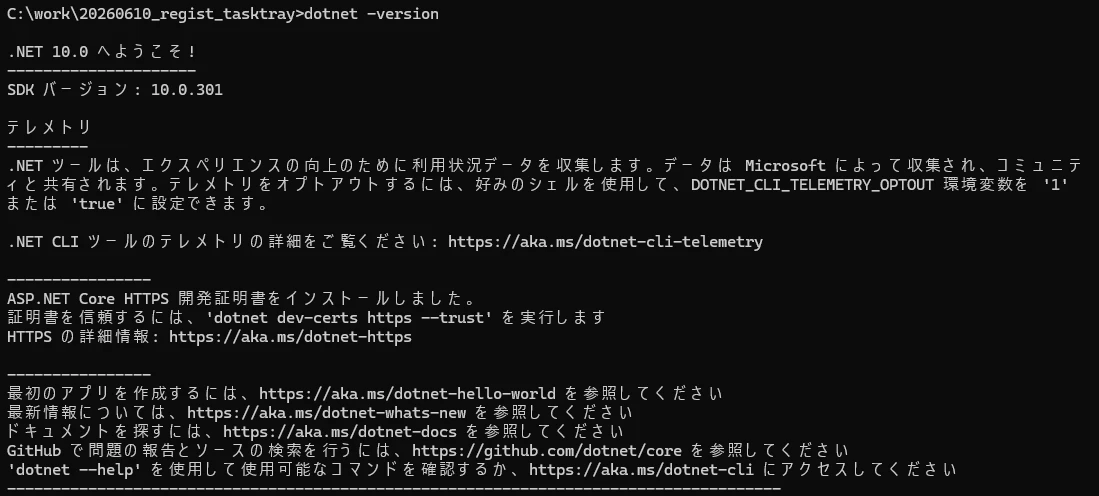
コマンドプロンプトを開き、以下のコマンドでSDKがインストールされたか確認します。
dotnet --versiondotnet --versionを実行してバージョンが表示されたコマンドプロンプト画面
1. プロジェクトの作成
コマンドプロンプトを開き、ソリューションと3つのプロジェクトを作成して紐づける。
mkdir ServiceTrayControll
cd ServiceTrayControll

# ソリューションの作成
dotnet new sln -n ServiceTraySuite

# ①共通ライブラリの作成
dotnet new classlib -n SharedModels
dotnet sln add SharedModels\SharedModels.csproj

# ②常駐アプリの作成とパッケージ追加
dotnet new winforms -n TrayAgent
dotnet sln add TrayAgent\TrayAgent.csproj
dotnet add TrayAgent\TrayAgent.csproj reference SharedModels\SharedModels.csproj
dotnet add TrayAgent\TrayAgent.csproj package System.ServiceProcess.ServiceController

# ③設定アプリの作成
dotnet new winforms -n ConfigTool
dotnet sln add ConfigTool\ConfigTool.csproj
dotnet add ConfigTool\ConfigTool.csproj reference SharedModels\SharedModels.csproj
上記コマンドで作成されるファイル構成は以下の通り。
ServiceTrayControll/
 ├─ ServiceTraySuite.sln         ← 全体をまとめるソリューションファイル
 │
 ├─ SharedModels/                ← ① 共通ライブラリ
 │   ├─ SharedModels.csproj
 │   └─ Class1.cs                (※後で AppConfig.cs にリネームします)
 │
 ├─ TrayAgent/                   ← ② 常駐アプリ
 │   ├─ TrayAgent.csproj
 │   ├─ Program.cs
 │   └─ Form1.cs                 (※今回はUIを持たないため後で削除・上書きします)
 │
 └─ ConfigTool/                  ← ③ 設定アプリ
     ├─ ConfigTool.csproj
     ├─ Program.cs
     └─ Form1.cs                 (※UIはコードで生成するため後で削除・上書きします)
今回の構成に合わせて、以下の対応を手動で実施
- TrayAgent/SharedModels/Class1.csをAppConfig.cs にリネーム
- TrayAgent/TrayAgent/Form1.csを削除
- ServiceTrayControll/ConfigTool/Form1.csを削除
2. ソースコードの実装
各プロジェクトのコードを作成する。
① SharedModels(共通モデル)
コードを展開する:SharedModels/AppConfig.cs
namespace SharedModels
{
    public class AppConfig
    {
        public string ServiceName { get; set; } = string.Empty;
        public string IconPath { get; set; } = string.Empty;
    }
}
② TrayAgent(常駐アプリ)
管理者権限を要求するためのマニフェストファイルを作成する。
コードを展開する:TrayAgent/app.manifest
TrayAgent プロジェクトの直下に作成し、.csproj に <ApplicationManifest>app.manifest</ApplicationManifest> を追記します。
<?xml version="1.0" encoding="utf-8"?>
<assembly manifestVersion="1.0" xmlns="urn:schemas-microsoft-com:asm.v1">
  <trustInfo xmlns="urn:schemas-microsoft-com:asm.v2">
    <security>
      <requestedPrivileges xmlns="urn:schemas-microsoft-com:asm.v3">
        <!-- 管理者権限を要求 -->
        <requestedExecutionLevel level="requireAdministrator" uiAccess="false" />
      </requestedPrivileges>
    </security>
  </trustInfo>
</assembly>
次に、タスクトレイの描画とファイル監視を行うメインコードを作成する。
コードを展開する:TrayAgent/Program.cs
using System;
using System.Collections.Generic;
using System.Diagnostics;
using System.Drawing;
using System.IO;
using System.ServiceProcess;
using System.Text.Json;
using System.Windows.Forms;
using SharedModels;

namespace TrayAgent
{
    static class Program
    {
        public static readonly string ConfigPath = Path.Combine(AppDomain.CurrentDomain.BaseDirectory, "config.json");

        [STAThread]
        static void Main()
        {
            Application.EnableVisualStyles();
            Application.SetCompatibleTextRenderingDefault(false);
            Application.Run(new AgentApplicationContext());
        }
    }

    public class AgentApplicationContext : ApplicationContext
    {
        private List<ServiceTrayInstance> instances = new List<ServiceTrayInstance>();
        private FileSystemWatcher configWatcher;
        private System.Windows.Forms.Timer debounceTimer;

        public AgentApplicationContext()
        {
            debounceTimer = new System.Windows.Forms.Timer { Interval = 500 };
            debounceTimer.Tick += (s, e) => {
                debounceTimer.Stop();
                LoadConfigAndCreateIcons();
            };

            LoadConfigAndCreateIcons();

            configWatcher = new FileSystemWatcher(AppDomain.CurrentDomain.BaseDirectory, "config.json");
            configWatcher.NotifyFilter = NotifyFilters.LastWrite;
            configWatcher.Changed += (s, e) => {
                debounceTimer.Stop();
                debounceTimer.Start();
            };
            configWatcher.EnableRaisingEvents = true;
        }

        private void LoadConfigAndCreateIcons()
        {
            foreach (var instance in instances) instance.Dispose();
            instances.Clear();

            if (!File.Exists(Program.ConfigPath)) return;

            try
            {
                var json = File.ReadAllText(Program.ConfigPath);
                var configs = JsonSerializer.Deserialize<List<AppConfig>>(json);
                if (configs != null)
                {
                    foreach (var config in configs) instances.Add(new ServiceTrayInstance(config));
                }
            }
            catch { /* 無視 */ }
        }

        protected override void Dispose(bool disposing)
        {
            if (disposing)
            {
                foreach (var instance in instances) instance.Dispose();
                configWatcher?.Dispose();
                debounceTimer?.Dispose();
            }
            base.Dispose(disposing);
        }
    }

    public class ServiceTrayInstance : IDisposable
    {
        private NotifyIcon trayIcon;
        private ContextMenuStrip trayMenu;
        private ServiceController serviceController;
        private System.Windows.Forms.Timer monitorTimer;
        private AppConfig config;
        private ToolStripMenuItem startMenu;
        private ToolStripMenuItem stopMenu;

        public ServiceTrayInstance(AppConfig config)
        {
            this.config = config;
            serviceController = new ServiceController(config.ServiceName);

            trayMenu = new ContextMenuStrip();
            startMenu = new ToolStripMenuItem("開始", null, (s, e) => ControlService(true));
            stopMenu = new ToolStripMenuItem("停止", null, (s, e) => ControlService(false));

            trayMenu.Items.Add(new ToolStripLabel($"[{config.ServiceName}]"));
            trayMenu.Items.Add(new ToolStripSeparator());
            trayMenu.Items.Add(startMenu);
            trayMenu.Items.Add(stopMenu);

            trayIcon = new NotifyIcon { ContextMenuStrip = trayMenu, Visible = true };

            monitorTimer = new System.Windows.Forms.Timer { Interval = 2000 };
            monitorTimer.Tick += (s, e) => UpdateStatus();
            monitorTimer.Start();

            UpdateStatus();
        }

        private void UpdateStatus()
        {
            try
            {
                serviceController.Refresh();
                var status = serviceController.Status;
                startMenu.Enabled = (status == ServiceControllerStatus.Stopped);
                stopMenu.Enabled = (status == ServiceControllerStatus.Running);
                trayIcon.Text = $"{config.ServiceName} - {(status == ServiceControllerStatus.Running ? "実行中" : "停止中")}";
                trayIcon.Icon = GetStatusIcon(status);
            }
            catch
            {
                trayIcon.Text = $"{config.ServiceName} - 未検出";
                startMenu.Enabled = stopMenu.Enabled = false;
                trayIcon.Icon = SystemIcons.Warning;
            }
        }

        private void ControlService(bool start)
        {
            try { if (start) serviceController.Start(); else serviceController.Stop(); }
            catch (Exception ex) { MessageBox.Show(ex.Message, "エラー", MessageBoxButtons.OK, MessageBoxIcon.Error); }
        }

        private Icon GetStatusIcon(ServiceControllerStatus status)
        {
            Icon baseIcon = SystemIcons.Application;
            if (File.Exists(config.IconPath)) baseIcon = new Icon(config.IconPath);

            Bitmap bmp = baseIcon.ToBitmap();
            using (Graphics g = Graphics.FromImage(bmp))
            {
                Brush b = status == ServiceControllerStatus.Running ? Brushes.LimeGreen : Brushes.Red;
                g.FillEllipse(b, new Rectangle(bmp.Width - 12, bmp.Height - 12, 12, 12));
                g.DrawEllipse(Pens.White, new Rectangle(bmp.Width - 12, bmp.Height - 12, 12, 12));
            }
            return Icon.FromHandle(bmp.GetHicon());
        }

        public void Dispose()
        {
            monitorTimer?.Dispose();
            trayIcon?.Dispose();
            serviceController?.Dispose();
        }
    }
}
③ ConfigTool(設定アプリ)
保守性を考慮し、エントリーポイント、ロジック、UIに分割しています。
コードを展開する:ConfigTool/Program.cs
using System;
using System.Windows.Forms;
using ConfigTool.UI;

namespace ConfigTool
{
    static class Program
    {
        [STAThread]
        static void Main()
        {
            Application.EnableVisualStyles();
            Application.SetCompatibleTextRenderingDefault(false);
            Application.Run(new SettingsForm());
        }
    }
}
コードを展開する:ConfigTool/Logic/ConfigManager.cs
using System;
using System.Collections.Generic;
using System.Diagnostics;
using System.IO;
using System.Text.Json;
using SharedModels;

namespace ConfigTool.Logic
{
    public class ConfigManager
    {
        public string ConfigPath { get; } = Path.Combine(AppDomain.CurrentDomain.BaseDirectory, "config.json");
        public string AgentPath { get; } = Path.Combine(AppDomain.CurrentDomain.BaseDirectory, "TrayAgent.exe");

        public List<AppConfig> LoadConfig()
        {
            if (!File.Exists(ConfigPath)) return new List<AppConfig>();
            try { return JsonSerializer.Deserialize<List<AppConfig>>(File.ReadAllText(ConfigPath)) ?? new List<AppConfig>(); }
            catch { return new List<AppConfig>(); }
        }

        public void SaveConfig(List<AppConfig> configList)
        {
            var json = JsonSerializer.Serialize(configList, new JsonSerializerOptions { WriteIndented = true });
            File.WriteAllText(ConfigPath, json);
        }

        public void EnsureAgentRunning()
        {
            var agentProcs = Process.GetProcessesByName("TrayAgent");
            if (agentProcs.Length == 0 && File.Exists(AgentPath))
            {
                try { Process.Start(new ProcessStartInfo { FileName = AgentPath, UseShellExecute = true }); }
                catch { }
            }
        }
    }
}
コードを展開する:ConfigTool/UI/SettingsForm.cs
using System;
using System.Collections.Generic;
using System.Drawing;
using System.Windows.Forms;
using SharedModels;
using ConfigTool.Logic;

namespace ConfigTool.UI
{
    public class SettingsForm : Form
    {
        private ConfigManager configManager;
        private List<AppConfig> configList;

        private ListBox lstServices = null!;
        private TextBox txtName = null!;
        private TextBox txtIcon = null!;

        public SettingsForm()
        {
            configManager = new ConfigManager();
            configList = configManager.LoadConfig();

            InitializeComponent();
            RefreshList();
        }

        private void InitializeComponent()
        {
            this.Text = "サービストレイ設定ツール";
            this.Size = new Size(450, 300);
            this.StartPosition = FormStartPosition.CenterScreen;

            lstServices = new ListBox { Location = new Point(10, 10), Size = new Size(150, 200) };
            lstServices.SelectedIndexChanged += LstServices_SelectedIndexChanged;

            Label lbl1 = new Label { Text = "サービス名:", Location = new Point(170, 10), AutoSize = true };
            txtName = new TextBox { Location = new Point(170, 30), Width = 200 };

            Label lbl2 = new Label { Text = "アイコンパス:", Location = new Point(170, 60), AutoSize = true };
            txtIcon = new TextBox { Location = new Point(170, 80), Width = 150 };

            Button btnBrowse = new Button { Text = "参照", Location = new Point(325, 78), Width = 45 };
            btnBrowse.Click += (s, e) => {
                using (var ofd = new OpenFileDialog { Filter = "Icon Files|*.ico|All Files|*.*" })
                    if (ofd.ShowDialog() == DialogResult.OK) txtIcon.Text = ofd.FileName;
            };

            Button btnUpdate = new Button { Text = "↑ リストに反映", Location = new Point(170, 120), Width = 200 };
            btnUpdate.Click += (s, e) => {
                if (lstServices.SelectedIndex >= 0) {
                    configList[lstServices.SelectedIndex].ServiceName = txtName.Text;
                    configList[lstServices.SelectedIndex].IconPath = txtIcon.Text;
                    RefreshList();
                }
            };

            Button btnAdd = new Button { Text = "+ 新規追加", Location = new Point(10, 215), Width = 70 };
            btnAdd.Click += (s, e) => {
                var newItem = new AppConfig { ServiceName = "new_service" };
                configList.Add(newItem);
                RefreshList();
                lstServices.SelectedItem = newItem.ServiceName;
            };

            Button btnDel = new Button { Text = "- 削除", Location = new Point(90, 215), Width = 70 };
            btnDel.Click += (s, e) => {
                if (lstServices.SelectedIndex >= 0) { configList.RemoveAt(lstServices.SelectedIndex); RefreshList(); }
            };

            Button btnApply = new Button { Text = "確定・適用する", Location = new Point(170, 215), Width = 200, BackColor = Color.LightBlue };
            btnApply.Click += (s, e) => {
                configManager.SaveConfig(configList);
                configManager.EnsureAgentRunning();
                MessageBox.Show("設定を保存し、トレイアプリに反映しました。");
            };

            this.Controls.AddRange(new Control[] { lstServices, lbl1, txtName, lbl2, txtIcon, btnBrowse, btnUpdate, btnAdd, btnDel, btnApply });
        }

        private void RefreshList()
        {
            lstServices.Items.Clear();
            foreach (var item in configList) lstServices.Items.Add(item.ServiceName);
        }

        private void LstServices_SelectedIndexChanged(object? sender, EventArgs e)
        {
            if (lstServices.SelectedIndex >= 0 && lstServices.SelectedIndex < configList.Count)
            {
                var selected = configList[lstServices.SelectedIndex];
                txtName.Text = selected.ServiceName;
                txtIcon.Text = selected.IconPath;
            }
        }
    }
}
3. 単一ファイルとしてのビルド(Publish)と配備
数百個に及ぶ.NETライブラリや SharedModels.dll を、1つの巨大な exe ファイルの中に丸ごとパック(隠ぺい)して出力する。
これにより、.NETランタイムがない環境でも動く「自己完結型」の配布ファイルになる。
ソリューションのルートフォルダから、以下のコマンドを順番に実行する。
:: TrayAgent のビルド
dotnet publish TrayAgent\TrayAgent.csproj -c Release -r win-x64 --self-contained true -p:PublishSingleFile=true -p:IncludeNativeLibrariesForSelfExtract=true

:: ConfigTool のビルド
dotnet publish ConfigTool\ConfigTool.csproj -c Release -r win-x64 --self-contained true -p:PublishSingleFile=true -p:IncludeNativeLibrariesForSelfExtract=true
それぞれの bin\Release\net10.0-windows\win-x64\publish\ フォルダに出力された TrayAgent.exe と ConfigTool.exe を取り出し、同じフォルダ(例:C:\ServiceTrayControll)に並べてアプリを配備する。
4. 自動起動設定(UACプロンプトの完全スキップ)
タスクトレイ常駐アプリ(TrayAgent.exe)は管理者権限を要求するため、スタートアップフォルダに入れてもWindowsのセキュリティによって自動起動がブロックされてしまう。
PC起動時から裏側でシームレスに常駐させるために、「タスクスケジューラ」 を利用する。
-
Windowsキー + Rで「ファイル名を指定して実行」を開き、taskschd.mscと入力。 - 右側のパネルから「タスクの作成」をクリック。
- [全般] タブ: 名前に「TrayAgentAutoStart」と入力し、「最上位の特権で実行する」にチェックを入れる(これがUAC回避の鍵です)。
- [トリガー] タブ: 「新規」から「ログオン時」に設定。
-
[操作] タブ: 「新規」から「参照」を押し、配置した
TrayAgent.exeを指定して保存。
これで、次回Windowsにログオン時から、UACの確認なしで自動的にタスクトレイに常駐するようになる。あとは ConfigTool.exe を開いて、任意のサービスを登録する。
5. 動作確認
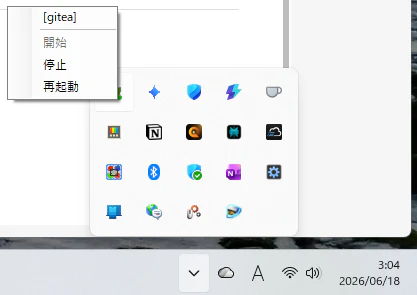
お試しでGiteaのサービスをアイコントレイに追加。
無事にアイコントレイに表示された!
 !
!
アイコンを右クリックして、メニューが表示できることも確認できた。
忘備
'bin\Release\net10.0-windows\win-x64'にもTrayAgent.exe と ConfigTool.exe が出力される。
このファイルはdllなどを内部に含まない、ワンファイル化する前のexeファイルなので、当該ファイルをコピーして配備しても、実行できない。