
■目的
この記事を書いた目的は、PowerPointでファイルをマージする作業に従事している方が、1枚づつ変換するのではなく、効率的に変換して、もっと付加価値の高い仕事に取り組む時間を増やすため。
■対象
WindowsのPowerPointユーザー(Macは対象外)
■使用フロー
使い方(1分)
1.下記のコード開始で始まるテキストの「○○○○」に統一したいフォントを入力
例)Meiryo UI
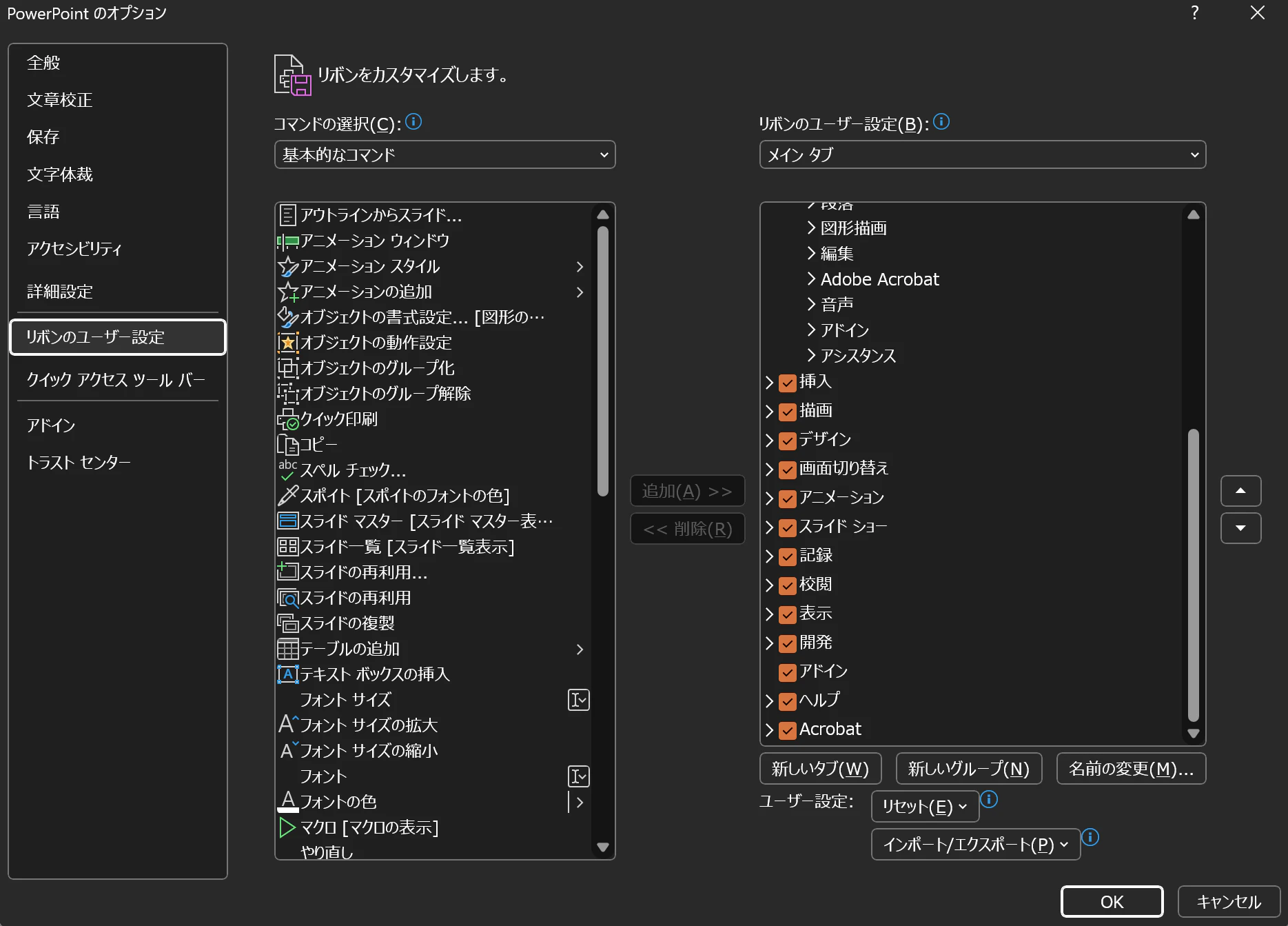
2.ファイル>リボンのユーザ設定>開発タブにチェック>OK
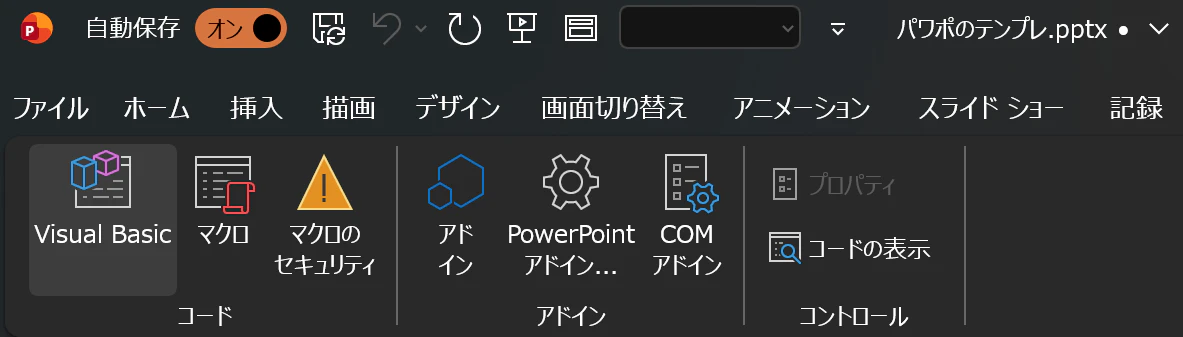
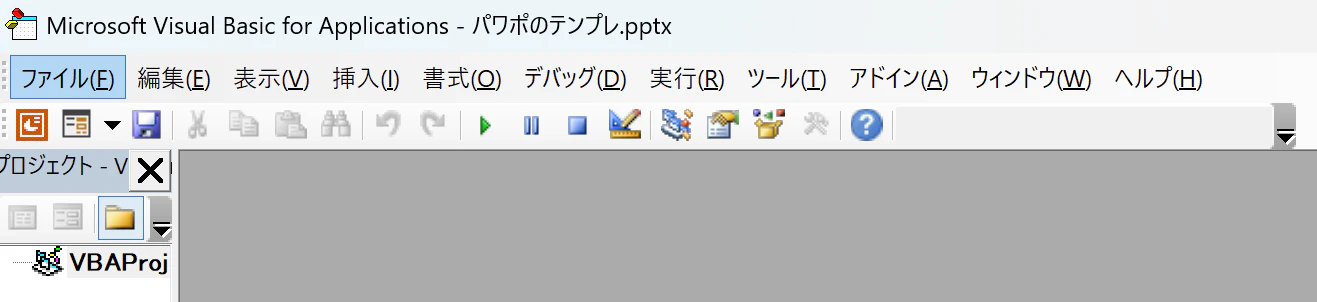
3.開発タブ>Visual basic>挿入>標準モジュール

4.1で作成した、添付のテキストファイルをコピー>パワーポイントのVisual basicの標準モジュールにペースト
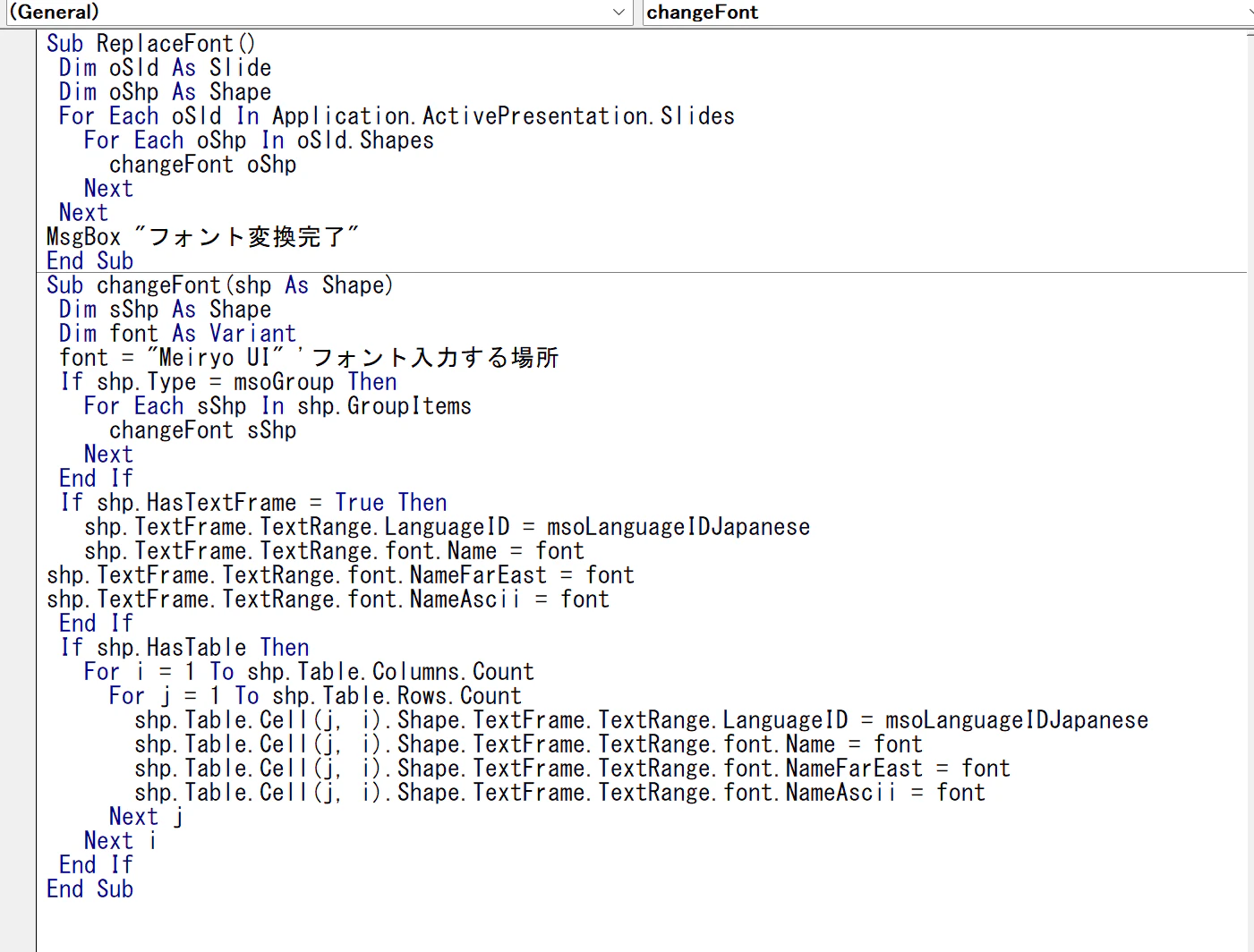
5.F5を押して実行
(スライドが長ければ長いほど、時間かかります。目安は100枚で10秒。)

■役立っているポイント
1.自分以外の人が作成したフォントをマージする際、1枚1枚フォントを変更する手間と時間を短縮できる
2. 図表の中のフォントも変更可能
Sub ReplaceFont()
    Dim oSld As Slide
    Dim oShp As Shape
    For Each oSld In Application.ActivePresentation.Slides
        For Each oShp In oSld.Shapes
            changeFont oShp
        Next
    Next
MsgBox "フォント変換完了"
End Sub
Sub changeFont(shp As Shape)
    Dim sShp As Shape
    Dim font As Variant
    font = "●●●●" 'フォント入力する場所
    If shp.Type = msoGroup Then
        For Each sShp In shp.GroupItems
            changeFont sShp
        Next
    End If
    If shp.HasTextFrame = True Then
        shp.TextFrame.TextRange.LanguageID = msoLanguageIDJapanese
        shp.TextFrame.TextRange.font.Name = font
shp.TextFrame.TextRange.font.NameFarEast = font
shp.TextFrame.TextRange.font.NameAscii = font
    End If
    If shp.HasTable Then
        For i = 1 To shp.Table.Columns.Count
            For j = 1 To shp.Table.Rows.Count
                shp.Table.Cell(j, i).Shape.TextFrame.TextRange.LanguageID = msoLanguageIDJapanese
                shp.Table.Cell(j, i).Shape.TextFrame.TextRange.font.Name = font
                shp.Table.Cell(j, i).Shape.TextFrame.TextRange.font.NameFarEast = font
                shp.Table.Cell(j, i).Shape.TextFrame.TextRange.font.NameAscii = font
            Next j
        Next i
    End If
End Sub