
MarkdownにPlantUMLのスクリプトを表示する
VS code上でMarkdownファイル上にPlantUMLのスクリプトを埋め込み、図をMarkdownに表示する方法を学んだので共有します。
前提条件
- VS codeの拡張機能でPlantUMLを利用していること
- Markdown Preview Enhancedを利用していること
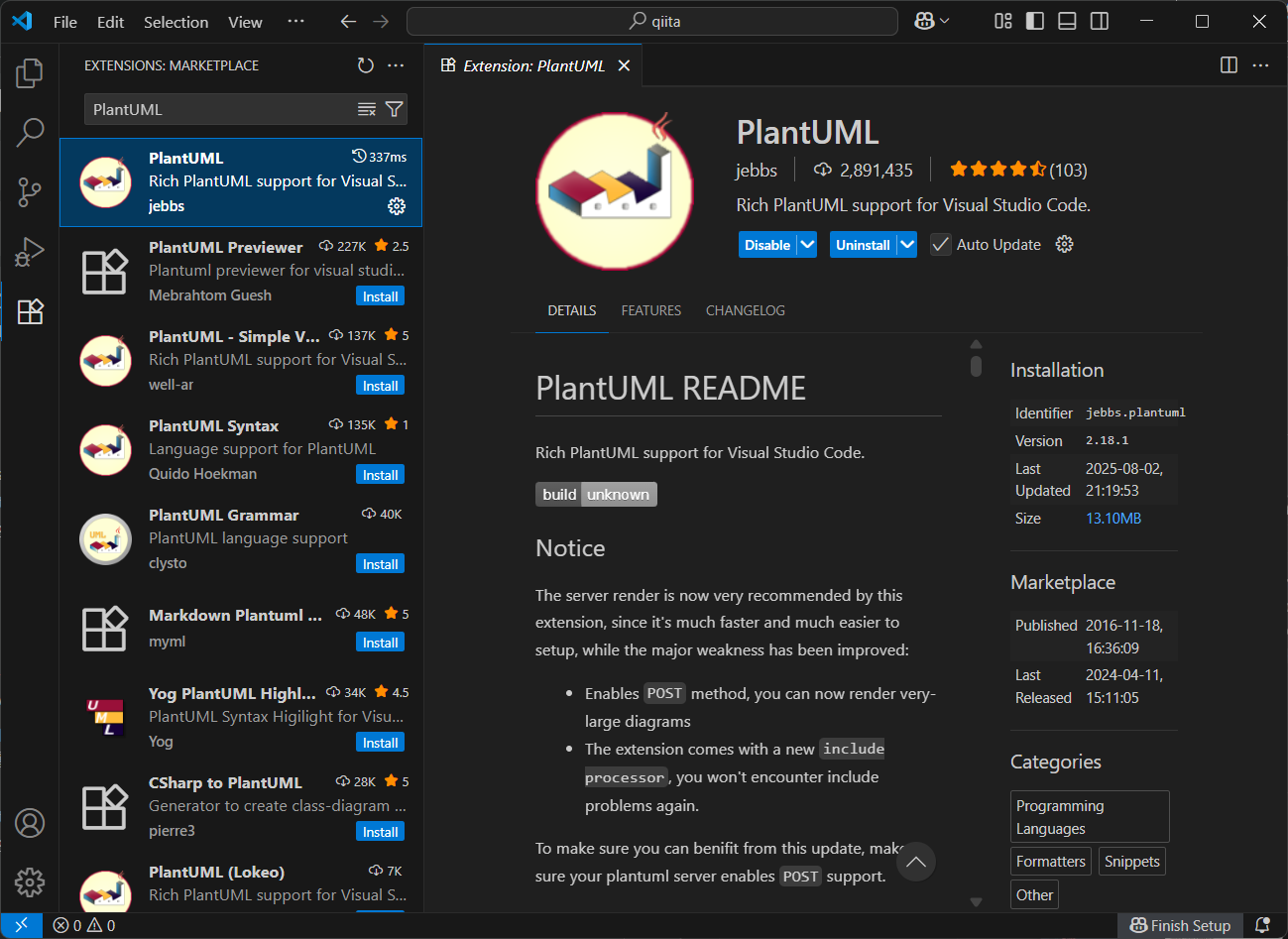
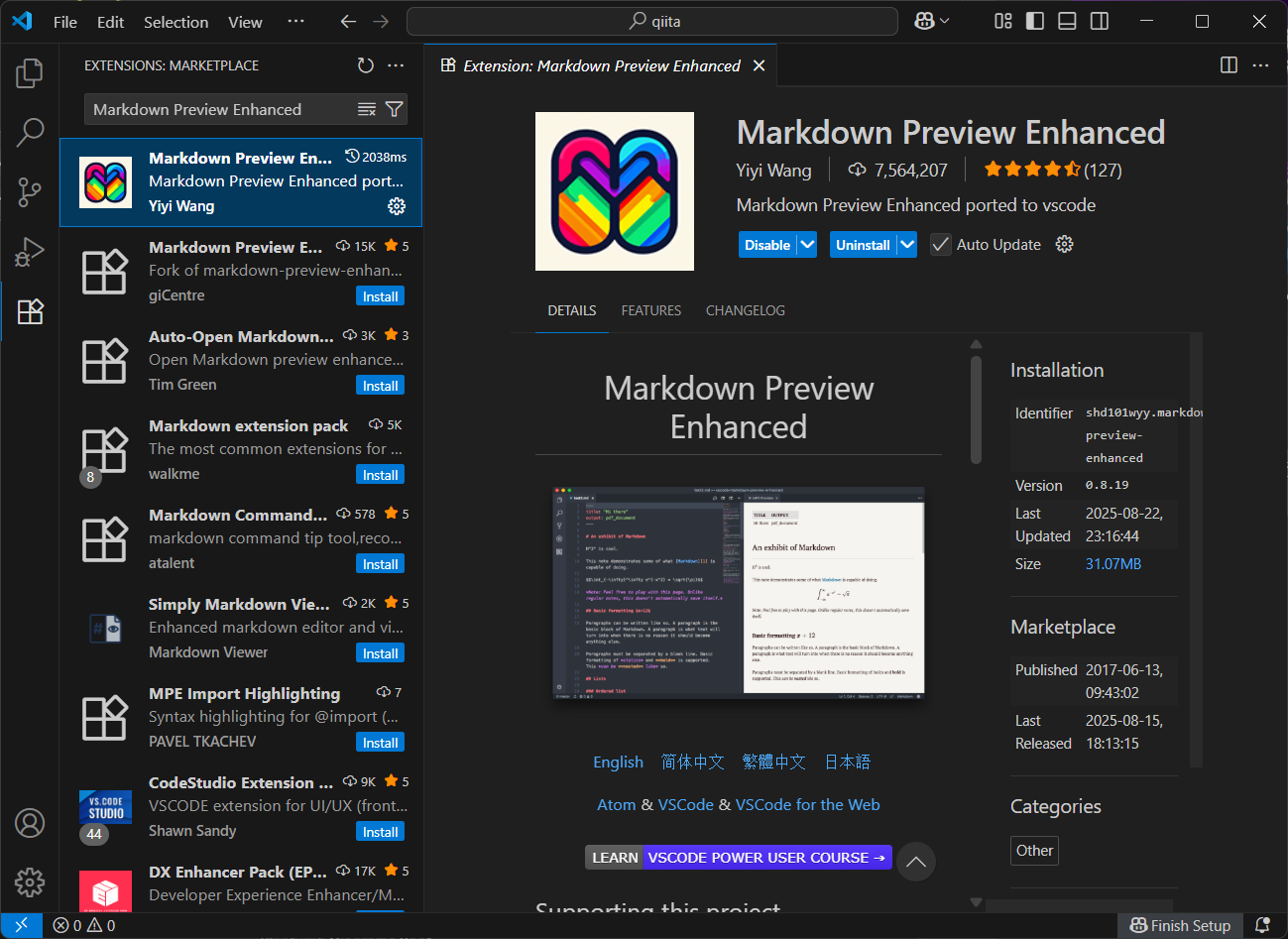
plantuml.jarファイルをダウンロードする
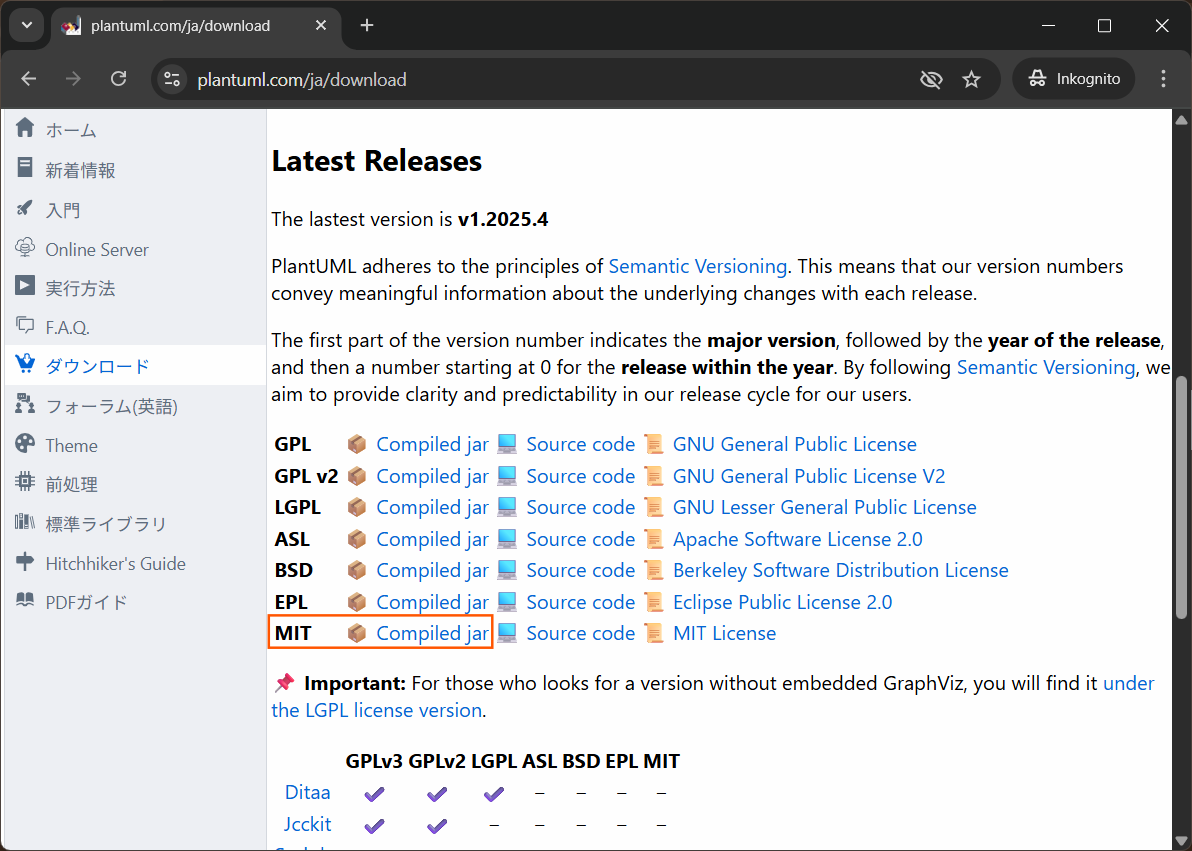
VS codeの拡張機能でPlantUMLを利用している場合、plantuml.jarファイルがローカル環境にないため、公式サイトからダウンロードをします。自分はMITライセンスを選びました。
ファイルの配置
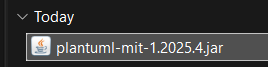
Windowsの場合ダウンロードフォルダにあるため、これを任意の分かりやすい場所に配置します。自分はD:\tools\plantuml\フォルダに置きました。
VS code上での設定
-
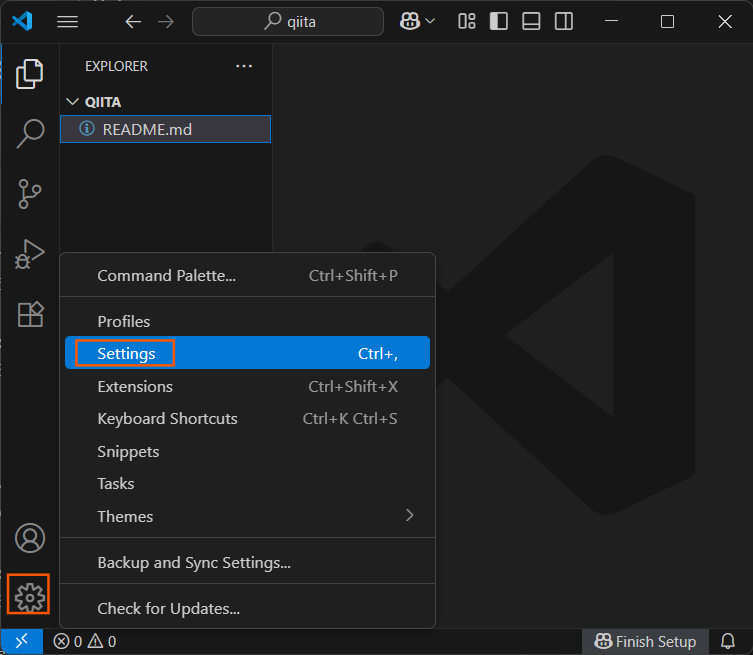
VS codeを開き、
設定アイコン→Settingsを開きます。
-
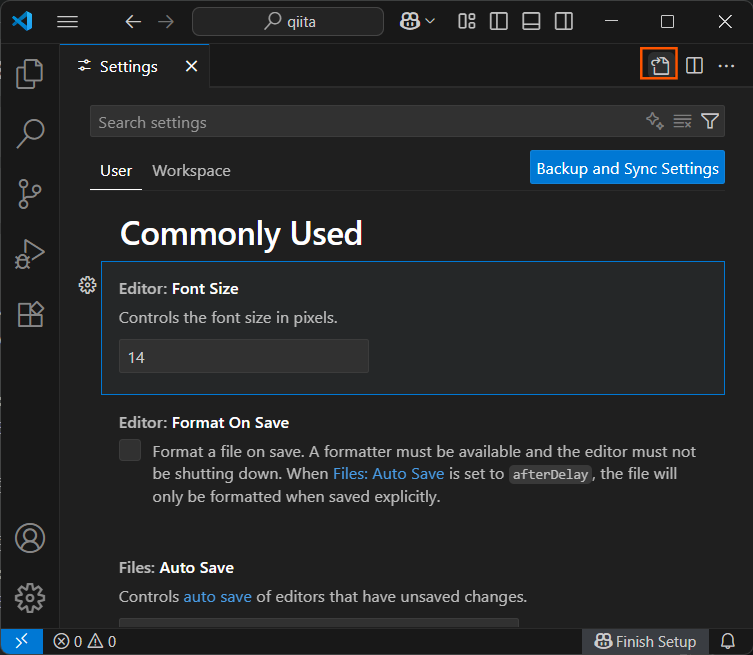
右上の
Open Setting (JSON)アイコンを開きます。
-
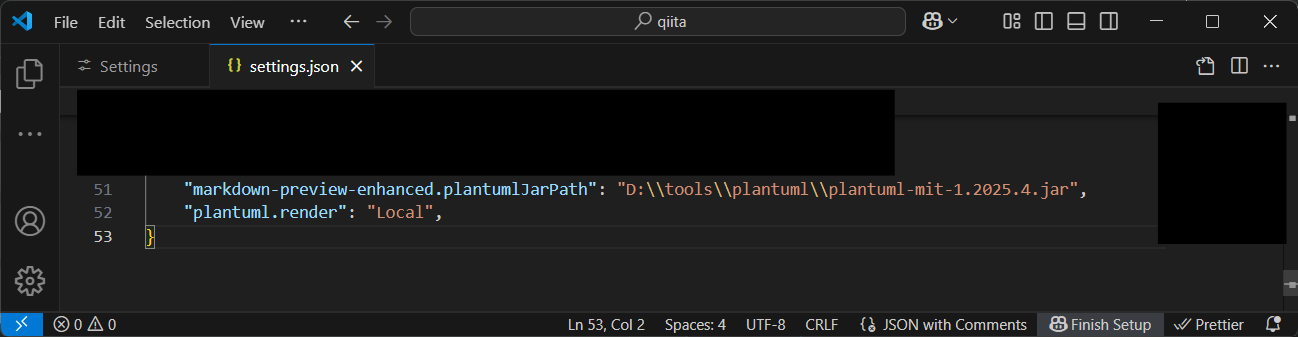
settings.jsonの末尾に次の行を追加します。ファイル名はダウンロードしたファイル名に合わせて変更してください。
settings.json
{
    "markdown-preview-enhanced.plantumlJarPath": "D:\\tools\\plantuml\\plantuml-mit-1.2025.4.jar",
    "plantuml.render": "Local",
}
以上で準備が完了しました。
MarkdownにPlantUMLのスクリプトを記入する
例としてREADME.mdファイルを次のように作成します。
# ゲーム開発
## シーケンス図
```plantuml
@startuml メイン画面の表示

title メイン画面の表示

hide footbox

Actor SYSTEM as system
participant app as app
participant view as view
participant dialog as dlg

system -> app ++ : click()
app -> view ++ : __construct()
app -> view : show_dialog()
view -> dlg ++ : __construct()

dlg -> app :
deactivate dlg
deactivate view
app -> system:
deactivate app

@enduml
```
## 詳細設計
コーディング規約を次のようにする。
これをVS code上で表示すると次のようになります。
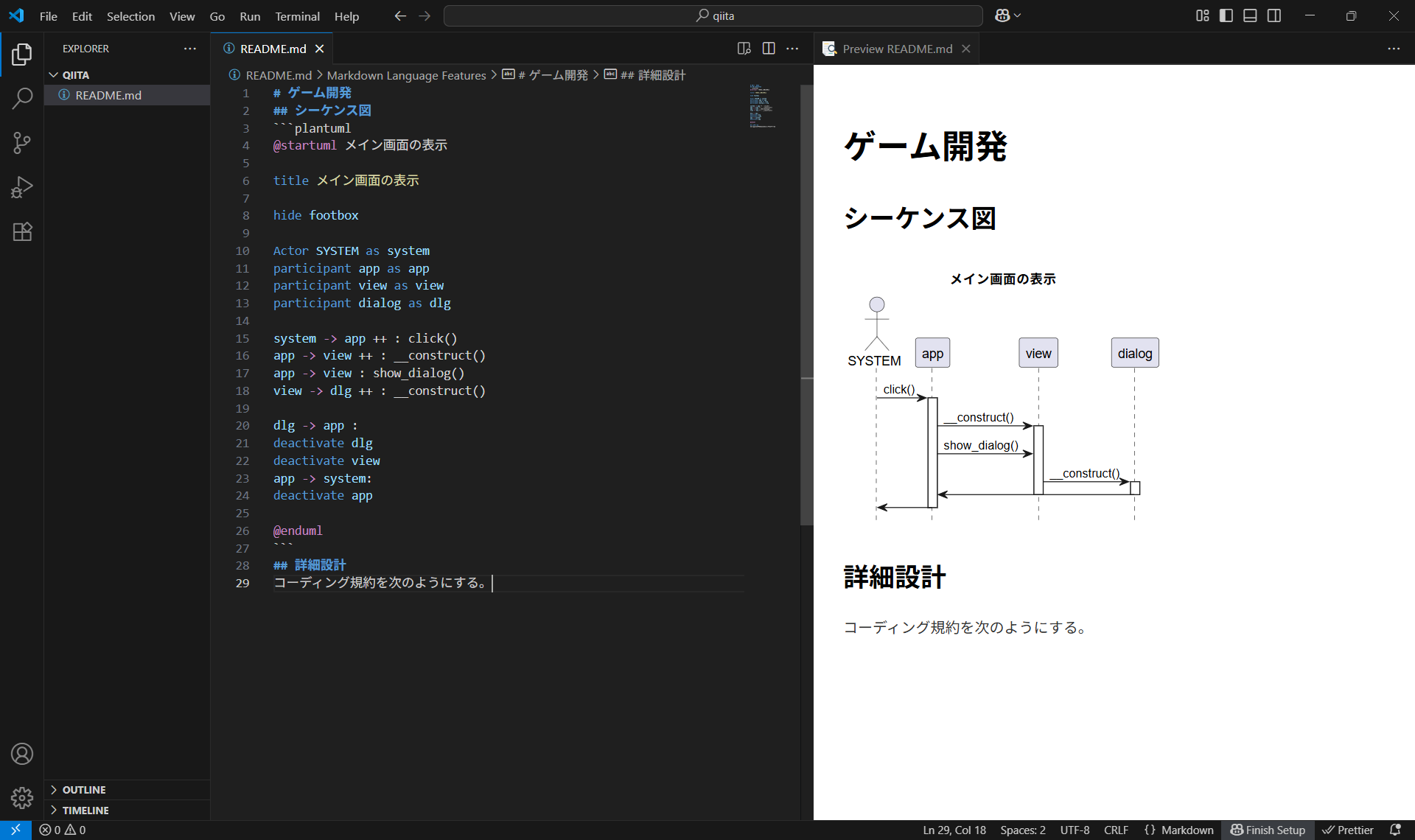
これにて目標であったMarkdownの中にPlantUMLのスクリプトを埋め込み図を表示することができた。