

タイトルの通りです。UDPのポートが空いていることを確認したいと思っても、Windowsの標準機能だとなかなか難しいようで。。。
それを解消するためにMicrosoftがexeを用意しているらしいので、それを使ってみたいと思います。
今回使っていくPortQryもTCP側でよく使うTest-NetConnectionもそうですが、ただ単純にポートが開いているかを確認するだけというのは少し難しそうというか面倒くさそうです。
認識が違っていれば恐縮ですが、ポートに着目した疎通確認って以下が揃っている状態で行うのが前提条件な気がしてます。
①相手のポートが開いていて通信経路があること
②ポートの先にリッスンしている相手が動いていること
③リッスンしている相手が返答を返すこと
疎通相手にそれらが用意されていない状態でとりあえず経路開いているよね確認でこれらのコマンドを叩いても想定通りにならない気がしています。
【誤った期待】
Firewallでポート開けた → Test-NetConnection成功するはず
【現実】
Firewallでポート開けた → でもアプリが起動してない
→ Test-NetConnection: False
→ PortQry: FILTERED or LISTENING or NOT LISTENING
もし確認したいなら、PortQryを投げて、その後にVPCフローログで通信が飛んでいる、来ていることを確認するという感じでしょうか・・・
検証
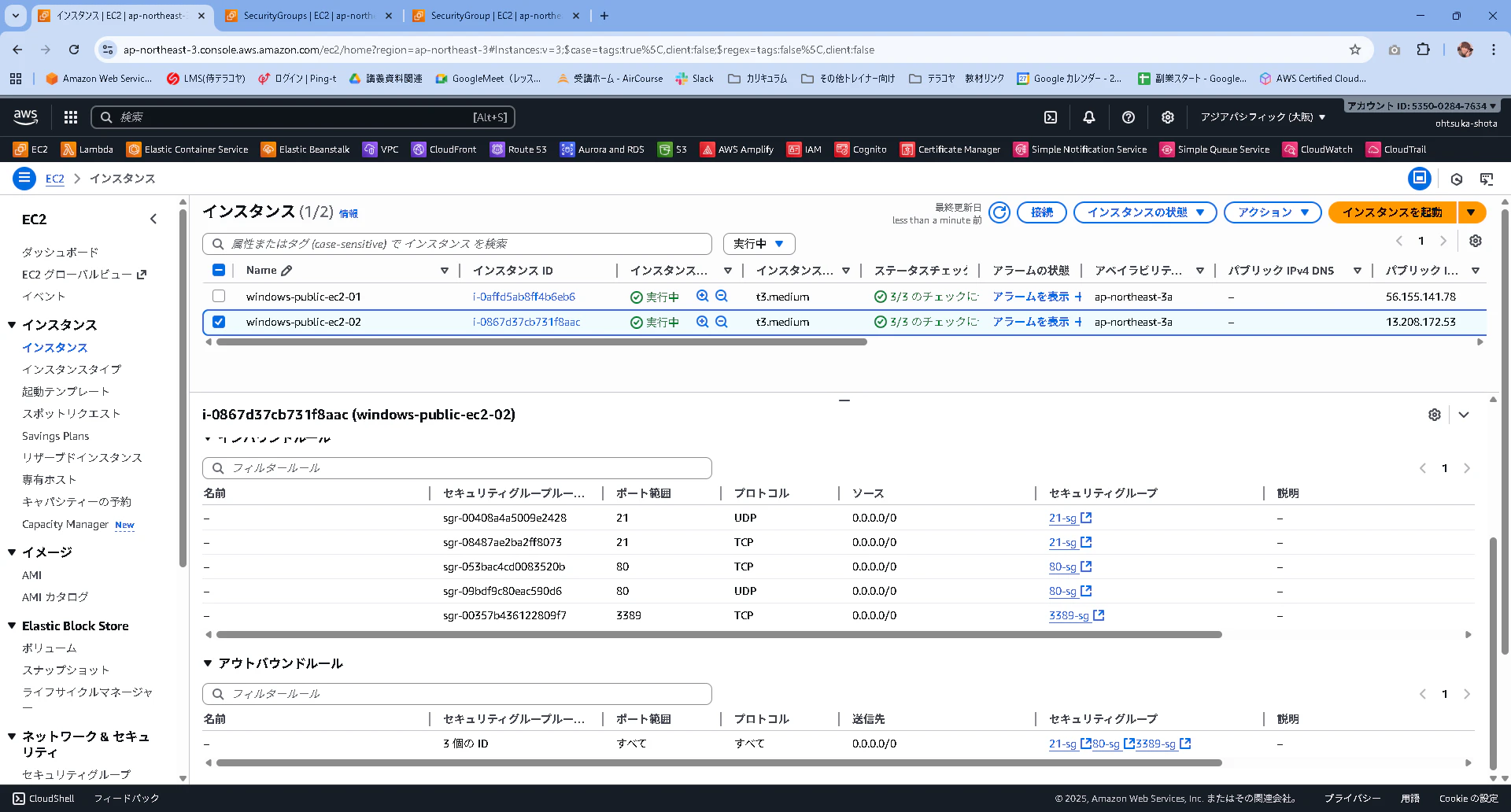
AWSでWindows Serverを2台用意して、片方のServerのUDP-21と80を開けている状態で検証を進めていきます。
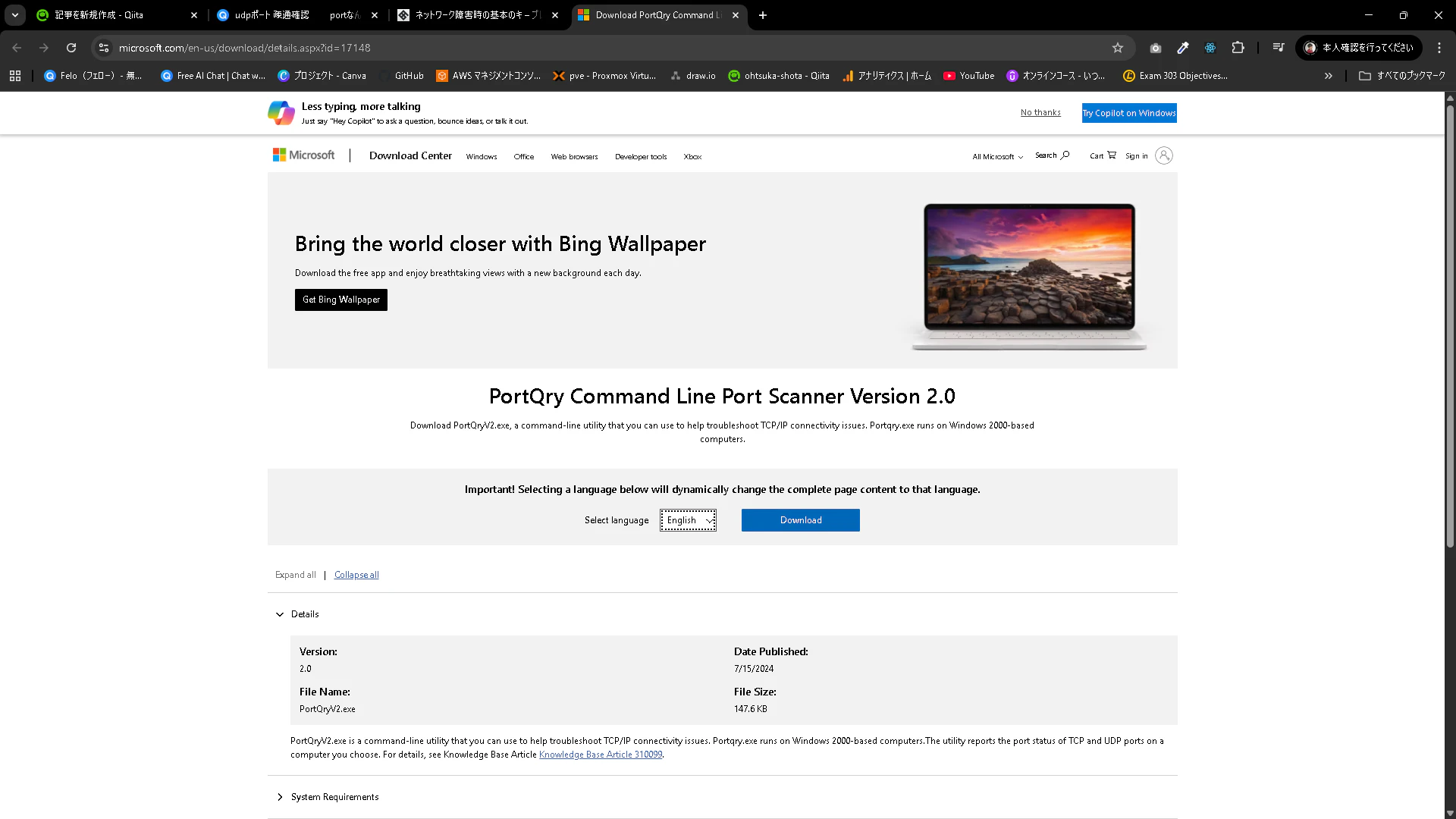
Microsoftが用意しているexeは以下。
PortQryちゃんです。
画面中央にDownloadボタンがあるのでこれを押下します。
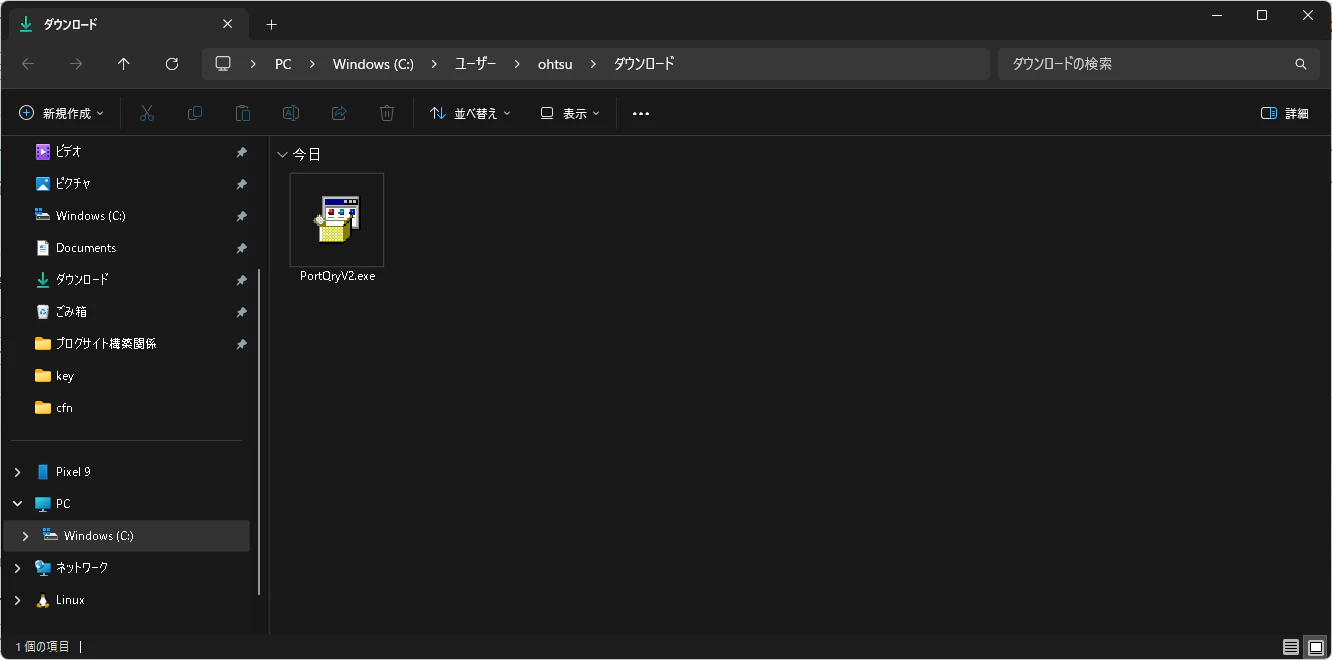
PortQryV2.exeがダウンロードされます。これをもう一方のWindows Serverに持ち込みます。
とりあえずデスクトップに持ち込みました。

PortQryをダブルクリックして、起動します。Yesを押下します。

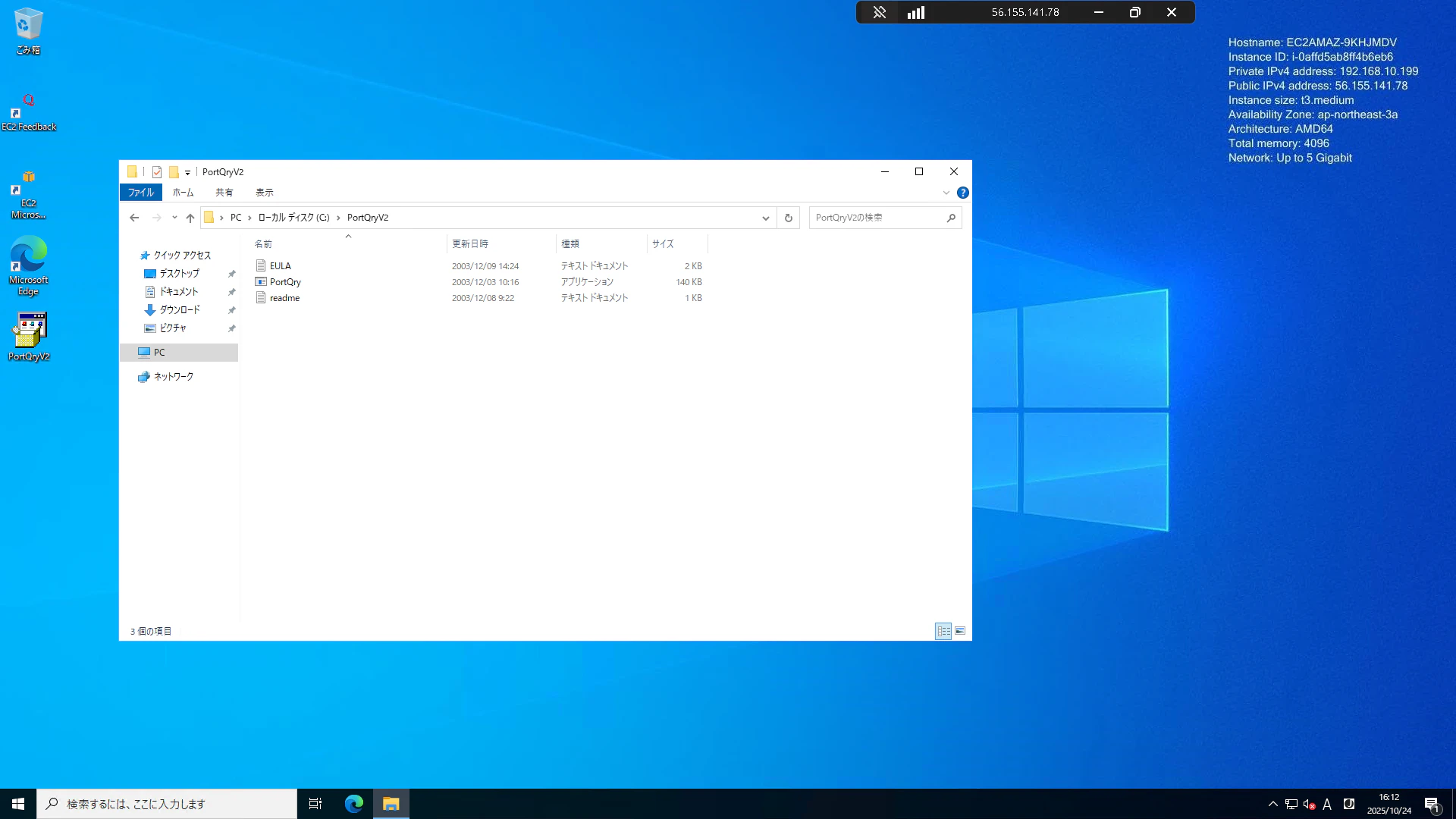
Cドライブ配下に作成されるようです。Unzipを押下して展開します。

展開されたファイルを見てみます。以下のように3つのファイルが作成されていました。
CMDを起動し、以下のコマンドを実行し、PortQry.exeがあるディレクトリに移動します。
C:\Users\Administrator>cd C:\PortQryV2
その後、このexeを実行します。
今回は先方サーバのUDP21が空いているかを確認します。
実行結果としては以下です。LISTENING or FILTEREDと出力されていますが、これは先方のUDP21の先にリッスンしているプロセスが無い可能性を示しているようです。
C:\PortQryV2>PortQry.exe -n 192.168.10.221 -e 21 -p UDP

Querying target system called:

 192.168.10.221

Attempting to resolve IP address to a name...

Failed to resolve IP address to name

querying...

UDP port 21 (unknown service): LISTENING or FILTERED
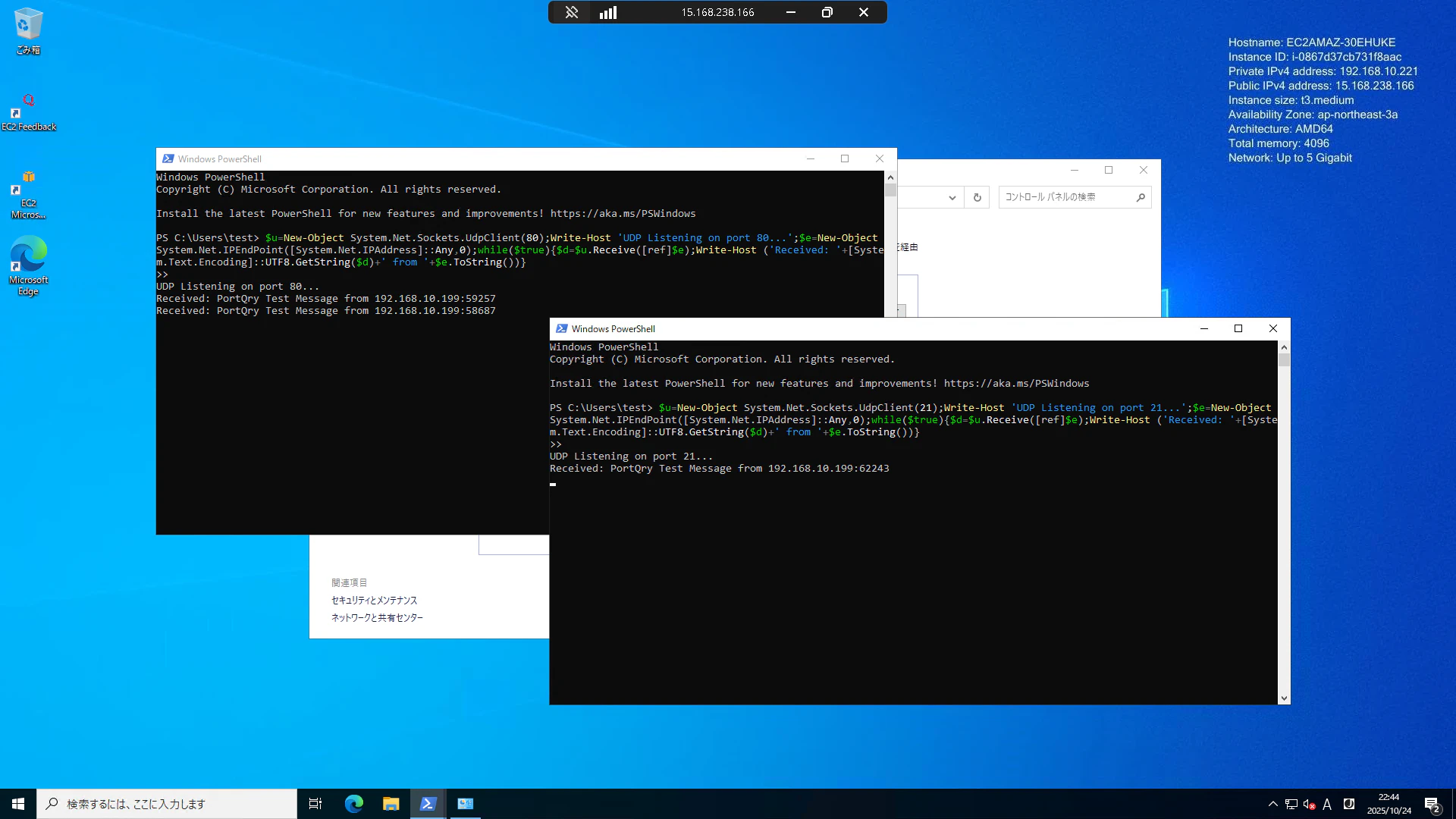
先方のサーバで疑似的にUDP21と80をリッスンをさせます。

PSコマンドはこちら。PSを管理者権限で起動してこれを叩きます。
$u=New-Object System.Net.Sockets.UdpClient(80);Write-Host 'UDP Listening on port 80...';$e=New-Object System.Net.IPEndPoint([System.Net.IPAddress]::Any,0);while($true){$d=$u.Receive([ref]$e);Write-Host ('Received: '+[System.Text.Encoding]::UTF8.GetString($d)+' from '+$e.ToString())}

$u=New-Object System.Net.Sockets.UdpClient(21);Write-Host 'UDP Listening on port 21...';$e=New-Object System.Net.IPEndPoint([System.Net.IPAddress]::Any,0);while($true){$d=$u.Receive([ref]$e);Write-Host ('Received: '+[System.Text.Encoding]::UTF8.GetString($d)+' from '+$e.ToString())}
そして送信元も送信先もWindows Defender Firewallを切っておきます。

改めてcmdでPortQryを叩きます。
LISTENING or FILTEREDと出力され、反応に変わりはありませんが、、、
C:\PortQryV2>PortQry.exe -n 192.168.10.221 -e 21 -p UDP

Querying target system called:

 192.168.10.221

Attempting to resolve IP address to a name...

Failed to resolve IP address to name

querying...

UDP port 21 (unknown service): LISTENING or FILTERED

C:\PortQryV2>PortQry.exe -n 192.168.10.221 -e 80 -p UDP

Querying target system called:

 192.168.10.221

Attempting to resolve IP address to a name...

Failed to resolve IP address to name

querying...

UDP port 80 (unknown service): LISTENING or FILTERED
相手側には通信が来ていることが確認できました。
改良
LISTENING or FILTEREDというのを解消し、確実にLISTENINGと出力されるようにしたいです。
以下のようなスクリプトを受信側で作って起動して、、、
# 複数ポートをリッスンするスクリプト
$ports = @(21, 80)  # リッスンするポート番号の配列

$scriptBlock = {
    param($port)

    $u = New-Object System.Net.Sockets.UdpClient($port)
    Write-Host "UDP Server started on port $port (PID: $PID)"
    $e = New-Object System.Net.IPEndPoint([System.Net.IPAddress]::Any, 0)

    try {
        while($true) {
            $d = $u.Receive([ref]$e)
            $receivedText = [System.Text.Encoding]::UTF8.GetString($d)

            Write-Host "[Port $port] Received: $receivedText from $($e.Address):$($e.Port)"

            # 応答メッセージを作成
            $response = switch -Wildcard ($receivedText) {
                "PING*" { "PONG from UDP Server (Port $port)" }
                "STATUS*" { "Server is running OK on port $port" }
                "TIME*" { "Current time: $(Get-Date -Format 'yyyy-MM-dd HH:mm:ss')" }
                default { "Echo from port ${port}: $receivedText" }
            }

            $responseBytes = [System.Text.Encoding]::UTF8.GetBytes($response)
            $u.Send($responseBytes, $responseBytes.Length, $e) | Out-Null

            Write-Host "[Port $port] Response sent: $response" -ForegroundColor Cyan
        }
    }
    finally {
        $u.Close()
    }
}

# 各ポートに対してジョブを起動
$jobs = foreach ($port in $ports) {
    Start-Job -Name "UDPListener_$port" -ScriptBlock $scriptBlock -ArgumentList $port
}

Write-Host "Started UDP listeners on ports: $($ports -join ', ')" -ForegroundColor Green
Write-Host "Job IDs: $($jobs.Id -join ', ')"
Write-Host "`nTo view output: Receive-Job -Id <JobId> -Keep"
Write-Host "To stop all: Get-Job | Where-Object {`$_.Name -like 'UDPListener_*'} | Stop-Job; Get-Job | Where-Object {`$_.Name -like 'UDPListener_*'} | Remove-Job"

# ジョブの出力を監視(オプション)
while ($true) {
    Start-Sleep -Seconds 2
    foreach ($job in $jobs) {
        $output = Receive-Job -Id $job.Id
        if ($output) {
            $output | ForEach-Object { Write-Host $_ }
        }
    }
}
そして起動。


PortQryを実行すると以下のようにListeningになりました。

受信側でも検知していますね。

確認が終わったらリッスンを停止して、以下のコマンドをpowershellで実行しPIDからJobをキルします。
PS C:\Users\test> netstat -ano | findstr ":21"
  UDP    0.0.0.0:21             *:*                                    3832
PS C:\Users\test> netstat -ano | findstr ":80"
  UDP    0.0.0.0:80             *:*                                    6924
PS C:\Users\test>
PS C:\Users\test> Stop-Process -Id 3832 -Force
PS C:\Users\test> Stop-Process -Id 6924 -Force
