

本当であればAzure Database for MySQLというPaaSを使いたかったのですが、無料プランだとリソースの制限が厳しいらしく私ははじかれてデプロイできませんでした。
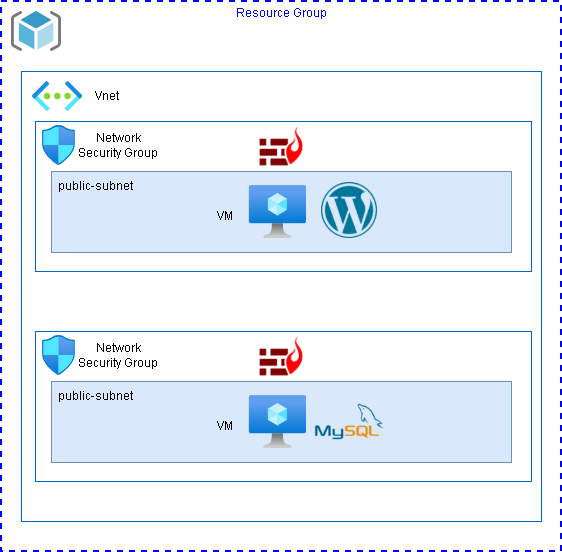
仕方ないので、VMをもう一台作ってそれをMySQLサーバとして運用してWordpress環境を作るようにします。
これらの続きです。
構築イメージ
ハンズオン
VM作成
Wordpressサーバとしてデプロイしたサーバは鍵認証をしていますが、今回は鍵ではなくパスワード認証でSSH接続出来るようにします。

サブネットはプライベートを選択し、パブリックIPも付与しておきます。
これでインターネットに抜けてDBに必要なアプリケーションなどをインストールすることが出来ます。

タグはリソースグループに合わせて設定

内容を確認してデプロイしていきます。
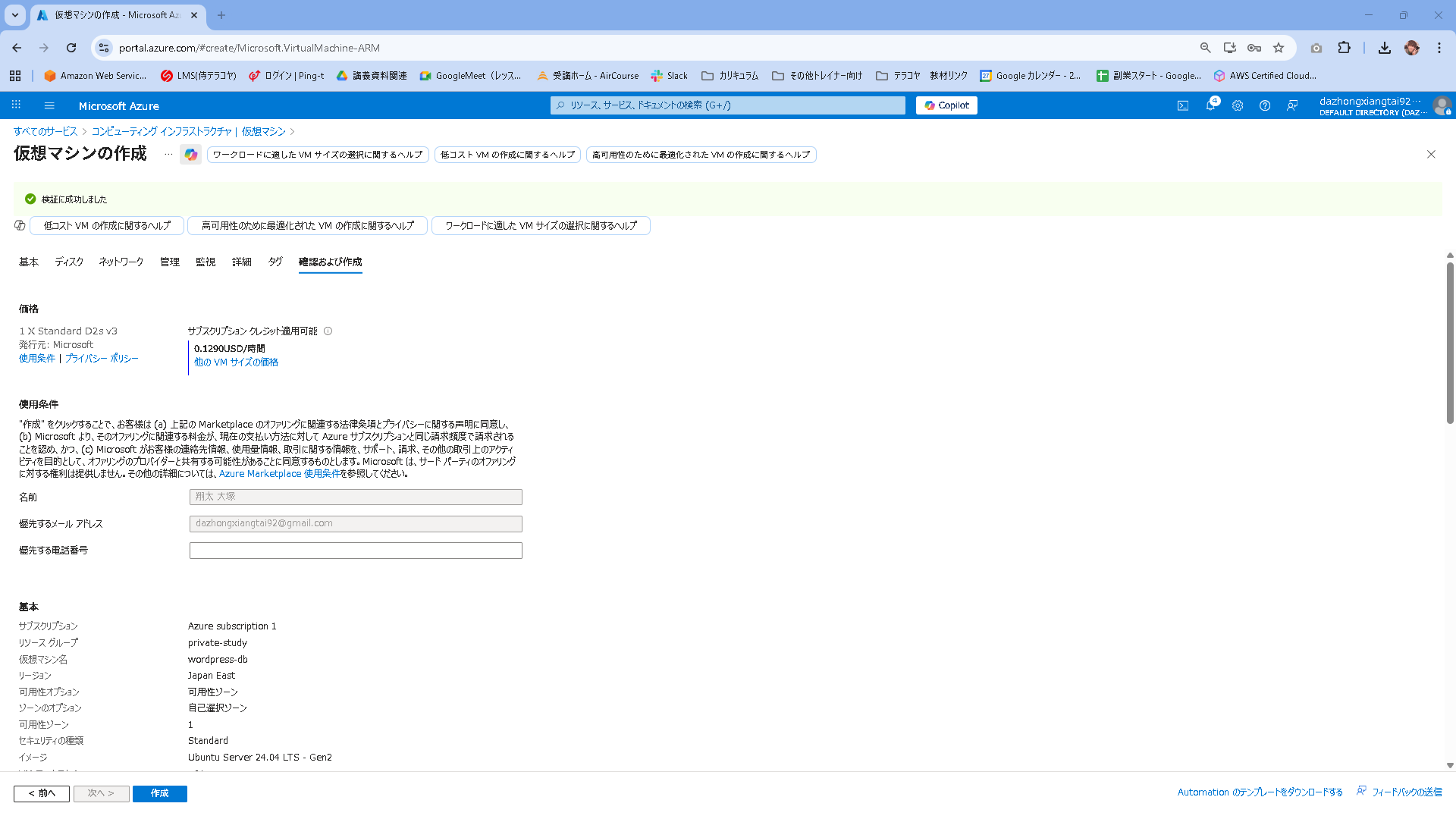
デプロイが完了したことを確認します。
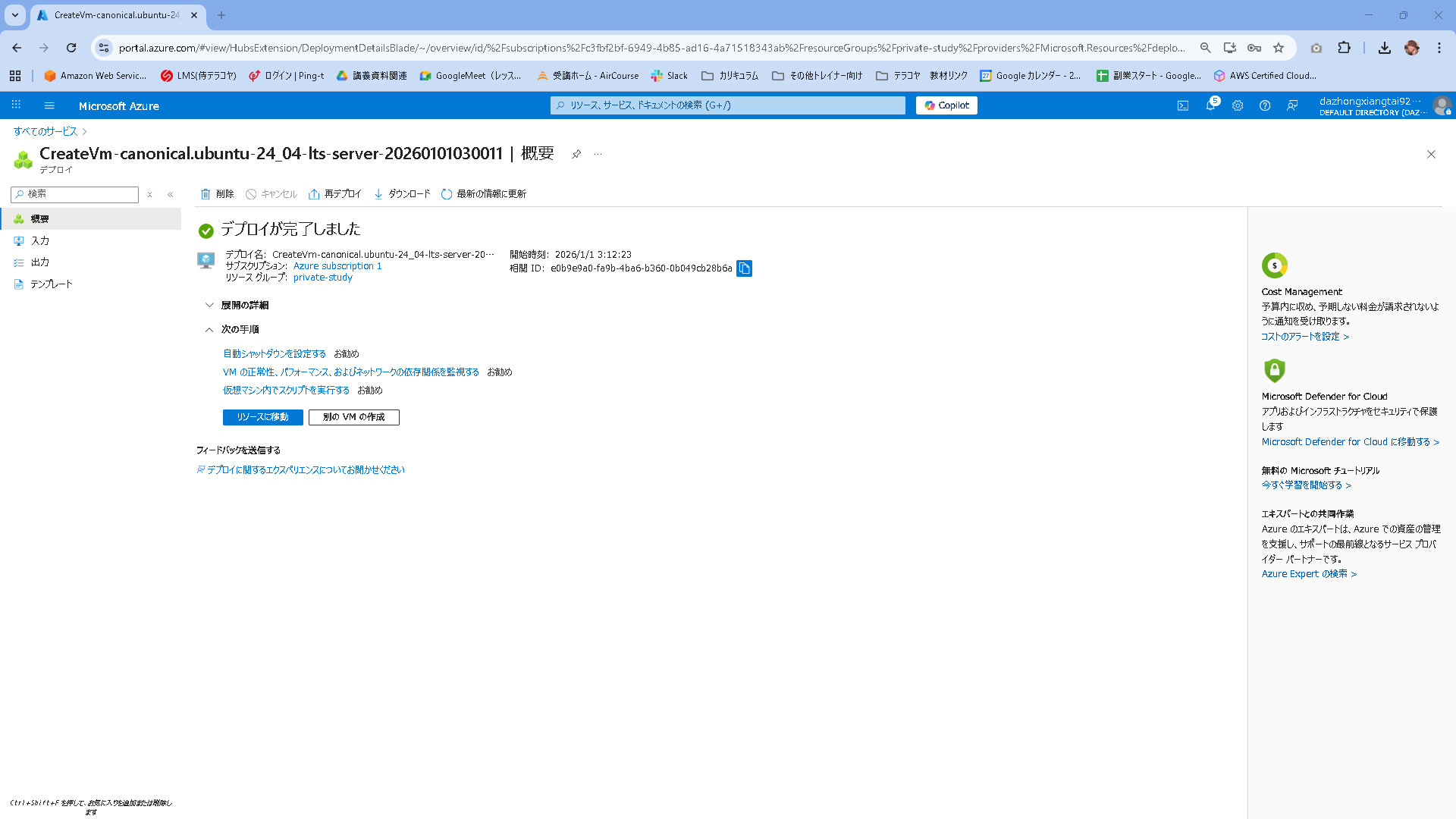
概容を確認するとパブリックとプライベートのIPアドレスがアタッチされていることを確認します。

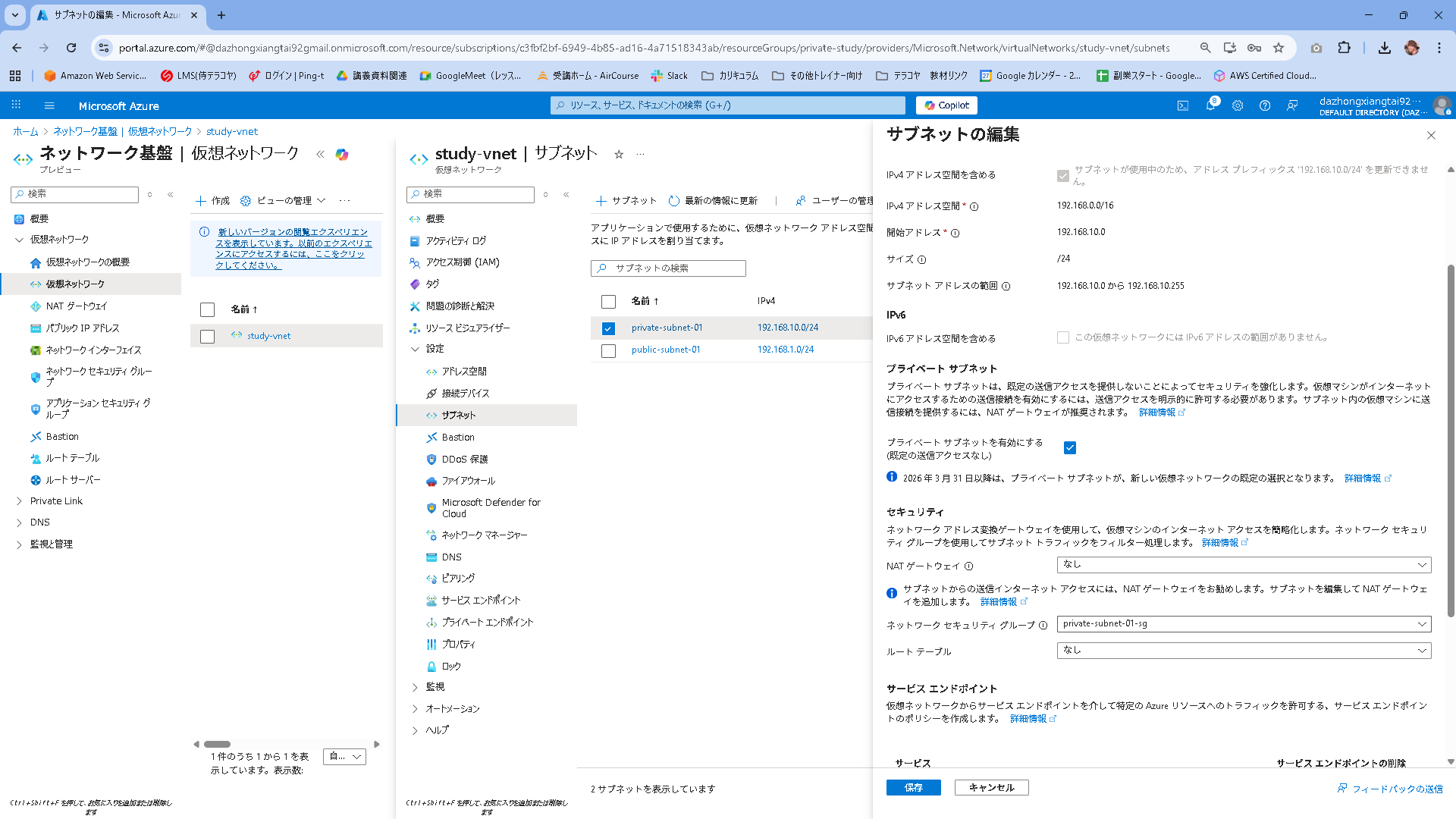
プライベートサブネット用のNSG作成とアタッチ
プライベートサブネット用のNSGを作成し、22,3306ポートの通信を許可する設定を入れていきます。
まず、プライベートサブネットのNSGを作成します。

NSGのデプロイが完了したら受信セキュリティ規則を押下して設定を入れます。

まずはSSH、22ポートの許可

そしてMySQL、3306ポートの許可
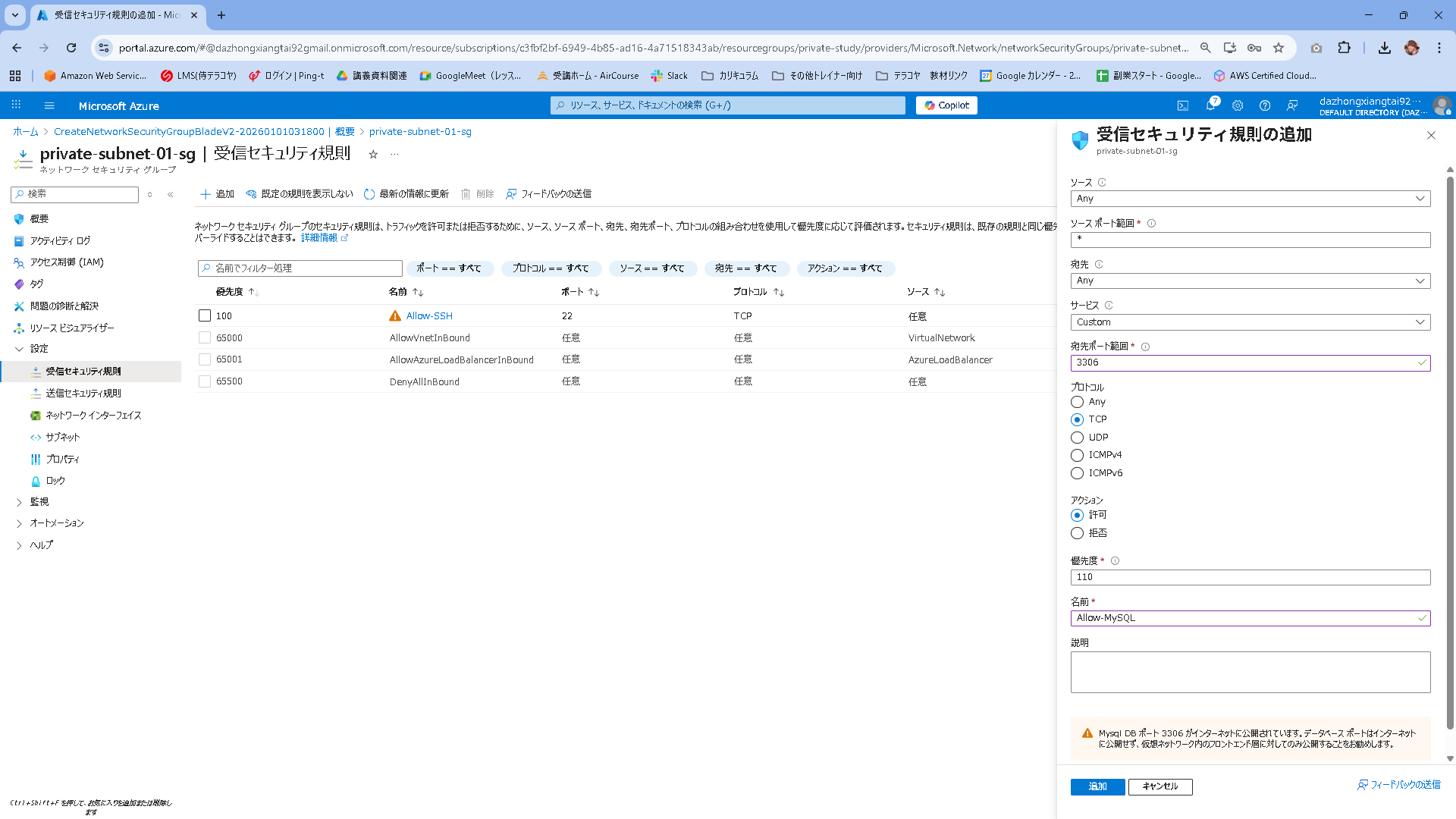
以下のように設定が入っていればOK

これをプライベートサブネットに紐づけます。
MySQL環境構築
接続して必要なアプリケーションをインストールしていきます。
azureuser@wordpress-db:~$ sudo su -
root@wordpress-db:~# apt update && apt upgrade -y
root@wordpress-db:~# apt install mysql-server -y
root@wordpress-db:~# cp -p /etc/mysql/mysql.conf.d/mysqld.cnf /etc/mysql/mysql.conf.d/mysqld.cnf.org
root@wordpress-db:~# vi /etc/mysql/mysql.conf.d/mysqld.cnf
root@wordpress-db:~# diff /etc/mysql/mysql.conf.d/mysqld.cnf /etc/mysql/mysql.conf.d/mysqld.cnf.org
31,32c31
< #bind-address         = 127.0.0.1
< bind-address            = 0.0.0.0
---
> bind-address          = 127.0.0.1
root@wordpress-db:~# systemctl restart mysql
root@wordpress-db:~# systemctl enable mysql
MySQLのDB設定を行います。
root@wordpress-db:~# mysql
Welcome to the MySQL monitor.  Commands end with ; or \g.
Your MySQL connection id is 8
Server version: 8.0.44-0ubuntu0.24.04.2 (Ubuntu)

Copyright (c) 2000, 2025, Oracle and/or its affiliates.

Oracle is a registered trademark of Oracle Corporation and/or its
affiliates. Other names may be trademarks of their respective
owners.

Type 'help;' or '\h' for help. Type '\c' to clear the current input statement.

mysql> CREATE DATABASE wordpress DEFAULT CHARACTER SET utf8mb4 COLLATE utf8mb4_unicode_ci;
Query OK, 1 row affected (0.01 sec)

mysql> CREATE USER 'wpuser'@'192.168.1.%' IDENTIFIED BY 'P@ssw0rd12345';
Query OK, 0 rows affected (0.03 sec)

mysql> GRANT ALL PRIVILEGES ON wordpress.* TO 'wpuser'@'192.168.1.%';
Query OK, 0 rows affected (0.03 sec)

mysql> FLUSH PRIVILEGES;
Query OK, 0 rows affected (0.01 sec)

mysql> SELECT user, host FROM mysql.user WHERE user = 'wpuser';
+--------+-------------+
| user   | host        |
+--------+-------------+
| wpuser | 192.168.1.% |
+--------+-------------+
1 row in set (0.00 sec)

mysql> SHOW GRANTS FOR 'wpuser'@'192.168.1.%';
+-----------------------------------------------------------------+
| Grants for wpuser@192.168.1.%                                   |
+-----------------------------------------------------------------+
| GRANT USAGE ON *.* TO `wpuser`@`192.168.1.%`                    |
| GRANT ALL PRIVILEGES ON `wordpress`.* TO `wpuser`@`192.168.1.%` |
+-----------------------------------------------------------------+
2 rows in set (0.00 sec)

mysql> exit;
Bye
Web(wordpress)サーバ構築
azureuser@wordpress:~$ sudo su -
root@wordpress:~# apt install -y apache2 php php-mysql php-mbstring php-xml php-curl php-gd php-intl php-zip mysql-client
MySQLにアクセスできるか確認します。
# コマンド例:mysql -h <DBサーバーのプライベートIP> -u wpuser -p
root@wordpress:~# mysql -h 192.168.10.4 -u wpuser -p
Enter password:
Welcome to the MySQL monitor.  Commands end with ; or \g.
Your MySQL connection id is 9
Server version: 8.0.44-0ubuntu0.24.04.2 (Ubuntu)

Copyright (c) 2000, 2025, Oracle and/or its affiliates.

Oracle is a registered trademark of Oracle Corporation and/or its
affiliates. Other names may be trademarks of their respective
owners.

Type 'help;' or '\h' for help. Type '\c' to clear the current input statement.

mysql> show databases;
+--------------------+
| Database           |
+--------------------+
| information_schema |
| performance_schema |
| wordpress          |
+--------------------+
3 rows in set (0.01 sec)

mysql> exit;
Bye
ついでにSSH接続できることも確認します。
確認出来たらMySQLが稼働しているVMからパブリックIPを外して、インターネットとの通信を遮断します。
コマンド結果を見て、アクセスできていることを確認しました。
root@wordpress:~# ssh azureuser@192.168.10.4
The authenticity of host '192.168.10.4 (192.168.10.4)' can't be established.
ED25519 key fingerprint is SHA256:nH+uEy0UnLyoABxhiLsjlL+kzeGS1EnjmF1xftZseN0.
This key is not known by any other names.
Are you sure you want to continue connecting (yes/no/[fingerprint])? yes
Warning: Permanently added '192.168.10.4' (ED25519) to the list of known hosts.
azureuser@192.168.10.4's password:
Welcome to Ubuntu 24.04.3 LTS (GNU/Linux 6.14.0-1017-azure x86_64)

 * Documentation:  https://help.ubuntu.com
 * Management:     https://landscape.canonical.com
 * Support:        https://ubuntu.com/pro

 System information as of Wed Dec 31 18:55:40 UTC 2025

  System load:  0.08              Processes:             139
  Usage of /:   8.3% of 28.02GB   Users logged in:       1
  Memory usage: 9%                IPv4 address for eth0: 192.168.10.4
  Swap usage:   0%

 * Strictly confined Kubernetes makes edge and IoT secure. Learn how MicroK8s
   just raised the bar for easy, resilient and secure K8s cluster deployment.

   https://ubuntu.com/engage/secure-kubernetes-at-the-edge

Expanded Security Maintenance for Applications is not enabled.

0 updates can be applied immediately.

Enable ESM Apps to receive additional future security updates.
See https://ubuntu.com/esm or run: sudo pro status


Last login: Wed Dec 31 18:30:45 2025 from 175.177.49.34
azureuser@wordpress-db:~$
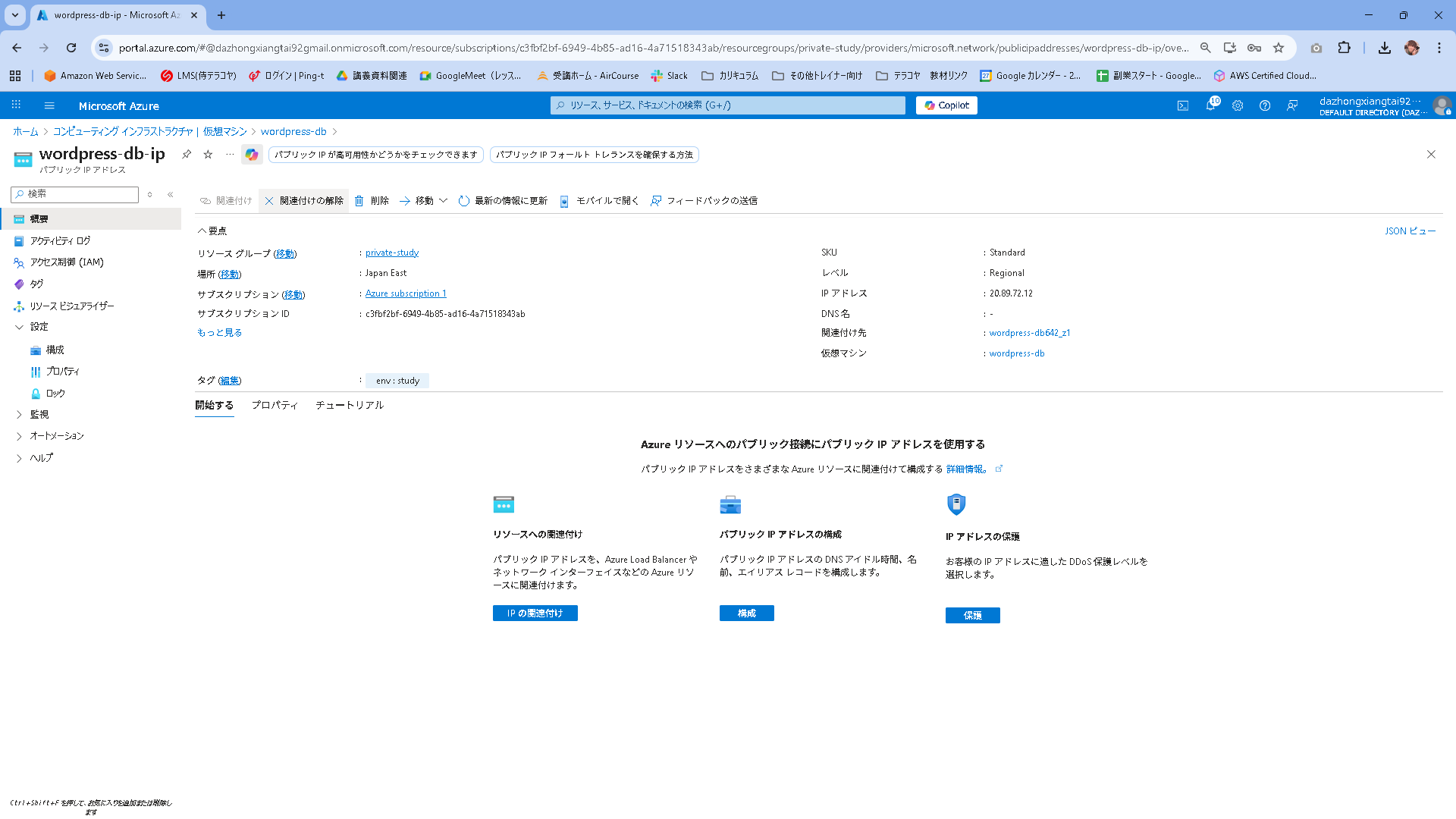
VMの概要からパブリックIPのリンクを押下します。

概容から関連付けの解除を押下します。
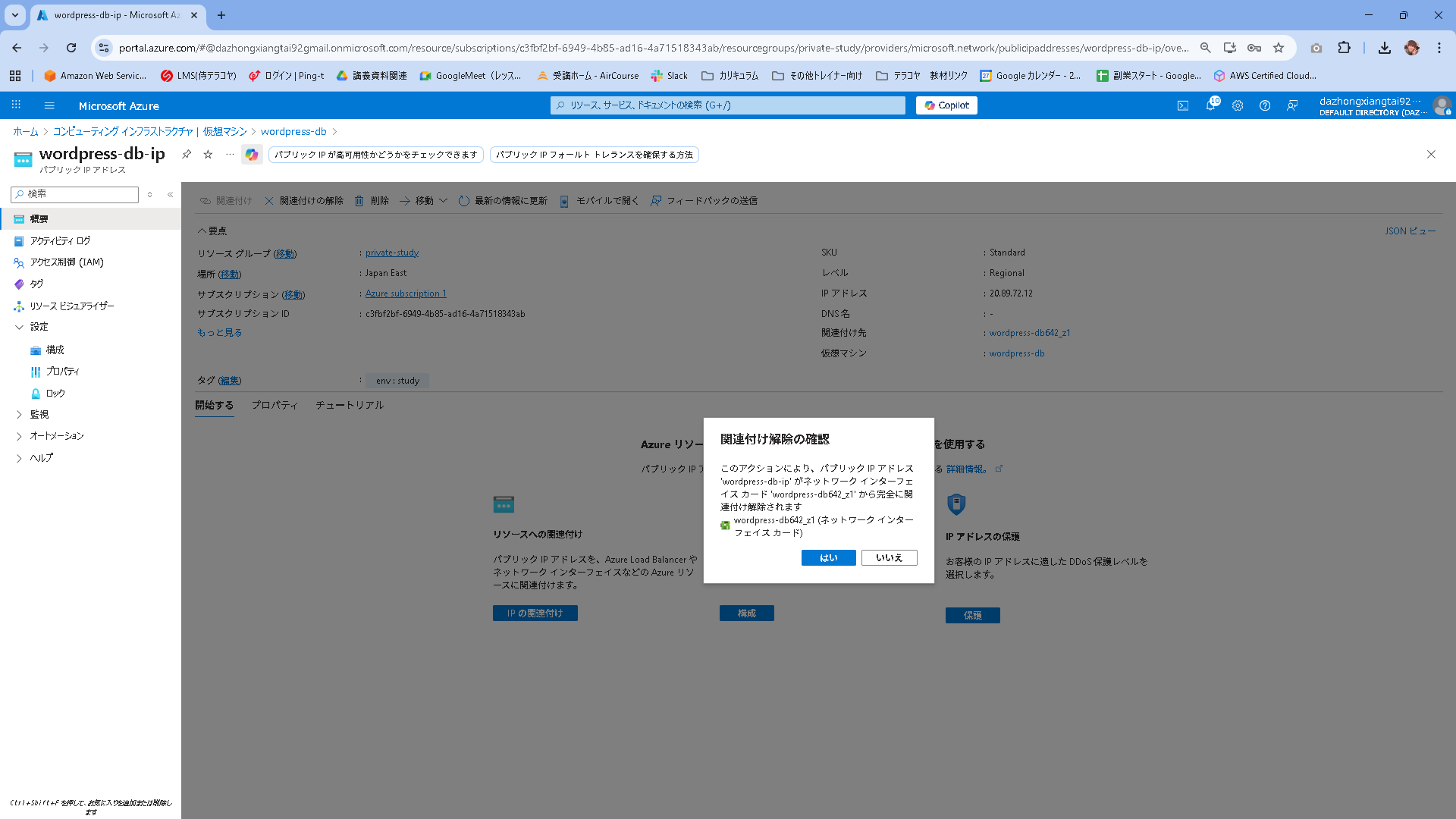
はいを押下します。
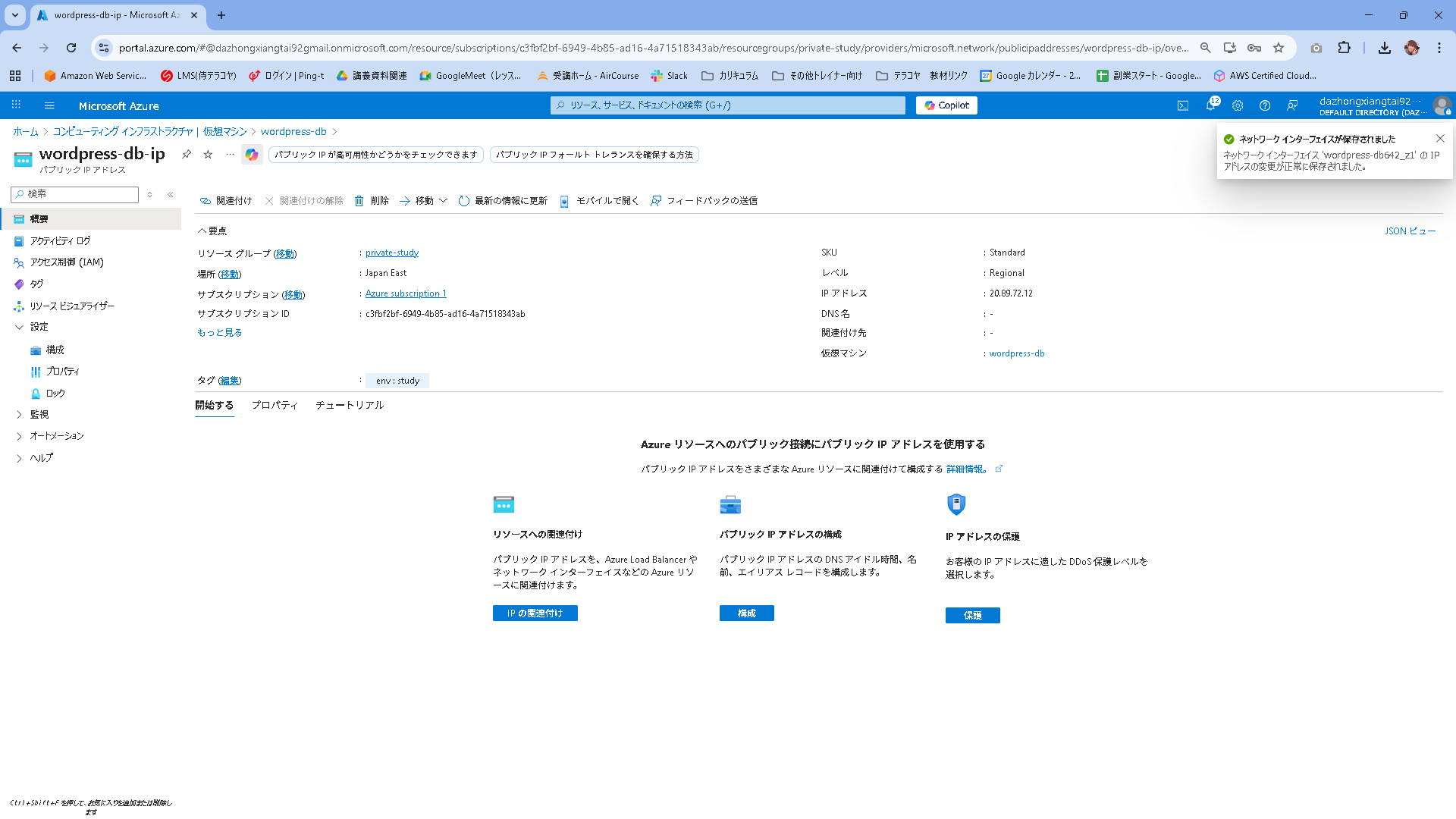
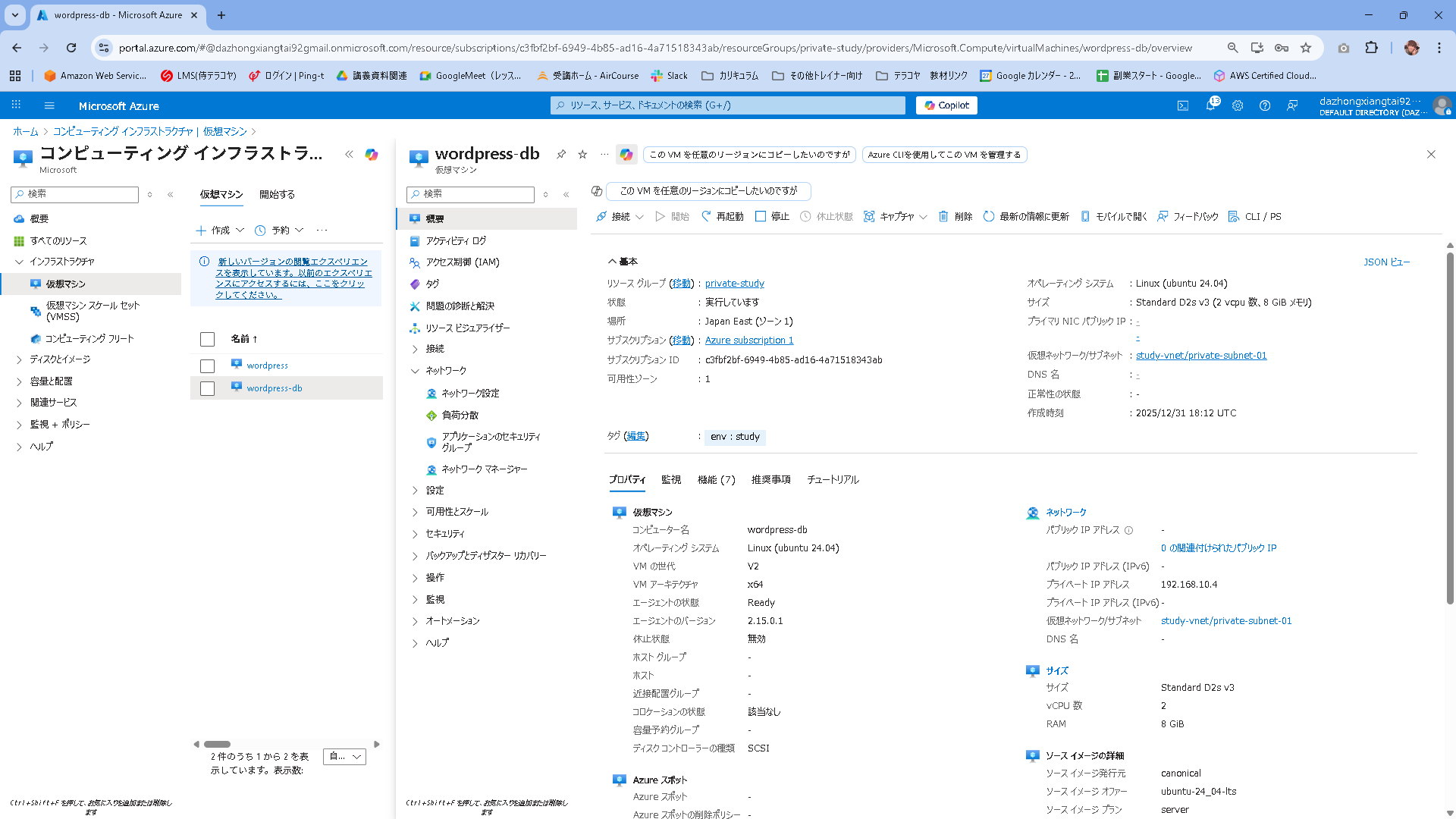
解除できたことを確認します。このままだとお金が掛かるので、そのまま削除します。

VMからパブリックIPが消えていることを確認します。
Webサーバの構築に戻ります。
root@wordpress:~# cp -p /etc/apache2/sites-available/000-default.conf /etc/apache2/sites-available/000-default.conf.org
root@wordpress:~# vi /etc/apache2/sites-available/000-default.conf
root@wordpress:~# cat /etc/apache2/sites-available/000-default.conf
<VirtualHost *:80>
        # The ServerName directive sets the request scheme, hostname and port that
        # the server uses to identify itself. This is used when creating
        # redirection URLs. In the context of virtual hosts, the ServerName
        # specifies what hostname must appear in the request's Host: header to
        # match this virtual host. For the default virtual host (this file) this
        # value is not decisive as it is used as a last resort host regardless.
        # However, you must set it for any further virtual host explicitly.
        #ServerName www.example.com

        ServerAdmin webmaster@localhost
        DocumentRoot /var/www/html
        <Directory /var/www/html>
            AllowOverride All
        </Directory>

root@wordpress:~# a2enmod rewrite
Enabling module rewrite.
To activate the new configuration, you need to run:
  systemctl restart apache2
root@wordpress:~# systemctl restart apache2
root@wordpress:~# systemctl enable apache2

root@wordpress:~# cd /tmp
root@wordpress:/tmp# wget https://ja.wordpress.org/latest-ja.tar.gz
root@wordpress:/tmp# tar -xzvf latest-ja.tar.gz
root@wordpress:/tmp# rm -rf /var/www/html/*
root@wordpress:/tmp# mv wordpress/* /var/www/html/
root@wordpress:/tmp# chown -R www-data:www-data /var/www/html/

root@wordpress:/tmp# cp /var/www/html/wp-config-sample.php /var/www/html/wp-config.php
root@wordpress:/tmp# vi /var/www/html/wp-config.php
root@wordpress:/tmp# cat /var/www/html/wp-config.php

// ** Database settings - You can get this info from your web host ** //
/** The name of the database for WordPress */
define( 'DB_NAME', 'wordpress' );

/** Database username */
define( 'DB_USER', 'wpuser' );

/** Database password */
define( 'DB_PASSWORD', 'P@ssw0rd12345' );

/** Database hostname */
define( 'DB_HOST', '192.168.10.4' );
動作確認
http://WebサーバのパブリックIPに対してWebブラウジング
設定内容を指定してWordpressをインストールを実行
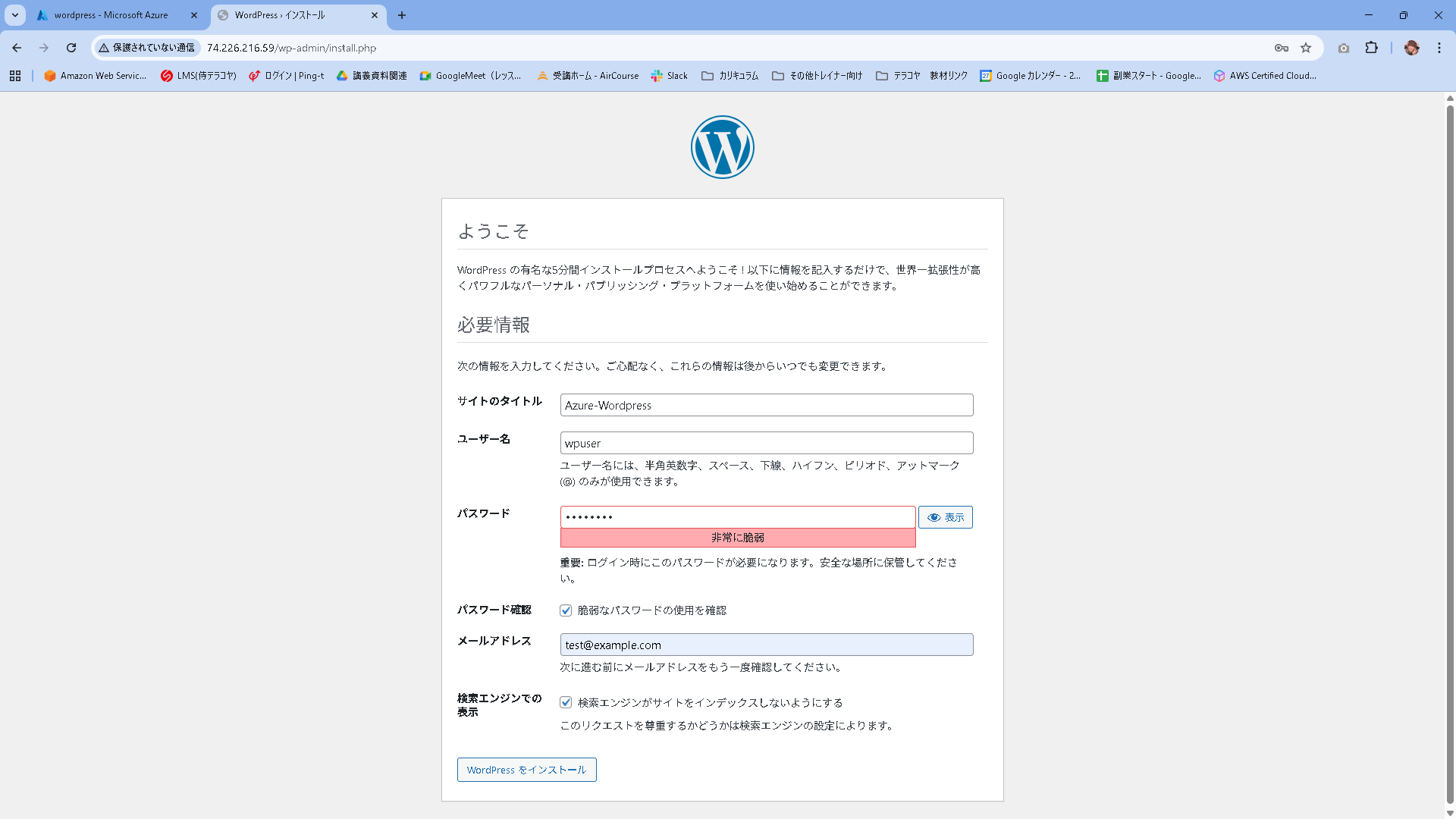
正常に作成が出来ると以下のようになります。
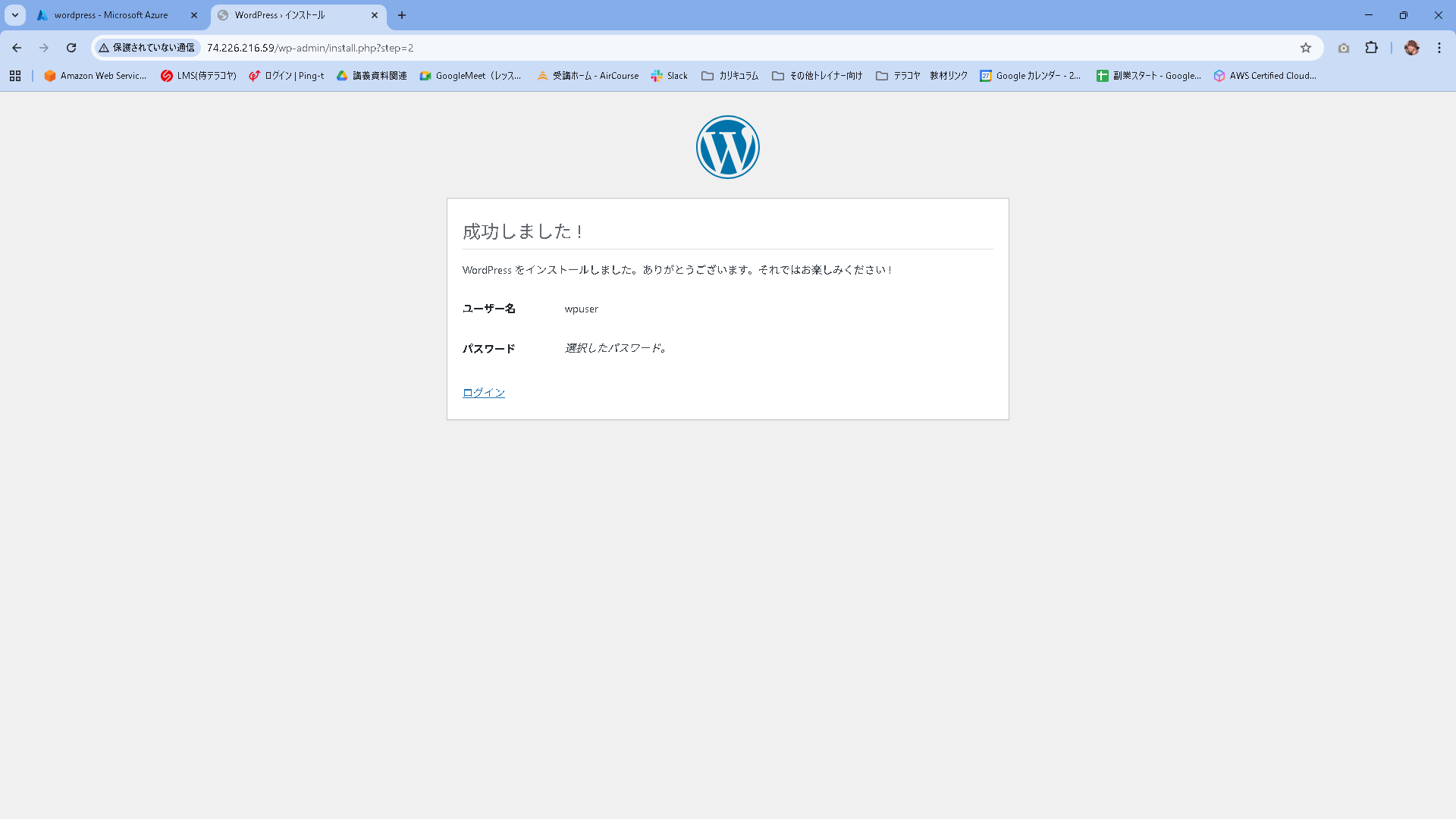
管理画面にアクセスできることを確認します。

ホーム画面も問題なく表示されることを確認します。
下記はWordpressのテーマを適当に弄った図
