
WinUI3を学びたく、練習として簡単な電卓を作ってみることにしました。
今回はデータバインドを行います。
C#とxamlに関しても初心者ですのでお手柔らかにお願いします。
前回の記録
今回やりたいこと
数字と四則演算子、カッコのボタンを押下した際、Inputエリアに入力した文字を表示させます。
ただし、今回は数式として成り立たない2 + + * 1のような式の解析はしません。
あくまで入力した文字をInputエリアに反映させるだけです。
データバインドさせるViewModelを作成する
プロジェクトにViewModelフォルダを作成し、その中にInputViewModel.csを作成しました。
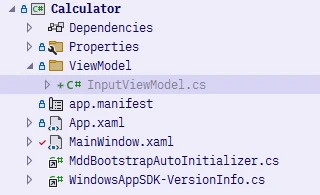
InputViewModelの中身はシンプルにstring型のFormulaプロパティ、つまり式を格納するプロパティを用意します。
namespace Calculator.ViewModel;

public class InputViewModel()
{
    public string Formula { get; set; } = string.Empty;
}
MainWindow.xaml.csにこのViewModelを初期化する処理を追加します。
namespace Calculator;

public sealed partial class MainWindow : Window
{
+   public InputViewModel InputViewModel { get; set; }

    public MainWindow()
    {
        this.InitializeComponent();

        // ウィンドウのサイズを変更します。
        // SizeInt32(Width, Height)
        SizeInt32 size = new (350, 550);
        AppWindow.Resize(size);

        // ウィンドウをリサイズしないようにします。
        OverlappedPresenter? presenter = AppWindow.Presenter as OverlappedPresenter;
        if (presenter != null)
        {
            presenter.IsResizable = false;
        }

        // ViewModelを初期化します。
+       InputViewModel = new InputViewModel();
    }
}
MainWindow.xamlの入力情報表示エリアにこのモデルをバインドします。
{x:Bind ...}の個所がそれです。
<!-- 入力情報表示領域 -->
-   <TextBox Text="" FontSize="32"
+   <TextBox Text="{x:Bind InputViewModel.Formula}" FontSize="32"
             TextAlignment="Right" IsReadOnly="True"
             Grid.Row="1" Grid.ColumnSpan="3" Margin="1" />
次にボタンのクリック処理を加えます。
数字と四則演算子、カッコは同じイベントを発生させます。
まずはMainWindow.xaml.csにイベントの処理を追加します。
namespace Calculator;

public sealed partial class MainWindow : Window
{
               // 省略

+   /// <summary>
+   /// 数字ボタンと四則演算子ボタン、カッコボタンを押下した際の処理です。
+   /// 入力データを入力領域に追記します。
+   /// </summary>
+   /// <param name="sender"></param>
+   /// <param name="e"></param>
+   private void Button_Click(object sender, RoutedEventArgs e)
+   {
+       // ボタンのContentを取得し、InputViewModel.Formulaに追記します。
+       var content = ((Button)sender).Content;
+
+       InputViewModel.Formula += content.ToString() ?? string.Empty;
+   }
}
各ボタンにイベントを登録します。
Click="Button_Click"を対象ボタンに追記します。
xamlコード
<?xml version="1.0" encoding="utf-8"?>
<Window
    x:Class="Calculator.MainWindow"
    xmlns="http://schemas.microsoft.com/winfx/2006/xaml/presentation"
    xmlns:x="http://schemas.microsoft.com/winfx/2006/xaml"
    xmlns:local="using:Calculator"
    xmlns:d="http://schemas.microsoft.com/expression/blend/2008"
    xmlns:mc="http://schemas.openxmlformats.org/markup-compatibility/2006"
    mc:Ignorable="d"
    Title="超簡易電卓">

    <Grid Width="300" Height="500">
        <!-- 4x7のグリッド -->
        <Grid.ColumnDefinitions>
            <ColumnDefinition Width="*" />
            <ColumnDefinition Width="*" />
            <ColumnDefinition Width="*" />
            <ColumnDefinition Width="*" />
        </Grid.ColumnDefinitions>
        <Grid.RowDefinitions>
            <RowDefinition Height="*" />
            <RowDefinition Height="*" />
            <RowDefinition Height="*" />
            <RowDefinition Height="*" />
            <RowDefinition Height="*" />
            <RowDefinition Height="*" />
            <RowDefinition Height="*" />
        </Grid.RowDefinitions>

        <!-- 結果表示領域 -->
        <TextBox Text="" FontSize="32"
                 TextAlignment="End" IsReadOnly="True"
                 Grid.ColumnSpan="4" Margin="1" />
        <TextBlock Text="Result" Foreground="Gray"
                   VerticalAlignment="Bottom"
                   Grid.Row="0" Margin="10" />

        <!-- 入力情報表示領域 -->
        <TextBox Text="{x:Bind InputViewModel.Formula}" FontSize="32"
                 TextAlignment="Right" IsReadOnly="True"
                 Grid.Row="1" Grid.ColumnSpan="3" Margin="1" />
        <TextBlock Text="Input" Foreground="Gray"
                   VerticalAlignment="Bottom"
                   Grid.Row="1" Margin="10" />

        <Button Content="C" FontSize="32"
                Width="70" Height="70"
                Grid.Row="1" Grid.Column="3" Margin="1" />

        <!-- 一段目 -->
        <Button Content="Bs" FontSize="32"
                Width="70" Height="70"
                Grid.Row="2" Grid.Column="0" Margin="1" />
        <Button Content="(" FontSize="32"
                Click="Button_Click"
                Width="70" Height="70"
                Grid.Row="2" Grid.Column="1" Margin="1" />
        <Button Content=")" FontSize="32"
                Click="Button_Click"
                Width="70" Height="70"
                Grid.Row="2" Grid.Column="2" Margin="1" />
        <Button Content="÷" FontSize="32"
                Click="Button_Click"
                Width="70" Height="70"
                Grid.Row="2" Grid.Column="3" Margin="1" />

        <!-- 二段目 -->
        <Button Content="7" FontSize="32"
                Click="Button_Click"
                Width="70" Height="70"
                Grid.Row="3" Grid.Column="0" Margin="1" />
        <Button Content="8" FontSize="32"
                Click="Button_Click"
                Width="70" Height="70"
                Grid.Row="3" Grid.Column="1" Margin="1" />
        <Button Content="9" FontSize="32"
                Click="Button_Click"
                Width="70" Height="70"
                Grid.Row="3" Grid.Column="2" Margin="1" />
        <Button Content="×" FontSize="32"
                Click="Button_Click"
                Width="70" Height="70"
                Grid.Row="3" Grid.Column="3" Margin="1" />

        <!-- 三段目 -->
        <Button Content="4" FontSize="32"
                Click="Button_Click"
                Width="70" Height="70"
                Grid.Row="4" Grid.Column="0" Margin="1" />
        <Button Content="5" FontSize="32"
                Click="Button_Click"
                Width="70" Height="70"
                Grid.Row="4" Grid.Column="1" Margin="1" />
        <Button Content="6" FontSize="32"
                Click="Button_Click"
                Width="70" Height="70"
                Grid.Row="4" Grid.Column="2" Margin="1" />
        <Button Content="ー" FontSize="32"
                Click="Button_Click"
                Width="70" Height="70"
                Grid.Row="4" Grid.Column="3" Margin="1" />

        <!-- 四段目 -->
        <Button Content="1" FontSize="32"
                Click="Button_Click"
                Width="70" Height="70"
                Grid.Row="5" Grid.Column="0" Margin="1" />
        <Button Content="2" FontSize="32"
                Click="Button_Click"
                Width="70" Height="70"
                Grid.Row="5" Grid.Column="1" Margin="1" />
        <Button Content="3" FontSize="32"
                Click="Button_Click"
                Width="70" Height="70"
                Grid.Row="5" Grid.Column="2" Margin="1" />
        <Button Content="+" FontSize="32"
                Click="Button_Click"
                Width="70" Height="70"
                Grid.Row="5" Grid.Column="3" Margin="1" />

        <!-- 五段目 -->
        <Button Content="0" FontSize="32"
                Click="Button_Click"
                Width="145" Height="70"
                Grid.Row="6" Grid.Column="0" Grid.ColumnSpan="2" Margin="1" />
        <Button Content="." FontSize="32"
                Click="Button_Click"
                Width="70" Height="70"
                Grid.Row="6" Grid.Column="2" Margin="1" />
        <Button Content="=" FontSize="32"
                Width="70" Height="70"
                Grid.Row="6" Grid.Column="3" Margin="1" />
    </Grid>
</Window>
実行してみる
実装したところで早速動かしてみましたが、なんと動きませんでした。
ボタンを押下しても何も変わりません。
バインドがうまくいってないのか確認のため、ViewModelに初期値を設定してみました。
string.Emptyを"0.0000"に修正しています。
namespace Calculator.ViewModel;

public class InputViewModel()
{
    public string Formula { get; set; } = "0.0000";
}
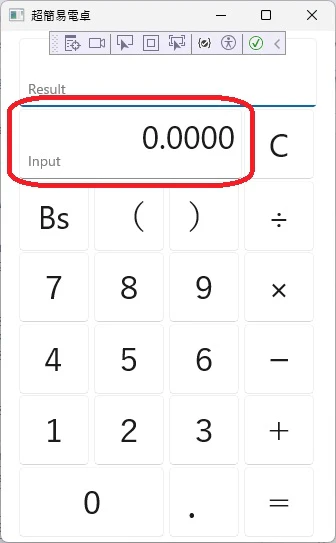
すると修正した内容が表示されました。
バインドは出来ている模様です。
そうなるとボタンのContentがFormulaに設定されていない可能性が考えられます。
以下にブレークポイントを置いてプロパティの中身を見てみました。
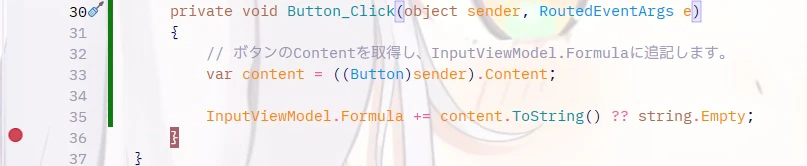
7のボタンを押下したところ、ちゃんとContentの値がFormulaに設定されていることが確認できました。

このことからバインド設定したテキストボックスに更新が反映されていない事がわかります。
更新を反映させるために
まだ詳しい仕組みを理解しきれていませんが、InotifyPropertyChangedを継承することで解決できました。
コードは以下の通りです。
using System.ComponentModel;
using System.Runtime.CompilerServices;

namespace Calculator.ViewModel;

public class InputViewModel : INotifyPropertyChanged
{
    public event PropertyChangedEventHandler? PropertyChanged = delegate { };

    private string _formula = string.Empty;
    public string Formula
    {
        get { return _formula; }
        set
        {
            _formula = value;
            OnPropertyChanged();
        }
    }

    public void OnPropertyChanged([CallerMemberName] string? propertyName = null)
    {
        PropertyChanged?.Invoke(this, new PropertyChangedEventArgs(propertyName));
    }
}
PropertyChangedEventHandler.Invokeが何かうまいことやっているのでしょうね。
値を設定した後に呼び出すことで反映されました。
ここら辺の仕組みについては直ぐに理解できそうな雰囲気ではなかったので、もっとレベルが上がってからチャレンジしていきたいです。
反映されたといいましたが、もう一点、xaml側でも追記の設定必要でした。
x:BindにMode=OneWayを加える必要がありました。
<!-- 入力情報表示領域 -->
-    <TextBox Text="{x:Bind InputViewModel.Formula}" FontSize="32"
+    <TextBox Text="{x:Bind InputViewModel.Formula, Mode=OneWay}" FontSize="32"
              TextAlignment="Right" IsReadOnly="True"
              Grid.Row="1" Grid.ColumnSpan="3" Margin="1" />
このオプションを指定することで変更を検知できるようになるようです。
ちなみにこのオプションはTwoWayというのもありまして、こちらを指定しても動作します。
OneWayはコードビハインド側と一方通行(コードビハインド側から値が渡ってくるだけ)で、TwoWayは双方向となるようです。
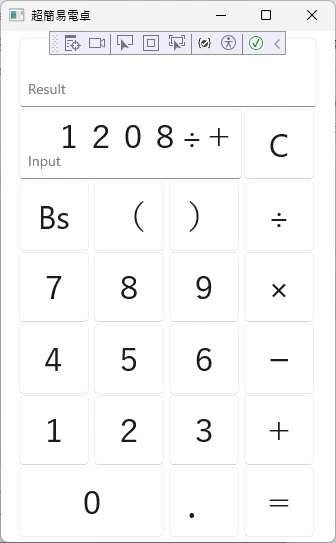
動作結果をみて
取り合えず文字が大きいので調整したいですね。
出来ることならばWindowsのCalcみたいに文字の数に応じてサイズが動的に変わると格好良いです。
次回はクリアボタンやイコールボタンでの結果表示などに取り掛かりたいです。
結果表示といってもまだ実際に計算はしませんが……。
次の記事