
はじめに
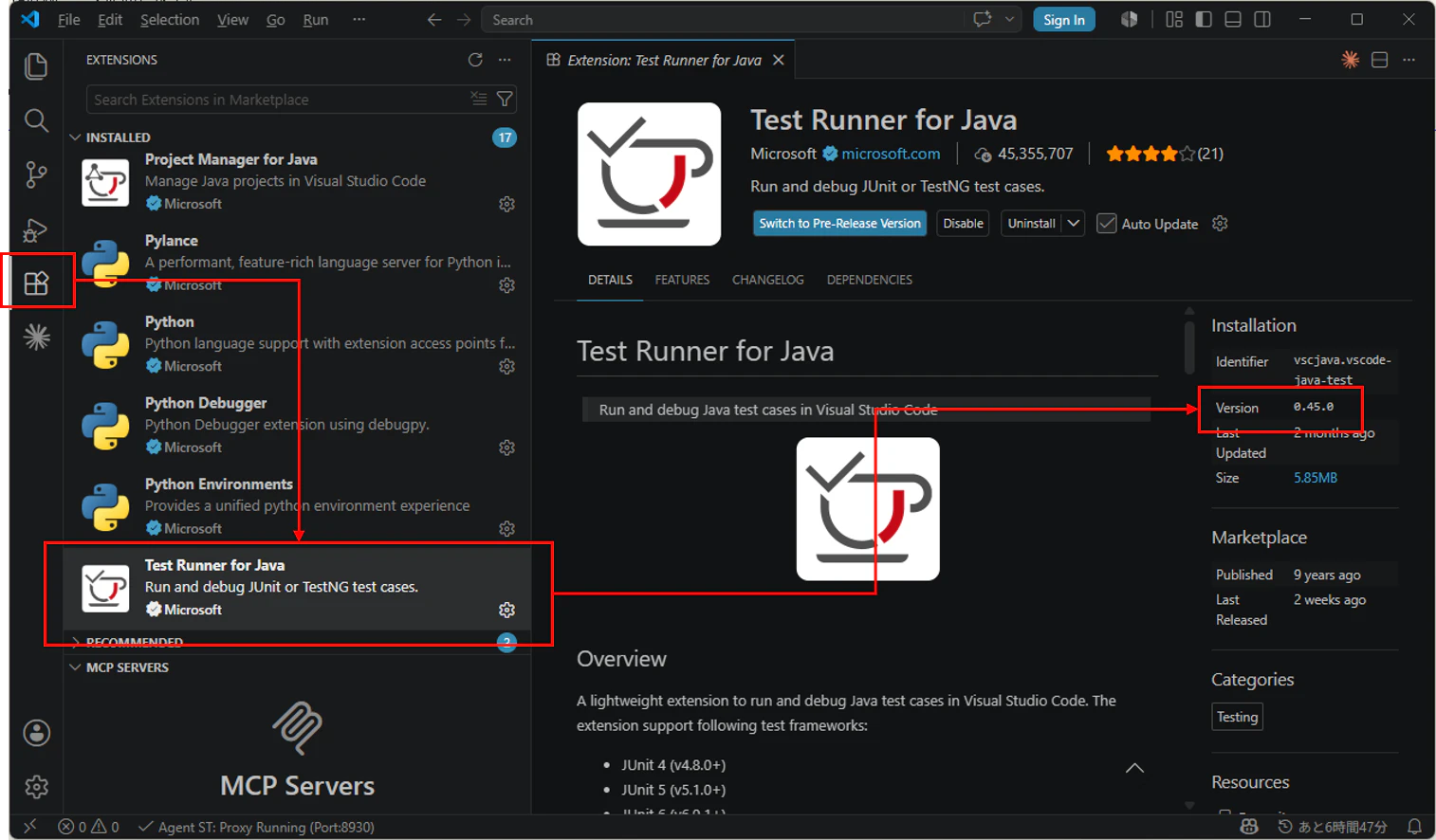
VSCode(Visual Studio Code)の拡張機能のバージョンは、画面左側の「拡張機能」アイコンから確認したい拡張機能を選択することで簡単に確認できます。
確認方法は、主に以下の2通りがあります。
1. 画面(GUI)で確認する
- VSCodeの左端にある「拡張機能」アイコン(四角いブロックが4つ並んだマーク)をクリックします。
- ショートカットキー:
Ctrl + Shift + X
- ショートカットキー:
- 「インストール済み(INSTALLED)」の一覧から、バージョンを知りたい拡張機能をクリックします。
- 画面中央(または右側)に詳細ページが開きます。
- 拡張機能名タイトルのすぐ下(または右側)に、
v1.2.3のように現在のバージョンが表示されます。
2. ターミナル(コマンド)で一括確認する
インストールしているすべての拡張機能と、それぞれのバージョンを一覧で確認したい場合は、ターミナルで以下のコマンドを実行します。
code --list-extensions --show-versions
実行結果の例:
ms-azuretools.vscode-docker@1.29.0
ms-python.python@2026.0.0
octref.vetur@0.37.3
@ の後ろの数字がそれぞれのバージョンです。
動作環境
- Visual Studio Code 1.126.0