3
0

Delete article

Deleted articles cannot be recovered.

Draft of this article would be also deleted.

Are you sure you want to delete this article?

Visual Studio Codeの手動アップデート手順

3
Posted at

はじめに

Visual Studio Code(以下、VS Code)は通常、自動でアップデートされますが、環境や状況によっては手動でアップデートする必要があります。
本記事では、VS Codeを手動でアップデートする手順をご紹介します。

アップデート手順

① メニューから [Help] → [Install Update...] を選択します。
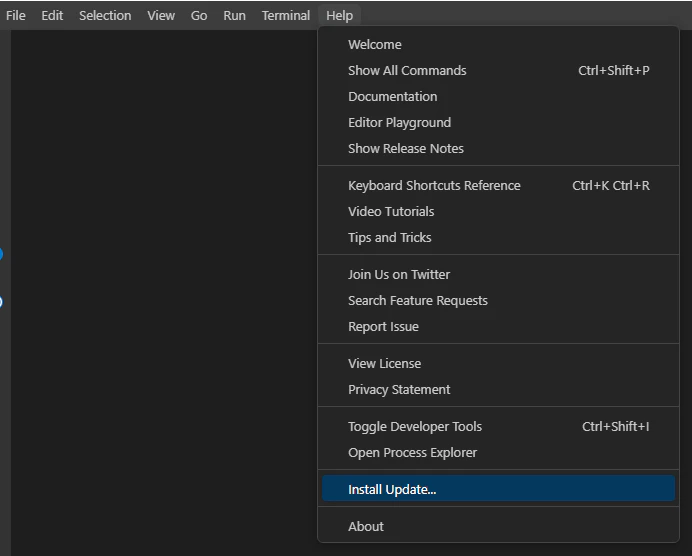
image.png

② バックグラウンドでアップデートが開始されるので、しばらく待ちます。

③ アップデートが完了すると、VS Codeの再起動を促すポップアップが表示されます。
[Update Now] をクリックすると、VS Codeが再起動され、アップデートが適用されます。

image.png

環境

Version: 1.104.3 (system setup)
Commit: 385651c938df8a906869babee516bffd0ddb9829
Date: 2025-10-02T12:30:51.747Z
Electron: 37.3.1
ElectronBuildId: 12404162
Chromium: 138.0.7204.235
Node.js: 22.18.0
V8: 13.8.258.31-electron.0
OS: Windows_NT x64 10.0.17763
3
0
0

Register as a new user and use Qiita more conveniently

  1. You get articles that match your needs
  2. You can efficiently read back useful information
  3. You can use dark theme
What you can do with signing up
3
0

Delete article

Deleted articles cannot be recovered.

Draft of this article would be also deleted.

Are you sure you want to delete this article?