

はじめに
ネットで色々調べていたらUsing Formatters with the Next Experience Form ComponentでWorkspaceでもUI Formatterが使えるみたいなので試してみました。
PDI環境
試したPDI環境はこんな感じです。
Version: Australia
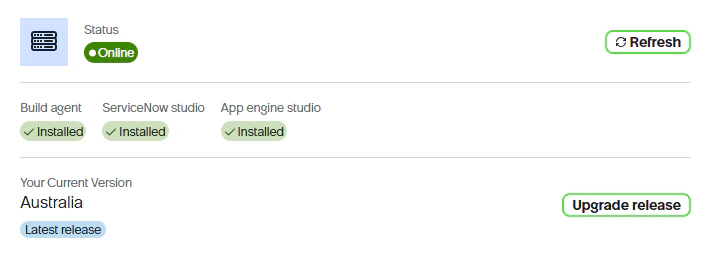
ようやくAustraliaにあげた
UI Formatterの検証
適当にワークスペースとテーブル(Task継承)を作って、UI Formatterを試します。
適当にUI Formatterを作成します。

本来ならこのフォーマッターが利用できればよいのですが、Next Experienceではサポートされておらず、配置しても下記のメッセージが表示されます。
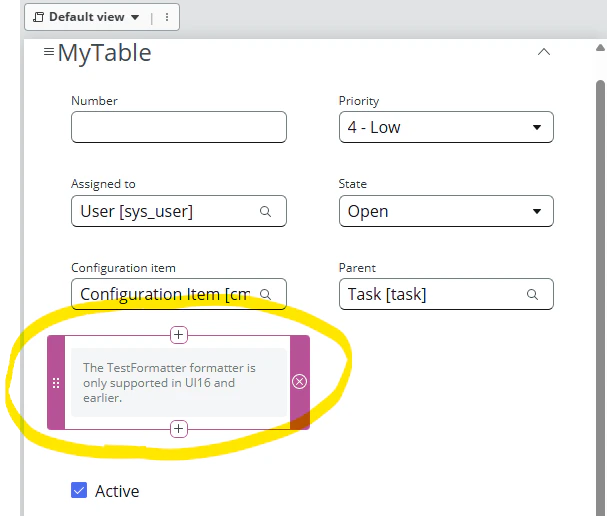
これがNext Experience CLIの自作コンポーネントだと利用できるようになるとか?
環境作成 & 検証
https://github.com/ServiceNow/servicenow-cli/releases/tag/v1.1.3
インストーラーをダウンロードして実行します。


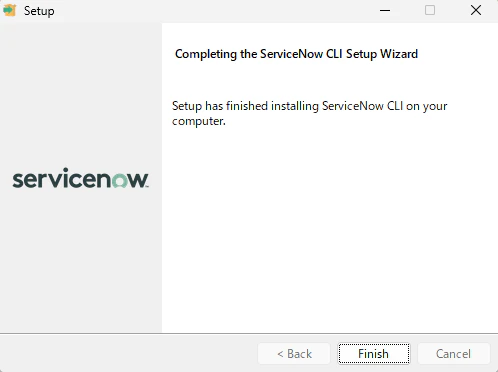
適当なフォルダを作成して、sncコマンドを実行していきます。
> Host: https://dev288815.service-now.com/
> Login method: Basic
> Username: admin
> Password: ************
> Default output format: JSON
Connection to https://dev288815.service-now.com successful.
This instance does not support dynamic commands. Functionality will be limited.
Profile default has been saved
sncにui-componentをaddします。
PS C:\Users\ymorn\Desktop\snow-cli> snc extension add --name ui-component

PS C:\Users\ymorn\Desktop\snow-cli> snc ui-component --help

Usage: <cmd> [args]
For help, run: '<cmd> --help'

Commands:
  deploy               Deploy your component to the instance       [aliases: gd]
  develop              Run component in local development environment.
                                                                  [aliases: dev]
  generate-update-set  Generates update-set XML for the component
                                               [aliases: gus, generateUpdateSet]
  project              Creates and scaffolds a new project with all necessary
                       files to start development.             [aliases: create]
  capture-metrics      Allows users to disable or enable the collection of usage
                       metrics from the CLI.  [aliases: metrics, captureMetrics]

Options:
  --version  Show version number                                       [boolean]
  --help     Show help                                                 [boolean]

For more information, please visit https://developer.servicenow.com/dev.do#!/ref
erence/next-experience/latest/cli/getting-started.

$ snc ui-component create --name @myorg/hello-world --scope <指定スコープ名>
プロジェクトを作成すると以下のファイル群が作られるようです。
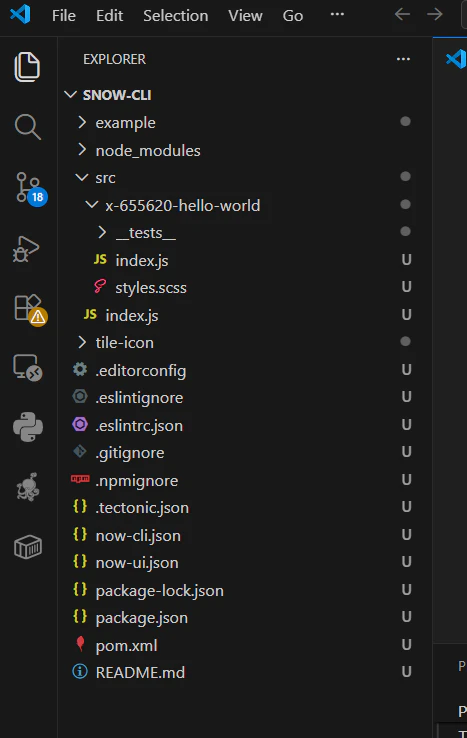
次にインスタンスに反映できるかデプロイを実行してみます。
PS C:\Users\ymorn\Desktop\snow-cli> snc ui-component deploy
10% building 0/1 entries 0/0 dependencies 0/0 modules 0 active(node:10972) [DEP_WEBPACK_COMPILATION_NORMAL_MODULE_LOADER_HOOK] DeprecationWarning: Compilation.hooks.normalModuleLoader was moved to NormalModule.getCompilationHooks(compilation).loader
(Use `node --trace-deprecation ...` to show where the warning was created)
94% sealing after sealThere are no TOML files to parse.
95% emitting emit EmitAssets(node:10972) [DEP_WEBPACK_COMPILATION_ASSETS] DeprecationWarning: Compilation.assets will be frozen in future, all modifications are deprecated.
BREAKING CHANGE: No more changes should happen to Compilation.assets after sealing the Compilation.
        Do changes to assets earlier, e. g. in Compilation.hooks.processAssets.
        Make sure to select an appropriate stage from Compilation.PROCESS_ASSETS_STAGE_*.
Deploying component to https://dev288815.service-now.com...
Found existing scope, x_655620_uibuild_0
Creating 80820e5837949a96f8c5a56a80afe7d1 in sys_ux_lib_asset
Creating 051a78223f7c2ee08de5d58569d17062 in sys_ux_lib_asset
Creating x-655620-hello-world (cca81ee9c92ee34e3b38402543917cd5) in sys_ux_lib_component
Creating My Component (66c8449661100e2d25a24f6480a27522) in sys_ux_macroponent
Creating My Component (34a83badbd69b7ce2f3ba358034b468e) in sys_uib_toolbox_component
Creating 794949987d170ac004bdbc141eccd912 in sys_ux_lib_component_m2m_asset
Creating sn_tile_icon/x-655620-hello-world.svg (d7d1b6039cb9c2667c4347180b449f61) in db_image
Uploading attachment, sn_tile_icon/x-655620-hello-world.svg
Finished deploying!
リソースは何らか配置されていました。
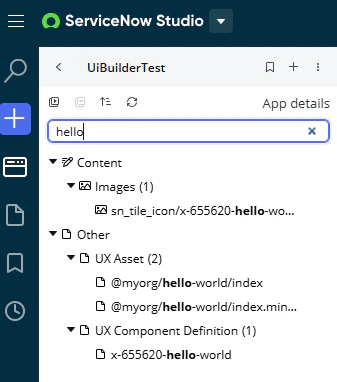
これは何故かフォーマッターで選択できなかったので、記事のようにコードを修正します。
import {createCustomElement} from '@servicenow/ui-core';
import snabbdom from '@servicenow/ui-renderer-snabbdom';
import styles from './styles.scss';

+ const view = (state, {updateState}) => {

+     const properties = state.properties;

+     if (properties.fields.short_description.displayValue !== '') {
+         return (
+             <div>The <b>Short Description</b> field is set to <em>{properties.fields.short_description.displayValue}</em></div>
+         );
+     } else {
+         return (
+             <div>The <b>Short Description</b> field does not have a value.</div>
+         );
+     }
+ };

createCustomElement('x-655620-hello-world', {
	renderer: {type: snabbdom},
+ 	properties: {
+         table: {
+             default: ""
+         },
+         sysId: {
+             default: ""
+         },
+         fields: {
+             default: ""
+         },
+         sections: {
+             default: ""
+         },
+         relatedLists: {
+             default: ""
+         },
+         isNewRecord: {
+             default: ""
+         },
+         isReadOnly: {
+             default: ""
+         },
+         view: {
+             default: ""
+         },
+         componentId: {
+             default: ""
+         }
+     },
	view,
	styles
});
{
  "components": {
    "<コンポーネント名>": {
      "innerComponents": [],
      "uiBuilder": {
        "associatedTypes": [
          "global.core",
          "global.landing-page"
        ],
        "label": "My Component",
        "tileIcon": "./tile-icon/generic-tile-icon.svg",
        "description": "A description of my component",
        "category": "primitives"
      }
    }
  },
  "<スコープ>"
}
これでsnc ui-component deployをしてみます。

リソースが更新され、UI FormattterのSeismic Componentで選択できるようになりました。

テーブルにこのフォーマッターを配置してみます。

ワークスペースで見てみると、記事通りに動作する事が確認できました。

おわりに
一応、UI Formatterを自作すればWorkspaceでも使える事はわかりました。
そもそもUI FormatterとかUI Macroとかを使った事がないのでいまひとつピンときていないのと、ServiceNow CLIも記事通りに動かしただけでツールとして無学習状態なのであまり利用用途が思い浮かびませんでした。
ServiceNow CLI自体も情報量がやはり少なく、わざわざこの方法でコンポーネントを作るのは今の自分の選択肢としてはなさそうかなという感じですが、どなたかの参考になれば幸いです。
参考URL
Using Formatters with the Next Experience Form Component
cli/getting-started
UI Formatters are not working in SOW
没記事
WSLやdockerコンテナでやろうとしましたが色々面倒くさくてやめました
まずは環境から準備します。
Node:version v22
npm:version v8.5.5が必要みたいです。
Windows環境汚したくないので、WSL環境で試してみます。
WSLCも試してみたいですねぇ。
Githubの方は古いのかわからないですが、まずはservicenow cliをダウンロードします。
https://github.com/ServiceNow/servicenow-cli/releases/tag/v1.1.3
cd <適当なパス>/servicenow-cli

curl -L -o snc-1.1.3.zip https://github.com/ServiceNow/servicenow-cli/releas
es/download/v1.1.3/snc-1.1.3.zip

apt-get update
apt-get install -y unzip
unzip snc-1.1.3.zip

# まあ、ちょっとversion違いますが大丈夫でしょう
$ node -v
v24.11.1
$ npm -v
11.6.2

# 実行権限を付与して、インストール
$ chmod +x snc-1.1.3-linux-x64-installer.run
$ ./snc-1.1.3-linux-x64-installer.run
> 適当に進めていく
これでsncコマンドが使えると思いきや、sncコマンド通っていないので、パスを通します。本来はインストール時にPATHを通すところでyにしているのですが、なぜか通ってなかったみたいです。
$ export PATH="$PATH:<インストールパス>/ServiceNow CLI/bin"

# これでsncコマンドが使えるようになりました
$ snc --help

Name
  snc

Description
  The ServiceNow Command Line Interface (CLI) is an extensible framework that enables users to communicate with an instance from any client machine using the command line.
sncの設定をします。
# sncの設定
$ snc configure profile set
Host: https://<instanceid>.service-now.com
Login method: Basic
Username: admin
✔ Password: ************█
Default output format: JSON
✔ Connection to https://dev288815.service-now.com successful.
✗ This instance does not support dynamic commands. Functionality will be limited.
Profile default has been saved
Error saving credentials, exec: "dbus-launch": executable file not found in $PATH
======================================================
検証
まずは環境から準備します。
Node:version v22
npm:version v8.5.5が必要みたいです。
Windows環境汚したくないので、WSL環境で試してみます。
WSLCも試してみたいですねぇ。
Githubの方は古いのかわからないですが、まずはservicenow cliをダウンロードします。
https://github.com/ServiceNow/servicenow-cli/releases/tag/v1.1.3
cd <適当なパス>/servicenow-cli

curl -L -o snc-1.1.3.zip https://github.com/ServiceNow/servicenow-cli/releas
es/download/v1.1.3/snc-1.1.3.zip

apt-get update
apt-get install -y unzip
unzip snc-1.1.3.zip
dockerコンテナを起動します
# dockerでnode起動
$ docker run -v <適当なパス>/servicenow-cli:/app -it --rm --entrypoint sh node
:22-slim

$ node -v
v22.23.1
$ npm -v
10.9.8
まあ、ちょっとversion違いますが大丈夫でしょう
# マウント位置まで移動
$ cd app
# 実行権限を付与して、インストール
$ chmod +x snc-1.1.3-linux-x64-installer.run
$ ./snc-1.1.3-linux-x64-installer.run

# servicenow cliのインストール
----------------------------------------------------------------------------
Welcome to the ServiceNow CLI Setup Wizard.

----------------------------------------------------------------------------
Please read the following License Agreement. You must accept the terms of this
agreement before continuing with the installation.

Press [Enter] to continue:
適当に進めていく
これでsncコマンドが使えると思いきや、sncコマンド通っていないので、パスを通します。本来はインストール時にPATHを通すところでyにしているのですが、コンテナだからか通ってなかったみたいです。
$ snc --help
> sh: 9: snc: not found

$ find /opt -name snc
/opt/ServiceNow CLI/bin/snc
$ echo $PATH
/usr/local/sbin:/usr/local/bin:/usr/sbin:/usr/bin:/sbin:/bin
export PATH="$PATH:/opt/ServiceNow CLI/bin"

# これでsncコマンドが使えるようになりました
$ snc --help

Name
  snc

Description
  The ServiceNow Command Line Interface (CLI) is an extensible framework that enables users to communicate with an instance from any client machine using the command line.
sncの設定をします。
# sncの設定
$ snc configure profile set
Host: https://<instanceid>.service-now.com
Login method: Basic
Username: admin
✔ Password: ************█
Default output format: JSON
✔ Connection to https://dev288815.service-now.com successful.
✗ This instance does not support dynamic commands. Functionality will be limited.
Profile default has been saved
Error saving credentials, exec: "dbus-launch": executable file not found in $PATH