
0. はじめに
この記事で分かること:
・簡単なSpringBootプロジェクトをDockerコンテナ化する方法
・MavenWrapperを使用してDockerコンテナ化する方法
想定読者:
・Docker使ってプロジェクトをコンテナ化してみたい!という初心者
前提:
・Java17を使用した,SpringBoot4のプロジェクトがLocal上にある
・Windowsを使用している
・DockerDesktopはインストール済みである
1. Maven Wrapper を準備
下記のコマンドをプロジェクトのルートディレクトリ(pom.xmlが置いてあるディレクトリ)で実行し,MavenWrapperが存在しているかをチェック
> .\mvnw.cmd -version
存在している場合,以下のような情報が出力される.
>.\mvnw.cmd -version
Apache Maven 3.9.12
Java version: 17.0.2
2. Spring Boot アプリを jar にビルド
下記のコマンドをプロジェクトのルートディレクトリで実行し,jarにビルドする.
.\mvnw.cmd clean package
以下が出力されればビルド成功.
[INFO] ------------------------------------------------------------------------
[INFO] BUILD SUCCESS
[INFO] ------------------------------------------------------------------------
[INFO] Total time:  23.635 s
[INFO] Finished at: 2026-01-01T14:45:37+09:00
[INFO] ------------------------------------------------------------------------
また,成功するとプロジェクトのルートディレクトリにtargetフォルダが作成され,そこに情報が保存されていることを確認できる.
3. Dockerfileを作成する
プロジェクトのルートディレクトリに以下のDockerfileを作成する.
# build stage
FROM eclipse-temurin:17-jdk-jammy AS builder

WORKDIR /workspace

# Maven Wrapperを含めてPJをコピー
COPY . .

# mvnwに実行権限付与
RUN chmod +x mvnw

# Maven Wrapperでビルド
RUN ./mvnw -B clean package -DskipTests

# Spring Boot のデフォルトポート
EXPOSE 8080

# このコンテナの本体コマンド(アプリ起動)
CMD ["java", "-jar", "app.jar"]
また,同じ階層に.dockerignoreも作成する.
target
.git
.gitignore
.vscode
.idea
mode_modules
4. コンテナイメージのビルドを実行する
ターミナルでプロジェクトのルートディレクトリに移動し,下記のコマンドを実行し,コンテナイメージのビルドを実行する.
docker build -t inventory-management-image:0.0 -f Dockerfile ./
以下が出力されればOK.
[+] Building 73.0s (10/10) FINISHED docker:desktop-linux
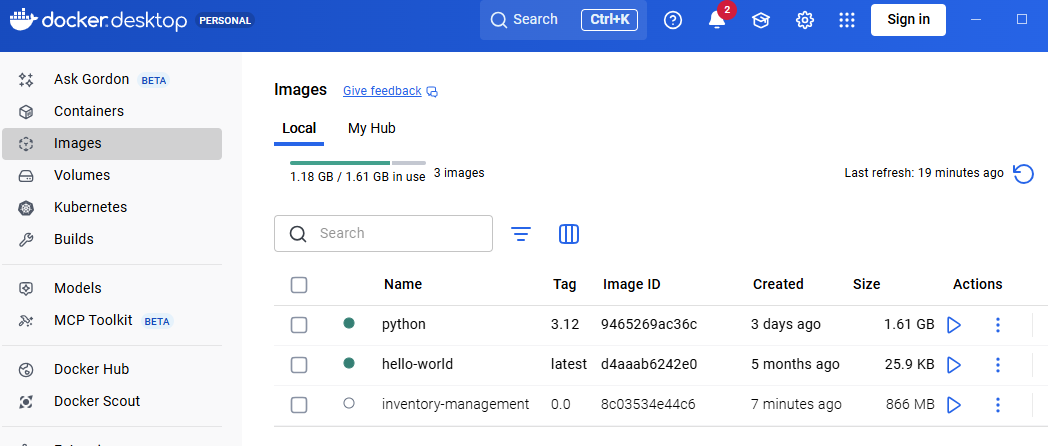
DockerDesktopのImagesを確認すると,コンテナイメージが作成されていることを確認できる(画像の一番下のコンテナイメージ).
5. コンテナを起動する
docker run --name inventory-management-container -p 8080:8080 inventory-management-image:0.0
--nameオプションで,コンテナの名前を指定することができる.今回はinventory-management-containerを設定した.
コマンド実行時にコンテナ起動のログが出力されるが,以下が表示されていればOK
2026-01-02T12:28:17.922Z INFO 1 --- [inventory-management] [ main] o.s.boot.tomcat.TomcatWebServer : Tomcat started on port 8080 (http) with context path '/'
2026-01-02 21:28:17 2026-01-02T12:28:17.962Z INFO 1 --- [inventory-management] [ main] c.e.i.InventoryManagementApplication : Started InventoryManagementApplication in 4.199 seconds (process running for 5.349)
localhostにアクセスすると,SpringBootプロジェクトが正常に動作していることが確認できる.
