
こんにちは、minaです。
最近は暖かくなってきたので、花粉症対策をしてなるべく外に出ないようにしてます。
今日は、修正前と修正後のファイルを比較して、ブラウザで見やすく表示してくれる「ファイル一括差分チェックツール」の使い方について、解説していこうと思います。
Mac環境でWinmergeみたいなツール使いたい、かつ大量のファイルの差分を確認して結果を一覧で確認したい!!ということでGeminiを使用してツールを作成してみました。
開発は初心者なのでAIに頼ってばっかりです
はじめに
複数比較ファイルがある場合、一つずつ比較ツールを開くのも大変なので、
今回は複数のファイルを一括でチェックして、HTML形式のレポートにまとめてくれるツールの手順を整理しました。
1. 事前準備
-
Pythonの確認
Pythonがインストールされていることを確認してください。標準ライブラリだけで動くので、新しく何かをインストールする必要はありません。
Pythonのバージョンを確認コマンドを実行してバージョンが表示され、確認できるとインストールされています。
$ python -V
Python 3.13.0
-
スクリプトの配置
下記実行用スクリプト(diff_tool.py)を、作業したいディレクトリに置いておきましょう。
import difflib
import os
import shutil
import csv
import sys

# ==========================================
# 設定エリア
# ==========================================
LIST_FILE = "filelist.txt"       # リストファイル名
OUTPUT_DIR = "diff_results"      # 結果保存フォルダ
# ==========================================

def read_file_smart(path):
    """
    ファイルを読み込む(エンコーディング自動判別)
    最終行の改行有無もチェックする
    """
    if not os.path.exists(path):
        return None, f"File not found"

    encodings = ['utf-8', 'cp932', 'shift_jis', 'latin-1']

    for enc in encodings:
        try:
            with open(path, 'r', encoding=enc) as f:
                lines = f.readlines()
                # 最終行の改行チェック(重要)
                if lines:
                    last_line = lines[-1]
                    if not last_line.endswith('\n'):
                        lines[-1] = last_line + " [EOF改行なし]"
                return lines, None
        except UnicodeDecodeError:
            continue
        except Exception as e:
            return None, str(e)

    return None, f"Encoding failed"

def create_index_html(results, output_dir):
    """目次(index.html)を作成する"""
    index_path = os.path.join(output_dir, "index.html")

    rows = ""
    for r in results:
        # 差分あり=赤, なし=緑
        if r['error']:
            status_style = "color:gray; font-weight:bold;"
            status_text = "エラー"
            row_style = "background-color: #f9f9f9;"
        elif r['has_diff']:
            status_style = "color:red; font-weight:bold;"
            status_text = "差分あり"
            row_style = "background-color: #fff0f0;" # 薄い赤背景
        else:
            status_style = "color:green; font-weight:bold;"
            status_text = "一致"
            row_style = ""

        # ファイル名(work-を含む右側のファイル名を表示用に使う)
        display_name = os.path.basename(r['path_right'])

        rows += f"""
        <tr style="{row_style}">
            <td style="{status_style}">{status_text}</td>
            <td><a href="{r['filename']}" target="_blank"><b>{display_name}</b> の結果を見る</a></td>
            <td style="font-size:0.8em; color:#555;">{os.path.basename(r['path_left'])}</td>
        </tr>
        """

    html = f"""
    <html>
    <head>
        <meta charset="utf-8">
        <title>差分レポート一覧</title>
        <style>
            body {{ font-family: "Helvetica Neue", Arial, sans-serif; padding: 20px; background: #fafafa; }}
            h1 {{ color: #333; }}
            table {{ border-collapse: collapse; width: 100%; background: #fff; box-shadow: 0 1px 3px rgba(0,0,0,0.1); }}
            th, td {{ border: 1px solid #ddd; padding: 12px; text-align: left; }}
            th {{ background-color: #007bff; color: white; }}
            tr:hover {{ background-color: #f1f1f1 !important; }}
            a {{ text-decoration: none; color: #0366d6; display: block; }}
            a:hover {{ text-decoration: underline; }}
        </style>
    </head>
    <body>
        <h1>一括差分レポート ({len(results)}件)</h1>
        <p>「work-」が付いているファイル(変更後)を右側として比較しています。</p>
        <table>
            <thead>
                <tr>
                    <th style="width:100px;">判定</th>
                    <th>詳細レポート</th>
                    <th>元ファイル名 (参考)</th>
                </tr>
            </thead>
            <tbody>
                {rows}
            </tbody>
        </table>
    </body>
    </html>
    """

    with open(index_path, 'w', encoding='utf-8') as f:
        f.write(html)
    return index_path

def main():
    print(f"--- 開始: {LIST_FILE} を読み込みます ---")

    if not os.path.exists(LIST_FILE):
        print(f"エラー: {LIST_FILE} が見つかりません。")
        return

    if os.path.exists(OUTPUT_DIR):
        shutil.rmtree(OUTPUT_DIR)
    os.makedirs(OUTPUT_DIR)

    differ = difflib.HtmlDiff()
    report_list = []

    with open(LIST_FILE, 'r', encoding='utf-8') as f:
        reader = csv.reader(f)
        lines = list(reader)

    count = 0
    for row in lines:
        if not row or len(row) < 2:
            continue

        # リストの左側 = 左(変更前)、 リストの右側 = 右(変更後 work-)
        path_left = row[0].strip()
        path_right = row[1].strip()

        # パスが空ならスキップ
        if not path_left or not path_right:
            continue

        count += 1
        base_name = os.path.basename(path_right) # 保存ファイル名には work- 付きの名前を使用
        html_filename = f"{count:03}_{base_name}.html"
        output_path = os.path.join(OUTPUT_DIR, html_filename)

        print(f"[{count:03}] 比較: {base_name}")

        # ファイル読み込み
        lines_left, err_left = read_file_smart(path_left)
        lines_right, err_right = read_file_smart(path_right)

        has_diff = False
        is_error = False

        if err_left or err_right:
            is_error = True
            error_content = f"<h2>Read Error</h2><p>Left: {err_left}</p><p>Right: {err_right}</p>"
            with open(output_path, 'w', encoding='utf-8') as f:
                f.write(error_content)
        else:
            if lines_left != lines_right:
                has_diff = True

            # ヘッダーに左右の役割を明記
            header_html = f"""
            <div style='background:#eee; padding:15px; border-bottom:2px solid #ccc; margin-bottom:10px;'>
                <table style='width:100%;'>
                    <tr>
                        <td style='width:50%; vertical-align:top;'>
                            <b style='color:#666;'>【変更前】Left (Original)</b><br>
                            <span style='font-size:0.9em; word-break:break-all;'>{path_left}</span>
                        </td>
                        <td style='width:50%; vertical-align:top;'>
                            <b style='color:#000;'>【変更後】Right (Modified/Work)</b><br>
                            <span style='font-size:0.9em; word-break:break-all; font-weight:bold;'>{path_right}</span>
                        </td>
                    </tr>
                </table>
            </div>
            """

            # 差分生成 (context=Falseで全行)
            diff_content = differ.make_file(
                lines_left, lines_right,
                fromdesc="変更前 (Original)",
                todesc="変更後 (Modified)",
                context=False, numlines=0
            )

            full_html = f"<html><head><meta charset='utf-8'></head><body style='margin:0; padding:10px;'>{header_html}{diff_content}</body></html>"

            with open(output_path, 'w', encoding='utf-8') as f:
                f.write(full_html)

        report_list.append({
            "filename": html_filename,
            "path_left": path_left,
            "path_right": path_right,
            "has_diff": has_diff,
            "error": is_error
        })

    print("\n--- 全処理完了。目次ページを開きます ---")
    index_file = create_index_html(report_list, OUTPUT_DIR)
    os.system(f"open '{index_file}'")

if __name__ == "__main__":
    main()
2. 実行の手順
準備ができたら、さっそく動かしてみましょう。
2.1 比較リスト(filelist.txt)の作成
スクリプトと同じ場所に filelist.txt という名前のファイルを作ります。
そこに、比較したい「元のファイル」と「修正後のファイル」のパスをカンマ区切りで書いていきます。
./test1.txt, ./test2.txt
./test3.txt, ./test4.txt
2.2 ツールの実行
コマンドプロンプトやターミナルを開いて、対象のディレクトリへ移動したら、以下のコマンドを入力します。
python diff_tool.py
2.3 結果の確認
実行が終わると、自動的にブラウザが立ち上がって index.html という結果一覧が表示されます。

-
出力先:
diff_results/フォルダの中

-
-
チェックのコツ:
「判定列」を見て、「差分あり」 となっているものを重点的に確認しましょう。
「EOF改行なし」 と出ている場合は、ファイル末尾の改行コードだけが違っているサインです。
-
チェックのコツ:
レポートの色の意味
- 赤背景: 差分があります。
-
- 白背景: 内容が一致しています。
-
- 灰背景: ファイルが見つからないなどのエラーです。
Test2.txtの結果を見るを選択すると下記のように差分結果を確認することができます。
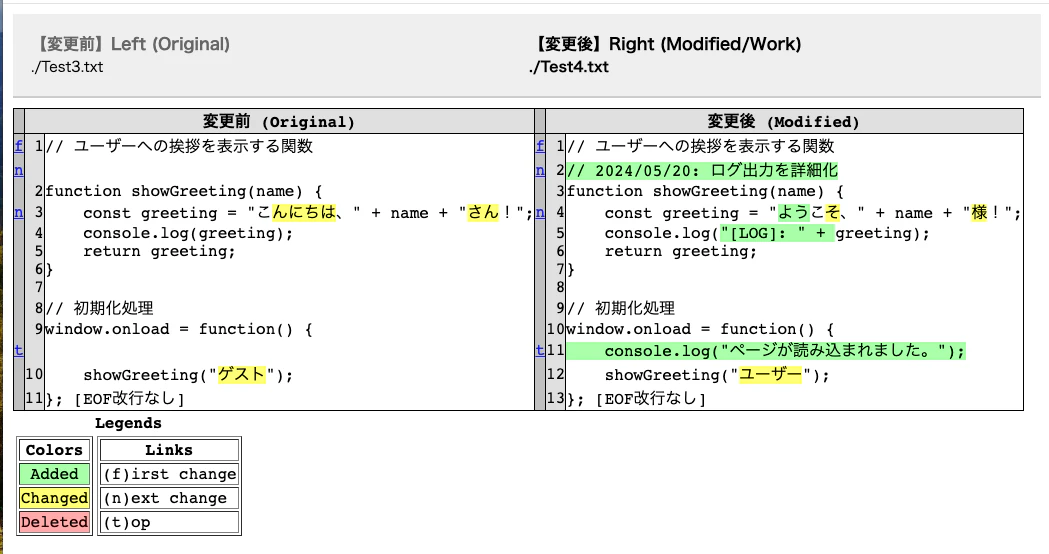
diff_results/ フォルダの中にも結果は保存されているため、そこでも確認できます。
3. 知っておくと安心なポイント
このツールの仕様についても、少しだけ触れておきますね。
表示形式について
context=False という設定になっているので、変更があった箇所だけでなく、ファイル全体の行がハイライト付きで表示されます。前後の流れが見やすいのが嬉しいですね。
文字コードの自動判別
UTF-8、Shift-JIS、CP932 を自動で判別してくれます。
これら以外の特殊な文字コードだとエラーになるかもしれないので、そこだけ注意が必要かもしれません。
上書きにご注意!
ツールを実行するたびに diff_results フォルダは一度削除されて新しく作り直されます。前回の結果を残しておきたいときは、フォルダをコピーして名前を変えておいてくださいね。
おわりに
いかがでしたでしょうか。
一括でレポート化されると、確認作業も少しだけ楽しくなる気がします。
最後まで読んでくださりありがとうございました。