
緒言
本記事は下記を参考に作成しています。ありがとうございます!
元記事は Graph API の getSchedule を使ってJSON形式で他人の予定データを取得し、 Power Automate側でJSONをParse(解析) して Power Appsに渡す、という内容です。
本記事では応答速度改善のため、 Power AutomateはJSON形式データの取得まで にして、 Power Apps側でParse するようにしました。
検証内容
結果
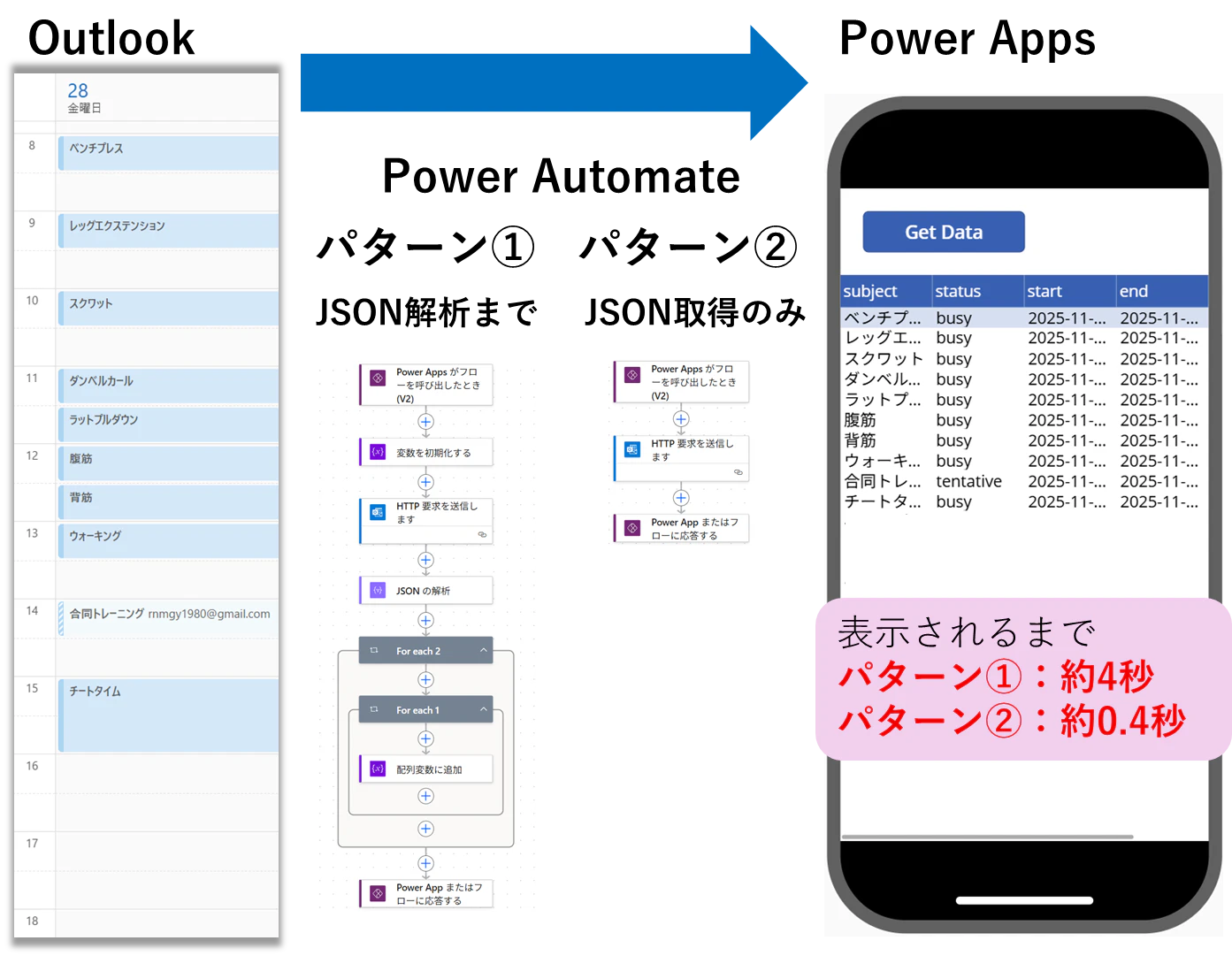
検証結果は下図の通り。
- パターン①: JSON解析までAutomate側で実施 ⇒ 表示まで約4秒
- パターン②: JSON取得のみAutomate側で実施 ⇒ 表示まで約0.4秒
詳細
パターン①の実装
前述の記事通りなので割愛。
パターン②の実装
-
Power Automate側
下図のように極力シンプルにJSON形式の文字列のままの結果をPower Appsへ返すようにしている。
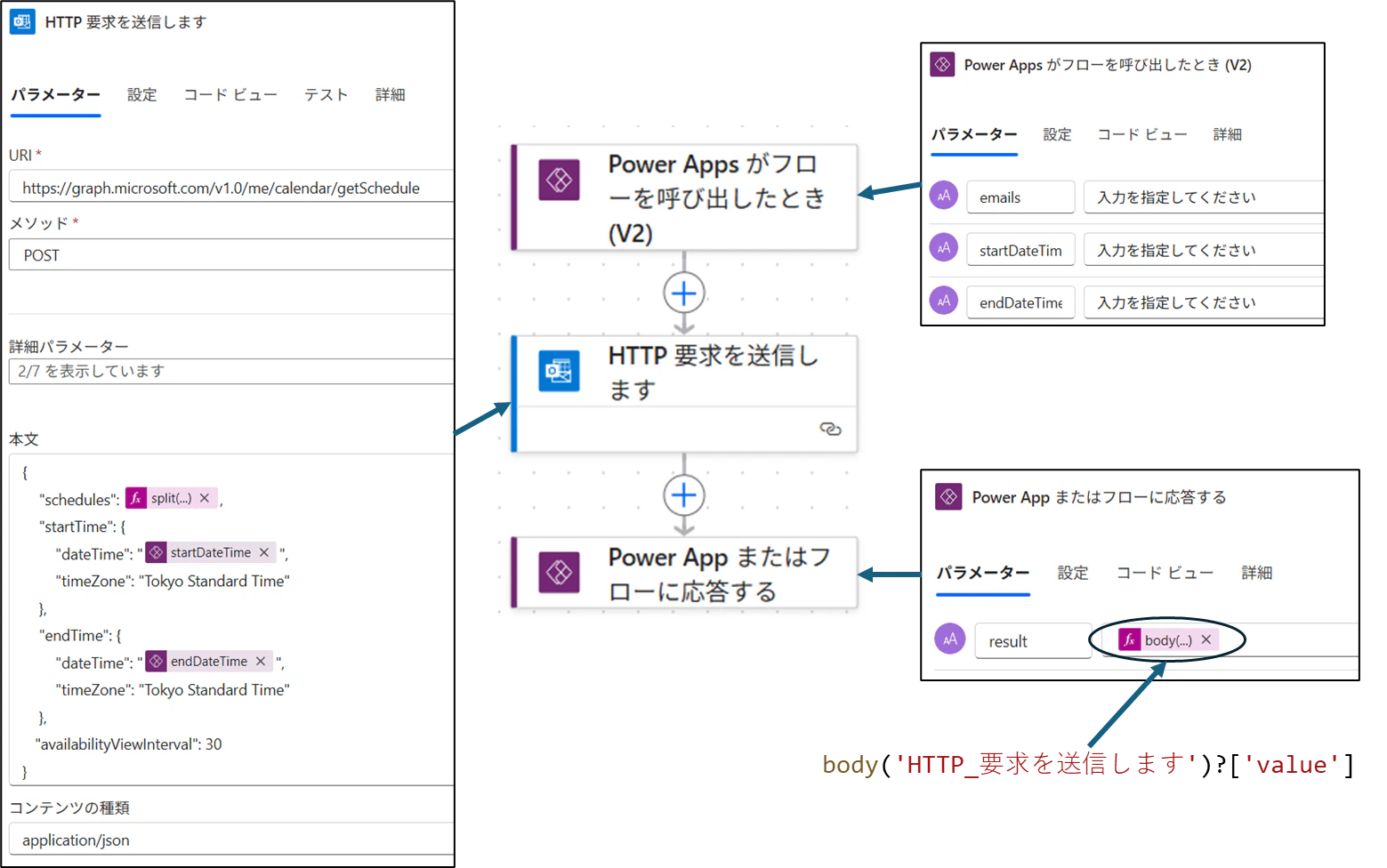
※ body/valueが動的に取得できなかったので数式で指定 -
Power Apps側
Power Apps側へ渡されるJSON形式の文字列は以下の形式。
Power Automate側がシンプルな分、Power Apps側で解析しないといけないので構造をしっかり把握しておかないといけない。
[
    {
        "scheduleId": "<メールアドレス>",
        "availabilityView": "20202022222010220000",
        "scheduleItems": [
            {
                "isPrivate": false,
                "status": "busy",
                "subject": "ベンチプレス",
                "location": "",
                "isMeeting": false,
                "isRecurring": false,
                "isException": false,
                "isReminderSet": false,
                "start": {
                    "dateTime": "2025-11-27T23:00:00.0000000",
                    "timeZone": "UTC"
                },
                "end": {
                    "dateTime": "2025-11-27T23:30:00.0000000",
                    "timeZone": "UTC"
                }
            },
            ・・・
        ],
        "workingHours": {
            "daysOfWeek": [
                "monday",
                "tuesday",
                "wednesday",
                "thursday",
                "friday"
            ],
            "startTime": "08:00:00.0000000",
            "endTime": "17:00:00.0000000",
            "timeZone": {
                "name": "Tokyo Standard Time"
            }
        }
    },
    ・・・
]
図解すると下図のような構成。scheduleID(メールアドレス)ごとにscheduleItems(予定配列)があって、scheduleItemsの中に各予定情報が格納されている。

availabilityViewは抽出時間をGraph APIで指定したavailabilityViewInterval(分)で区切り、(0:空き、1:仮、2:busy、3:不在)の数列で空き情報を表したもの。
例えば、9時から18時までの予定を抽出し、availabilityViewInterval: 15と指定すると、9時間 × 4(15分単位) = 36個のタイムスロットで構成された文字列が返されます(例:"000000222222000000...")。
これをPower Apps側で以下のように処理してあげればOK。
主なポイントはscheduleItems展開のためAddColumnsしてからValueかぶりしないようにRenameColumnsしてUngroupで展開してあげること。
UpdateContext({_result:
    スケジュールGet.Run(
        "<メールアドレス1>,<メールアドレス2>,・・・",
        "2025-11-28T08:00:00",
        "2025-11-28T18:00:00"
    ).result
});

With(
    {_expanded:
        Ungroup(
            AddColumns(
                Table(ParseJSON(_result)),
                items,
                RenameColumns(Table(ThisRecord.Value.scheduleItems),Value,item)
            ),
            items
        )
    },
    UpdateContext({_schedule:
        AddColumns(
            _expanded,
            mail, ThisRecord.Value.scheduleId,
            subject, ThisRecord.item.subject,
            status, ThisRecord.item.status,
            start, ThisRecord.item.start.dateTime,
            end, ThisRecord.item.end.dateTime
        )
    })
);
結言
最近Power AppsでParseJSONとかUngroupとか気に入ってます。