
はじめに
Day 5 で基本的なコンポーネントを実装しました。今回は Cursor に完全なダッシュボードを実装します。
前回はこちら。
| 日程 | テーマ | 内容 |
|---|---|---|
| Day 1 | 環境構築 | Next.js + TypeScript セットアップ |
| Day 2 | Cursor × Figma MCP 連携設定 | Cursor で Figma デザインを読み込めるようにする |
| Day 3 | デザイン分析・精査 | AI がトークン/コンポーネント提案 → 人間が精査 |
| Day 4 | Tokens Studio登録 | AI の提案をトークンとして登録 |
| Day 5 | シンプルなコンポーネント実装 | Button, Input, Card など基本部品を実装 |
| ☆ Day 6 | ダッシュボード完成 | 全コンポーネント統合・完成 |
| Day 7 | 完結・まとめ | 6日間の体験総括 |
実装するダッシュボード
Analytics Pro の主要ページ:
Dashboard レイアウト
├── ヘッダー(Logo、ユーザー情報、通知)
├── サイドバー(ナビゲーション)
└── メインコンテンツ
    ├── KPI Cards(売上、アクティブユーザー、コンバージョン率など)
    ├── チャート(売上トレンド、ユーザー分布)
    └── アクティビティテーブル(最新イベント)
ファイル構成
実装後の構成:
src/
├── components/
│   ├── ui/                  ← Day 5 のコンポーネント
│   └── dashboard/           ← Day 6 の複合コンポーネント
│       ├── Header.tsx
│       ├── Sidebar.tsx
│       ├── KPICard.tsx
│       ├── ChartSection.tsx
│       ├── ActivityTable.tsx
│       └── DashboardLayout.tsx
├── app/
│   └── dashboard/
│       ├── page.tsx         ← ダッシュボード ページ
│       └── layout.tsx
Cursor に実装を依頼
プロンプト例
Cursor のチャット機能で、前のコンテキストに以下を追加:
以下の要件で、Analytics Pro ダッシュボードページを実装してください。デザインはFigmaを参照して確認してください。

## ダッシュボード構成

### 1. Header.tsx
- Props: なし
- 要素: ロゴ、ページタイトル、ユーザーメニュー、通知アイコン
- Tailwind: bg-white, border-b, shadow-sm
- 固定高さ: h-16

### 2. Sidebar.tsx
- Props: なし
- ナビゲーション項目: Dashboard, Analytics, Reports, Settings
- Props: activeRoute
- Tailwind: bg-gray-50, w-64, fixed, h-screen
- アクティブ項目: bg-primary, text-white

### 3. KPICard.tsx
- Props: title, value, change, icon, trend ("up" | "down")
- 例:
  - "総売上": $125,430 (↑ 12%)
  - "アクティブユーザー": 2,840 (↓ 3%)
  - "コンバージョン率": 3.2% (↑ 0.5%)
- Day 5 の Card コンポーネントを使用
- Tailwind: grid-cols-1 md:grid-cols-4

### 4. ChartSection.tsx
- タイトル: "売上トレンド"
- SVG または <canvas> で簡易グラフを描画
- 過去 7 日間のデータを表示
- Tailwind: bg-white, rounded-lg, shadow-md, p-6

### 5. ActivityTable.tsx
- Props: data (activity items)
- カラム: Time, Event, User, Status
- 最新 10 件を表示
- Day 5 の Badge で Status を色分け

### 6. DashboardLayout.tsx
- Header + Sidebar + Main Content の統合レイアウト
- Main Content: ml-64 (sidebar の分を考慮)
- Grid または Flex で KPI Cards、ChartSection、ActivityTable を配置

### 7. app/dashboard/page.tsx
- DashboardLayout をマウント
- Sample data を渡す
- レスポンシブ: モバイルでは sidebar は hidden

## 要件

- TypeScript で型定義
- Tailwind CSS で全てスタイリング
- Day 5 のコンポーネント(Button, Card, Badge など)を活用
- arrow function で実装
- Mock データ(ハードコード)を使用
- プロダクション品質のコード(error handling は不要)

## ファイル保存先

各コンポーネントを `src/components/dashboard/[ComponentName].tsx` に保存。
ページを `src/app/dashboard/page.tsx` に作成。
一度ではうまくいかなかったのでデザインを読ませて修正というのを何度か繰り返しました。
AI の実装結果
実装したものが以下になります。ファイル数が多いため一部抜粋しています。
Header.tsx
"use client";

import { type FC } from "react";
import { cn } from "@/lib/utils";

export const Header: FC = () => {
  return (
    <header className={cn("fixed top-0 left-0 md:left-64 right-0 z-50 bg-background-primary border-b border-border-default shadow-sm")}>
      <div className="flex items-center justify-between py-6 px-10">
        <div className="flex flex-col gap-2">
          <div className="text-3xl font-bold text-text-primary">Dashboard</div>
          <div className="text-base font-bold text-text-secondary">Welcome back, John!</div>
        </div>

        <div className="flex items-center gap-6">
          <button type="button" className="px-4 py-4 rounded-button bg-accent-indigoDark text-text-white text-base font-bold hover:bg-accent-indigoDark/90 transition-colors">
            + New Project
          </button>
          <div className="w-12 h-12 rounded-full bg-background-tertiary"></div>
        </div>
      </div>
    </header>
  );
};
Sidebar.tsx
"use client";

import { type FC } from "react";
import { NavigationItem } from "@/components/ui";

export interface SidebarProps {
  activeRoute?: string;
}

export const Sidebar: FC<SidebarProps> = ({ activeRoute = "Dashboard" }) => {
  const navigationItems = [
    { label: "Dashboard", route: "Dashboard", icon: "📊" },
    { label: "Reports", route: "Reports", icon: "📄" },
    { label: "Users", route: "Users", icon: "👥" },
    { label: "Settings", route: "Settings", icon: "⚙️" },
  ];

  return (
    <aside className="hidden md:block fixed left-0 top-0 bottom-0 w-64 bg-background-sidebar overflow-y-auto">
      <div className="py-12 px-6">
        <h1 className="text-3xl font-bold text-text-white mb-[60px]">Analytics</h1>
        <nav className="space-y-4">
          {navigationItems.map((item) => (
            <NavigationItem
              key={item.route}
              variant={activeRoute === item.route ? "active" : "default"}
              label={item.label}
              icon={<span>{item.icon}</span>}
              onClick={() => {
                // ナビゲーション処理は後で実装
                console.log(`Navigate to ${item.route}`);
              }}
            />
          ))}
        </nav>
      </div>
    </aside>
  );
};
DashboardLayout.tsx
"use client";

import { type FC, type ReactNode } from "react";
import { Header } from "./Header";
import { Sidebar } from "./Sidebar";

export interface DashboardLayoutProps {
  children: ReactNode;
  activeRoute?: string;
}

export const DashboardLayout: FC<DashboardLayoutProps> = ({ children, activeRoute }) => {
  return (
    <div className="min-h-screen bg-background-secondary">
      <Header />
      <Sidebar activeRoute={activeRoute} />
      <main className="ml-0 md:ml-64 p-8" style={{ paddingTop: "120px" }}>
        <div className="max-w-7xl mx-auto space-y-8">{children}</div>
      </main>
    </div>
  );
};
動作確認
ブラウザで以下のコマンドを実行し、http://localhost:3000/dashboard にアクセスします。
pnpm dev
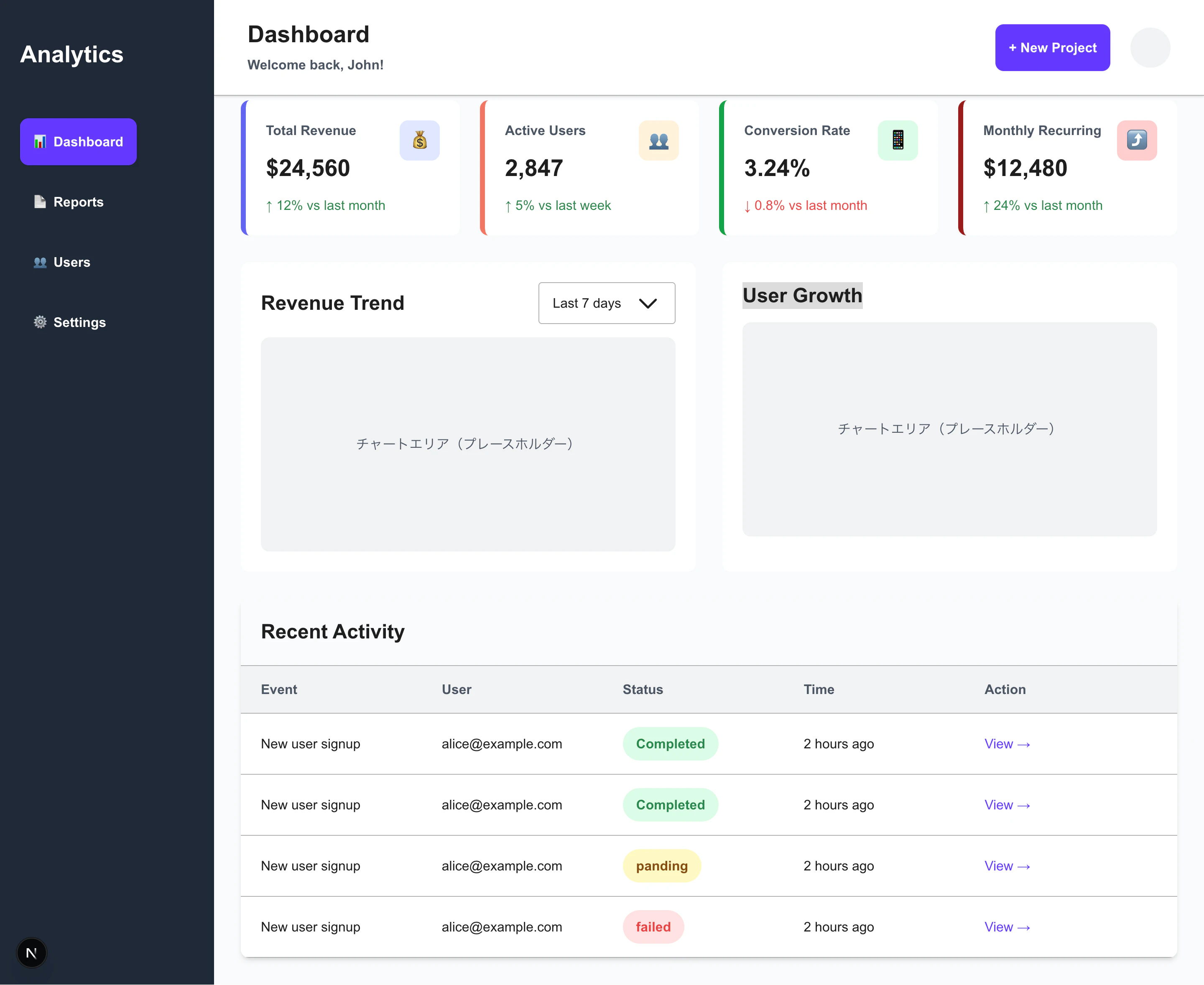
かなり元のデザインに近づいた実装にはなりました。
最後に
次回は 6 日間の開発プロセスを振り返っていきます。