
今回はPythonでWebを操作(Webスクレイピングと言います)してみます。
環境はMacで行っています。
どのような仕組み?
今回はWeb操作のライブラリの一つであるSeleniumを使っていきます。
SeleniumはPythonで指示したものをSeleniumがドライバーに指示を送り、ドライバーから、Webを操作します。
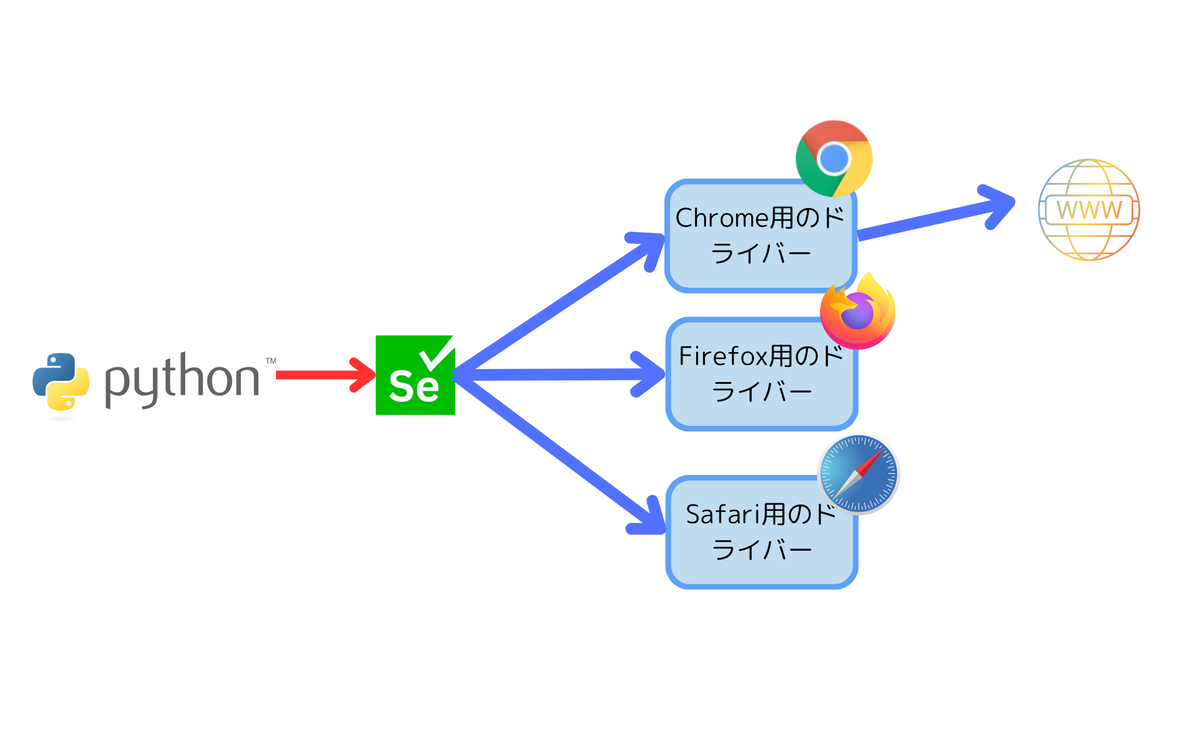
Seleniumのインストール方法
SeleniumはSeleniumとWebdriverをインストールする必要があります。
Seleniumのインストール
まず、ターミナルを開きます。
次にこのコマンドを実行します。
pip install selenium
これでSeleniumのインストールは完了です。
WebDriverのインストール
WebDriverのインストールに関してはこちらの記事を参考にしてください。
SeleniumでWebを操作しよう!
googleで検索してもらうコードを書いてみましょう。
from selenium import webdriver
from time import sleep
from selenium.webdriver.common.by import By
driver = webdriver.Chrome()#ここのChromeのところはfirefoxやsafariなどに変えることもできます。
driver.get("https://www.google.com/")#googleを開く
sleep(1)#1秒待つ
search = driver.find_element(By.NAME, "q") # "name" 属性で要素を指定
search.send_keys("ニュース")#テキストボックスにニュースと入力する
search.submit()#送信する
sleep(1)#1秒待つ
driver.save_screenshot("selenium sampleFile/search_results.png")#search_results.pngにスクリーンショットを保存
driver.quit()#ドライバーを終わりにする
1~3行目で必要なライブラリをインポートしています。
4行目でchromeをdriverを通じて開いています。
5行目で https://www.google.com/ を開いています。
6、10行目で1秒待っています。この1秒はwebの動作速度よりもpythonの実行速度のほうがはるかに早いため、ここで調整をしています。
7行目でfind_elementで要素を探します。今回はBy.NAMEでname属性で要素を指定しました。
8行目のsend_keysで入力します。今回はニュースにしました。
9行目で送信します。
11行目のsave_screenshotでスクリーンショットを保存します。
12行目でdriverを終わりにしました。
まとめ
たまにErrorがでますが、主に要素の指定の間違いと待機処理とDriverのバージョンが主な原因なのでそのような点を確認してみてください。
参考文献
1.Prograshi https://prograshi.com/language/python/python-selenium-webdriver/#google_vignette 2025年1月11日閲覧