

概要
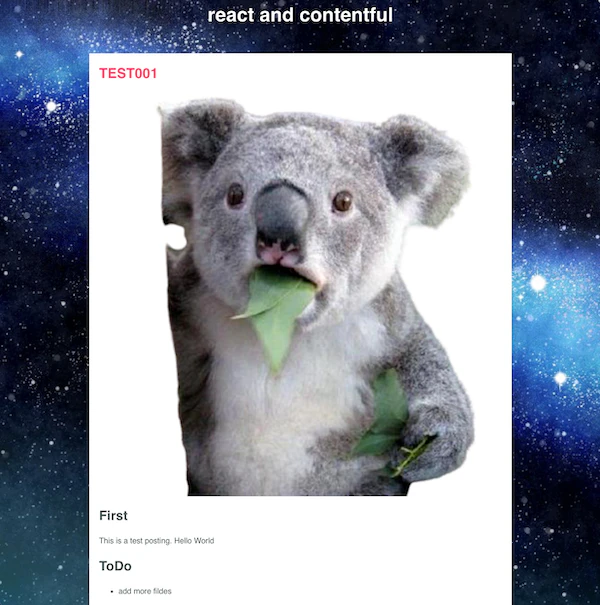
Headless CMSで有名なContentfulでブログっぽいものの作り方を紹介します。
サンプル
repo https://github.com/koji/typescript/tree/master/simple_blog_with_contentful
Headless CMSとは
作り方について書く前に、Headless CMSとは何かを簡単に。
ざっくりに言うと、コンテンツを表示する機能を持たないWordPressです。
利用者はHeadless(Contentful)でコンテンツを編集し、そのデータをAPI経由取得し、
表示する必要があります。
- メリット
- フロントエンドにリソースを集中できる
- フロントエンドとバックエンドは完全別個のシステムなので、フロントエンド開発に関して制約がない(好きなフレームワークを使える)
- ContentfulはAPIに簡単にアクセスするためのnpmパッケージを公開しているので、APIアクセス自体も簡単
- デメリット
- エンジニアではない人にとって、ちょっとした表示の変更が難しいことでしょうか
- バックエンドに問題が発生した場合、問題が解決されるまで
待つ以外の選択肢がない
Contentfulについてもう少し詳しく知りたいという方はこちらをご覧になると良いかと思います。
https://fromscratch-y.work/ja/blog/technology/other/start-contentful/
Step 1 Contentfulでモデルを定義する
Contentfulにログインして、フロントエンド(react)で表示するためのデータの型を定義します。
今回はタイトル、アイキャッチ用の画像、本文と言う3つを用意しました。

データの構造はこんな感じです。JSONViewerで確認できます。
{
  "name": "easysite", <-- コンテンツモデル名
  "description": "simple website like a blog",
  "displayField": "title",
  "fields": [
    {
      "id": "title",
      "name": "title",
      "type": "Symbol",
      "localized": false,
      "required": false,
      "validations": [],
      "disabled": false,
      "omitted": false
    },
    {
      "id": "image",
      "name": "image",
      "type": "Link",
      "localized": false,
      "required": false,
      "validations": [],
      "disabled": false,
      "omitted": false,
      "linkType": "Asset"
    },
    {
      "id": "description",
      "name": "Description",
      "type": "Text",
      "localized": false,
      "required": false,
      "validations": [],
      "disabled": false,
      "omitted": false
    }
  ],
  "sys": {
    "space": {
      "sys": {
        "type": "Link",
        "linkType": "Space",
        "id": "if4se75018sp"
      }
    },
    "id": "easysite",
    "type": "ContentType",
    "createdAt": "2020-10-01T15:28:51.896Z",
    "updatedAt": "2020-10-01T15:28:52.158Z",
    "environment": {
      "sys": {
        "id": "master",
        "type": "Link",
        "linkType": "Environment"
      }
    },
    "publishedVersion": 1,
    "publishedAt": "2020-10-01T15:28:52.158Z",
    "firstPublishedAt": "2020-10-01T15:28:52.158Z",
    "createdBy": {
      "sys": {
        "type": "Link",
        "linkType": "User",
        "id": "0EGNAqGfBgN849uaItzT7r"
      }
    },
    "updatedBy": {
      "sys": {
        "type": "Link",
        "linkType": "User",
        "id": "0EGNAqGfBgN849uaItzT7r"
      }
    },
    "publishedCounter": 1,
    "version": 2,
    "publishedBy": {
      "sys": {
        "type": "Link",
        "linkType": "User",
        "id": "0EGNAqGfBgN849uaItzT7r"
      }
    }
  }
}
Step 2 コンテンツ作成
コンテンツ作成と言っても、特に難しいことはなく、単純にContentful上で新しいエントリを作成するだけです。Markdown記法も使えます!
Content --> Add Entry --> easysiteをクリックすると下記が表示されます。

上から順に、タイトル、アイキャッチ画像、本文という並びです。
注意点は本文をPublishしても、アイキャッチの画像は一緒にPublishされないという点です。
個別にPublishする必要があります。(もしかしたら、一律Publishする方法もあるのかもしれませんが、調べてません。。。)
Step 3 API-Keyの取得
ContentfulのSettingsからAPI Keyを発行して、SpaceIDとAccess Tokenを取得します。
注意点は次のステップでDelivery APIを使った場合、Publishしてないコンテンツに対して、react appからAPIにアクセスするとデータが返ってこないことです。
Step 4 Reactアプリ作成
Step3でContentful上での作業は終了です。以降は通常のフロントエンドの作業になります。
Reactアプリの場合は下記の手順が楽だと思います。
- create-react-app で雛形作成
- API-key用のコンポーネント作成(サンプルではハードコードしちゃってますが、デプロイ環境、netlifyとかで環境変数をセットして取得するようにするのが、いいと思います。)
- contentful を yarn/npmでインストール
https://www.npmjs.com/package/contentful - contentfulを利用して、コンテンツを取得
- データをパースして、表示
サンプルではApp.tsxの中で、useEffect使って、content_typeを指定して、データをとってきています。
- anyとか入ってますが、型定義をサボっているだけなので、スルーして下さい。。。
useEffect(() => {
    fetchData();
    // console.log(articles);
  }, [articles]);

  const fetchData = async() => {
    try {
      const resp = await client.getEntries ({content_type: 'easysite'});
      setArticles(resp.items as any);
    } catch (error) {
      console.log(error);
    }
  }
エントリー表示部分
propsとして渡して、各々の変数からデータ取り出しています。
descriptionってのが本文です。今回はMarkdownでエントリを作っていので、markedを入れて、htmlに変換して、dangerouslySetInnerHTMLを経由して表示させています。
export const Post = ({ article }: IArticle) => {
    // console.log(article);
    const { title, image, description} =article.fields;
    const postDescription = marked(description);
    return (
        <div className="post">
            <h2 className="title">{title}</h2>
            {image && <img className="featuredImage" src={image.fields.file.url} alt={title} title={title} /> }
            <section dangerouslySetInnerHTML={{ __html: postDescription}} />
        </div>
    )
}