

前回の記事ではWordPressのインフラ構成について記載しましたが、今回はLightsail1インスタンスへの具体的なWordPress環境のセットアップ手順を紹介します。
Nginx,PHP,Redis,MySQLクライアントのインストール
PHPは2026年5月時点の最新安定版のPHP8.5とします。
sudo dnf update -y
sudo dnf install -y nginx \
  redis6 \
  php8.5 \
  php8.5-fpm \
  php8.5-mysqlnd \
  php8.5-gd \
  php8.5-xml \
  php8.5-mbstring \
  php8.5-bcmath \
  php8.5-intl \
  php8.5-pecl-redis6 \
  php8.5-zip \
  mariadb105-client
Redisの設定
sudo systemctl start redis6
sudo systemctl enable redis6
redis6-cli ping   # → PONG が返ればOK
sudo vi /etc/redis6/redis6.conf
下記を変更
# PLEASE_REPLACE_REDIS_PASSWORD 部分は任意のパスワードに変更してください。
maxmemory 256mb
maxmemory-policy allkeys-lru
requirepass PLEASE_REPLACE_REDIS_PASSWORD
sudo systemctl restart redis6
サービスの起動と自動起動有効化
nginx
sudo systemctl start nginx
sudo systemctl enable nginx
PHP-FPM
sudo systemctl start php-fpm
sudo systemctl enable php-fpm
PHPの設定変更
sudo vi /etc/php.ini
-
memory_limit = 128M→memory_limit = 256M
sudo vi /etc/php-fpm.d/www.conf
-
user = apache→user = nginx -
group = apache→group = nginx
sudo systemctl restart php-fpm
sudo systemctl restart nginx
データベース作成
# データベースのホスト名は環境に合わせて変更してください。
mysql -u dbmasteruser -p -h db-dummy-host.ap-northeast-1.rds.amazonaws.com
# データベース名、ユーザー名はパスワードはプロジェクトに合わせ都度変更してください。
CREATE DATABASE my_wordpress CHARACTER SET utf8mb4 COLLATE utf8mb4_general_ci;
CREATE USER 'wpuser'@'%' IDENTIFIED BY 'PLEASE_REPLACE_DB_PASSWORD';
GRANT ALL PRIVILEGES ON my_wordpress.* TO 'wpuser'@'%';
FLUSH PRIVILEGES;
EXIT;
Let's Encrypt導入
Cloudflareを経由しているため、DNS-01チャレンジを使う。
DNSレコード変更はCloudflareのAPI経由で行う。
Cloudflare APIトークンの取得
Cloudflareダッシュボードで以下の手順:
プロフィール → APIトークン → トークンを作成する
API トークン テンプレート「ゾーン DNS を編集する」を選択
ゾーン リソース → example.com2 を含むゾーンを指定
Lightsail上の作業
sudo dnf install -y python3-pip augeas-libs
sudo pip3 install certbot certbot-dns-cloudflare
sudo mkdir -p /etc/letsencrypt
APIトークンの設定
sudo vi /etc/letsencrypt/cloudflare.ini
# 取得したトークンは環境に合わせて変更してください。
dns_cloudflare_api_token = PLEASE_REPLACE_CLOUDFLARE_TOKEN
# ドメイン名やメールアドレスはプロジェクトに応じて都度変更してください。
sudo chmod 600 /etc/letsencrypt/cloudflare.ini
sudo certbot certonly \
  --dns-cloudflare \
  --dns-cloudflare-credentials /etc/letsencrypt/cloudflare.ini \
  -d "*.example.com" \
  -d "example.com" \
  --email info@example.com \
  --agree-tos \
  --non-interactive
成功すると下記のような出力を得る。
Account registered.
Requesting a certificate for *.example.com and example.com
Waiting 10 seconds for DNS changes to propagate

Successfully received certificate.
Certificate is saved at: /etc/letsencrypt/live/example.com/fullchain.pem
Key is saved at:         /etc/letsencrypt/live/example.com/privkey.pem
This certificate expires on 2026-07-14.
These files will be updated when the certificate renews.

NEXT STEPS:
- The certificate will need to be renewed before it expires. Certbot can automatically renew the certificate in the background, but you may need to take steps to enable that functionality. See https://certbot.org/renewal-setup for instructions.

- - - - - - - - - - - - - - - - - - - - - - - - - - - - - - - - - - - - - - - -
If you like Certbot, please consider supporting our work by:
 * Donating to ISRG / Let's Encrypt:   https://letsencrypt.org/donate
 * Donating to EFF:                    https://eff.org/donate-le
- - - - - - - - - - - - - - - - - - - - - - - - - - - - - - - - - - - - - - - -
証明書自動更新の設定
sudo certbot renew --dry-run
sudo vi /etc/cron.daily/certbot-renew
下記の内容を記載
#!/bin/bash
certbot renew --quiet --deploy-hook "systemctl reload nginx"
sudo chmod +x /etc/cron.daily/certbot-renew
# スクリプトが正しく実行できるかテスト
sudo run-parts --test /etc/cron.daily
WordPressのインストール
WP CLIのインストール
curl -O https://raw.githubusercontent.com/wp-cli/builds/gh-pages/phar/wp-cli.phar
chmod +x wp-cli.phar
sudo mv wp-cli.phar /usr/local/bin/wp
ダウンロードとインストール
# ディレクトリの移動と権限変更
cd /var/www/
sudo chown nginx:nginx .
sudo -u nginx mkdir -p www.example.com/public

# 本番用へWordPressインストール
cd /var/www/www.example.com/public/
sudo -u nginx wp core download --locale=ja
sudo -u nginx wp config create \
  --dbname=my_wordpress \
  --dbuser=wpuser \
  --dbpass=PLEASE_REPLACE_DB_PASSWORD \
  --dbhost=db-dummy-host.ap-northeast-1.rds.amazonaws.com  \
  --dbcharset=utf8mb4
sudo -u nginx wp core install \
  --url="https://www.example.com" \
  --title="PLEASE_REPLACE_WP_TITLE" \
  --admin_user="PLEASE_REPLACE_WP_USER" \
  --admin_password="PLEASE_REPLACE_WP_PASSWORD" \
  --admin_email="info@example.com"
wp-config.php に下記のRedis設定を追記
sudo -u nginx wp config set WP_REDIS_HOST '127.0.0.1'
sudo -u nginx wp config set WP_REDIS_PORT 6379 --raw
sudo -u nginx wp config set WP_REDIS_PASSWORD 'PLEASE_REPLACE_REDIS_PASSWORD'
sudo -u nginx wp config set WP_REDIS_DATABASE 0 --raw
sudo -u nginx wp config set WP_CACHE_KEY_SALT 'www.example.com'
sudo -u nginx wp config set WP_CACHE true --raw
管理画面からRedis Object Cache をインストールと有効化し、管理画面「設定 → Redis」で「Enable Object Cache」をクリック
または、下記のようにコマンドからもインストールと設定が可能です。
sudo -u nginx wp plugin install redis-cache --activate
sudo -u nginx wp redis enable
Nginx設定ファイル
/etc/nginx/conf.d/wordpress.conf を作成し下記の設定を行った。
server {
    listen 80;
    server_name www.example.com;
    return 301 https://$host$request_uri;
}

server {
    listen 443 ssl;
    server_name www.example.com;

    ssl_certificate     /etc/letsencrypt/live/example.com/fullchain.pem;
    ssl_certificate_key /etc/letsencrypt/live/example.com/privkey.pem;
    ssl_protocols TLSv1.2 TLSv1.3;
    ssl_ciphers HIGH:!aNULL:!MD5;

    root /var/www/www.example.com/public;
    index index.php index.html;

    access_log /var/log/nginx/www.example.com_access.log;
    error_log  /var/log/nginx/www.example.com_error.log;

    location ~ ^/custom_login_path(.*)$ {
        rewrite ^/custom_login_path(.*)$ /wp-login.php$1 last;
    }
    location / {
        try_files $uri $uri/ /index.php?$args;
    }
    location ~ \.php$ {
        fastcgi_pass  unix:/run/php-fpm/www.sock;
        fastcgi_index index.php;
        include       fastcgi_params;
        fastcgi_param SCRIPT_FILENAME $document_root$fastcgi_script_name;
    }
}
設定ファイル変更後はテストしてリロード
sudo nginx -t && sudo systemctl reload nginx
ログインURL隠蔽
WordPressサイトの運用経験がある方であればご存知かもしれませんが、WordPressサイトにはブルートフォース攻撃(総当たり攻撃)の的となります。
WordPress本体の構成に手を入れたり、標準的ではないフォルダ構成に変更しているケースをよく見かけますが、ただ単純に運用や更新が難しくなっているだけで、攻撃者目線からはほとんど効果のないことがあります。
ログインURLの隠蔽やその他のよくあるセキュリティ対策を含めて、SiteGuard WP Pluginは利便性が高く、導入後もWordPress本体が更新できないなどの問題が発生しにくいので、多くのプロジェクトにおいて有用でしょう。
上記のnginx設定はSiteGuard WP Pluginを用いてログインURLをcustom_login_path という名前に変更している前提での設定内容となります。
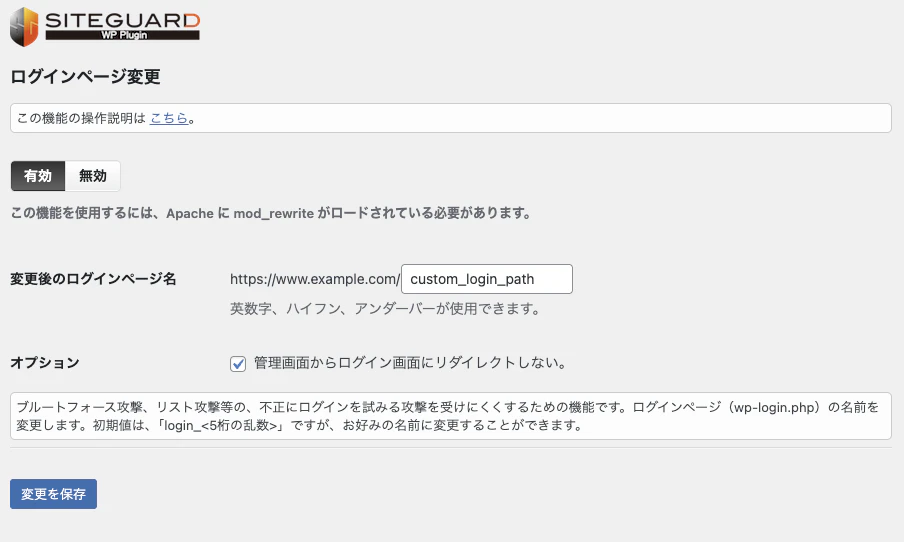
プラグインのインストールとプラグイン設定変更は下記のようにコマンドからも可能です。
sudo -u nginx wp plugin install siteguard --activate
sudo -u nginx wp option patch update siteguard_config renamelogin_path custom_login_path
sudo -u nginx wp option patch update siteguard_config renamelogin_enable 1
sudo -u nginx wp option patch update siteguard_config redirect_enable 1
まとめ
前回の記事ではGitHubからAWS、Cloudflareの全体構成について紹介しましたが、今回はその中のLightsail部分におけるミドルウェアのインストールからWordPressの配置を紹介しました。
細かなセキュリティ設定やパフォーマンスチューニングの余地はありますが、汎用的な標準構成としてはこれをベースにできるのではないかと思います。
WordPressを用いたサイトの新規構築・リニューアルなら
add moreでは様々な業種、規模のWordPress構築の実績が豊富です。
ぜひお気軽にご相談ください。