

はじめに
前回までで、家計簿アプリが一旦完成しました。(AIがやりました)
今回は支出一覧画面にフィルタ機能を実装します。
プロンプト
支出一覧へフィルタ機能を実装したい。
フィルタ項目選択は画面ポップアップで実装。
フィルタ項目は以下
・日付
・支払方法
・備考
回答
以下構成で実装できます。
実装方針:
| 画面 | 役割 |
|---|---|
| ExpenseListForm | 支出一覧 |
| ExpenseFilterForm | フィルタ入力 |
対応フィルタ
| 項目 | 条件 |
|---|---|
| 日付From | 以上 |
| 日付To | 以下 |
| 支払方法 | 完全一致 |
| 備考 | 部分一致 |
1. フィルタクラス追加
ExpenseFilter.cs
namespace KakeiboApp.Models
{
    public class ExpenseFilter
    {
        public DateTime? DateFrom { get; set; }

        public DateTime? DateTo { get; set; }

        public string PaymentMethod { get; set; }

        public string Note { get; set; }
    }
}
2. フィルタ画面追加
フォーム名:
ExpenseFilterForm
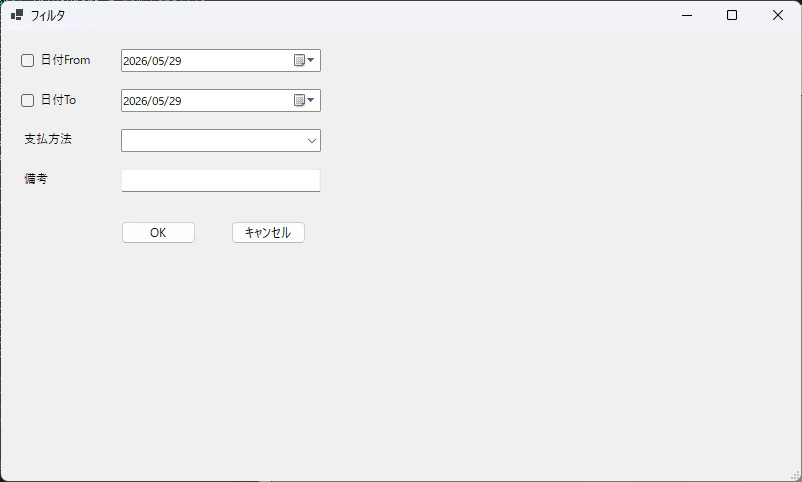
配置コントロール
| 種別 | Name |
|---|---|
| CheckBox | chkDateFrom |
| DateTimePicker | dtpFrom |
| CheckBox | chkDateTo |
| DateTimePicker | dtpTo |
| ComboBox | cboPaymentMethod |
| TextBox | txtNote |
| Button | btnOk |
| Button | btnCancel |
3. ExpenseFilterForm.cs
using KakeiboApp.Models;
using Microsoft.Data.Sqlite;

namespace KakeiboApp.Forms
{
    public partial class ExpenseFilterForm : Form
    {
        public ExpenseFilter Filter
        {
            get;
            private set;
        }

        public ExpenseFilterForm(
            ExpenseFilter filter)
        {
            InitializeComponent();

            Filter =
                filter
                ?? new ExpenseFilter();

            LoadPaymentMethods();

            LoadFilter();
        }

        private void LoadPaymentMethods()
        {
            cboPaymentMethod.Items.Clear();

            cboPaymentMethod.Items.Add("");

            using SqliteConnection conn =
                DbHelper.GetConnection();

            conn.Open();

            string sql =
            @"
            SELECT
                PaymentMethodName
            FROM PaymentMethods
            ORDER BY Id
            ";

            using SqliteCommand cmd =
                new SqliteCommand(sql, conn);

            using SqliteDataReader reader =
                cmd.ExecuteReader();

            while (reader.Read())
            {
                cboPaymentMethod.Items.Add(
                    reader.GetString(0));
            }
        }

        private void LoadFilter()
        {
            cboPaymentMethod.Text =
                Filter.PaymentMethod;

            txtNote.Text =
                Filter.Note;

            if (Filter.DateFrom.HasValue)
            {
                chkDateFrom.Checked = true;

                dtpFrom.Value =
                    Filter.DateFrom.Value;
            }

            if (Filter.DateTo.HasValue)
            {
                chkDateTo.Checked = true;

                dtpTo.Value =
                    Filter.DateTo.Value;
            }
        }

        private void btnOk_Click(
            object sender,
            EventArgs e)
        {
            Filter.PaymentMethod =
                cboPaymentMethod.Text;

            Filter.Note =
                txtNote.Text;

            Filter.DateFrom =
                chkDateFrom.Checked
                ? dtpFrom.Value.Date
                : null;

            Filter.DateTo =
                chkDateTo.Checked
                ? dtpTo.Value.Date
                : null;

            DialogResult =
                DialogResult.OK;

            Close();
        }

        private void btnCancel_Click(
            object sender,
            EventArgs e)
        {
            DialogResult =
                DialogResult.Cancel;

            Close();
        }
    }
}
4. Designerコード
ExpenseFilterForm.Designer.cs
private CheckBox chkDateFrom;

private DateTimePicker dtpFrom;

private CheckBox chkDateTo;

private DateTimePicker dtpTo;

private ComboBox cboPaymentMethod;

private TextBox txtNote;

private Button btnOk;

private Button btnCancel;
InitializeComponentへ追加
chkDateFrom =
    new CheckBox();

dtpFrom =
    new DateTimePicker();

chkDateTo =
    new CheckBox();

dtpTo =
    new DateTimePicker();

cboPaymentMethod =
    new ComboBox();

txtNote =
    new TextBox();

btnOk =
    new Button();

btnCancel =
    new Button();
配置例
chkDateFrom.Text =
    "日付From";

chkDateFrom.Location =
    new Point(20, 20);

dtpFrom.Location =
    new Point(120, 18);

dtpFrom.Format =
    DateTimePickerFormat.Short;
chkDateTo.Text =
    "日付To";

chkDateTo.Location =
    new Point(20, 60);

dtpTo.Location =
    new Point(120, 58);

dtpTo.Format =
    DateTimePickerFormat.Short;
Label lblPayment =
    new Label();

lblPayment.Text =
    "支払方法";

lblPayment.Location =
    new Point(20, 100);

Controls.Add(lblPayment);

cboPaymentMethod.Location =
    new Point(120, 98);

cboPaymentMethod.Width =
    200;
Label lblNote =
    new Label();

lblNote.Text =
    "備考";

lblNote.Location =
    new Point(20, 140);

Controls.Add(lblNote);

txtNote.Location =
    new Point(120, 138);

txtNote.Width =
    200;
btnOk.Text =
    "OK";

btnOk.Location =
    new Point(120, 190);

btnOk.Click +=
    btnOk_Click;
btnCancel.Text =
    "キャンセル";

btnCancel.Location =
    new Point(230, 190);

btnCancel.Click +=
    btnCancel_Click;
Controls.Add
Controls.Add(chkDateFrom);

Controls.Add(dtpFrom);

Controls.Add(chkDateTo);

Controls.Add(dtpTo);

Controls.Add(cboPaymentMethod);

Controls.Add(txtNote);

Controls.Add(btnOk);

Controls.Add(btnCancel);
5. 支出一覧画面へフィルタ保持
フィールド追加
private ExpenseFilter _filter =
    new ExpenseFilter();
6. フィルタボタン実装
btnFilter_Click
private void btnFilter_Click(
    object sender,
    EventArgs e)
{
    using ExpenseFilterForm form =
        new ExpenseFilterForm(
            _filter);

    if (form.ShowDialog()
        != DialogResult.OK)
    {
        return;
    }

    _filter =
        form.Filter;

    LoadExpenses();
}
イベント登録
btnFilter.Click +=
    btnFilter_Click;
7. LoadExpenses修正
private void LoadExpenses()
{
    dgvExpenses.Rows.Clear();

    using SqliteConnection conn =
        DbHelper.GetConnection();

    conn.Open();

    List<string> conditions =
        new List<string>();

    List<SqliteParameter> parameters =
        new List<SqliteParameter>();

    string sql =
    @"
    SELECT
        Id,
        Date,
        TotalAmount,
        PaymentMethod,
        Note
    FROM Expenses
    ";

    // 日付From
    if (_filter.DateFrom.HasValue)
    {
        conditions.Add(
            "Date >= @DateFrom");

        parameters.Add(
            new SqliteParameter(
                "@DateFrom",
                _filter.DateFrom.Value));
    }

    // 日付To
    if (_filter.DateTo.HasValue)
    {
        conditions.Add(
            "Date <= @DateTo");

        parameters.Add(
            new SqliteParameter(
                "@DateTo",
                _filter.DateTo.Value));
    }

    // 支払方法
    if (!string.IsNullOrWhiteSpace(
        _filter.PaymentMethod))
    {
        conditions.Add(
            "PaymentMethod = @PaymentMethod");

        parameters.Add(
            new SqliteParameter(
                "@PaymentMethod",
                _filter.PaymentMethod));
    }

    // 備考
    if (!string.IsNullOrWhiteSpace(
        _filter.Note))
    {
        conditions.Add(
            "Note LIKE @Note");

        parameters.Add(
            new SqliteParameter(
                "@Note",
                $"%{_filter.Note}%"));
    }

    if (conditions.Count > 0)
    {
        sql +=
            " WHERE "
            + string.Join(
                " AND ",
                conditions);
    }

    sql +=
        " ORDER BY Date DESC";

    using SqliteCommand cmd =
        new SqliteCommand(sql, conn);

    cmd.Parameters.AddRange(
        parameters);

    using SqliteDataReader reader =
        cmd.ExecuteReader();

    while (reader.Read())
    {
        dgvExpenses.Rows.Add(
            reader["Id"],
            reader["Date"],
            reader["TotalAmount"],
            reader["PaymentMethod"],
            reader["Note"]);
    }
}
実現される動作
| 操作 | 動作 |
|---|---|
| フィルタ押下 | ポップアップ表示 |
| OK | 条件適用 |
| キャンセル | 条件変更なし |
| 日付チェックOFF | 条件無効 |
次段階おすすめ
さらに実用化するなら:
| 機能 | 内容 |
|---|---|
| フィルタ条件表示 | 画面上部 |
| 条件クリア | ワンクリック |
| 金額範囲 | Min/Max |
| AND/OR条件 | 高度検索 |
| Enter検索 | UX改善 |
かなり使いやすくなります。
起動、確認
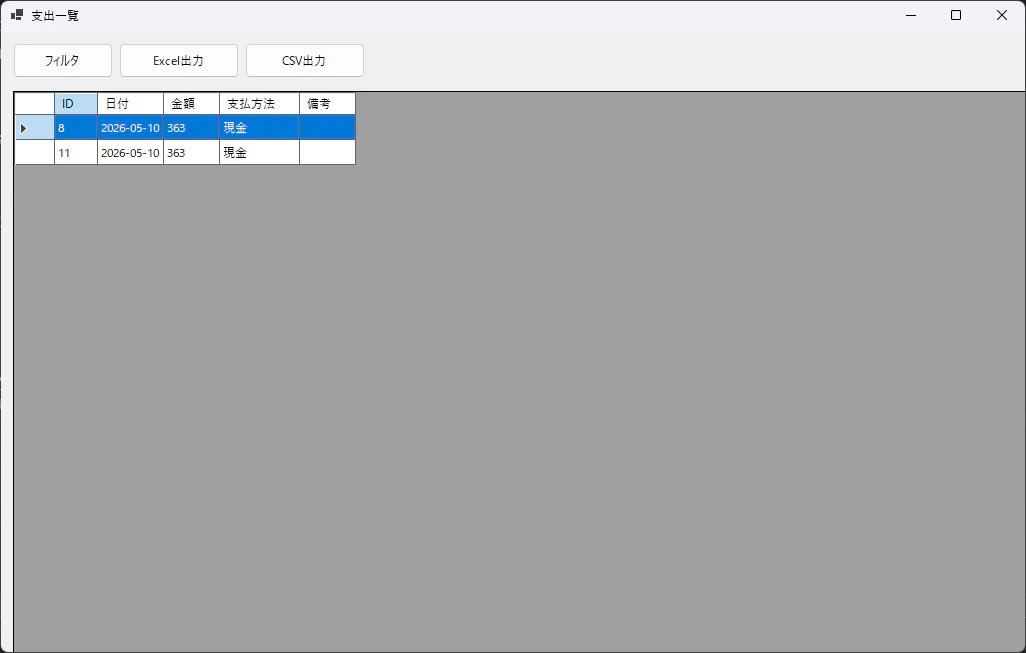
起動してみます。
最後に
次回は機能全体の再設計をします。