
はじめに
WindowsPCでマイク操作で、youtubeの音楽、動画を再生する0
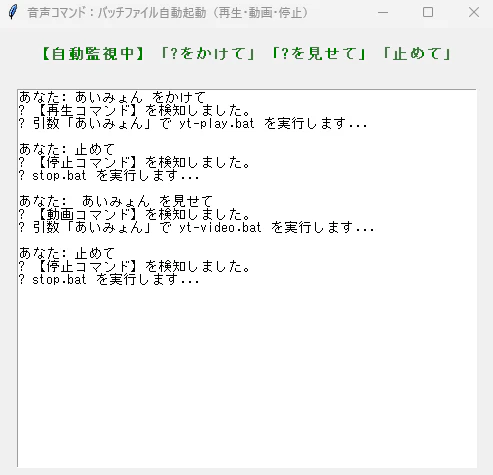
マイクで「あいみょんをかけて」というと「あいみょん」をyoutubeで検索し、音声のみ再生する
マイクで「あいみょんを見せて」というと「あいみょん」をyoutubeで検索し、動画再生する
マイクで「止めて」というと再生アプリを止める
chromeがインストールされている必要があります。
mpv.exeとyt-dlp.exeが必要です。
下記の4つのプログラムは同じフォルダに置いてください。
起動方法:PS C:\Users\XXXX\home> python app2.py
操作例
プログラム(app2.py)
# -*- coding: utf-8 -*-
import tkinter as tk
import threading
import time
import subprocess
import os

# Selenium関連のライブラリ
from selenium import webdriver
from selenium.webdriver.chrome.service import Service
from selenium.webdriver.chrome.options import Options
from webdriver_manager.chrome import ChromeDriverManager

class ChromeSpeechApp:
    def __init__(self, root):
        self.root = root
        self.root.title("音声コマンド:バッチファイル自動起動(再生・動画・停止)")
        self.root.geometry("500x450")

        self.is_running = True
        self.driver = None

        # UIの作成
        self.status_label = tk.Label(root, text="Chrome音声認識エンジンを起動中...", fg="blue", font=("MS Gothic", 11, "bold"))
        self.status_label.pack(pady=15)

        self.text_area = tk.Text(root, wrap=tk.WORD, font=("MS Gothic", 10))
        self.text_area.pack(expand=True, fill=tk.BOTH, padx=20, pady=10)

        # アプリ終了時の処理
        self.root.protocol("WM_DELETE_WINDOW", self.on_closing)

        # 別スレッドでChromeを起動
        threading.Thread(target=self.init_chrome, daemon=True).start()

    def init_chrome(self):
        """裏でChromeを立ち上げてGoogleの音声認識ページをエミュレートする"""
        try:
            options = Options()
            # マイクの使用許可を自動で「許可」にする設定
            options.add_argument("--use-fake-ui-for-media-stream")
            options.add_argument("--enable-features=WebRTC-H264WithOpenH264FFmpeg")

            # マイクの権限を強制ON
            prefs = {"profile.default_content_setting_values.media_stream_mic": 1}
            options.add_experimental_option("prefs", prefs)

            # 小さなウィンドウで配置
            options.add_argument("--window-size=400,300")

            # Chromeの起動
            service = Service(ChromeDriverManager().install())
            self.driver = webdriver.Chrome(service=service, options=options)

            # 音声認識HTMLを直接流し込み
            html_content = """
            data:text/html,
            <html>
            <body>
            <script>
                var recognition = new (window.SpeechRecognition || window.webkitSpeechRecognition)();
                recognition.lang = 'ja-JP';
                recognition.interimResults = false;
                recognition.continuous = true;

                window.latestText = "";

                recognition.onresult = function(event) {
                    var resultIndex = event.resultIndex;
                    window.latestText = event.results[resultIndex][0].transcript;
                };

                recognition.onend = function() {
                    recognition.start();
                };

                recognition.start();
            </script>
            </body>
            </html>
            """
            self.driver.get(html_content.strip())

            self.status_label.config(text="【自動監視中】「?をかけて」「?を見せて」「止めて」", fg="green")

            # 文字の監視ループを開始
            threading.Thread(target=self.watch_loop, daemon=True).start()

        except Exception as e:
            self.text_area.insert(tk.END, f"[起動エラー]: Chromeの起動に失敗しました。\n{str(e)}\n")

    def watch_loop(self):
        """Chrome側で文字が確定したかをミリ秒単位で監視するループ"""
        last_text = ""
        while self.is_running:
            if not self.driver:
                time.sleep(0.1)
                continue

            try:
                current_text = self.driver.execute_script("return window.latestText;")

                if current_text and current_text != last_text:
                    last_text = current_text

                    # 画面に出力
                    self.text_area.insert(tk.END, f"あなた: {current_text}\n")
                    self.text_area.see(tk.END)

                    # 【分岐1】「をかけて」が含まれているか判定(音楽用)
                    if "をかけて" in current_text:
                        self.text_area.insert(tk.END, "? 【再生コマンド】を検知しました。\n")
                        self.text_area.see(tk.END)
                        threading.Thread(target=self.run_play_batch, args=(current_text,), daemon=True).start()

                    # 【分岐2】「を見せて」が含まれているか判定(動画用:新規追加)
                    elif "を見せて" in current_text:
                        self.text_area.insert(tk.END, "? 【動画コマンド】を検知しました。\n")
                        self.text_area.see(tk.END)
                        threading.Thread(target=self.run_video_batch, args=(current_text,), daemon=True).start()

                    # 【分岐3】「止めて」が含まれているか判定(停止用)
                    elif "止めて" in current_text:
                        self.text_area.insert(tk.END, "? 【停止コマンド】を検知しました。\n")
                        self.text_area.see(tk.END)
                        threading.Thread(target=self.run_stop_batch, daemon=True).start()

                    else:
                        self.text_area.insert(tk.END, "? コマンドに該当しないため無視します。\n\n")
                        self.text_area.see(tk.END)

                    # 次の聞き取りのために値をリセット
                    self.driver.execute_script("window.latestText = '';")
                    last_text = ""

            except Exception:
                pass

            time.sleep(0.1)

    def run_play_batch(self, text):
        """引数から『をかけて』を削除してyt-play.batを起動する"""
        bat_path = "yt-play.bat"

        if not os.path.exists(bat_path):
            self.text_area.insert(tk.END, f"[システムエラー]: {bat_path} が見つかりません。\n\n")
            self.text_area.see(tk.END)
            return

        try:
            keyword = text.replace("をかけて", "").strip()
            self.text_area.insert(tk.END, f"? 引数「{keyword}」で {bat_path} を実行します...\n\n")
            self.text_area.see(tk.END)

            subprocess.run([bat_path, keyword], shell=True)

        except Exception as e:
            self.text_area.insert(tk.END, f"[バッチ起動エラー]: {str(e)}\n\n")
            self.text_area.see(tk.END)

    def run_video_batch(self, text):
        """引数から『を見せて』を削除してyt-video.batを起動する"""
        bat_path = "yt-video.bat"

        if not os.path.exists(bat_path):
            self.text_area.insert(tk.END, f"[システムエラー]: {bat_path} が見つかりません。\n\n")
            self.text_area.see(tk.END)
            return

        try:
            # 「を見せて」を消し、前後の余計な空白スペースを取り除く
            keyword = text.replace("を見せて", "").strip()
            self.text_area.insert(tk.END, f"? 引数「{keyword}」で {bat_path} を実行します...\n\n")
            self.text_area.see(tk.END)

            subprocess.run([bat_path, keyword], shell=True)

        except Exception as e:
            self.text_area.insert(tk.END, f"[バッチ起動エラー]: {str(e)}\n\n")
            self.text_area.see(tk.END)

    def run_stop_batch(self):
        """stop.batを引数なしで起動する"""
        bat_path = "stop.bat"

        if not os.path.exists(bat_path):
            self.text_area.insert(tk.END, f"[システムエラー]: {bat_path} が見つかりません。\n\n")
            self.text_area.see(tk.END)
            return

        try:
            self.text_area.insert(tk.END, f"? {bat_path} を実行します...\n\n")
            self.text_area.see(tk.END)

            subprocess.run([bat_path], shell=True)

        except Exception as e:
            self.text_area.insert(tk.END, f"[バッチ起動エラー]: {str(e)}\n\n")
            self.text_area.see(tk.END)

    def on_closing(self):
        """終了時に裏のChromeも一緒に綺麗に閉じる"""
        self.is_running = False
        if self.driver:
            try:
                self.driver.quit()
            except Exception:
                pass
        self.root.destroy()

if __name__ == "__main__":
    root = tk.Tk()
    app = ChromeSpeechApp(root)
    root.mainloop()
音楽を再生するプログラム(yt-play.bat)
@echo off
chcp 65001 > nul

if "%~1"=="" (
    echo 【エラー】検索したいキーワードを引数に指定してください。
    pause
    exit /b
)

set "search_query=%~1"

echo YouTubeで「%search_query%」をバックグラウンドで再生しています...

rem ウィンドウを一切作らないモード(--player-operation-mode=pseudo-gui を打ち消す)で起動します
"C:\mpv\mpv.exe" --no-video --force-window=no --wid=0 --ytdl-format=bestaudio "ytdl://ytsearch:%search_query%"
動画を再生するプログラム(yt-video.bat)
@echo off
chcp 65001 > nul

if "%~1"=="" (
    echo 【エラー】検索したい動画のキーワードを引数に指定してください。
    pause
    exit /b
)

set "search_query=%~1"

echo YouTubeで「%search_query%」を動画で再生しています...

rem ウィンドウを表示し、最高画質(動画+音声)で1番目のヒットを再生します
"C:\mpv\mpv.exe" --force-window=yes --autofit=70%% --ytdl-format=best "ytdl://ytsearch:%search_query%"
再生を停止するプログラム(stop.bat)
taskkill /f /im mpv.exe