


VBA関数とは
VBA (Visual Basic for Applications) には、さまざまな処理を効率化できる組み込み関数が多数用意されています。
この記事では VBAでよく使う関数 をカテゴリ別に紹介します。
VBA関数の基本構文
変数 = 関数名( 引数1, 引数2, ...)
- 関数名: 使用する関数の名前
- 引数: 関数に渡す値(引数なしの関数もあり)
- 戻り値: 関数の結果(変数に代入・判定などで利用)
条件分岐や入れ子でも使える
If 関数名( 第1引数, 第2引数, ・・・) = ○○○ Then
変数 = 関数名1( 関数名2 ( 第1引数, 第2引数, ・・・), 第2引数, ・・・)
戻り値を使用しない場合
その場合は、引数を()で囲わずに記述します。
関数名 引数1, 引数2, ...
よく使う関数一覧
● 関数名をクリックすると、Qiita内の詳細記事に移動します。
● リンクがない関数については、今後順次公開予定です。
● 気になる関数があればフォロー・ストックしていただけると嬉しいです!
文字列操作
| 関数名 | 機能 | 使用例 |
|---|---|---|
| Len | 文字数を取得 | Len("Excel") → 5 |
| Left | 左からn文字を取得 | Left("Excel", 2) → "Ex" |
| Right | 右からn文字を取得 | Right("Excel", 2) → "el" |
| Mid | 中間の文字列を取得 | Mid("Excel", 2, 3) → "xce" |
| InStr | 部分文字列の位置を取得 | InStr("Excel", "c") → 3 |
| Trim | 前後の空白を削除 | Trim(" Excel ") → "Excel" |
| LTrim | 左側の空白を削除 | LTrim(" Excel ") → "Excel " |
| RTrim | 右側の空白を削除 | RTrim(" Excel ") → " Excel" |
| LCase | 小文字に変換 | LCase("Excel") → "excel" |
| UCase | 大文字に変換 | UCase("Excel") → "EXCEL" |
| Replace | 文字列の置換 | Replace("Excel", "c", "012") → "Ex012el" |
| Format | 書式設定 | Format(1234567, "#,##0") → "1,234,567" |
| StrComp | 文字列の比較 | StrComp("a", "A", vbTextCompare) → 0 |
| StrConv | 文字列の変換 (全角/半角、ひらがな/カタカナ) |
StrConv("abc", vbWide) → "abc" |
数値演算
| 関数名 | 機能 | 使用例 |
|---|---|---|
| Abs | 絶対値 | Abs(-123) → 123 |
| Int | 切り捨て(小さい方) | Int(-123.456) → -124 |
| Fix | 整数部分 | Fix(-123.456) → -123 |
| Round | 四捨五入(銀行丸め有り) | Round(123.456, 2) → 123.46 |
| Sqr | 平方根 | Sqr(36) → 6 |
| Rnd | 0 以上 1 未満の乱数 | Rnd() → 0.7055475 |
| Sgn | 符号(正・負・ゼロ) | Sgn(-123) → -1 |
| Log | 自然対数 | Log(10) → 2.302585 |
| Exp | 指数計算 | Exp(1) → 2.71828 |
日付/時刻
| 関数名 | 機能 | 使用例 (日時2025/04/01 12:30:10) |
|---|---|---|
| Date | 現在の日付 | Date() → 2025/04/01 |
| Time | 現在の時刻 | Time() → 12:30:10 |
| Now | 現在の日時 | Now() → 2025/04/01 12:30:10 |
| Year | 日付の年 | Year(Date) → 2025 |
| Month | 日付の月 | Month(Date) → 4 |
| Day | 日付の日 | Day(Date) → 1 |
| Hour | 時刻の時 | Hour(Now) → 12 |
| Minute | 時刻の分 | Minute(Now) → 30 |
| Second | 時刻の秒 | Second(Now) → 10 |
| DateAdd | 日付を加算または減算 | DateAdd("m", 1, Date) → 2025/05/01 |
| DateDiff | 日付の差 | DateDiff("d", "2025/04/01", "2025/04/08") → 7 |
| Weekday | 曜日番号 | Weekday(Date) → 1(日曜)~7(土曜) |
| WeekdayName | 曜日名 | WeekdayName(1) → "Sunday" |
| DateSerial | 年月日から日付生成 | DateSerial(2025, 8, 6) → 2025-8-6(日付型) |
| TimeSerial | 時分秒から時刻生成 | TimeSerial(12, 30, 0) → 時刻型 |
| Timer | 0時からの経過秒数 | Timer → 12345.67 |
配列・コレクション
| 関数名 | 機能 | 使用例 |
|---|---|---|
| Array | 配列を作成 | Array("A", "B", "C") |
| UBound | 配列の上限インデックス取得 | UBound(Array("A", "B", "C")) → 2 |
| LBound | 配列の下限インデックス取得 | LBound(Array("A", "B", "C")) → 0 |
| Join | 配列 → 文字列に変換 | Join(Array("A", "B"), ",") → "A,B" |
| Split | 文字列 → 配列に分割 | Split("A,B", ",") → Array("A","B") |
| Filter | 条件に合う配列要素を抽出 | Filter(Array("a","b"), "a") → Array("a") |
エラー処理
| 関数名 | 機能 | 使用例 |
|---|---|---|
| IsError | エラーかどうか判定 | IsError(エラーになる式) → True |
| CVErr | ユーザー定義のエラー値を返す | CVErr(ユーザー定義のエラー値) → ユーザー定義のエラー値 |
ファイル・フォルダ操作
| 関数名 | 機能 | 使用例 |
|---|---|---|
| Dir | ファイル/フォルダ存在確認 | Dir("C:\test.txt") → "test.txt" or "" |
| FileLen | ファイルサイズ取得 | FileLen("C:\test.txt") |
| GetAttr | 属性取得 | GetAttr("C:\test.txt") → vbNormalなど |
| CurDir | カレントディレクトリ取得 | CurDir() → "C:\Users..." |
| FileDateTime | 最終更新日時取得 | FileDateTime("C:\test.txt") → 日時 |
| FreeFile | 使用可能なファイル番号 | n = FreeFile |
型変換
| 関数名 | 機能 | 使用例 |
|---|---|---|
| CStr | 文字列に変換 | CStr(123) → "123"(String型) |
| CInt | 整数に変換(四捨五入) | CInt(123.567) → 124(Integer型) |
| CDbl | 倍精度浮動小数点数に変換 | CDbl(1234567890.123456789) → 1234567890.12346(Double型) |
| CDate | 日付型 | CDate("2025/04/01") → 2025/04/01(Date型) |
| CLng | Long型(長整数)に変換 | CLng(123.4) → 123(Long型) |
| CSng | Single型(単精度)に変換 | CSng(123.456789) → 123.4568(Single型) |
| CByte | Byte型に変換 | CByte(125.5678) → 126(Byte型) |
| CVar | Variant型に変換 | CVar("123") → "123"(Variant型) |
その他
| 関数名 | 機能 | 使用例 |
|---|---|---|
| MsgBox | メッセージ表示 | MsgBox "完了", vbInformation, "完了"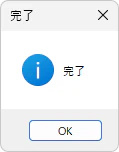
|
| InputBox | 入力ボックスを表示 | InputBox("名前を入力してください", "ユーザー入力")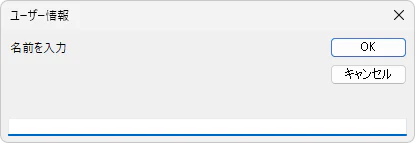
|
| IsNumeric | 数値判定 | IsNumeric(123) → True |
| IsEmpty | 空判定 | Dim temp, temp2 temp = "Excel" IsEmpty(temp) → False IsEmpty(temp2) → True |
| IsNull | Null判定 | Dim temp, temp2 temp = Null IsNull(temp) → True IsNull(temp2) → False |
| IsArray | 配列判定 | IsArray(Array("A", "B")) → True |
| IsDate | 日付判定 | IsDate("2025/01/01") → True |
| IsObject | オブジェクト判定 | Dim obj As Object: Set obj = CreateObject("Scripting.Dictionary") IsObject(obj) → True |
| Environ | 環境変数を取得 | Environ("USERNAME") → ユーザー名 |
| TypeName | 型名を文字列で取得 | TypeName(123) → "Integer" |
| VarType | データ型を数値で取得 | VarType("abc") → 8 (String) |