
概要
開いている全タブの内容を一つのテキストの集約して生成AIに渡したい。
前回はmdファイルをダウンロードしたが、今回はクリップボードにコピーされるように機能を追加する。
今回のコードでできること
Chromeで複数のタブを開いている状態で今回の拡張で「Copy Tabs to Clipboard」を実行すると



クリップボードにコピーされ、
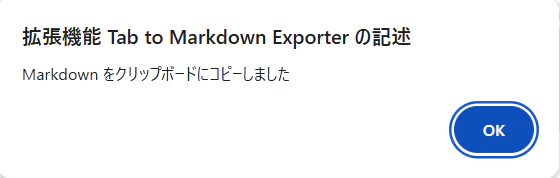
ペーストでChromeの全タブのURL一覧とそのURLの内容がひとつのテキストを張り付けられるようになる。

拡張機能作成
フォルダ構成に合わせて各ファイルを用意する。
基本的に前回の記事と流れは同じ。
違うファイルのみ(変更)と入れたので適宜入れ替えて使ってほしい。
フォルダ構成
tab-to-markdown-extension/
├─ manifest.json
├─ popup.html
├─ popup.js
├─ content.js
└─ readability.js
manifest.json
{
  "manifest_version": 3,
  "name": "Tab to Markdown Exporter",
  "version": "1.0",
  "description": "Open tabs → extract content → export Markdown",
  "permissions": [
    "tabs",
    "scripting",
    "downloads"
  ],
  "host_permissions": [
    "<all_urls>"
  ],
  "action": {
    "default_popup": "popup.html"
  }
}
popup.html(変更)
<!DOCTYPE html>
<html>
<head>
  <meta charset="utf-8">
  <style>
    body {
      width: 240px;
      font-family: sans-serif;
    }
    button {
      width: 100%;
      padding: 10px;
      font-size: 14px;
      margin-bottom: 8px;
    }
  </style>
</head>
<body>
  <button id="export">Export Tabs to Markdown</button>
  <button id="copy">Copy Tabs to Clipboard</button>

  <script src="popup.js"></script>
</body>
</html>
popup.js(変更)
async function buildMarkdown() {
  const tabs = await chrome.tabs.query({ currentWindow: true });

  let md = "# Open Chrome Tabs (Markdown Converted)\n\n";

  // =========================
  // URL List
  // =========================
  md += "## URL List\n\n";
  tabs.forEach((tab, i) => {
    md += `${i + 1}. [${tab.title || "No Title"}](${tab.url})  \n`;
  });

  md += "\n\n---\n";

  // =========================
  // 各タブ本文取得
  // =========================
  for (let i = 0; i < tabs.length; i++) {
    const tab = tabs[i];
    if (!tab.url || !tab.url.startsWith("http")) continue;

    try {
      const [{ result }] = await chrome.scripting.executeScript({
        target: { tabId: tab.id },
        files: ["readability.js", "content.js"]
      });

      md += `\n\n---\n`;
      md += `## ${i + 1}. ${result.title}\n`;
      md += `- URL: ${tab.url}\n\n`;
      md += `### ▼ Markdown Content\n\n`;
      md += result.markdown + "\n";

    } catch (e) {
      md += `\n\n---\n`;
      md += `## ${i + 1}. ${tab.title}\n`;
      md += `- URL: ${tab.url}\n\n`;
      md += `**[ERROR]** ${e}\n`;
    }
  }

  return md;
}

// =========================
// ダウンロード
// =========================
document.getElementById("export").onclick = async () => {
  const md = await buildMarkdown();
  downloadMarkdown(md);
};

// =========================
// クリップボードコピー
// =========================
document.getElementById("copy").onclick = async () => {
  const md = await buildMarkdown();
  await navigator.clipboard.writeText(md);
  alert("Markdown をクリップボードにコピーしました");
};

function downloadMarkdown(text) {
  const blob = new Blob([text], { type: "text/markdown" });
  const url = URL.createObjectURL(blob);

  chrome.downloads.download({
    url,
    filename: "tabs_output.md",
    saveAs: true
  });
}
content.js
(() => {
  const article = new Readability(document.cloneNode(true)).parse();

  if (!article) {
    return {
      title: document.title,
      markdown: "_本文を抽出できませんでした_"
    };
  }

  const text = article.textContent
    .split("\n")
    .map(l => l.trim())
    .filter(l => l.length > 0)
    .join("\n\n");

  return {
    title: article.title || document.title,
    markdown: text
  };
})();
readability.js
以下のGithubを保存する。
以下のコマンドをコマンドプロンプトで実行すれば取得できる。
curl -O https://raw.githubusercontent.com/mozilla/readability/main/Readability.js
rename Readability.js readability.js
拡張機能読み込み
① chromeで拡張機能の画面に移動。以下のURLでも飛べる。
chrome://extensions/
② デベロッパーモードをON。

③ 「パッケージ化されていない拡張機能を読み込む」を選択。
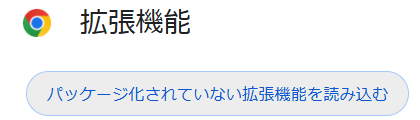
④ 今回作成したフォルダ「tab-to-markdown-extension」を選択。
これで自作した拡張が追加される。