
概要
開いている全タブの内容を一つのテキストの集約して生成AIに渡したい。
Chromeのタブで開いているURLをremote-debuggingとseleniumで取得して、そのHTMLをMarkItDownでテキストにして集約するコードを作成した。
今回のコードはWindowsで動作する。
今回のコードでできること
Chromeで複数のタブを開いている状態で今回のPGを実行すると

Chromeの全タブのURL一覧と
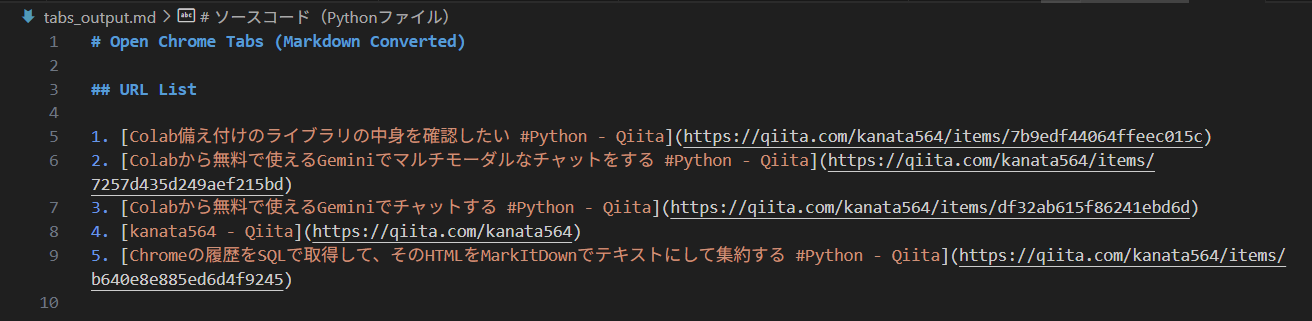
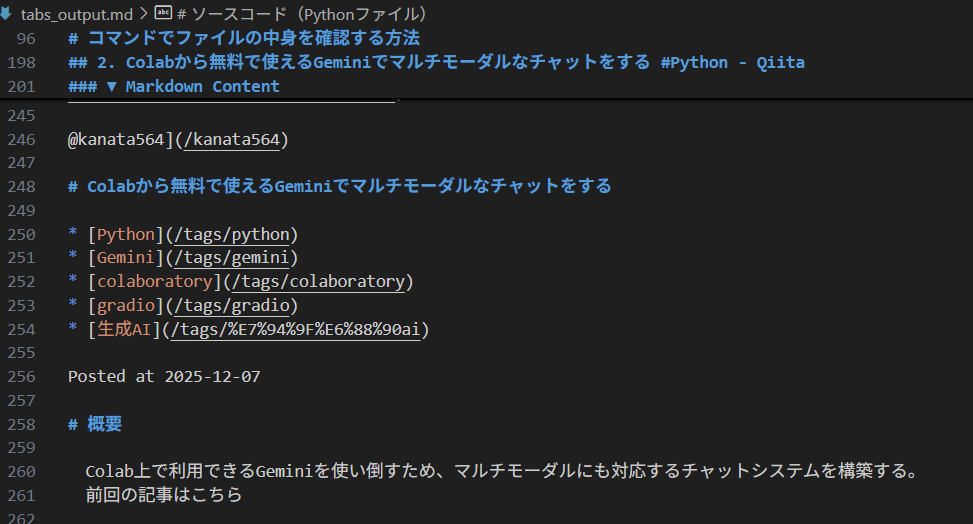
そのURLの内容をひとつのテキストにまとめる。
Chromeのremote-debuggingについて
Chromeは--remote-debugging-portを指定して起動すると、seleniumで情報を取得可能になる。
Chromeのショートカットの作り方
① デスクトップ画面で右クリック→[新規作成]→[ショートカット]を選択
② ショートカットの場所指定時にオプション指定付きのコマンドを入力
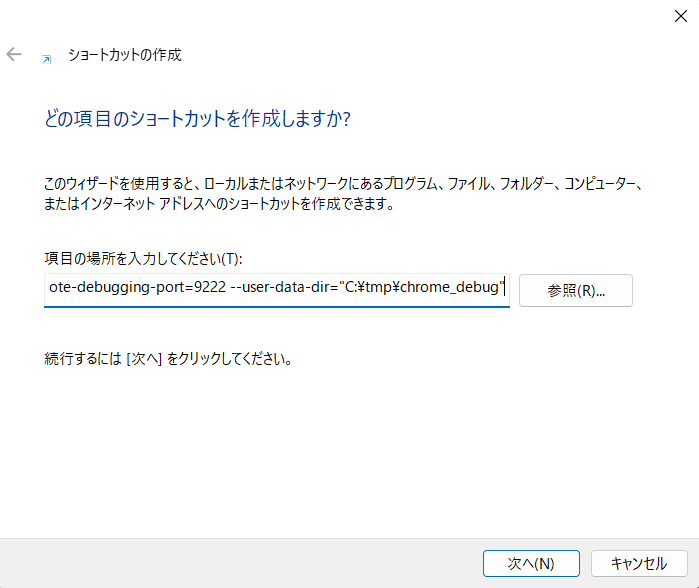
以下が張り付けるremote-debugging設定オプション付きのコマンド
"C:\Program Files (x86)\Google\Chrome\Application\chrome.exe" --remote-debugging-port=9222 --user-data-dir="C:\tmp\chrome_debug"
③ ショートカットの名前を付ける

④ 完成

動機
- PG中に調査した複数の記事の内容を使って、生成AIにコーディングさせたい
ソースコード(Pythonファイル)
from selenium import webdriver
from selenium.webdriver.chrome.options import Options
from selenium.webdriver.chrome.service import Service
from webdriver_manager.chrome import ChromeDriverManager

from markitdown import MarkItDown

# =========================
# 1. Chrome(remote-debugging)に接続
# =========================
def get_open_tab_urls():
    options = Options()
    options.add_experimental_option("debuggerAddress", "127.0.0.1:9222")

    service = Service(ChromeDriverManager().install())
    driver = webdriver.Chrome(service=service, options=options)

    urls = []
    original_handle = driver.current_window_handle

    for handle in driver.window_handles:
        driver.switch_to.window(handle)
        url = driver.current_url
        title = driver.title
        urls.append((title, url))

    driver.switch_to.window(original_handle)
    driver.quit()

    return urls


# =========================
# 2. URL → Markdown
# =========================
def url_to_markdown(url):
    try:
        result = MarkItDown().convert(url)
        return result.markdown
    except Exception as e:
        return f"""---
【取得失敗】
URL: {url}
Error: {e}
---
"""


# =========================
# 3. Markdown に集約
# =========================
def save_tabs_to_markdown(output_file="tabs_output.md"):
    tabs = get_open_tab_urls()

    with open(output_file, "w", encoding="utf-8") as f:
        f.write("# Open Chrome Tabs (Markdown Converted)\n\n")

        # -----------------------------
        # URL 一覧
        # -----------------------------
        f.write("## URL List\n\n")
        for i, (title, url) in enumerate(tabs, start=1):
            title = title if title else "(No Title)"
            f.write(f"{i}. [{title}]({url})  \n")

        f.write("\n\n---\n\n")

        # -----------------------------
        # 各記事の Markdown
        # -----------------------------
        for i, (title, url) in enumerate(tabs, start=1):
            title = title if title else "(No Title)"

            f.write("\n\n---\n")
            f.write(f"## {i}. {title}\n")
            f.write(f"- URL: {url}\n\n")
            f.write("### ▼ Markdown Content\n\n")

            md = url_to_markdown(url)
            f.write(md)
            f.write("\n")

    print(f"{output_file} を作成しました。")


# =========================
# 実行
# =========================
if __name__ == "__main__":
    save_tabs_to_markdown()