
はじめに
組織の階層構造とそこに所属する人数を可視化したい。
そんなことを、Power BIで実装する方法を考えてみました。
使用しているデータは全てAIで作成した架空のものです
この記事を読んでわかること
- タイトルの通り
- このPower BIの作り方

手順
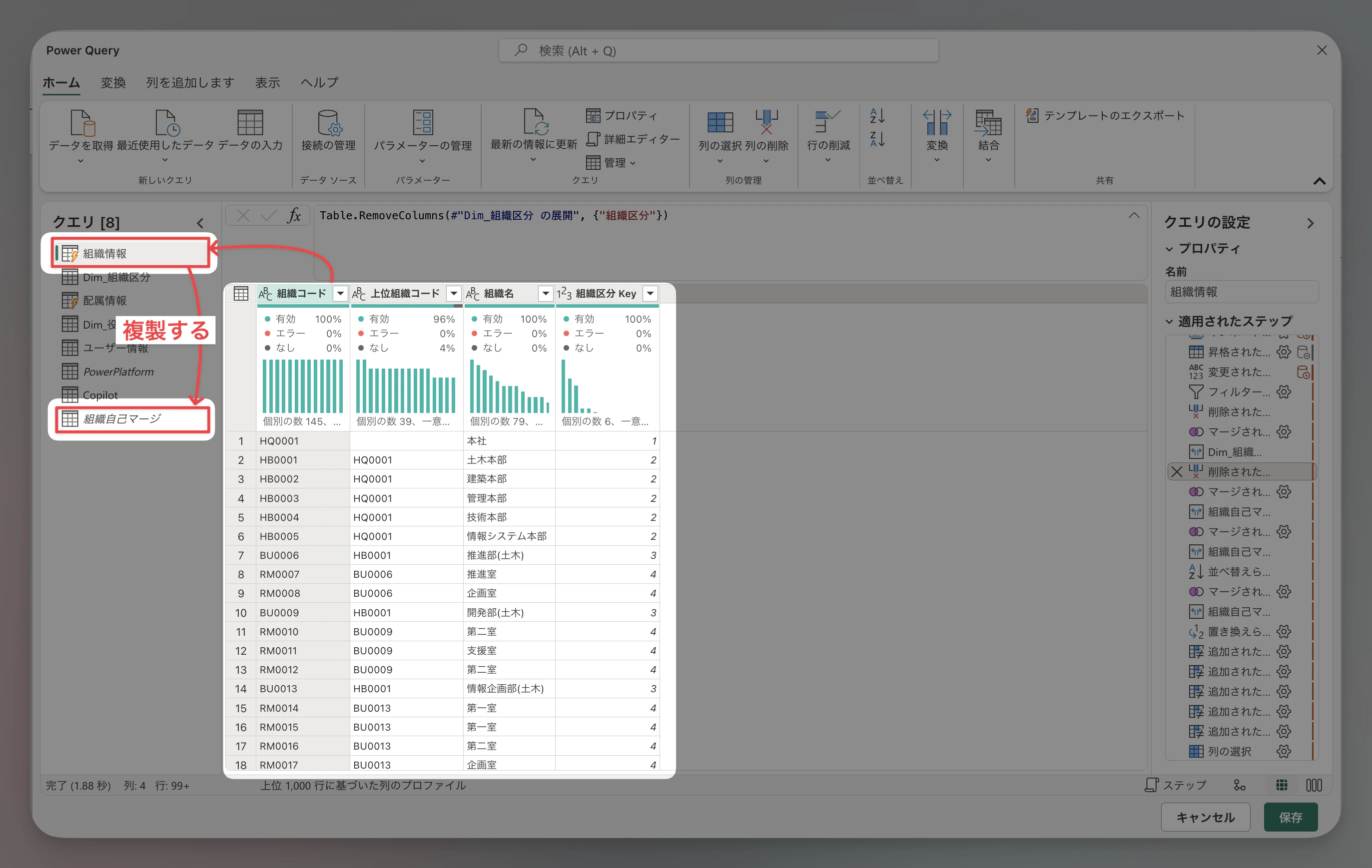
複製する
まずはこのテーブルを複製します。
マージする
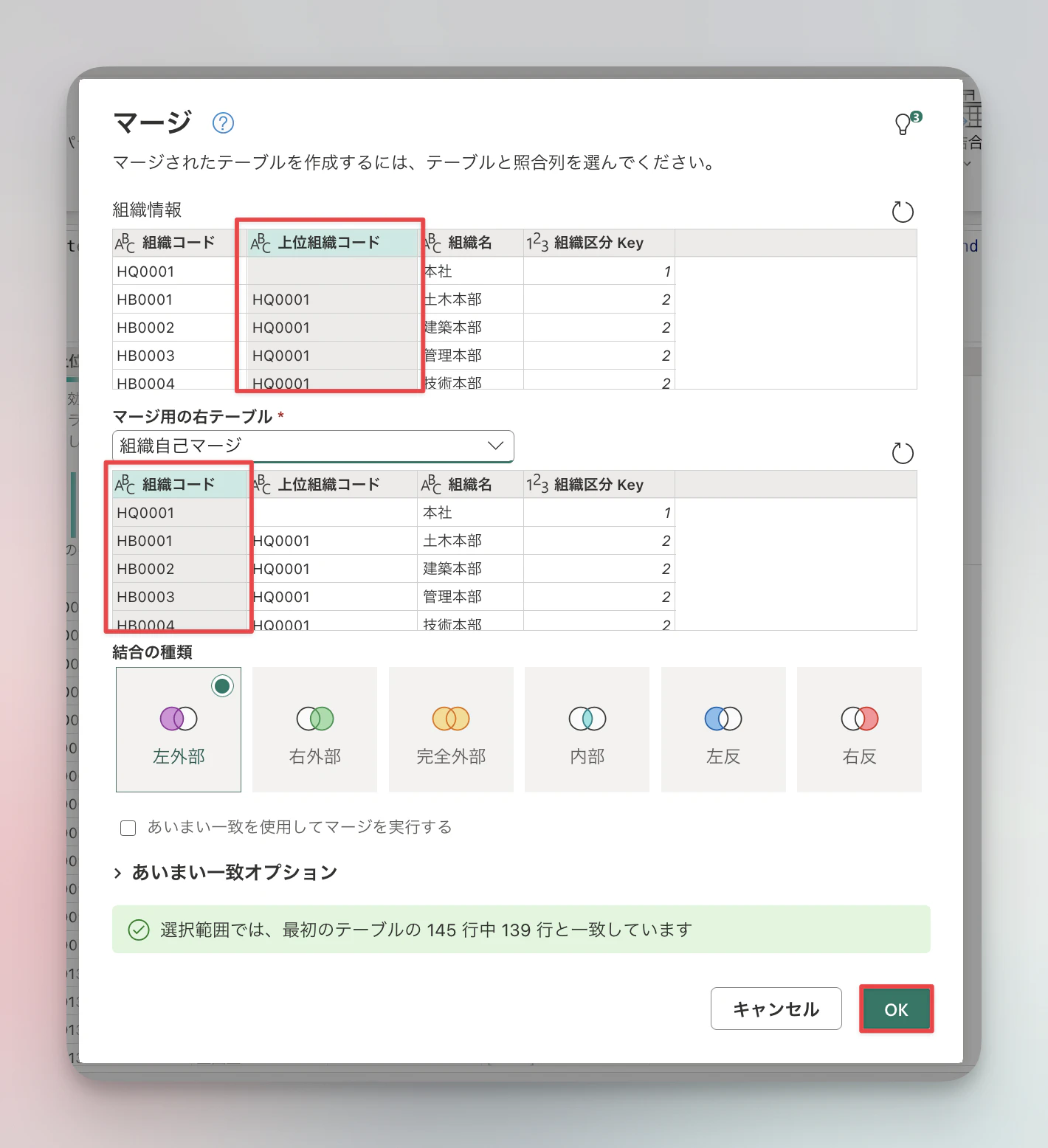
元テーブルの上位組織コードに対して、複製したテーブルの組織コードでマージをします。
階層分繰り返す
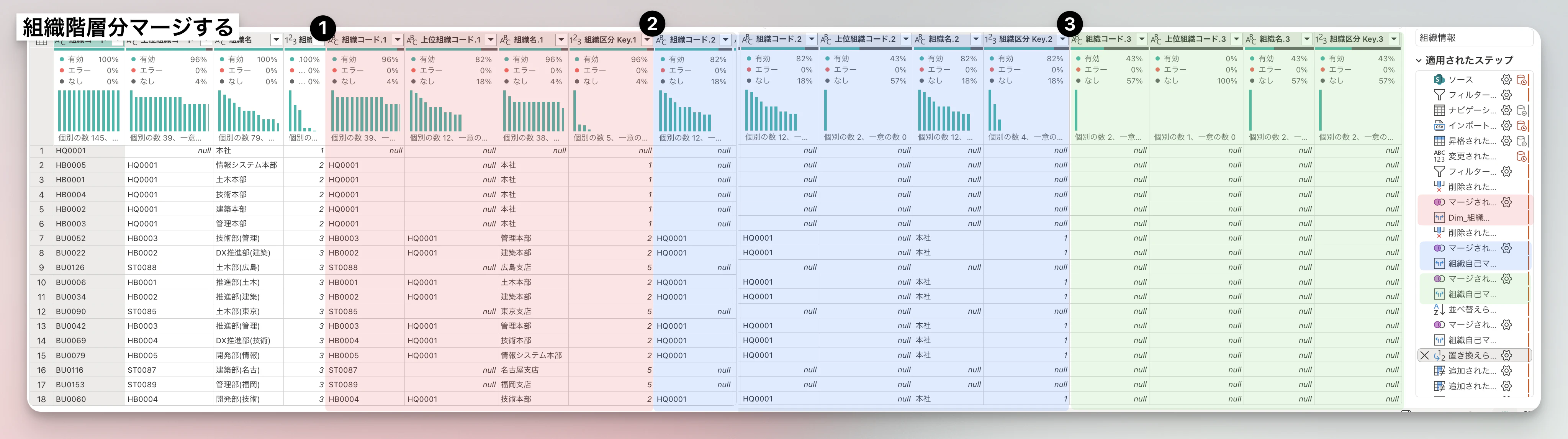
組織が3階層なら3回、4階層なら4回マージを繰り返します。
2回目以降は1回目にマージした組織コードに対して、上位組織コードをマージします。
カスタム列「階層深さ」を作成する
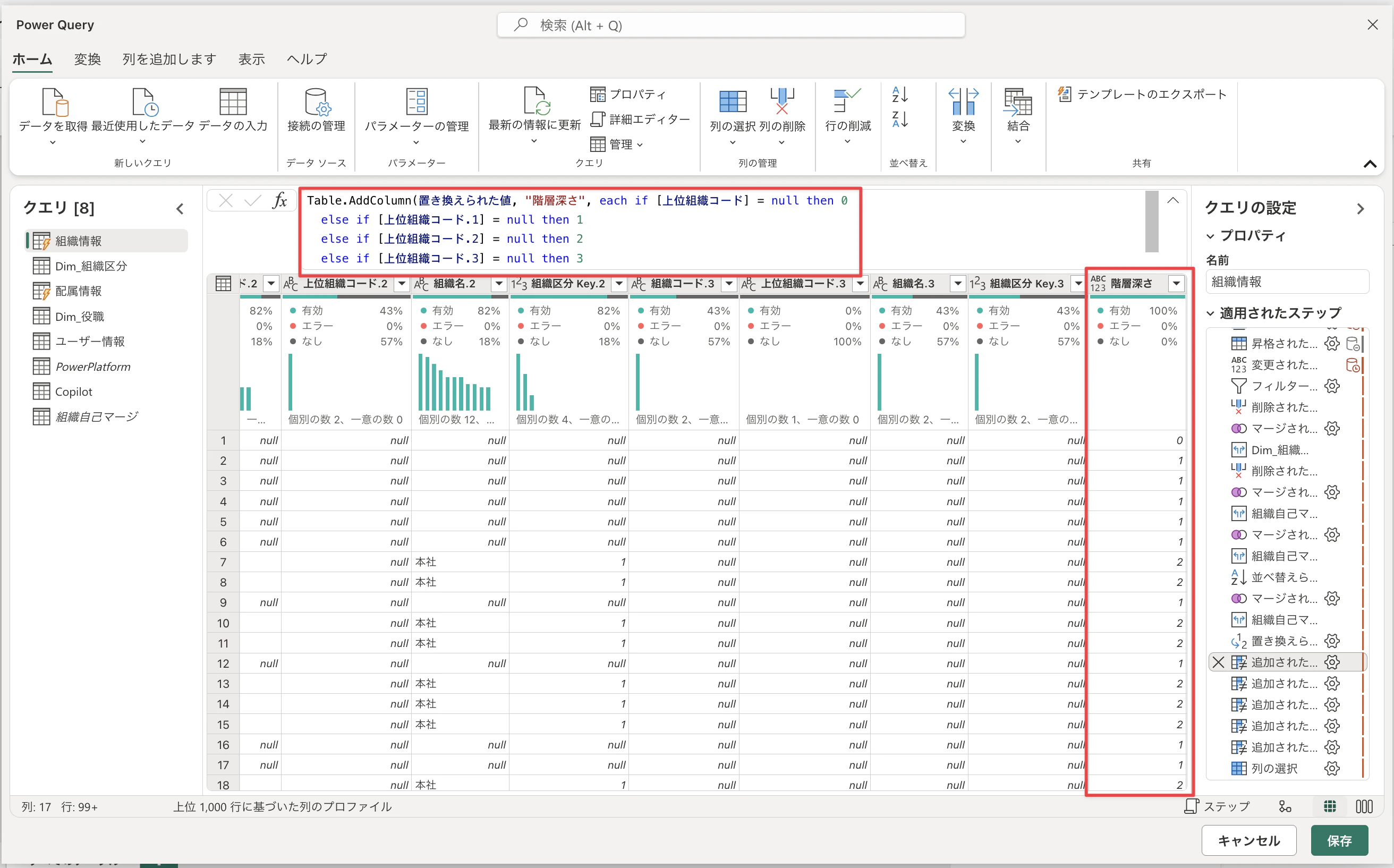
Table.AddColumn(置き換えられた値, "階層深さ", each if [上位組織コード] = null then 0
  else if [上位組織コード.1] = null then 1
  else if [上位組織コード.2] = null then 2
  else if [上位組織コード.3] = null then 3
  else 4)
レベル1階層の組織名を作成する
Table.AddColumn(追加されたカスタム, "レベル1_組織名", each if [階層深さ] = 0 then [組織名]
else if [階層深さ] = 1 then [#"組織名.1"]
else if [階層深さ] = 2 then [#"組織名.2"]
else if [階層深さ] = 3 then [#"組織名.3"]
else null)
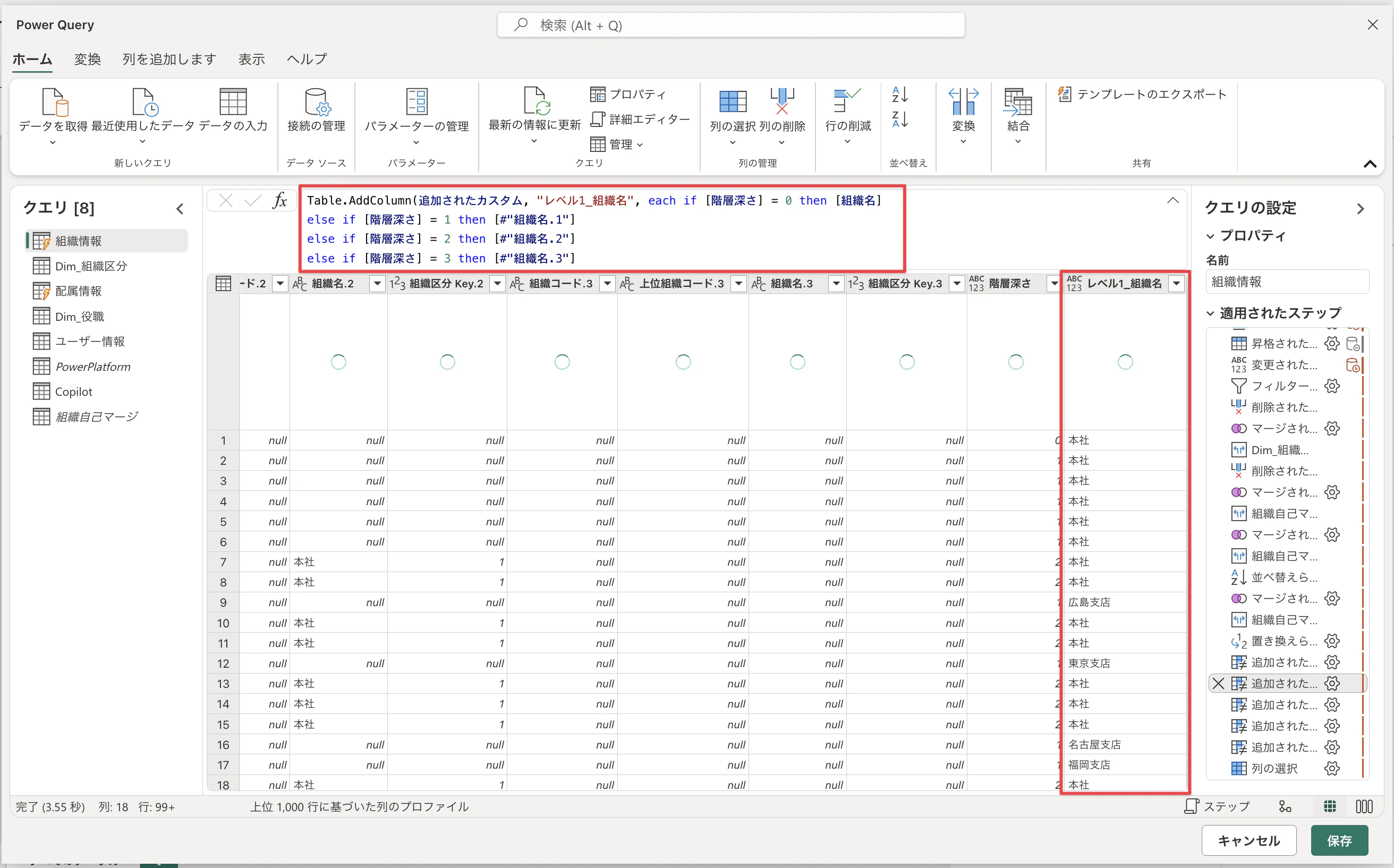
レベル2階層目の組織名を作成する
以降も同様にします。
Table.AddColumn(#"追加されたカスタム 1", "レベル2_組織名", each if [階層深さ] <= 0 then null
else if [階層深さ] = 1 then [組織名]
else if [階層深さ] = 2 then [#"組織名.1"]
else if [階層深さ] = 3 then [#"組織名.2"]
else null)
レベル3階層目の組織名を作成する
Table.AddColumn(#"追加されたカスタム 2", "レベル3_組織名", each if [階層深さ] <= 1 then null
else if [階層深さ] = 2 then [組織名]
else if [階層深さ] = 3 then [#"組織名.1"]
else null)
レベル4階層目の組織名を作成する
Table.AddColumn(#"追加されたカスタム 3", "レベル4_組織名", each if [階層深さ] <= 2 then null
else if [階層深さ] = 3 then [組織名]
else null)
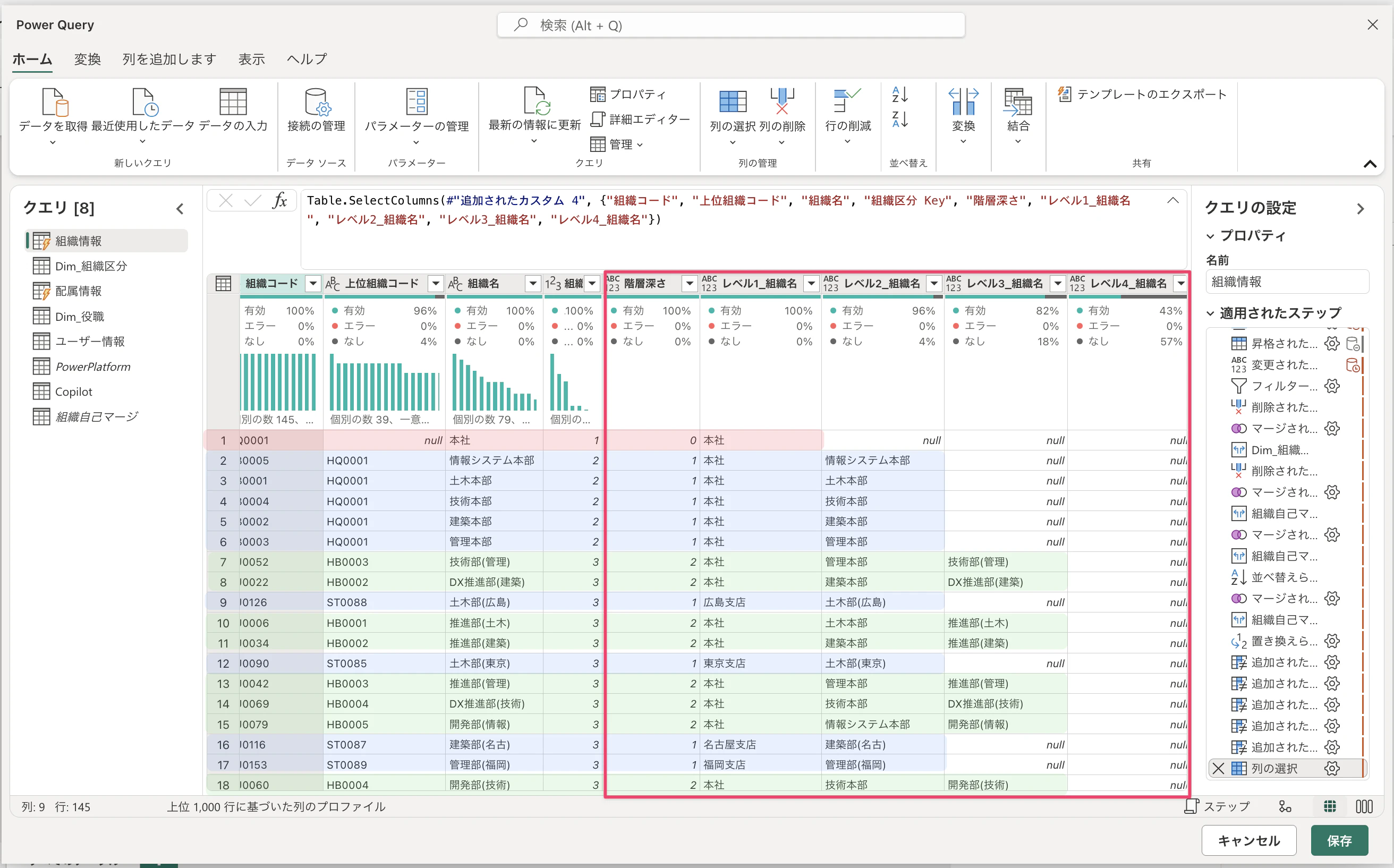
データ準備完了
階層を持ったデータにできました。
まとめ
このPower BIを使えば、解像度の高い仕事ができそう。
そうだな次は数値で語る戦いにしよう。
発展形はこちらです
Copilot の使用回数まで含めて、ヘビーユーザー生息Power BIを作ってみました