
怖がらせないためにはちゃんとチームメンバーに共有しておくか、自分のフォルダ内にEditorフォルダを作って、gitignoreに【Assets/MyLocalTools/】と登録しておきましょう!
個人で使う分には便利ですが、突然入ってるとびっくりさせちゃうので....
はじめに
この記事は Life is Tech ! Advent Calendar 2025 14日目の記事です。
どうも!Unityメンターのいのべえです🦊
普段から使っているEditor拡張をいくつか紹介します!
Editorって普段あんま使わないけど、いざ使ってみると開発スピードを劇的に上げるものもあったりします!
「ほえ〜 こんなものあるんだぁ」くらいの感覚でどうぞ!
バージョンによる見た目の差異があるかもですがご容赦ください!筆者環境は2022.3.62f2です!
0.拡張Editorのコードのルール
必ずEditorという名前のフォルダを作ってその下に入れるようにしましょう
Project
└ Assets
├ Scripts
└ Editor

1.使っていないコードを管理する!
長期で開発している作品や大規模な作品の場合、全く使ってないコードがProjectファイルにたくさんある...なんてことが発生しがちです。
特に最近だと勝手にc#ファイルを作ってくれるCursorやAntiGravityなどのAIもあるため、なおのことです。実際私も途中で仕様を変更した時に以前の残骸が残ったままだった....という経験があります😭
そこで、現在使っていないコードを検出し、一斉削除できる拡張Editorです。
ScriptUsageDetector.cs
using System;
using System.Collections.Generic;
using System.IO;
using System.Linq;
using System.Text.RegularExpressions;
using UnityEditor;
using UnityEngine;

public class ScriptUsageDetector : EditorWindow
{
    [Serializable]
    private class ScriptUsageData
    {
        public MonoScript Script;
        public int AttachCount;
        public bool IsReferencedInCode;
        public string Path;
    }

    private const string k_MenuItemPath = "Tools/Script Usage Detector";
    private const int k_ColumnWidth = 100;

    [SerializeField]
    private List<ScriptUsageData> _usageList = new List<ScriptUsageData>();

    [SerializeField]
    private Vector2 _scrollPosition;

    [SerializeField]
    private bool _showOnlyUnused = true;

    [SerializeField]
    private DefaultAsset _targetFolder;

    [MenuItem(k_MenuItemPath)]
    public static void ShowWindow()
    {
        var window = GetWindow<ScriptUsageDetector>();
        window.titleContent = new GUIContent("Script Usage Detector");
        window.Show();
    }

    private void OnGUI()
    {
        EditorGUILayout.Space();
        EditorGUILayout.LabelField("Script Usage Scanner", EditorStyles.largeLabel);

        // 設定エリア
        EditorGUILayout.BeginHorizontal();
        EditorGUILayout.LabelField("Target Folder (Optional):", GUILayout.Width(150));
        _targetFolder = (DefaultAsset)EditorGUILayout.ObjectField(_targetFolder, typeof(DefaultAsset), false);
        EditorGUILayout.EndHorizontal();

        EditorGUILayout.Space(5);

        // アクションボタン
        EditorGUILayout.BeginHorizontal();
        if (GUILayout.Button("Scan", GUILayout.Height(30)))
        {
            ScanProject();
        }

        var originalColor = GUI.backgroundColor;
        GUI.backgroundColor = new Color(1f, 0.5f, 0.5f);
        if (GUILayout.Button("Delete All Unused", GUILayout.Height(30)))
        {
            DeleteAllUnusedScripts();
        }
        GUI.backgroundColor = originalColor;
        EditorGUILayout.EndHorizontal();

        // フィルタ
        EditorGUILayout.Space();
        _showOnlyUnused = EditorGUILayout.ToggleLeft("Show Only Unused Candidates", _showOnlyUnused);
        EditorGUILayout.Space();

        // リスト描画
        DrawHeader();
        DrawList();
    }

    private void DrawHeader()
    {
        EditorGUILayout.BeginHorizontal(EditorStyles.toolbar);
        EditorGUILayout.LabelField("Script Name", GUILayout.ExpandWidth(true));
        EditorGUILayout.LabelField("Status", GUILayout.Width(80));
        EditorGUILayout.LabelField("Action", GUILayout.Width(k_ColumnWidth));
        EditorGUILayout.EndHorizontal();
    }

    private void DrawList()
    {
        _scrollPosition = EditorGUILayout.BeginScrollView(_scrollPosition);

        if (_usageList != null && _usageList.Count > 0)
        {
            for (int i = 0; i < _usageList.Count; i++)
            {
                var data = _usageList[i];
                if (data == null || data.Script == null) continue;

                if (_showOnlyUnused && (data.AttachCount > 0 || data.IsReferencedInCode))
                {
                    continue;
                }

                DrawScriptRow(data);
            }
        }
        else
        {
            EditorGUILayout.HelpBox("Press 'Scan' to start analysis.", MessageType.Info);
        }

        EditorGUILayout.EndScrollView();
    }

    private void DrawScriptRow(ScriptUsageData data)
    {
        EditorGUILayout.BeginHorizontal("box");

        // ホバー時にパスを表示
        var content = new GUIContent(data.Script.name, data.Path);
        if (GUILayout.Button(content, EditorStyles.label, GUILayout.ExpandWidth(true)))
        {
            EditorGUIUtility.PingObject(data.Script);
            Selection.activeObject = data.Script;
        }

        DrawStatusLabel(data);

        if (GUILayout.Button("Delete", GUILayout.Width(k_ColumnWidth)))
        {
            DeleteScript(data);
        }

        EditorGUILayout.EndHorizontal();
    }

    private void DrawStatusLabel(ScriptUsageData data)
    {
        if (data.AttachCount > 0)
        {
            EditorGUILayout.LabelField($"Used ({data.AttachCount})", EditorStyles.label, GUILayout.Width(80));
        }
        else if (data.IsReferencedInCode)
        {
            var c = GUI.contentColor;
            GUI.contentColor = Color.yellow;
            EditorGUILayout.LabelField("Code Ref", EditorStyles.boldLabel, GUILayout.Width(80));
            GUI.contentColor = c;
        }
        else
        {
            var c = GUI.contentColor;
            GUI.contentColor = Color.red;
            EditorGUILayout.LabelField("Unused", EditorStyles.boldLabel, GUILayout.Width(80));
            GUI.contentColor = c;
        }
    }

    private void ScanProject()
    {
        _usageList.Clear();

        // フォルダ指定があればパスを解決
        string[] searchFolders = null;
        if (_targetFolder != null)
        {
            searchFolders = new string[] { AssetDatabase.GetAssetPath(_targetFolder) };
        }

        var scriptMap = new Dictionary<MonoScript, ScriptUsageData>();

        // コード参照検索用に全スクリプトのパスを取得(検索範囲は全体)
        var allScriptFilePaths = Directory.GetFiles(Application.dataPath, "*.cs", SearchOption.AllDirectories);

        EditorUtility.DisplayProgressBar("Scanning", "Listing scripts...", 0.1f);

        // 1. スクリプト収集
        var scriptGuids = AssetDatabase.FindAssets("t:MonoScript", searchFolders);
        foreach (var guid in scriptGuids)
        {
            var path = AssetDatabase.GUIDToAssetPath(guid);
            if (path.StartsWith("Packages") || path.Contains("/Editor/")) continue;

            var script = AssetDatabase.LoadAssetAtPath<MonoScript>(path);
            if (script != null && !scriptMap.ContainsKey(script))
            {
                scriptMap.Add(script, new ScriptUsageData
                {
                    Script = script,
                    AttachCount = 0,
                    IsReferencedInCode = false,
                    Path = path
                });
            }
        }

        // 2. シーン内検索
        EditorUtility.DisplayProgressBar("Scanning", "Checking Scene Objects...", 0.3f);
        var sceneObjects = FindObjectsByType<MonoBehaviour>(FindObjectsSortMode.None);
        foreach (var mb in sceneObjects)
        {
            if (mb == null) continue;
            var script = MonoScript.FromMonoBehaviour(mb);
            if (script != null && scriptMap.ContainsKey(script))
            {
                scriptMap[script].AttachCount++;
            }
        }

        // 3. Prefab内検索
        EditorUtility.DisplayProgressBar("Scanning", "Checking Prefabs...", 0.5f);
        var prefabGuids = AssetDatabase.FindAssets("t:Prefab");
        int count = 0;
        foreach (var guid in prefabGuids)
        {
            var path = AssetDatabase.GUIDToAssetPath(guid);
            var prefab = AssetDatabase.LoadAssetAtPath<GameObject>(path);
            if (prefab != null)
            {
                var components = prefab.GetComponentsInChildren<MonoBehaviour>(true);
                foreach (var mb in components)
                {
                    if (mb == null) continue;
                    var script = MonoScript.FromMonoBehaviour(mb);
                    if (script != null && scriptMap.ContainsKey(script))
                    {
                        scriptMap[script].AttachCount++;
                    }
                }
            }

            count++;
            if (count % 50 == 0)
            {
                EditorUtility.DisplayProgressBar("Scanning", $"Checking Prefabs ({count}/{prefabGuids.Length})...", 0.5f + (float)count / prefabGuids.Length * 0.2f);
            }
        }

        // 4. コード参照解析
        EditorUtility.DisplayProgressBar("Scanning", "Analyzing Code References...", 0.8f);
        count = 0;
        foreach (var data in scriptMap.Values)
        {
            if (data.AttachCount == 0)
            {
                // Enum等のためにクラス名が取れない場合はファイル名を使用
                string searchName = data.Script.GetClass()?.Name;
                if (string.IsNullOrEmpty(searchName))
                {
                    searchName = Path.GetFileNameWithoutExtension(data.Path);
                }

                if (!string.IsNullOrEmpty(searchName))
                {
                    data.IsReferencedInCode = CheckIfReferencedInCode(searchName, data.Path, allScriptFilePaths);
                }
            }

            count++;
            if (count % 20 == 0)
            {
                EditorUtility.DisplayProgressBar("Scanning", "Analyzing Code References...", 0.8f + (float)count / scriptMap.Count * 0.2f);
            }
        }

        _usageList = new List<ScriptUsageData>(scriptMap.Values);

        // ソート: 未使用 -> コード参照のみ -> 使用中
        _usageList.Sort((a, b) =>
        {
            int compare = a.AttachCount.CompareTo(b.AttachCount);
            if (compare == 0) return a.IsReferencedInCode.CompareTo(b.IsReferencedInCode);
            return compare;
        });

        EditorUtility.ClearProgressBar();
    }

    private bool CheckIfReferencedInCode(string className, string selfPath, string[] allFilePaths)
    {
        // 単語境界を使用して完全一致に近い検索を行う
        var regex = new Regex($@"\b{className}\b");
        var normalizedSelfPath = selfPath.Replace("\\", "/");

        foreach (var filePath in allFilePaths)
        {
            // 自分自身は除外
            if (filePath.Replace("\\", "/").EndsWith(normalizedSelfPath)) continue;

            try
            {
                string content = File.ReadAllText(filePath);
                if (regex.IsMatch(content)) return true;
            }
            catch { /* 読み込みエラーは無視 */ }
        }
        return false;
    }

    private void DeleteScript(ScriptUsageData data)
    {
        string message = $"Delete '{data.Script.name}'?\n(Move to Trash)";
        if (data.IsReferencedInCode)
        {
            message += "\n\nWARNING: Referenced in code!";
        }

        if (EditorUtility.DisplayDialog("Delete Script", message, "Yes", "Cancel"))
        {
            if (AssetDatabase.MoveAssetToTrash(data.Path))
            {
                _usageList.Remove(data);
                Repaint();
            }
        }
    }

    private void DeleteAllUnusedScripts()
    {
        var targets = _usageList.Where(x => x.AttachCount == 0 && !x.IsReferencedInCode).ToList();

        if (targets.Count == 0)
        {
            EditorUtility.DisplayDialog("Delete All", "No unused scripts found.", "OK");
            return;
        }

        if (EditorUtility.DisplayDialog("Delete All Unused",
            $"Delete {targets.Count} unused scripts?\n(Move to Trash)",
            "Yes", "Cancel"))
        {
            foreach (var target in targets)
            {
                if (AssetDatabase.MoveAssetToTrash(target.Path))
                {
                    _usageList.Remove(target);
                }
            }

            AssetDatabase.Refresh();
            Repaint();
        }
    }
}
このスクリプトを適用すると、画面上部タブのToolsというところに`Script Usage Detector`というものが出現します。

こういうの。
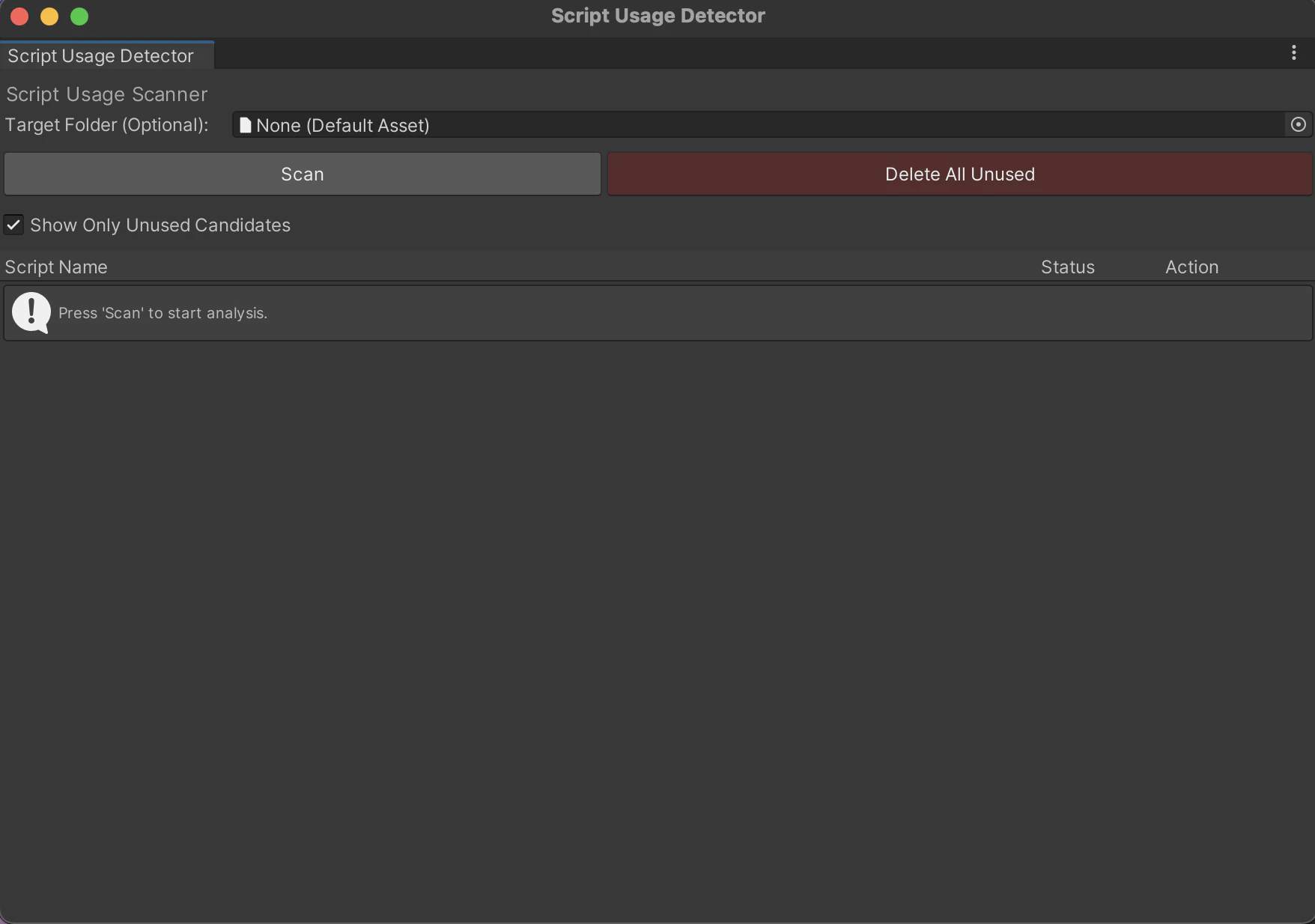
こちらを開くとこんな感じ
| 項目 | 説明 |
|---|---|
| TargetFolder | ここにフォルダを入れてからScanを押すと、そのフォルダ内で探してくれます。 |
| Scan | Project内から使用していないコードをScanしてくれます。 |
| Delete All Unused | Scanしたコードのうち、使われていないものを消してくれます。 |
結構ある....!
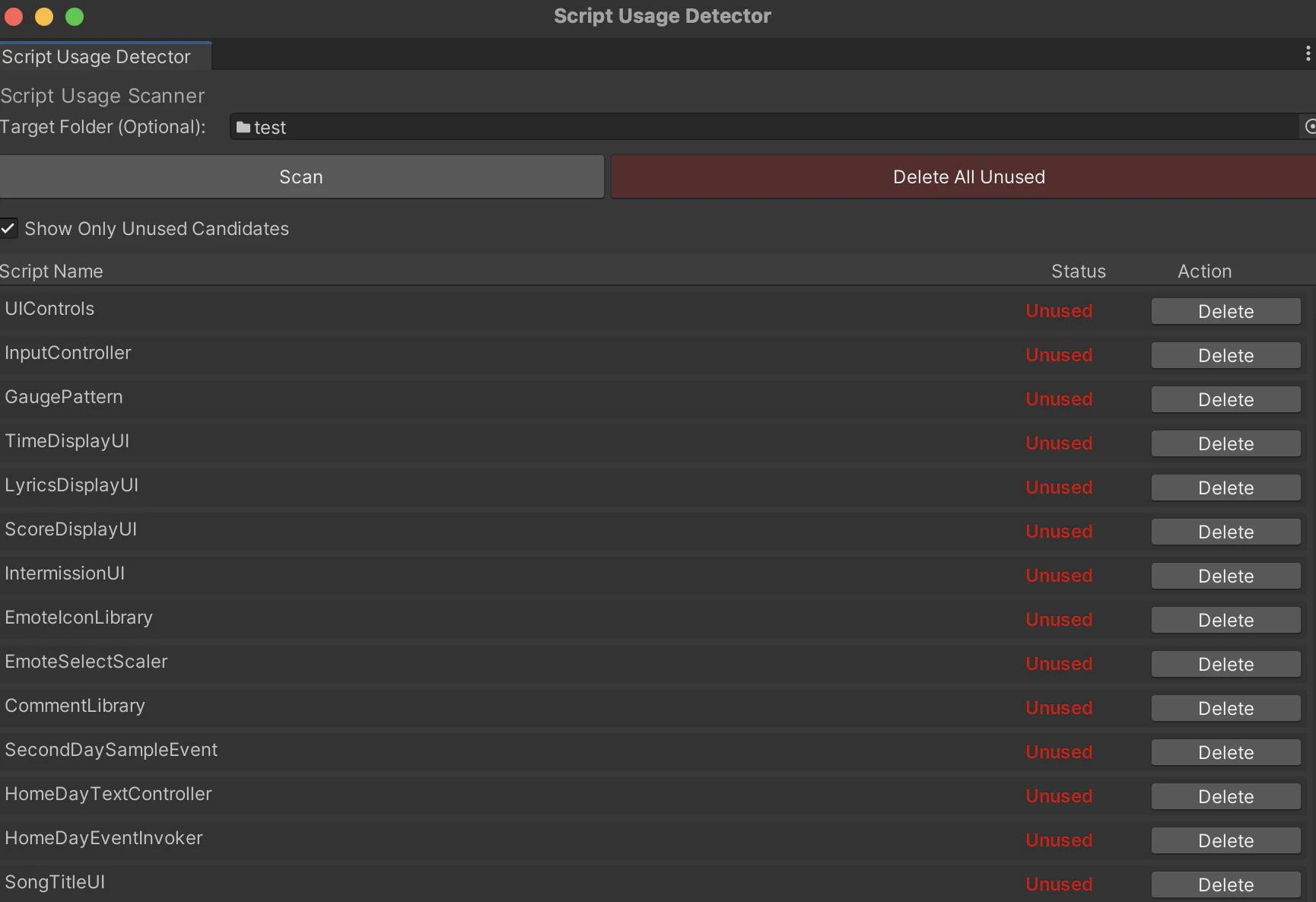
Yesを押してスッキリしましょう。

2.ツールバーを拡張する!
続いて.
ツールバーにいろいろ機能を足せる拡張Editorです。
ツールバーってなんだっけ...て思いの方はこちらですね。画面上部のアイツです。

ここっていつも同じ風景ですが結構スペースありますよね...?せっかくなので色々機能をたしてみましょう!
というわけでこのくらいに拡張していきます!

2-1 ツールバーをいじる時のお約束
説明省きますが、ツールバーをいじるときは基本このスクリプトが必須です。一旦脳死で入れましょう。
ToolbarExtender.cs
using System;
using System.Collections.Generic;
using System.Reflection;
using UnityEditor;
using UnityEngine;
using UnityEngine.UIElements;

[InitializeOnLoad]
public static class ToolbarExtender
{
    private static Type _toolbarType = typeof(Editor).Assembly.GetType("UnityEditor.Toolbar");
    private static ScriptableObject _currentToolbar;

    public static readonly List<Action> LeftToolbarGUI = new List<Action>();
    public static readonly List<Action> RightToolbarGUI = new List<Action>();

    static ToolbarExtender()
    {
        EditorApplication.update -= OnUpdate;
        EditorApplication.update += OnUpdate;
    }

    private static void OnUpdate()
    {
        if (_currentToolbar == null)
        {
            var toolbars = Resources.FindObjectsOfTypeAll(_toolbarType);
            _currentToolbar = toolbars.Length > 0 ? (ScriptableObject)toolbars[0] : null;

            if (_currentToolbar != null)
            {
                var rootField = _toolbarType.GetField("m_Root", BindingFlags.NonPublic | BindingFlags.Instance);
                var rawRoot = rootField.GetValue(_currentToolbar);
                var root = rawRoot as VisualElement;

                RegisterContainers(root);
            }
        }
    }

    private static void RegisterContainers(VisualElement root)
    {
        // すでに登録済みなら何もしない
        if (root.Q("CustomToolbarLeft") != null) return;

        // Unity標準の「再生ボタンエリア」を探す
        var playModeToolbar = root.Q("PlayMode");

        if (playModeToolbar == null)
        {
            // ここでログが出たら、Unityの内部構造が想定と違います
            // Debug.LogWarning("ToolbarExtender: 'PlayMode' element not found!");
            return;
        }

        // 重要: PlayModeボタンの「本当の親」を取得する
        var parent = playModeToolbar.parent;
        if (parent == null) return;

        // 親の中での PlayMode の位置(インデックス)を調べる
        int playModeIndex = parent.IndexOf(playModeToolbar);

        // --- 左側コンテナ ---
        var leftContainer = new IMGUIContainer(OnGUILeft);
        leftContainer.name = "CustomToolbarLeft";
        leftContainer.style.flexGrow = 1;
        leftContainer.style.flexDirection = FlexDirection.Row;
        leftContainer.style.justifyContent = Justify.FlexEnd; // 再生ボタン寄り

        // 再生ボタンの「直前」に挿入
        // 挿入すると以降の要素のインデックスが1つずれる
        parent.Insert(playModeIndex, leftContainer);

        // --- 右側コンテナ ---
        var rightContainer = new IMGUIContainer(OnGUIRight);
        rightContainer.name = "CustomToolbarRight";
        rightContainer.style.flexGrow = 1;
        rightContainer.style.flexDirection = FlexDirection.Row;
        rightContainer.style.justifyContent = Justify.FlexStart;

        int rightIndex = playModeIndex + 2;

        if (rightIndex < parent.childCount)
        {
            parent.Insert(rightIndex, rightContainer);
        }
        else
        {
            parent.Add(rightContainer);
        }
    }

    private static void OnGUILeft()
    {
        GUILayout.BeginHorizontal();
        foreach (var handler in LeftToolbarGUI)
        {
            handler();
        }
        GUILayout.EndHorizontal();
    }

    private static void OnGUIRight()
    {
        GUILayout.BeginHorizontal();
        foreach (var handler in RightToolbarGUI)
        {
            handler();
        }
        GUILayout.EndHorizontal();
    }
}
2-2 timeScaleをツールバーでいじれるようにする
こっからは五月雨式に行きます。
以下のコードを入れると〜?あら不思議!すぐにtimeScaleをいじれるようになりデバッグが捗ります!
ToolbarTimeScaleSlider.cs
using UnityEditor;
using UnityEngine;

[InitializeOnLoad]
public static class ToolbarTimeScaleSlider
{
    static ToolbarTimeScaleSlider()
    {
        ToolbarExtender.RightToolbarGUI.Add(OnToolbarGUI);
    }

    private static void OnToolbarGUI()
    {
        // 再生ボタンとの距離を少し取る
        GUILayout.Space(20);

        // 垂直方向の位置合わせ(中央寄せ)
        GUILayout.BeginVertical();
        GUILayout.Space(3); // 少し下げることで見た目の中心を合わせる

        GUILayout.BeginHorizontal();

        GUILayout.Label("Time", GUILayout.Width(35));

        float currentTimeScale = Time.timeScale;
        float newTimeScale = GUILayout.HorizontalSlider(currentTimeScale, 0f, 10f, GUILayout.Width(100)); // 幅を100に制限

        if (Mathf.Abs(currentTimeScale - newTimeScale) > 0.001f)
        {
            Time.timeScale = newTimeScale;
        }

        GUILayout.Label($"{newTimeScale:0.0}x", GUILayout.Width(30));

        if (GUILayout.Button("1x", GUILayout.Width(25), GUILayout.Height(15))) // 小さめのリセットボタン
        {
            Time.timeScale = 1.0f;
        }

        GUILayout.EndHorizontal();
        GUILayout.EndVertical();
    }
}

2-3 シーンを好きに変える
Build Settingに登録したシーンを、タブから選んで変えることができます!
ToolbarSceneSwitcher.cs
using UnityEditor;
using UnityEditor.SceneManagement;
using UnityEngine;
using System.IO;
using System.Linq;

[InitializeOnLoad]
public static class ToolbarSceneSwitcher
{
    private static GUIContent _sceneIcon;
    private static string[] _scenePaths;
    private static string[] _sceneNames;

    static ToolbarSceneSwitcher()
    {
        ToolbarExtender.LeftToolbarGUI.Add(OnToolbarGUI);
    }

    private static void OnToolbarGUI()
    {
        if (_sceneIcon == null) _sceneIcon = EditorGUIUtility.IconContent("SceneAsset Icon");

        RefreshSceneList();
        var currentScenePath = UnityEngine.SceneManagement.SceneManager.GetActiveScene().path;
        var currentIndex = -1;

        for (int i = 0; i < _scenePaths.Length; i++)
        {
            if (_scenePaths[i] == currentScenePath)
            {
                currentIndex = i;
                break;
            }
        }

        // Bootボタンとの間隔調整
        GUILayout.Space(2);

        // 高さをツールバーに合わせる
        GUILayout.Label(_sceneIcon, GUILayout.Width(20), GUILayout.Height(20));

        // プルダウンの高さを明示的に指定してズレを防ぐ
        var newIndex = EditorGUILayout.Popup(currentIndex, _sceneNames, GUILayout.Width(140), GUILayout.Height(18)); // 高さを少し調整

        if (newIndex != currentIndex && newIndex >= 0)
        {
            if (EditorSceneManager.SaveCurrentModifiedScenesIfUserWantsTo())
            {
                EditorSceneManager.OpenScene(_scenePaths[newIndex]);
            }
        }
    }

    private static void RefreshSceneList()
    {
        var scenes = EditorBuildSettings.scenes.Where(s => s.enabled).ToArray();
        _scenePaths = scenes.Select(s => s.path).ToArray();
        _sceneNames = scenes.Select(s => Path.GetFileNameWithoutExtension(s.path)).ToArray();
    }
}

終わりに
いかがだったでしょうか?楽できるところはとことん楽して開発ライフを加速していきましょう!
と思ったらUnity6.3から公式でツールバーをもっと自由にカスタマイズできるようになったらしいです。これを書こうかなと思った時は知らなかった....
これ試してみてまた記事書こうかな
かがくのちからってすげー!
以上です!