
Cockpitを使ってみる
Linuxにて、ブラウザからIPアドレス情報を設定できるものを探していたところ、Cockpitなるものがあることを知った。世間的には、大昔からあるもの。今更ながらの個人的なメモレベル。
インストール+α
機器として、M5stack CoreMP135を利用。DebianベースのLinuxである。
# apt install cockpit
rootで利用するための設定を実施(下記、rootコメント化)。
# cat /etc/cockpit/disallowed-users
# List of users which are not allowed to login to Cockpit
#root
起動状況は下記となる。
# systemctl status cockpit --no-pager
○ cockpit.service - Cockpit Web Service
     Loaded: loaded (/lib/systemd/system/cockpit.service; static)
     Active: inactive (dead) since Sat 2026-03-28 11:38:23 UTC; 21s ago
   Duration: 2h 21min 17.921s
TriggeredBy: ● cockpit.socket
       Docs: man:cockpit-ws(8)
    Process: 798 ExecStartPre=/usr/lib/cockpit/cockpit-certificate-ensure --for-cockpit-tls (code=exited, status=0/SUCCESS)
    Process: 800 ExecStart=/usr/lib/cockpit/cockpit-tls (code=exited, status=0/SUCCESS)
   Main PID: 800 (code=exited, status=0/SUCCESS)
        CPU: 1min 8.046s

...

Mar 28 11:36:16 CoreMP135 cockpit-tls[800]: cockpit-tls: gnutls_handshake failed: A TLS fatal alert has been received.
Mar 28 11:38:23 CoreMP135 systemd[1]: cockpit.service: Deactivated successfully.
Mar 28 11:38:23 CoreMP135 systemd[1]: cockpit.service: Consumed 1min 8.046s CPU time.
ポート9090で待ち受けてしており、ブラウザからアクセスする。
# ss -ltpn
State     Recv-Q    Send-Q       Local Address:Port        Peer Address:Port    Process
LISTEN    0         128                0.0.0.0:22               0.0.0.0:*        users:(("sshd",pid=397,fd=3))
LISTEN    0         20               127.0.0.1:25               0.0.0.0:*        users:(("exim4",pid=709,fd=4))
LISTEN    0         4096                     *:9090                   *:*        users:(("systemd",pid=1,fd=48))
LISTEN    0         128                   [::]:22                  [::]:*        users:(("sshd",pid=397,fd=4))
LISTEN    0         20                   [::1]:25                  [::]:*        users:(("exim4",pid=709,fd=5))
動作
主なところを記載。
ログイン
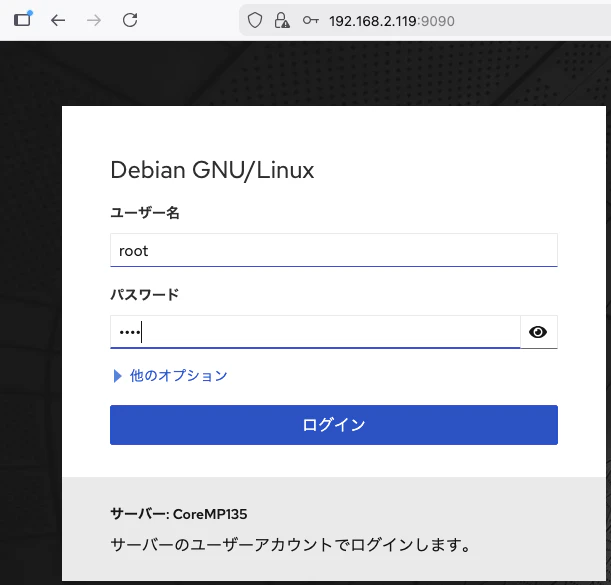
ブラウザにて、IPアドレス:9090でアクセス。
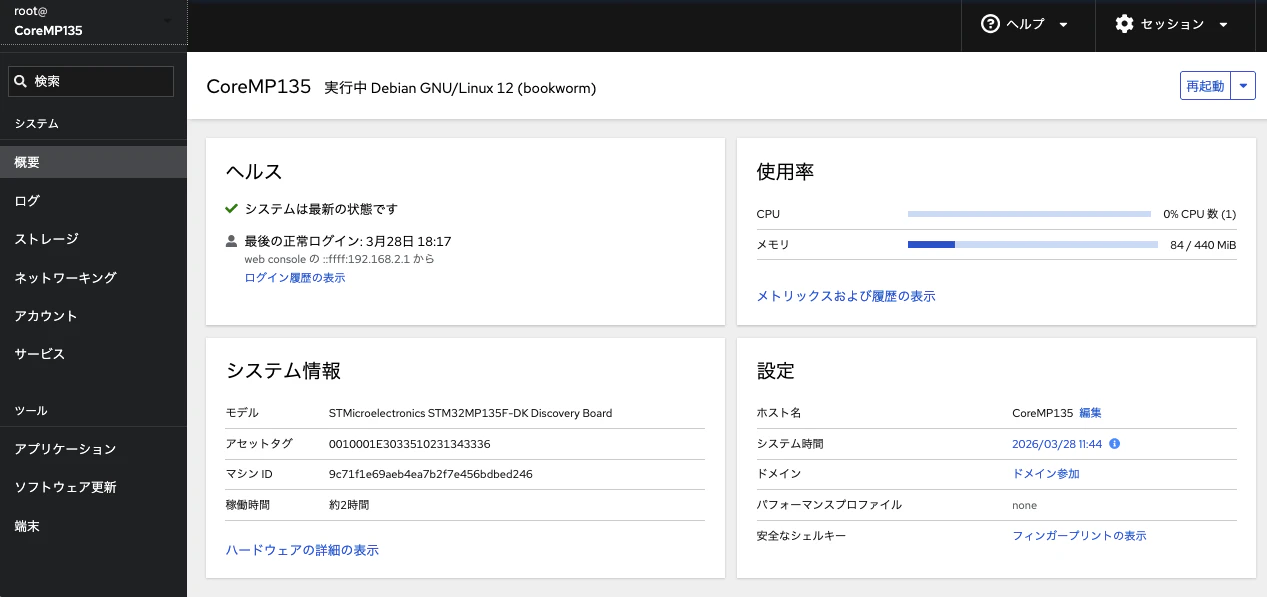
トップ画面は下記となる。
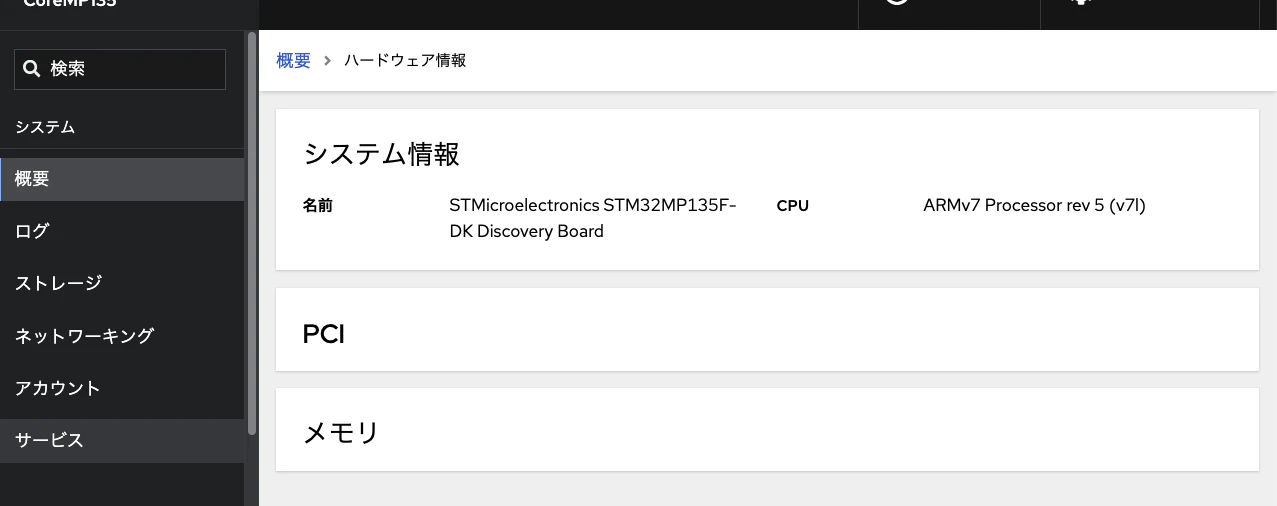
ハードウェア情報
トップ画面のシステム情報にある「ハードウェアの詳細の表示」をクリック。
メトリックス
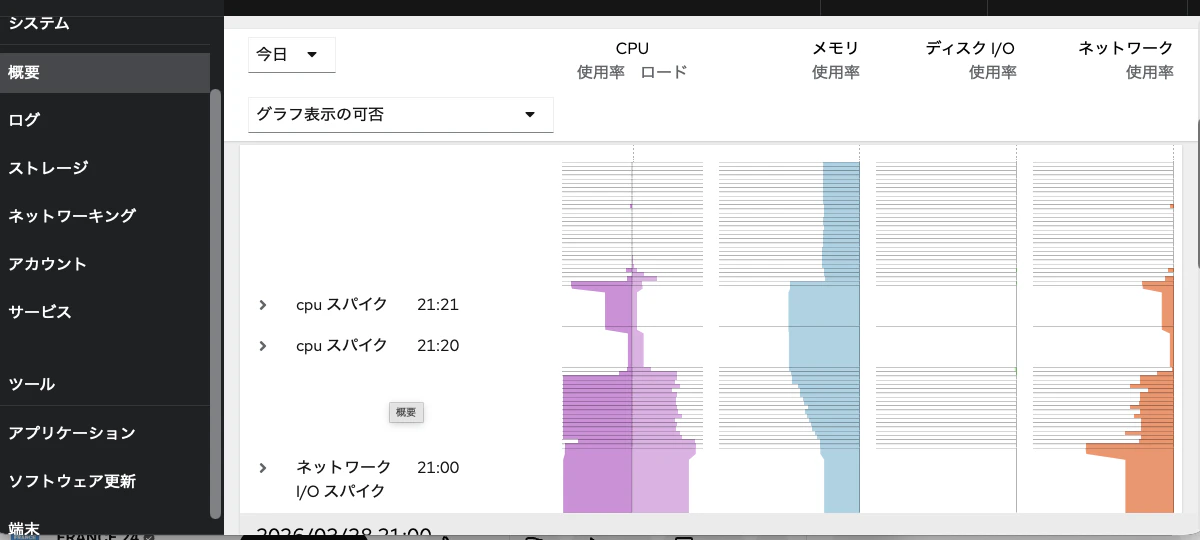
トップ画面の使用率にある「メトリックスおよび履歴の表示」をクリックすると下記となる。
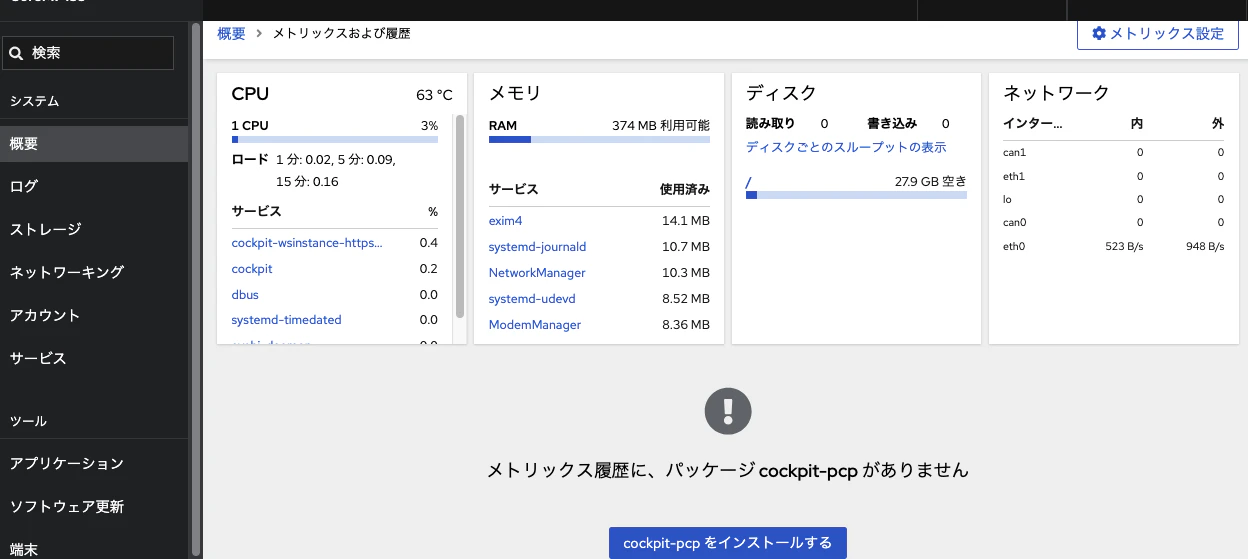
「cockpit-pcpをインストールする」、続いて「Install」をクリック。
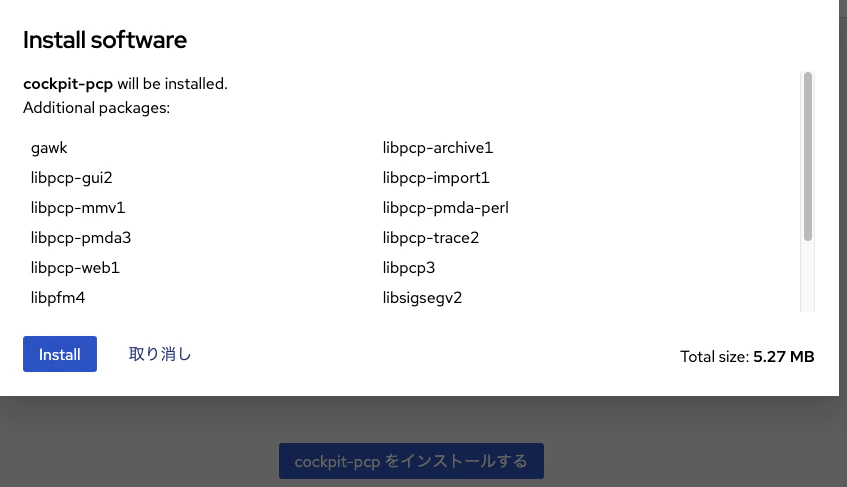
インストール後、再起動を促される。

再起動後、下記となり、CPU、メモリ、ディスクI/O、ネットワークの状況を見ることができる。
ログ
ログの状況。
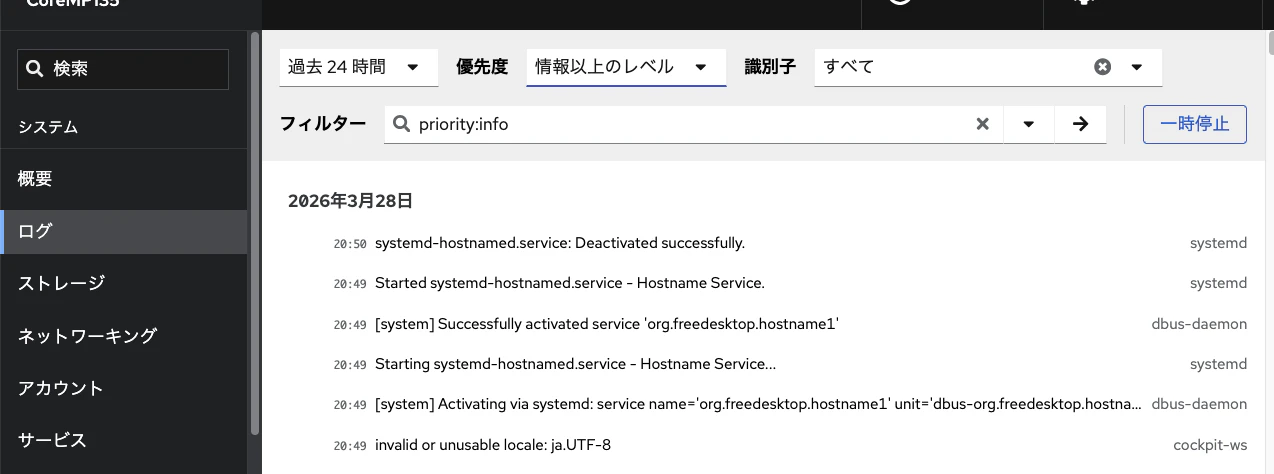
優先度(INFO、ERROR、WARNINGなど)を選んで表示も可能。
ストレージ
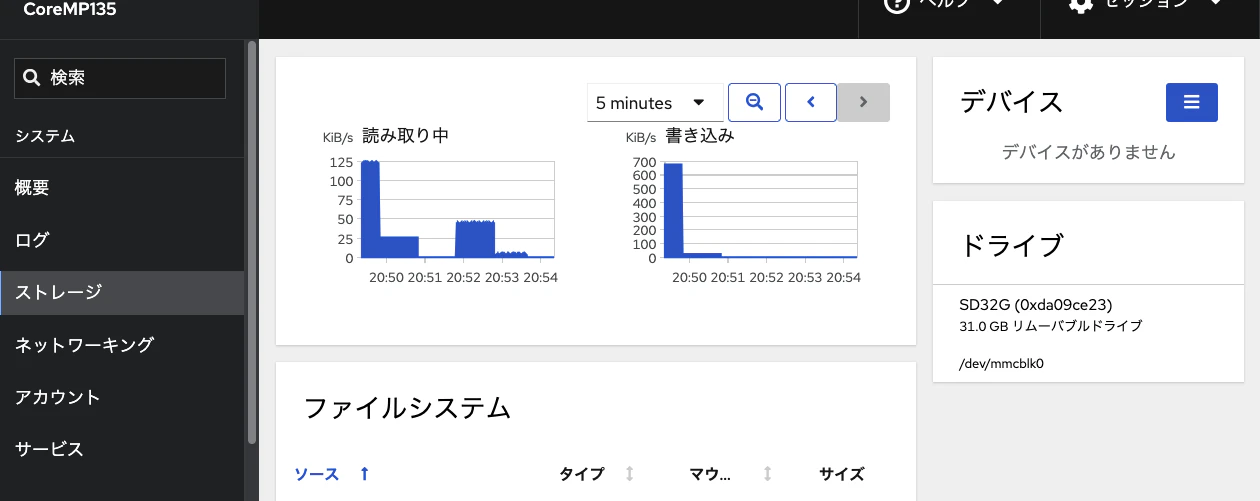
読み込み・書き込み状況の表示。
ネットワーク
これが目当て。トップに、送受信レートが表示される。
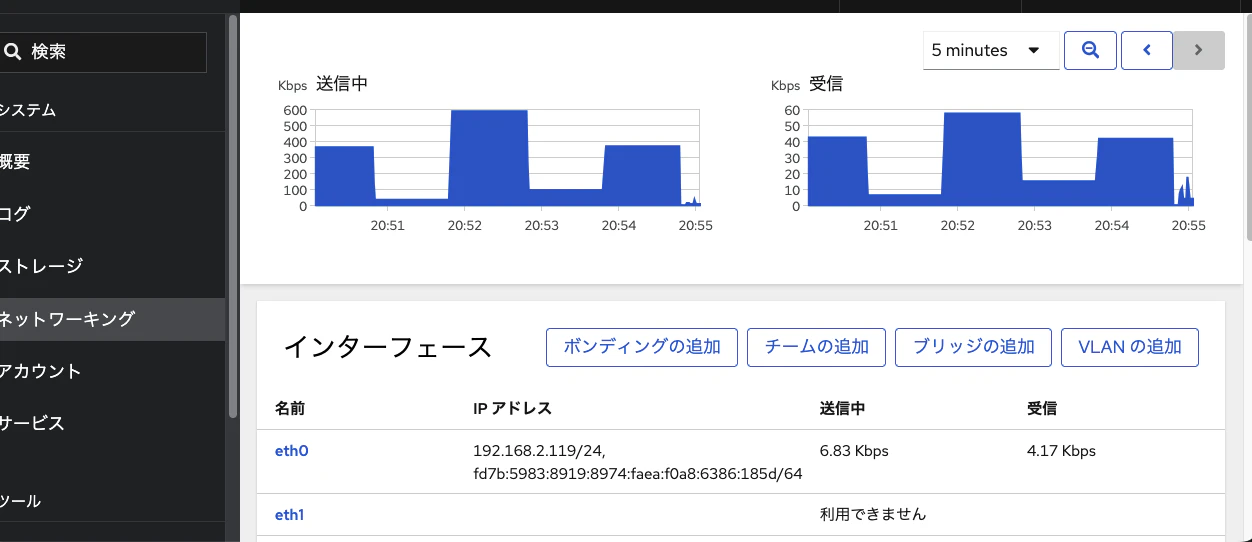
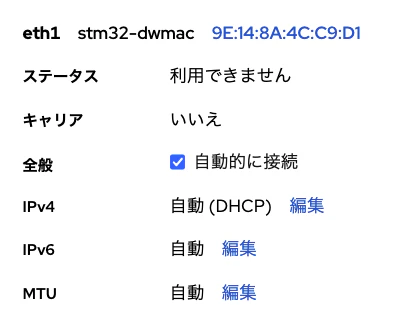
インターフェースをクリックすると、IPアドレスの設定ができる。
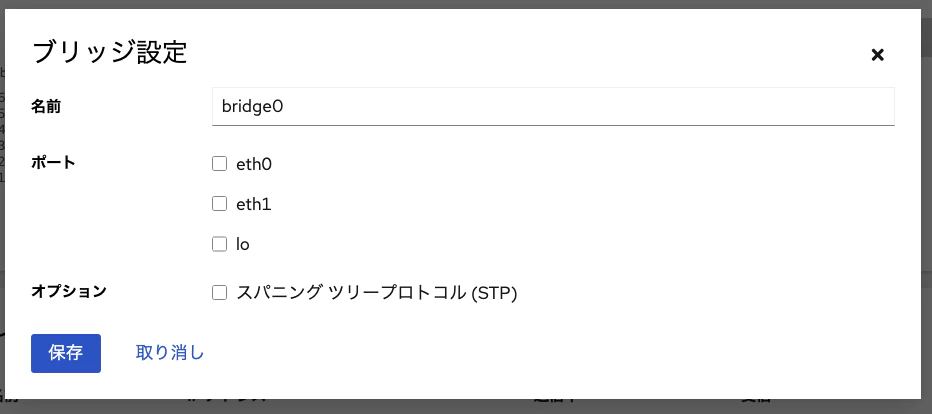
ブリッジ作成も可能。
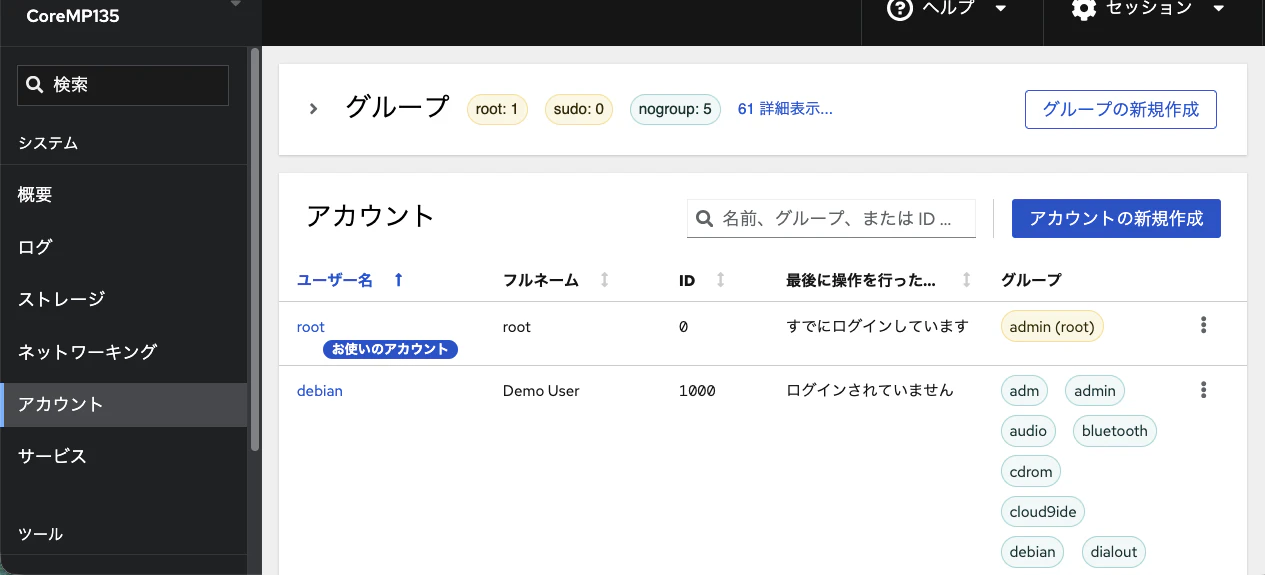
アカウント
アカウント操作(追加など)も可能。
サービス
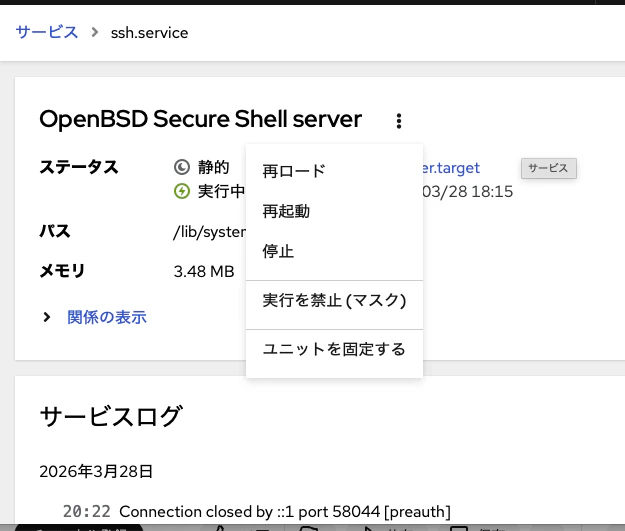
登録されているサービスが表示される。
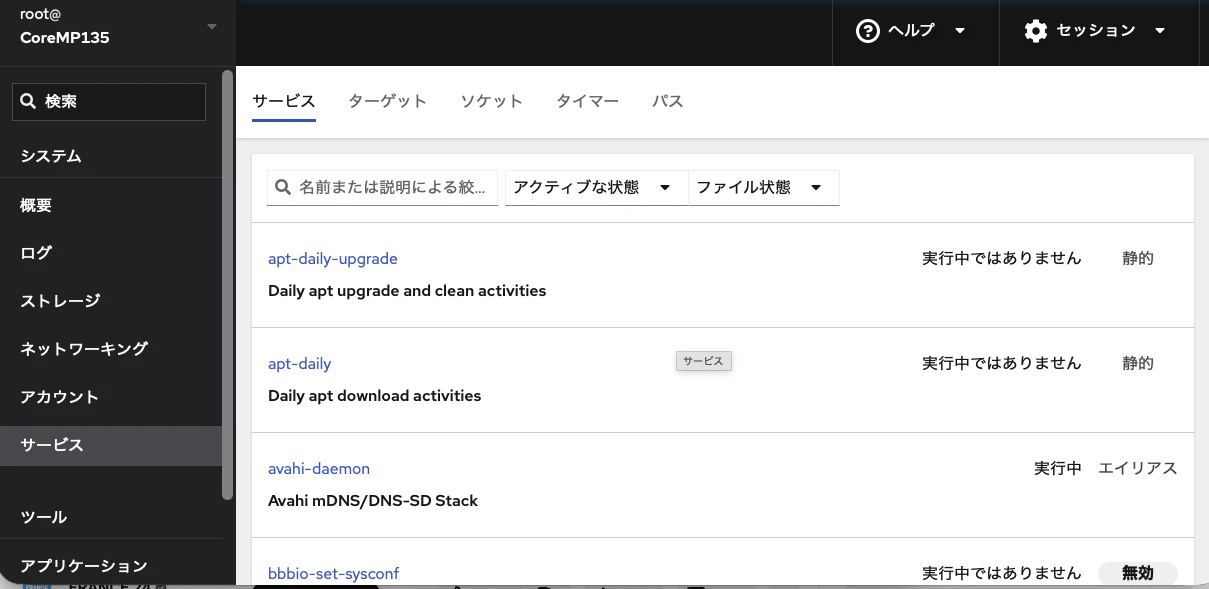
起動などの制御も可能。
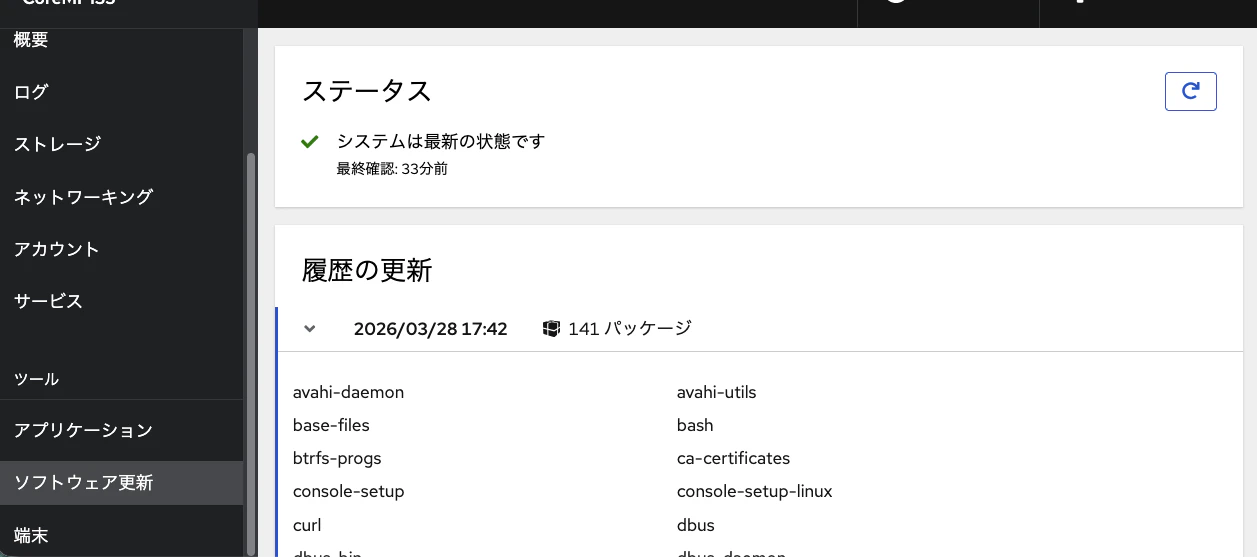
ソフトウェア更新
”apt update”および”apt upgrade”に相当するのであろう。
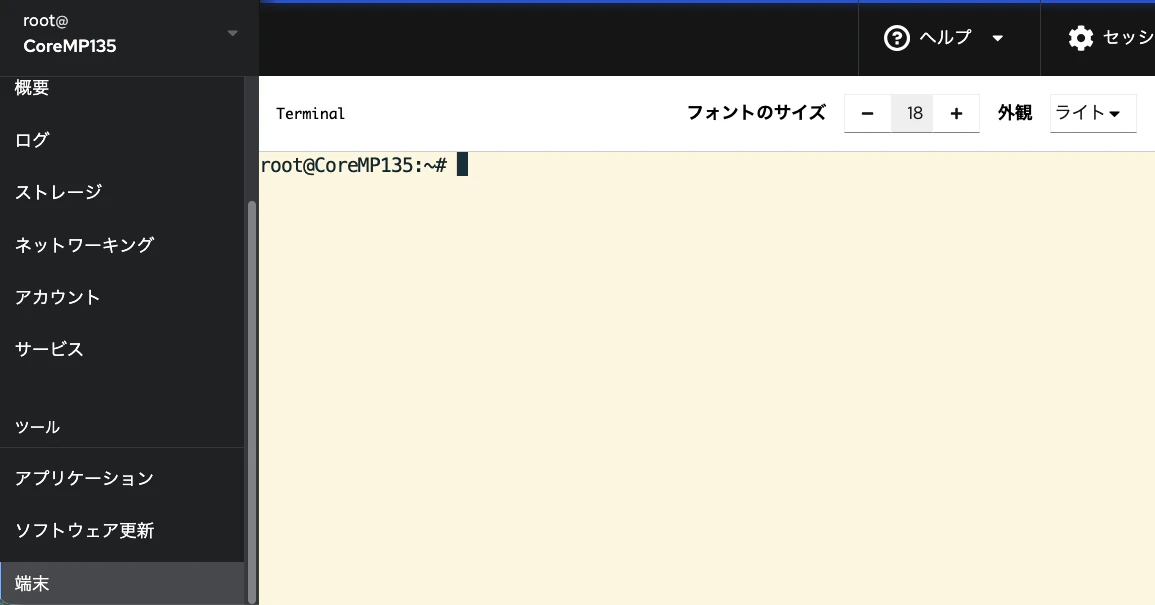
端末
シェルである。
最後に
どの程度重いかまでは調べていないが、ブラウザからの操作は便利である。また、シェルを起動できるので、かなり使える。