
はじめに
Google Cloud の HA VPN と AWS の Virtual Private Gateway を使用して、冗長構成のVPN接続を構築しました。
簡易構成図
Google Cloud                          AWS
┌─────────────────────┐              ┌─────────────────────┐
│                     │              │                     │
│  HA VPN Gateway     │              │  Virtual Private    │
│  interface0:        │◀──tunnel1───▶│  Gateway            │
│  x.x.x.x            │              │                     │
│                     │◀──tunnel2───▶│  tunnel1: x.x.x.x   │
│  interface1:        │              │  tunnel2: x.x.x.x   │
│  x.x.x.x          │◀──tunnel3───▶│  tunnel3: x.x.x.x   │
│                     │              │  tunnel4: x.x.x.x   │
│                     │◀──tunnel4───▶│                     │
│                     │              │                     │
│  Cloud Router       │              │  BGP ASN: 64512     │
│  ASN: 65000         │              │                     │
└─────────────────────┘              └─────────────────────┘
         │                                     │
    VPCネットワーク                        VPCネットワーク
     10.0.0.0/16                         172.16.0.0/16
前提条件
- Google Cloud プロジェクトが作成済みであること
- AWS アカウントが作成済みであること
- 両環境のVPCが作成済みであること
- 必要なIAM権限があること
使用するIPアドレス範囲(例)
| 環境 | VPC CIDR |
|---|---|
| Google Cloud VPC | 10.0.0.0/16 |
| AWS VPC | 172.16.0.0/16 |
Step1:Google Cloud の設定
1-1. VPCネットワークの作成
# VPCネットワークを作成
gcloud compute networks create test-vpc \
  --subnet-mode custom

# サブネットを作成
gcloud compute networks subnets create test-subnet-1 \
  --network test-vpc \
  --region asia-northeast1 \
  --range 10.0.1.0/24
1-2. HA VPN Gateway の作成
# HA VPN Gatewayを作成
gcloud compute vpn-gateways create gcp-ha-vpn-gateway \
  --network=test-vpc \
  --region=asia-northeast1

# 出力例(後でAWSに設定)
# INTERFACE0: 35.242.57.115   # ← AWSのCustomer GatewayのIPに使用
# INTERFACE1: 35.220.59.124   # ← AWSのCustomer GatewayのIPに使用
1-3. Cloud Router の作成
# Cloud Routerを作成(BGP用)
gcloud compute routers create gcp-router \
  --network=test-vpc \
  --region=asia-northeast1 \
  --asn=65000  # GCP側のBGP ASN
Step2:AWS の設定
2-1. VPCの作成
# VPCを作成
aws ec2 create-vpc \
  --cidr-block 172.16.0.0/16 \
  --tag-specifications 'ResourceType=vpc,Tags=[{Key=Name,Value=test-vpc}]'

# 出力例:
  "VpcId": "vpc-0f89e932877d20ebd", ← メモしておく

# サブネットを作成
aws ec2 create-subnet \
  --vpc-id vpc-0f89e932877d20ebd \
  --cidr-block 172.16.1.0/24 \
  --availability-zone ap-northeast-1a \
  --tag-specifications 'ResourceType=subnet,Tags=[{Key=Name,Value=test-private-subnet-1a}]'
2-2. Virtual Private Gateway の作成
# AWS CLIでVirtual Private Gatewayを作成
aws ec2 create-vpn-gateway \
  --type ipsec.1 \
  --amazon-side-asn 64512 \
  --tag-specifications 'ResourceType=vpn-gateway,Tags=[{Key=Name,Value=aws-vpn-gateway}]' \
  --region ap-northeast-1

# 出力例:
# "VpnGatewayId": "vgw-05a164d0a6cdc2059", ← メモしておく
2-3. Virtual Private Gateway を VPC にアタッチ
aws ec2 attach-vpn-gateway \
  --vpn-gateway-id vgw-05a164d0a6cdc2059 \
  --vpc-id vpc-0f89e932877d20ebd \
  --region ap-northeast-1
2-3. Customer Gateway の作成(GCPのIPを登録)
GCP の HA VPN Gateway の各インターフェースIPに対して Customer Gateway を作成します。
# interface0のIPでCustomer Gateway①を作成
aws ec2 create-customer-gateway \
  --type ipsec.1 \
  --public-ip 35.242.57.115 \
  --bgp-asn 65000 \
  --tag-specifications 'ResourceType=customer-gateway,Tags=[{Key=Name,Value=aws-customer-gateway-1}]' \
  --region ap-northeast-1
# 出力例:
# "CustomerGatewayId": "cgw-0f54aadfdc8c05202"(①)

# interface1のIPでCustomer Gateway②を作成
aws ec2 create-customer-gateway \
  --type ipsec.1 \
  --public-ip 35.220.59.124 \
  --bgp-asn 65000 \
  --tag-specifications 'ResourceType=customer-gateway,Tags=[{Key=Name,Value=aws-customer-gateway-2}]' \
  --region ap-northeast-1
# 出力例:
# "CustomerGatewayId": "cgw-0adaa2c88cd7066f7"(②)
2-4. VPN Connection の作成
各Customer Gatewayに対してVPN Connectionを作成します。
# VPN Connection①(interface0用)
aws ec2 create-vpn-connection \
  --type ipsec.1 \
  --customer-gateway-id cgw-0f54aadfdc8c05202 \
  --vpn-gateway-id vgw-05a164d0a6cdc2059 \
  --tag-specifications 'ResourceType=vpn-connection,Tags=[{Key=Name,Value=aws-vpn-connection-1}]' \
  --region ap-northeast-1

# VPN Connection②(interface1用)
aws ec2 create-vpn-connection \
  --type ipsec.1 \
  --customer-gateway-id cgw-0adaa2c88cd7066f7 \
  --vpn-gateway-id vgw-05a164d0a6cdc2059 \
  --tag-specifications 'ResourceType=vpn-connection,Tags=[{Key=Name,Value=aws-vpn-connection-2}]' \
  --region ap-northeast-1
2-5. AWS VPN トンネル情報の確認
AWSコンソール または CLIでトンネルの外部IPアドレス、事前共有キーを確認します。
(GCPのピアVPNゲートウェイに使用)
トンネルはVPN Connection 1つにつき2つ、合計4つ作成されます。
aws ec2 describe-vpn-connections --region ap-northeast-1

# 出力例(GCPのピアVPNゲートウェイに使用)
# {
#    "OutsideIpAddress": "13.115.194.17", ← 外部IPアドレス
#    "TunnelInsideCidr": "169.254.32.208/30",
#    "PreSharedKey": "9FU9...", ← 事前共有キー
Step3:Google Cloud の設定(続き)
3-1. ピア VPN Gateway の作成(AWSのIPを登録)
# AWSのVPNトンネルIP(4つ)を登録
gcloud compute external-vpn-gateways create aws-peer-gateway \
  --interfaces=0=AWS_TUNNEL1_IP,1=AWS_TUNNEL2_IP,2=AWS_TUNNEL3_IP,3=AWS_TUNNEL4_IP
  # ↑ Step2-5で確認したAWSの外部IPアドレス(OutsideIpAddress)を指定
3-2. VPN トンネルの作成(4本)
# tunnel1:GCP interface0 ↔ AWS tunnel1
gcloud compute vpn-tunnels create gcp-tunnel-1 \
  --peer-external-gateway=aws-peer-gateway \
  --peer-external-gateway-interface=0 \
  --region=asia-northeast1 \
  --ike-version=2 \
  --shared-secret=PRESHARED_KEY_1 \
  --router=gcp-router \
  --vpn-gateway=gcp-ha-vpn-gateway \
  --interface=0
  # ↑ "shared-secret"はStep2-5で確認したAWSの事前共有キー(PreSharedKey)を指定

# tunnel2:GCP interface0 ↔ AWS tunnel2
gcloud compute vpn-tunnels create gcp-tunnel-2 \
  --peer-external-gateway=aws-peer-gateway \
  --peer-external-gateway-interface=1 \
  --region=asia-northeast1 \
  --ike-version=2 \
  --shared-secret=PRESHARED_KEY_2 \
  --router=gcp-router \
  --vpn-gateway=gcp-ha-vpn-gateway \
  --interface=0
  # ↑ "shared-secret"はStep2-5で確認したAWSの事前共有キー(PreSharedKey)を指定

# tunnel3:GCP interface1 ↔ AWS tunnel3
gcloud compute vpn-tunnels create gcp-tunnel-3 \
  --peer-external-gateway=aws-peer-gateway \
  --peer-external-gateway-interface=2 \
  --region=asia-northeast1 \
  --ike-version=2 \
  --shared-secret=PRESHARED_KEY_3 \
  --router=gcp-router \
  --vpn-gateway=gcp-ha-vpn-gateway \
  --interface=1
  # ↑ "shared-secret"はStep2-5で確認したAWSの事前共有キー(PreSharedKey)を指定

# tunnel4:GCP interface1 ↔ AWS tunnel4
gcloud compute vpn-tunnels create gcp-tunnel-4 \
  --peer-external-gateway=aws-peer-gateway \
  --peer-external-gateway-interface=3 \
  --region=asia-northeast1 \
  --ike-version=2 \
  --shared-secret=PRESHARED_KEY_4 \
  --router=gcp-router \
  --vpn-gateway=gcp-ha-vpn-gateway \
  --interface=1
  # ↑ "shared-secret"はStep2-5で確認したAWSの事前共有キー(PreSharedKey)を指定
3-3. Cloud Router に BGP セッションを追加
コマンドで作成をしようとしたがうまくいかなかったため、コンソール上で設定を行いました。
[BGPセッションを構成]を選択して、BGPセッションを設定します。

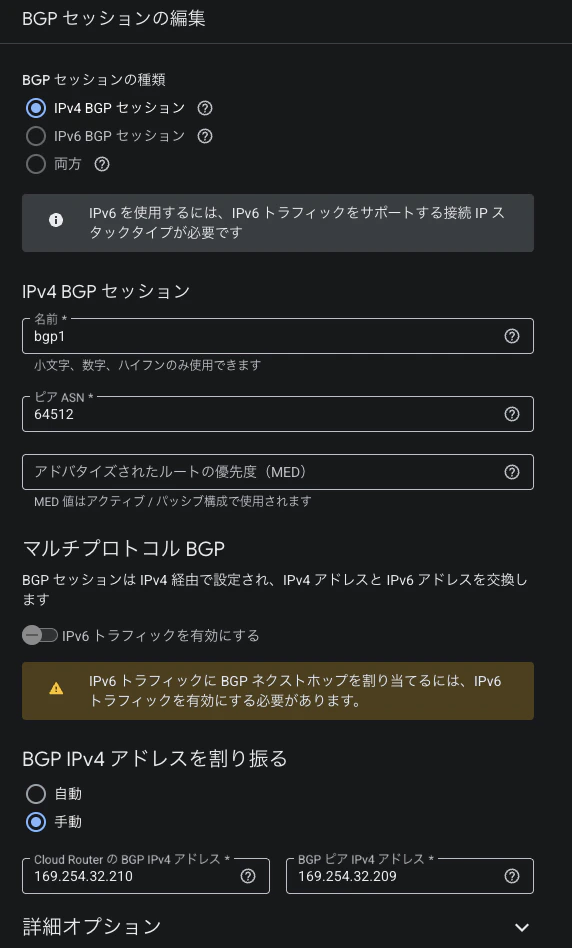
Cloud RouterのBGP IP、ピアBGP IPアドレスの値は以下の手順で確認します。
Cloud RouterのBGP IP、ピアBGP IPアドレス確認方法
3-3-1. 設定対象のVPN接続を選択
AWSコンソール上で[VPC>Site-to-Site VPN 接続]に移動して対象を指定し、[設定をダウンロードする]をクリックします。

3-3-2. 設定ファイルのダウンロード
ベンダーに[Generic]を指定して、設定ファイルをダウンロードします。
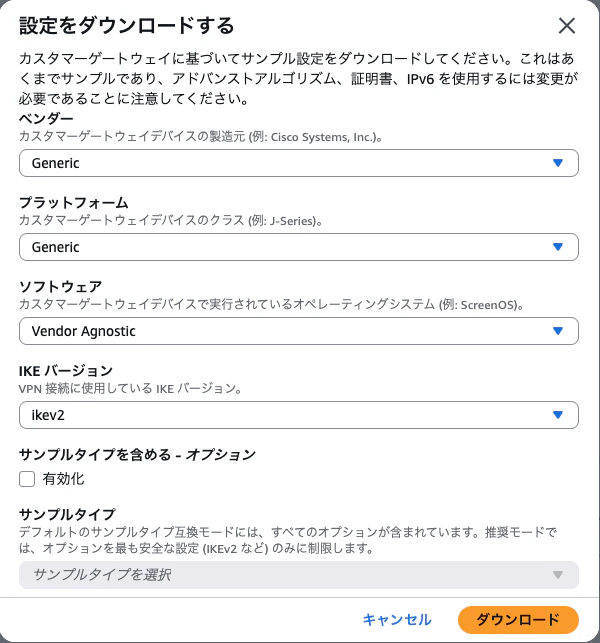
3-3-3. ダウンロードしたファイルを開き、設定するIPアドレスを確認します。
Outside IP Addresses:
  - Customer Gateway 		        : 35.242.57.115
  - Virtual Private Gateway	        : 13.115.194.17

Inside IP Addresses
  - Customer Gateway         		: 169.254.32.210/30 ← Cloud RouterのBGP IPアドレスに設定
  - Virtual Private Gateway         : 169.254.32.209/30 ← ピアBGP IPアドレスに設定
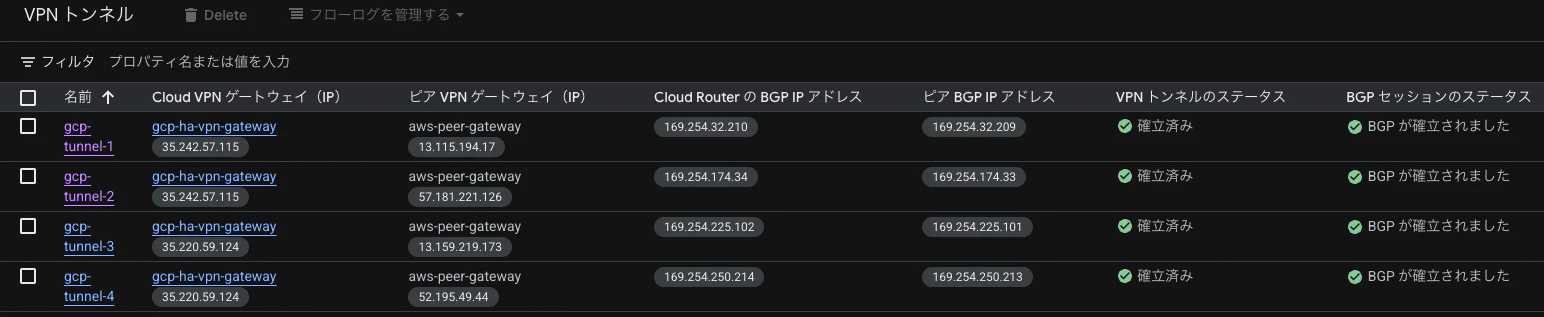
(BGPセッションの設定後)
設定後はBGP設定が確立していることが確認できます。
Step4:ルーティングの設定
4-1. AWS側:ルートテーブルの設定
# AWSのルートテーブルにGCPのCIDRを追加
aws ec2 create-route \
  --route-table-id rtb-00848ed7ced0850d6 \
  --destination-cidr-block 10.0.0.0/16 \
  --gateway-id vgw-05a164d0a6cdc2059 \
  --region ap-northeast-1
4-2. AWS側:ルート伝播を有効化
# BGPによる動的ルーティングを有効化
aws ec2 enable-vgw-route-propagation \
  --route-table-id rtb-00848ed7ced0850d6 \
  --gateway-id vgw-05a164d0a6cdc2059 \
  --region ap-northeast-1
Step5:ファイアウォールの設定
5-1. Google Cloud のファイアウォールルール
# AWSからGCPへの通信を許可
gcloud compute firewall-rules create allow-aws-ingress \
  --network=test-vpc \
  --allow=tcp,udp,icmp \
  --source-ranges=172.16.0.0/16 \
  --description="AWSからのIngress通信を許可"
5-2. AWS のセキュリティグループ
# GCPからAWSへの通信を許可
aws ec2 authorize-security-group-ingress \
  --group-id sg-06fcd35738b22cf90 \
  --protocol -1 \
  --cidr 10.0.0.0/16 \
  --region ap-northeast-1
Step6:接続確認
6-1. VPN トンネルの状態確認
# GCP側のトンネル状態確認
gcloud compute vpn-tunnels list \
  --regions=asia-northeast1

gcloud compute vpn-tunnels describe gcp-tunnel-1 \
  --region=asia-northeast1
# status: ESTABLISHED ← 接続成功
# AWS側のトンネル状態確認
aws ec2 describe-vpn-connections \
  --region ap-northeast-1 \
  --query 'VpnConnections[*].VgwTelemetry[*].Status'
# UP ← 接続成功
6-2. BGP セッションの確認
# GCP側のBGPセッション確認
gcloud compute routers get-status gcp-router \
  --region=asia-northeast1

# BGPセッションが確立されているか確認
# bgpPeerStatus:
#   - name: bgp-peer-tunnel1
#     status: UP  ← 正常
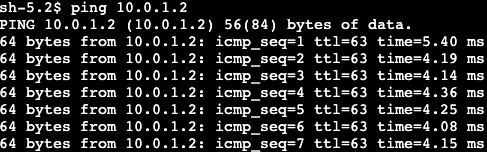
6-3. 疎通確認
GCP上のVM(10.0.1.2)⇨AWS上のVM(172.16.1.201)にpingを実施

AWS上のVM(172.16.1.201)⇨GCPのVM(10.0.1.2)にpingを実施
まとめ
AWSとGoogle Cloudの間をHA-VPNで接続し、インスタンス間の通信がプライベートIPアドレスで実施可能なことが確認できました。